Azure Local | HomeLab – SFF – IOT Operations – Part IV
 Alex ter Neuzen
On this page
The cluster is connected. Now it gets a job.
Part 3 ended with linuxsff-k3s showing up in Azure as connected, with the OIDC issuer, workload identity and custom locations in place. That was the hard part, and it was all preparation. This part deploys Azure IoT Operations on that cluster: the MQTT broker, data flows, the connectors and the services that keep devices and assets in sync with Azure.
The small form factor documentation keeps it short: deploy Azure IoT Operations the same way as on any other Arc-enabled Kubernetes cluster. So I follow the production deployment guide, from the same PowerShell session as part 3.
At the end you have an instance with secure settings, checked with az iot ops check, and a machine with memory to spare. That last part takes one decision you can’t take back.
What you need#
| Component | Requirement |
|---|---|
| Cluster | linuxsff-k3s from part 3, Connected |
| Features | OIDC issuer, workload identity, custom locations |
| Machine | Lab VM from part 1: 4 vCPUs, 16000 MB |
| Azure Roles | Owner, or Contributor plus RBAC Administrator |
| Tooling | 64-bit Azure CLI, kubectl |
RBAC Administrator is short for Role Based Access Control Administrator. The roles need to be active on the resource group from part 3, and the second half of each option matters. Several commands in this post create role assignments: the schema registry gets access to its storage container, the IoT Operations extension gets access to the schema registry, the secrets identity gets access to the Key Vault, and you give yourself access to manage secrets. Contributor alone can’t do that. If your roles come from PIM, activate them before you start.
Microsoft also offers a narrower built-in role for this, Azure IoT Operations Onboarding, together with a handful of supporting roles listed in the deployment overview. Read the warning there before you use it. The role can assign Storage Blob Data Contributor and Azure Device Registry Administrator to any principal in its scope, so Microsoft advises assigning it at the narrowest resource group scope and removing it after the deployment.
On the support side: K3s on a small form factor deployment is in the list of supported environments as preview, validated from K3s 1.33.6 on Azure Local 2604. Also in that overview: billing usage records are collected wherever you install Azure IoT Operations, preview environment or not. A lab instance isn’t automatically a free one.
Step 0: Check the session and the machine#
Part 3 left a few variables and a kubeconfig behind. If you opened a new terminal since then, set $kc, $SUB, $RG, $CL and $LOC again as in part 3. Then make sure everything still points at the right cluster:
$env:KUBECONFIG = $kc

$cols = 'NAME:.metadata.name,CPU:.status.capacity.cpu,' +
        'MEMORY:.status.capacity.memory,VERSION:.status.nodeInfo.kubeletVersion'
kubectl get nodes -o "custom-columns=$cols"

$q = '{status:connectivityStatus, oidc:oidcIssuerProfile.enabled, ' +
     'wi:securityProfile.workloadIdentity.enabled}'
az connectedk8s show --resource-group $RG --name $CL --query $q --output table

az extension add --upgrade --name azure-iot-ops
The kubectl command shows the node with its CPU count, memory and K3s version in one row. The version should be 1.33.6 or newer, and the memory shows in KiB: expect a little over 15 GiB, because the VM has 16000 MB and the kernel keeps some for itself. The az command should show Connected, True and True.
az iot ops init and az iot ops check talk to the cluster through your kubeconfig, not only through Azure, and so does every kubectl command in this post. That’s why $env:KUBECONFIG comes first.
Now look at that memory figure next to Microsoft’s hardware requirements: a minimum of 16 GB of RAM and 4 vCPUs, with 10 GB of that available to Azure IoT Operations. The lab VM sits exactly on the floor. That’s fine for a lab, but it means the broker can’t use its default settings. More on that in step 5.
Step 1: A storage account for the schema registry#
Azure IoT Operations requires a schema registry. It holds the message schemas that data flows use, for example when they write to Microsoft Fabric or a Delta table. The registry is synchronized to the edge, but its cloud copy lives in a blob container that you provide. So before the registry, you need a storage account:
$SA = '<storageaccountname>'   # globally unique, 3-24 lowercase letters and digits

az storage account create --name $SA --resource-group $RG --location $LOC `
    --sku Standard_LRS --kind StorageV2 `
    --enable-hierarchical-namespace true `
    --public-network-access Enabled `
    --allow-blob-public-access false `
    --min-tls-version TLS1_2

$saId = az storage account show --name $SA --resource-group $RG --query id --output tsv
Hierarchical namespace isn’t optional: the production guidelines require it.
The two “public” settings look alike but do different things. –public-network-access Enabled lets the schema registry reach the account over its public endpoint, still with Entra authentication. –allow-blob-public-access false keeps anonymous read access to blobs switched off. You want the first and not the second.
For production, Microsoft recommends going one step further: public network access only from selected networks, with the exception for trusted Microsoft services switched on, so the schema registry still gets in. In the lab I leave the endpoint open, for a practical reason: az iot ops schema create, which uploads a schema from your PC, needs public network access on the account.
One more thing if your subscription sits in a landing zone. A policy that denies public network access on storage accounts stops this command, or flips the setting back later. Check your policy assignments before you blame the schema registry
Step 2: The schema registry#
With the storage account in place, create the registry:
$SR   = 'sr-azlsff-aio-01'
$SRNS = 'srns-azlsff-aio-01'   # unique in your tenant

az iot ops schema registry create --name $SR --resource-group $RG `
    --registry-namespace $SRNS `
    --sa-resource-id $saId

$srId = az iot ops schema registry show --name $SR --resource-group $RG `
    --query id --output tsv
$srId
The command does more than its name suggests. It creates the registry with a system-assigned managed identity, creates the blob container schemas if it doesn’t exist yet, and gives that identity the Storage Blob Data Contributor role on the container. It also registers the Microsoft.DeviceRegistry resource provider if needed, which we already did in part 3.
That role assignment is the first place where missing permissions show up. If this command fails on authorization, check your roles before anything else.
The registry namespace has to be unique within your tenant and may contain only lowercase letters, digits and hyphens, up to 32 characters. The registry ends up in the region of the resource group unless you pass –location.
Step 3: The Device Registry namespace#
The second dependency is an Azure Device Registry namespace. Azure IoT Operations uses it to organize devices and assets: their definitions live in Azure, and the instance on the cluster works with them. Each instance uses exactly one namespace.
$NS = 'adrns-azlsff-aio-01'    # 3-24 characters, unique in your tenant

az iot ops ns create --name $NS --resource-group $RG --location $LOC

$nsId = az iot ops ns show --name $NS --resource-group $RG --query id --output tsv
$nsId
Names can use letters, digits, hyphens and underscores, between 3 and 24 characters.
Before you go on, look at $srId and $nsId. Both should be full resource IDs. It’s the same lesson as the issuer URL in part 3: the next commands take these variables as they are, and an empty value only fails later, with a less helpful message.
Step 4: Prepare the cluster with az iot ops init#
init installs the foundation that Azure IoT Operations builds on:
az iot ops init --cluster $CL --resource-group $RGThat foundation is a set of Arc extensions: cert-manager and trust-manager for certificates inside the cluster, and the Azure Key Vault Secret Store extension that syncs secrets later on. init first runs preflight checks on resource providers and cluster health, then shows its progress for several minutes. You need it only once per cluster.
Once it’s done, nothing on the cluster should be stuck:
kubectl get pods --all-namespaces | Select-String -NotMatch 'Running|Completed'Only the header line should come back. Anything else is a pod that isn’t healthy yet.
One leftover from part 3: K3s inherited the Arc gateway proxy, so containerd pulls its images through it. The images come from mcr.microsoft.com, which is on the Arc gateway endpoint list, so that should work. If a pod sits in ImagePullBackOff anyway, check k3s.service.env on the machine first.
Step 5: Deploy with az iot ops create#
This is the step with the decision.
The MQTT broker has a memory profile and a cardinality: frontend replicas, backend partitions, redundancy factor and workers. Both are fixed at deployment time. If you get them wrong, the fix is a new deployment.
Microsoft measured what each profile needs on a single node at idle and published it as baseline resource profiles:
| Memory profile | Minimum RAM | Recommended RAM |
|---|---|---|
| Tiny | 8 GB | 8 to 10 GB |
| Low | 10 GB | 12 to 16 GB |
| Medium (default) | 12 GB | 16 to 32 GB |
| High | 16 GB | 23 GB or more |
These figures include about 4 GB of fixed overhead for Azure Arc, cert-manager and the other platform components, and they’re measured with no traffic at all. Real workloads need more.
The default is Medium. On a machine with a little over 15 GiB that fits on paper, but it leaves almost nothing for the data flows and connectors that come later in this series. So I choose Low, with the default cardinality. That combination is the one Microsoft measured as its configuration B: two frontends, two partitions, redundancy factor two, with a node peak of about 5 GiB at idle.
$AIO = 'aio-azlsff-01'

az iot ops create --cluster $CL --resource-group $RG --name $AIO `
    --sr-resource-id $srId `
    --ns-resource-id $nsId `
    --broker-mem-profile Low
create deploys the instance, the IoT Operations extension and a custom location on the cluster, and gives the extension’s identity access to the schema registry. Like init, it shows progress in the terminal and takes several minutes.
If your machine has less memory than mine, go down to Tiny and reduce the cardinality with –broker-frontend-replicas 1 –broker-backend-part 1. That’s the smallest configuration Microsoft measured. And if you’d rather see a readable name than the generated location-xxxxx in the portal, add –custom-location with a name of your own.
There’s also –add-insecure-listener. It adds an MQTT listener on port 1883 without authentication or authorization, exposed as a LoadBalancer service, which K3s publishes on the node’s address. Handy for a quick test with an MQTT client from your LAN, and Microsoft is clear that it’s for non-production workloads only. I leave it out.
Step 6: Secure settings#
At this point you have a working instance, but with what Microsoft calls test settings. There are no secrets and no user-assigned managed identities: connectors can’t use credentials from Key Vault, and cloud connections fall back to the system-assigned identity of the extension. That’s enough for the quickstart sample, but the OPC UA asset tutorials, for example, require secure settings.
You can enable secure settings later, but it’s a Key Vault, two identities and three commands. Doing it now saves a return trip.
First the Key Vault, with Azure RBAC as its permission model, and the Key Vault Secrets Officer role for yourself, so you can add secrets later:
$KV = 'kv-azlsff-aio-01'       # globally unique, 3-24 characters

az keyvault create --name $KV --resource-group $RG --location $LOC `
    --enable-rbac-authorization true
$kvId = az keyvault show --name $KV --resource-group $RG --query id --output tsv

$me = az ad signed-in-user show --query id --output tsv
az role assignment create --assignee-object-id $me --assignee-principal-type User `
    --role 'Key Vault Secrets Officer' --scope $kvId
Then two user-assigned managed identities. Microsoft asks for separate ones: one to sync secrets from Key Vault, one for the connections that Azure IoT Operations components make to cloud resources.
$miSecrets = az identity create --name id-azlsff-aio-secrets --resource-group $RG `
    --location $LOC --query id --output tsv
$miCloud   = az identity create --name id-azlsff-aio-cloud --resource-group $RG `
    --location $LOC --query id --output tsv
And then connect them to the instance:
az iot ops secretsync enable --instance $AIO --resource-group $RG `
    --mi-user-assigned $miSecrets --kv-resource-id $kvId

az iot ops identity assign --name $AIO --resource-group $RG `
    --mi-user-assigned $miCloud

kubectl rollout restart statefulset adr-schema-registry -n azure-iot-operations
secretsync enable creates a federated identity credential for the secrets identity, gives it the Key Vault Reader and Key Vault Secrets User roles on the vault, and adds a default secret provider class to the instance. identity assign creates a federated credential for the cloud identity, using the OIDC issuer of the cluster and the Azure IoT Operations service account. By default it’s meant for data flows; if you plan to use data flow graphs, add –usage wasm-graph. The restart of the schema registry pods comes from the deployment guide and makes them pick up the new identity.
This is where part 3 pays off. A federated credential trusts tokens that are issued under the cluster’s OIDC issuer URL. If K3s still issued its service account tokens under its own default issuer, the token exchange would fail, and you’d only find out when the first data flow tries to authenticate.
The cloud identity has no permissions yet. That’s on purpose: you give it a role on the target, such as an Event Hubs namespace or a Fabric workspace, when you build the data flow that needs it.
Step 7: Verify#
Azure IoT Operations has its own health check:
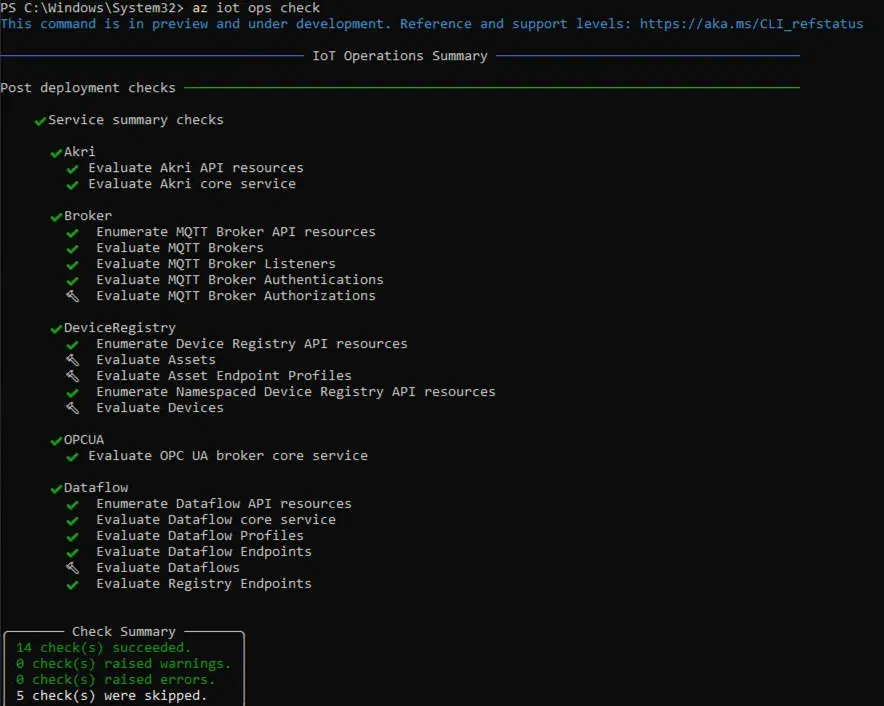
az iot ops check
az iot ops show --name $AIO --resource-group $RG --tree
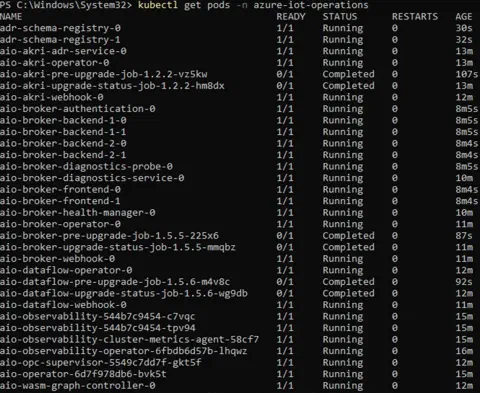
kubectl get pods -n azure-iot-operations
check evaluates the deployment for health, configuration and usability, and reports what’s wrong. It reports the data flow checks as skipped while there are no data flows yet, and that’s expected. For more detail on topic maps, QoS and routes, add –detail-level 2. show –tree draws the deployment against the cluster, and all pods in azure-iot-operations should be Running.
In the portal, the instance shows up under Azure IoT Operations. The Resource summary tab on its overview page shows the provisioning state of everything that was deployed to the cluster.
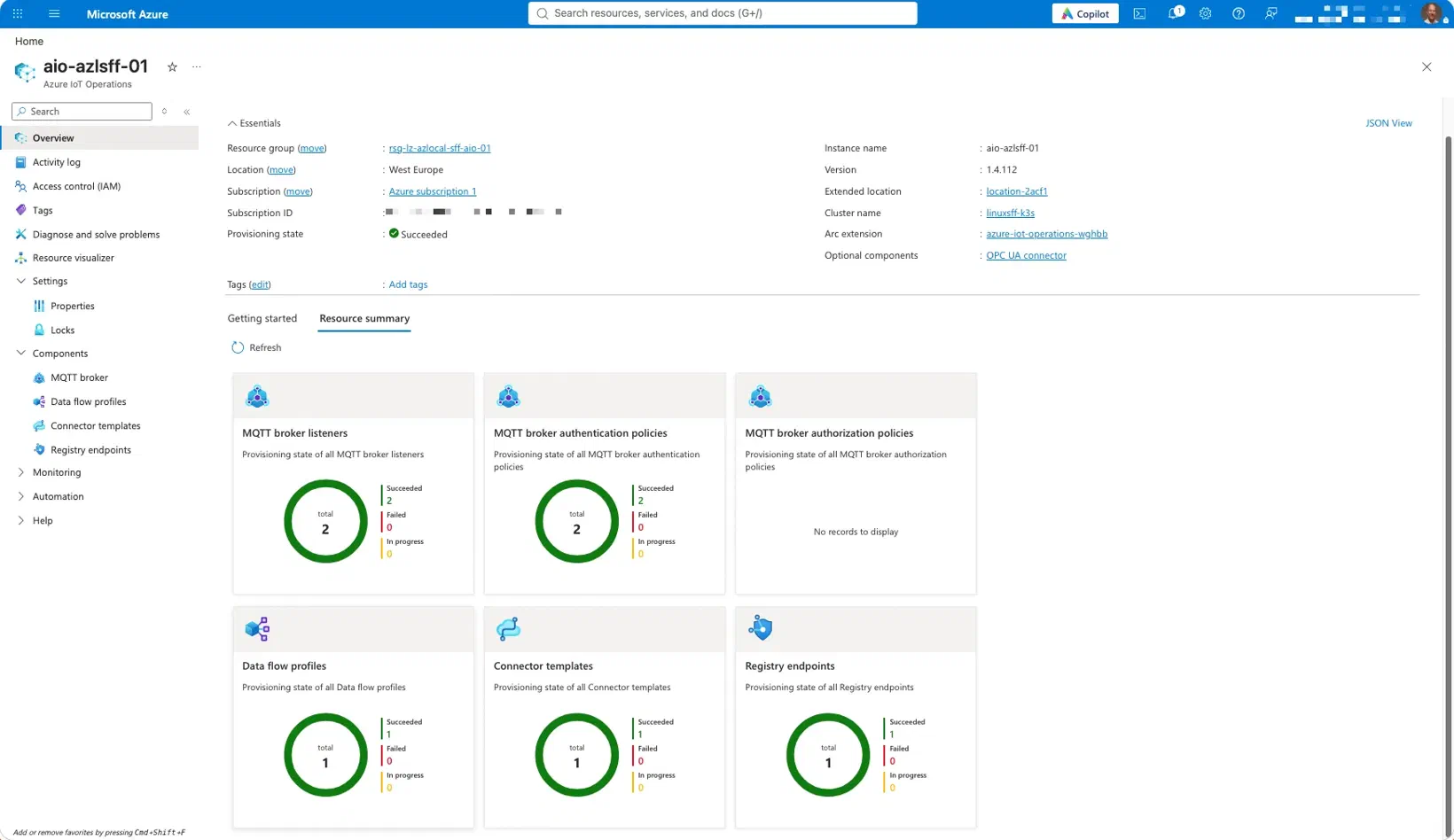
The resource group now holds the connected cluster from part 3, the storage account, the schema registry, the Device Registry namespace, the custom location, the instance, the Key Vault and the two identities:
az resource list --resource-group $RG --output tableWhen it fails#
These are the failures the Microsoft documentation calls out for this stage, and where they come from in this series.
“Your device is required to be managed to access your resource.” Sign in again with az login, interactively in the browser. The deployment guide calls this out explicitly, even when you’re already signed in.
UnauthorizedNamespaceError during the deployment. The full message says the Microsoft.ExtendedLocation resource provider doesn’t have the required permissions to create a namespace on the cluster. Either custom locations isn’t enabled, or it was enabled with an object ID from the wrong tenant. Go back to part 3, step 3, and run the lookup and enable-features again.
Authorization errors in step 2, 5 or 6. Something tried to create a role assignment and you’re not allowed to. Check the roles from the start of this post, and their PIM activation if that’s how you get them.
Pods in ImagePullBackOff. Look at the proxy settings of K3s, as described in step 4 and in part 3.
For anything else, az iot ops support create-bundle collects logs and traces into a zip file you can read yourself or hand to Microsoft Support.
I think#
On small form factor, deploying Azure IoT Operations is the standard procedure for an Arc-enabled cluster, and Microsoft says so. The work that makes it smooth happened in part 3: the issuer, the custom locations and the proxy. What’s left are the resources around the cluster, and one sizing decision that you have to get right the first time.
That decision deserves the attention. A lab VM with 16 GB is exactly Microsoft’s minimum, and the default broker profile assumes more. Choosing Low costs nothing now and saves a redeploy later.
So, can you answer these for your own setup? Which memory profile fits your machine, and how much does it leave for workloads? Why does the schema registry need a storage account with a public endpoint, and how would you narrow that in production? What does az iot ops identity assign depend on from part 3?