Azure Virtual Desktop | Sessionhosts monitoring
On August the 31th , Microsoft is deprecating the Log Analytics Agent which was announced at August 19th of 2021. It was announced in this statement: We’re retiring the Log Analytics agent in Azure Monitor on 31 August 2024 | Azure updates | Microsoft Azure. With the retirement of the Log Analytics Agent you will need to migratie to the Azure Monitor Agent (AMA). This will not be installed by default but can be automated with an Azure Policy.
Using a Data Collection Rule and the Azure Monitor Agent, you will get insights in the health of a virtual machine. Performance metrics and Windows Eventlogs will be collected to the Log Analytics Workspace and the Monitor agent will give a good overview. If a virtual machine is not compliant by having for example the Azure Monitor Agent, the policy will fire a remediation task and will connect the virtual machine to the data collection rule.
Set it up
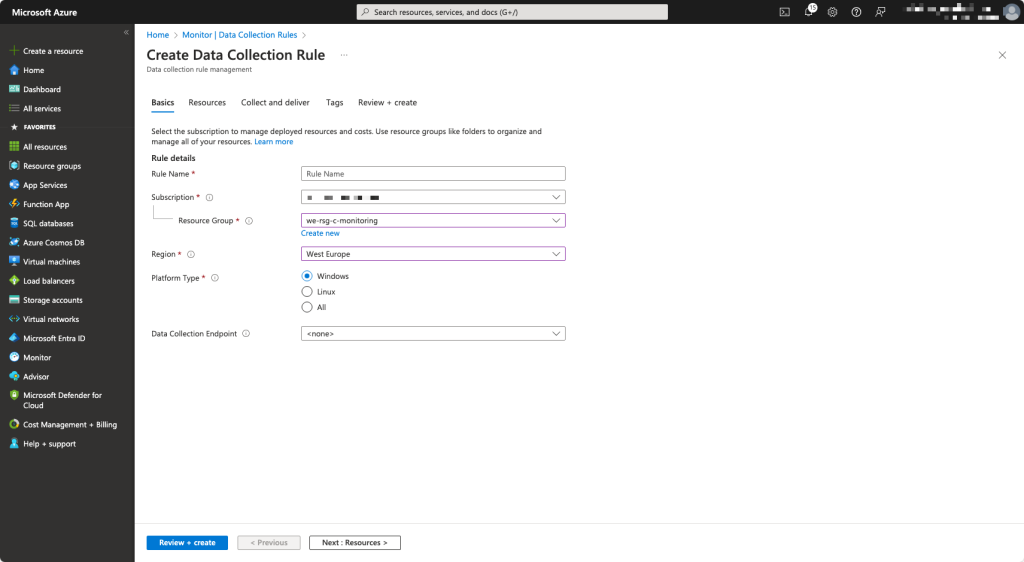
First we will create a Data Collection Rule. Browse to Monitor – Microsoft Azure
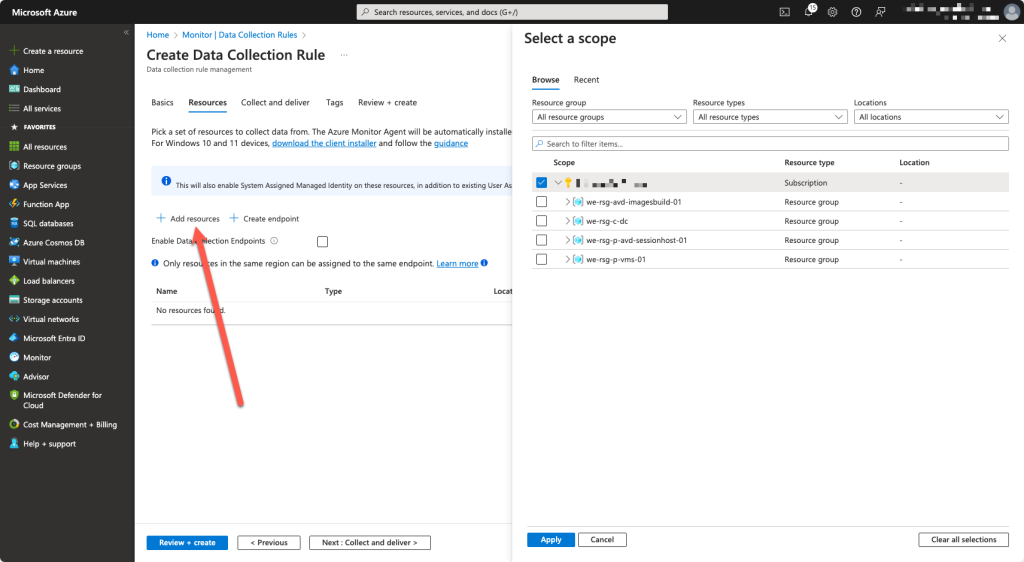
Add a resource. We set it to the subscription level because Microsoft states that a proper Azure Virtual Desktop setup must be located in its own subscription.
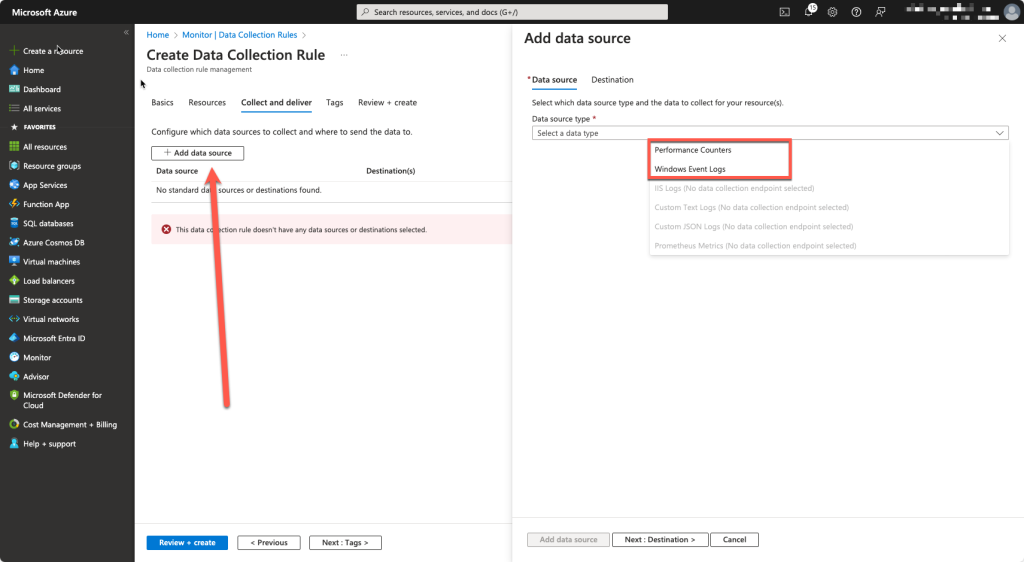
Add a data source
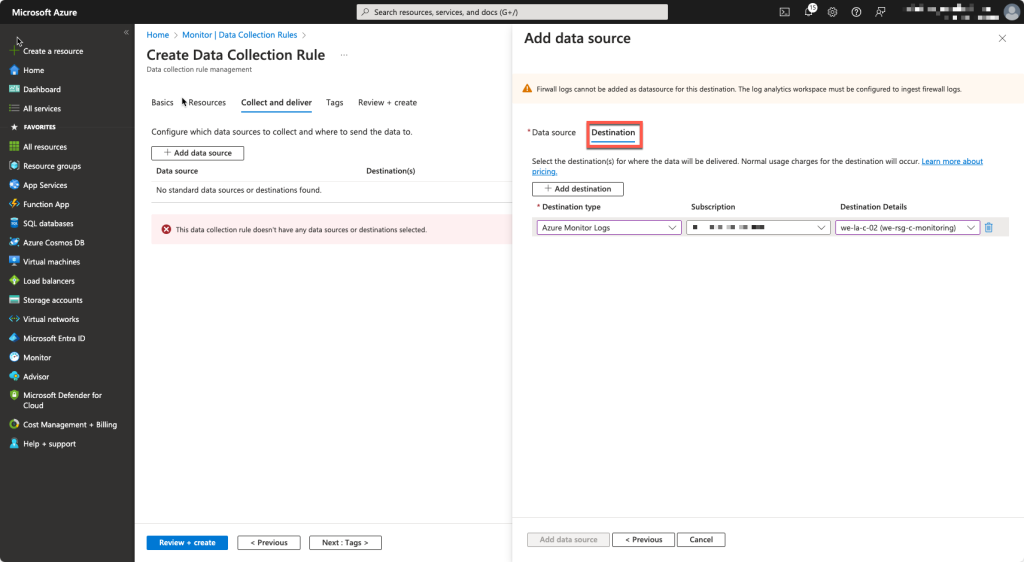
Add a destination
Add Windows Event Logs and Performance Counters
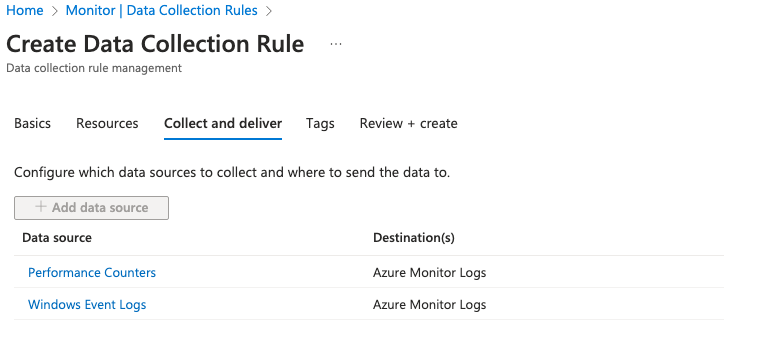
After creating the Data Collection Rule, we need to save the id of it because we need to add that to the azure policy.
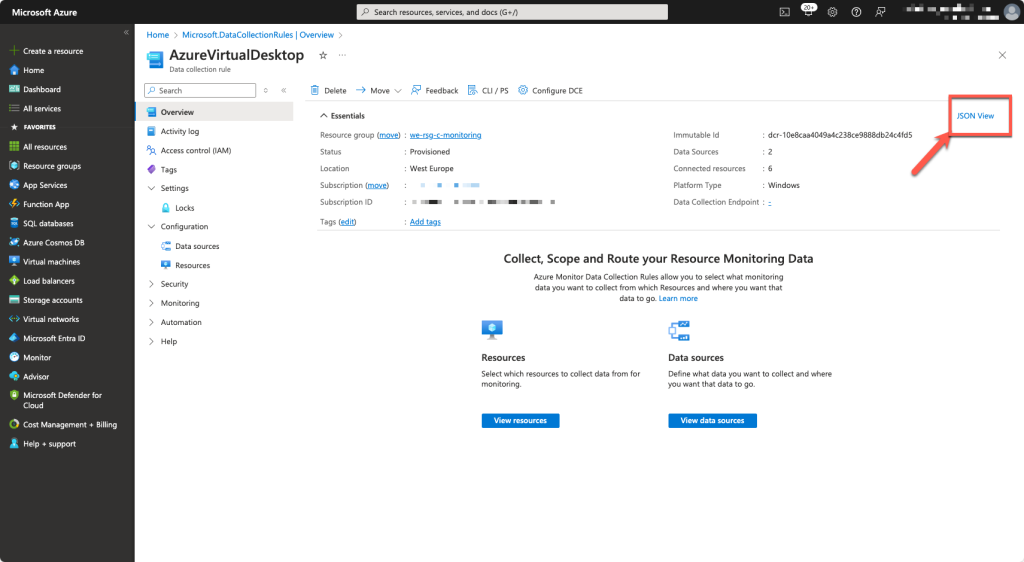
Browsing to the Data Collection Rule, you will find the JSON VIEW button at the Overview page. This will popout the ResourceID which must be copied.
Azure Policy
Browse to the Azure policy Compliance page: Policy – Microsoft Azure
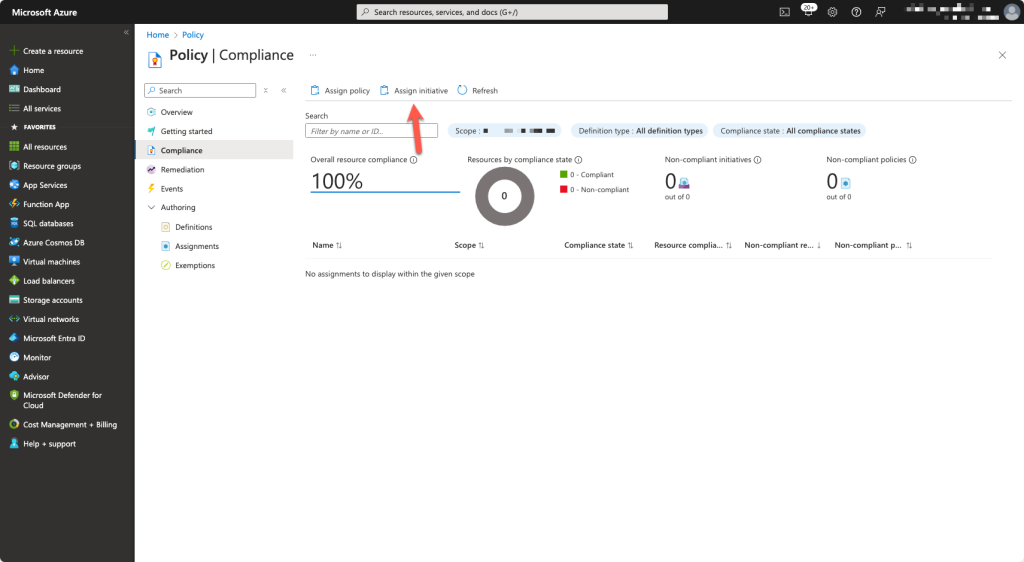
Choose for Assign initiative
There is a initiave called: Configure Windows machines to run Azure Monitor Agent and associate them to a Data Collection Rule

Add resource selector which it a Microsoft.Compute/virtualMachines
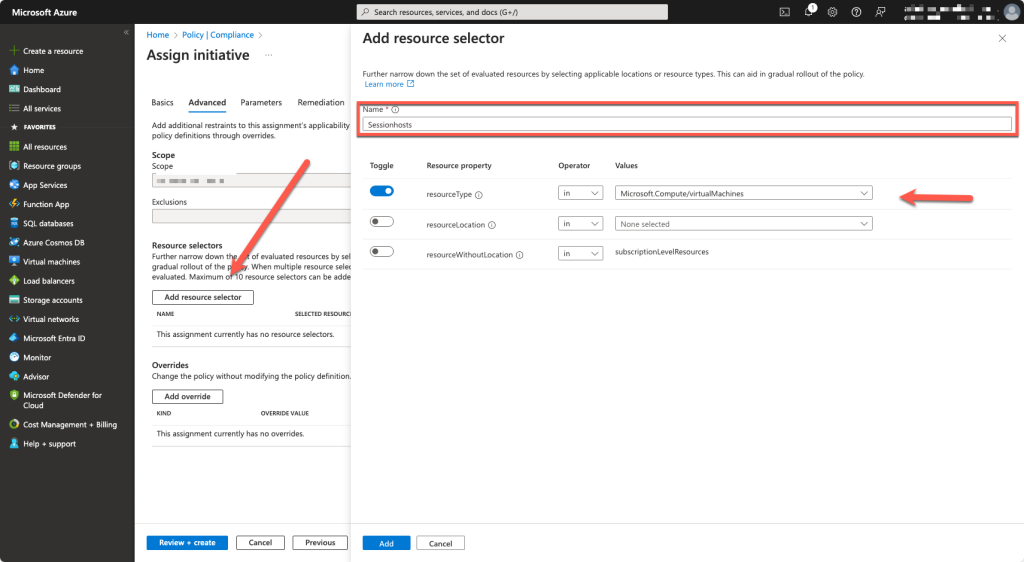
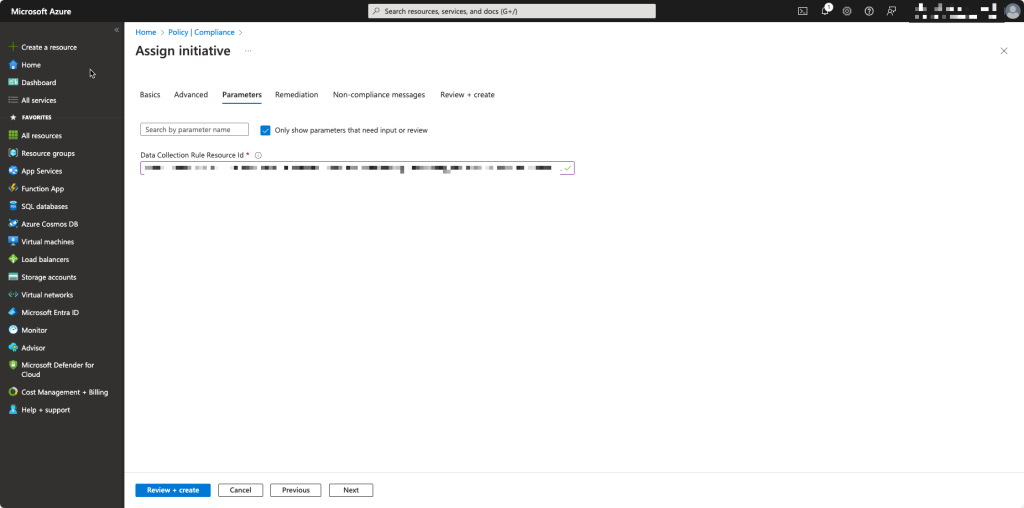
Now we need to fill in the resourceId of the Data Collection Rule
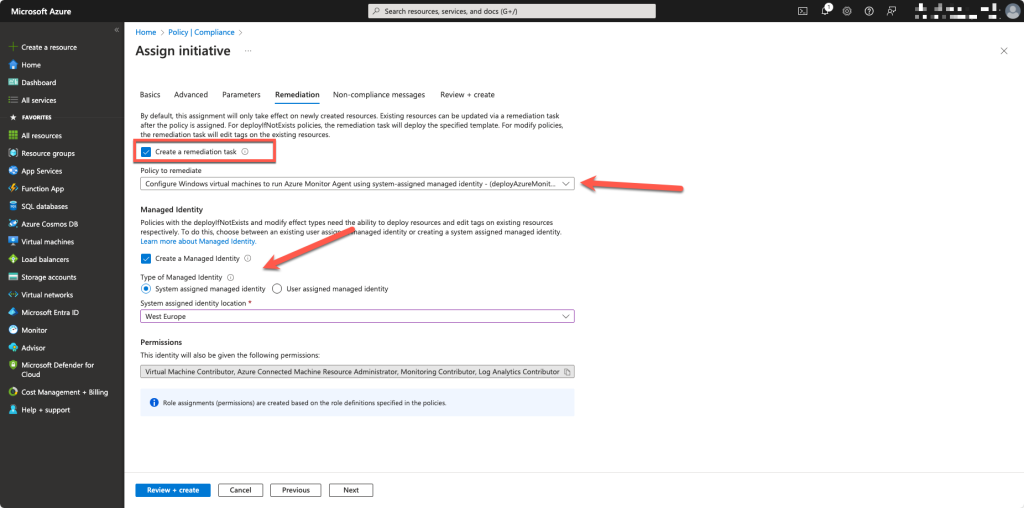
We choose to create a remediation task to use AMA with a system-assigned managed identity and we let the initiave create that identity
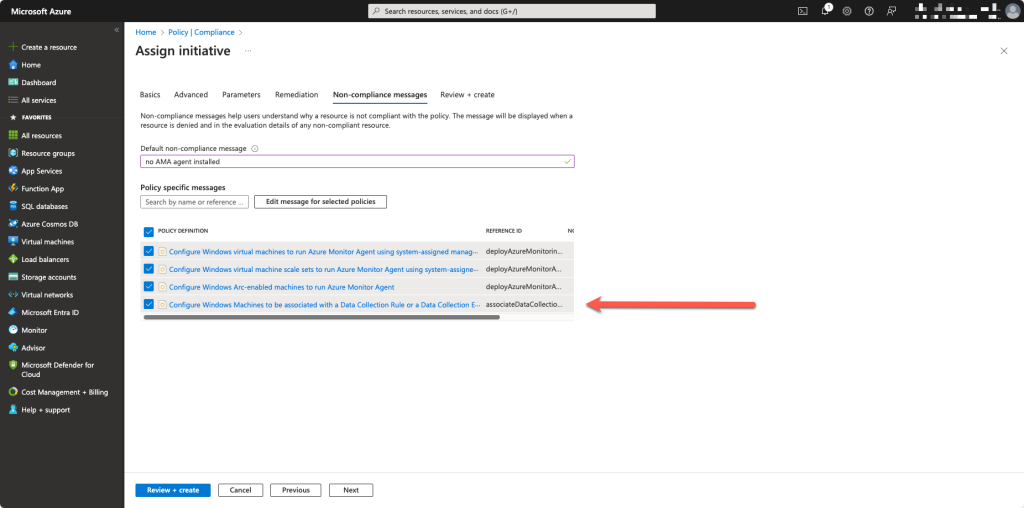
Next we provide a Non-Compliant message and select all the policys
After the creation we wait for a few minutes and it will appear in the dashboard as not started
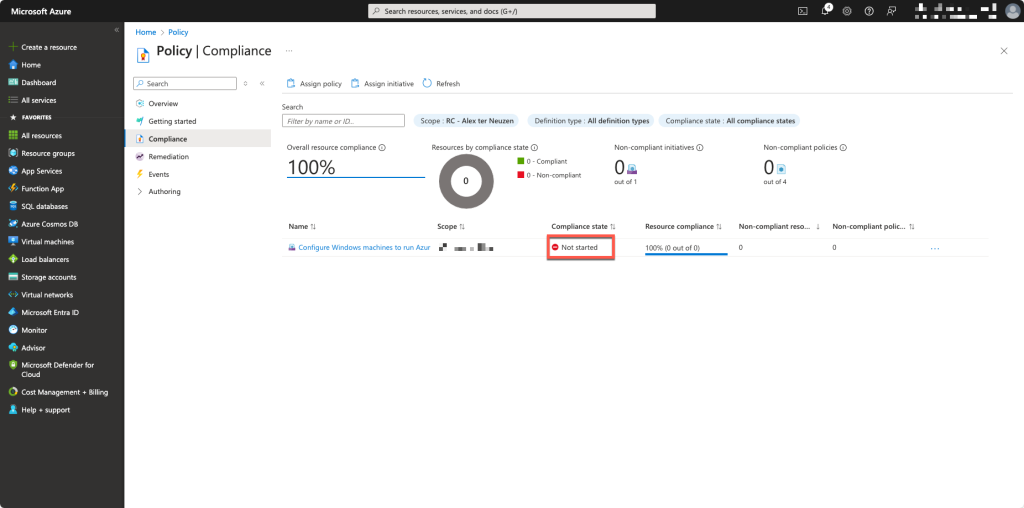
Now we wait until the policy kicks in.
To make sure that every virtual machine gets the AMA, you can create a remediation task which installs the AMA on the virtual machines.
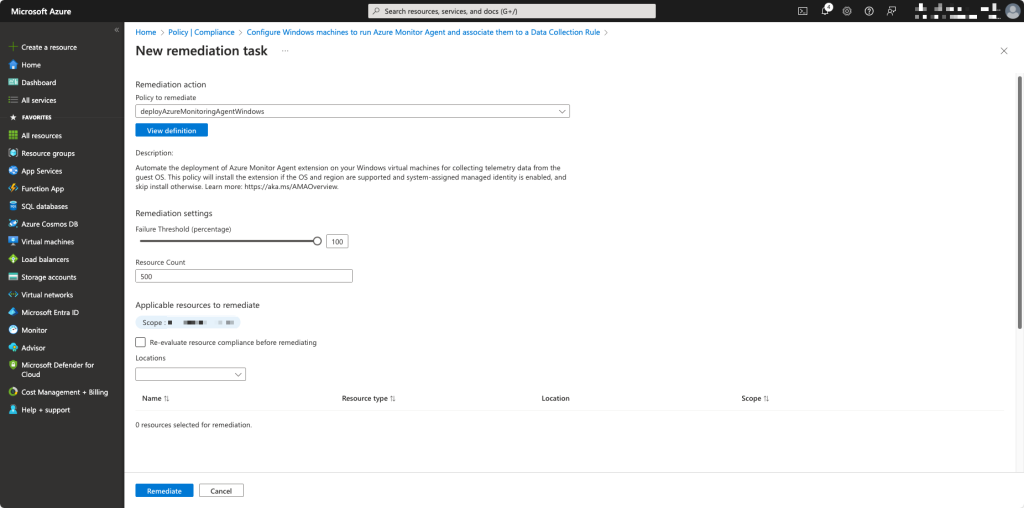
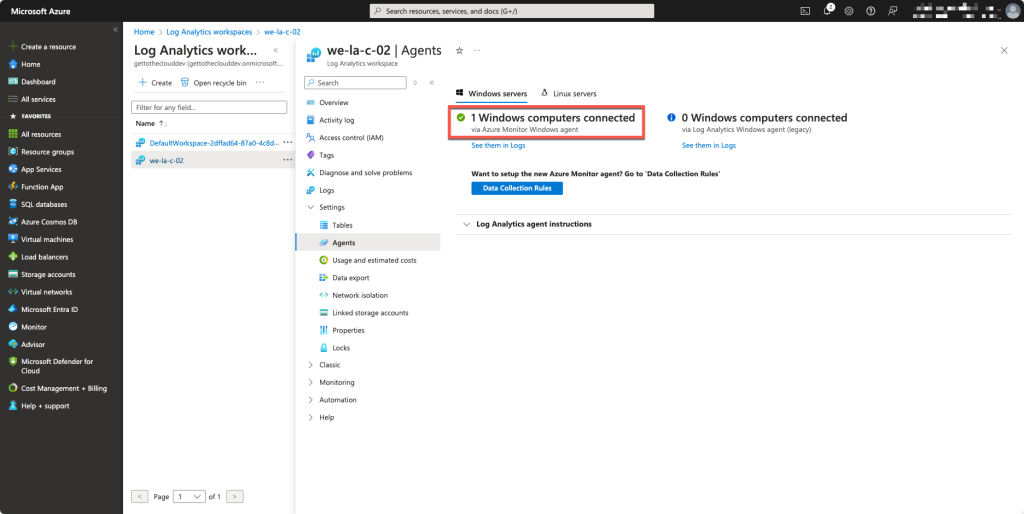
After a while (could take up some time) you can check if everything is oke.