
To move forward after configuring RDP ShortPath, the next essential step in Azure Virtual Desktop (AVD) is setting up the three core components: Host Pool, Workspace, and Application Group. These elements form the backbone of the AVD architecture and enable users to access session hosts through Azure.
Host Pool
A host pool is a collection of session hosts, virtual machines that deliver desktops or applications to users. All session hosts in a host pool share the same configuration, ensuring a consistent experience. Host pools can be pooled (multiple users per VM) or personal (1:1 mapping between user and VM). Load balancing methods like Breadth-first or Depth-first distribute sessions efficiently across hosts.
Workspace
A workspace acts as the landing page for users. It aggregates multiple application groups and presents them in a unified interface. Without a workspace, users would not have a centralized point to access their desktops or apps. Each workspace can include multiple application groups, simplifying resource access and management.
Application Group
Application groups define what resources users can access, either a full desktop or individual applications (RemoteApp). Each host pool can have multiple RemoteApp groups but only one desktop group. Application groups are linked to workspaces and assigned to users or groups for controlled access.
Setup
To create a new Azure Virtual Desktop (AVD) host pool, navigate to the https://portal.azure.com/#view/Microsoft_Azure_WVD/WvdManagerMenuBlade/~/hostpools and select Create.
As part of the environment setup, we have provisioned two resource groups to ensure proper segregation and management of resources:
- azl-we-rsg-avd-kadz-p-01 – Primary resource group for core AVD components.
- azl-we-rsg-avd-kadz-sh-p-01 – Secondary resource group dedicated to session hosts.
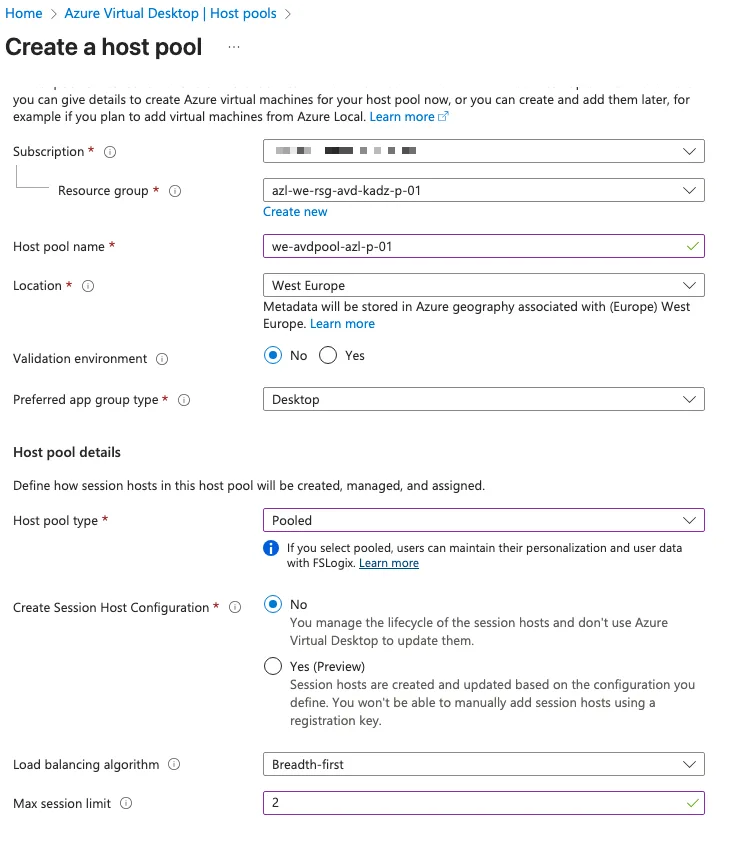
When creating the AVD host pool, select the appropriate resource group for the AVD services. Ensure the naming convention clearly reflects the purpose and environment, such as whether the services are running Online or on Azure Local. For this deployment, I have chosen the Pooled option, which allows multiple user sessions per virtual machine. Alternatively, you can select Personal, where each VM hosts only one session per user. Please note that with Azure Local, the Session Host Configuration feature is not available.
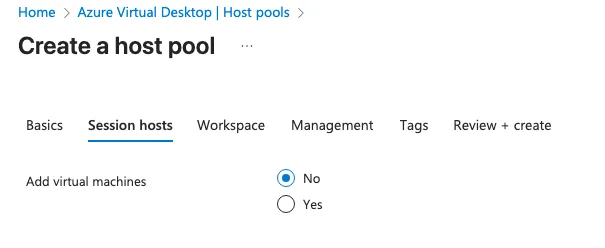
At this stage, we will not add any session hosts to the host pool. This allows us to complete the initial configuration and validate settings before deploying session hosts. Adding session hosts can be done later once the host pool is fully configured and aligned with your requirements.
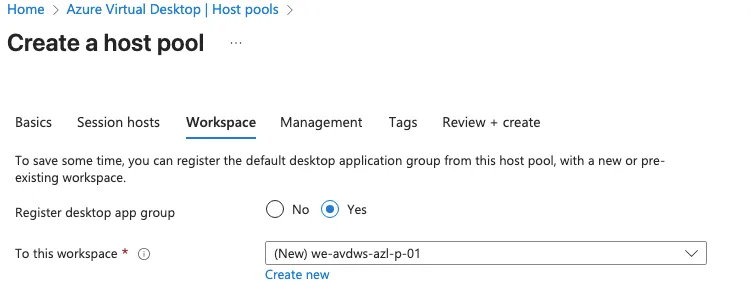
Since a workspace does not currently exist, we need to create one. The workspace should follow the established naming convention and clearly indicate the location of the services to maintain consistency and clarity. This ensures proper alignment with organizational standards and simplifies resource management.
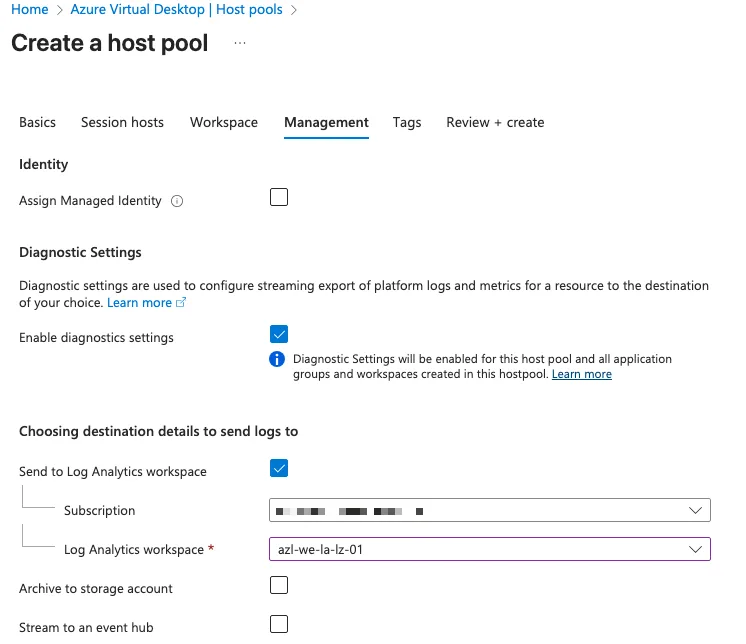
All management and monitoring data should be centralized in Azure Log Analytics. This approach ensures unified visibility, simplifies troubleshooting, and supports advanced analytics across all AVD components. By leveraging a single Log Analytics workspace, we maintain consistency, improve operational efficiency, and enable integration with Azure Monitor for alerts and dashboards.
After completing the creation of the Azure Virtual Desktop (AVD) services, the next steps involve making minor adjustments to the RDP properties to optimize user experience and security settings. Additionally, we will assign users to the Application Group, ensuring they have access to the appropriate resources and applications within the AVD environment.
Modify properties
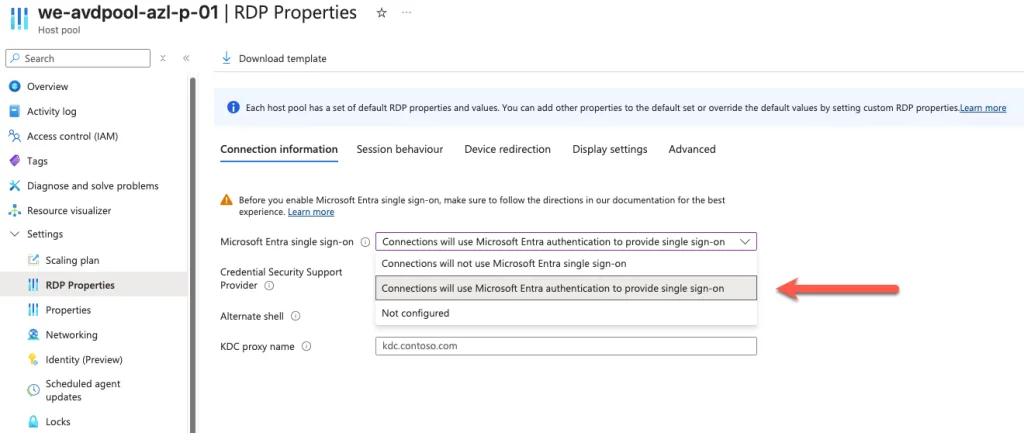
To enable sign-in using Microsoft Entra ID (formerly Azure AD), we need to adjust the Single Sign-On (SSO) settings in the RDP Properties of the host pool. This ensures users can authenticate seamlessly with their Entra accounts, improving security and user experience. Navigate to the host pool settings, open RDP Properties, and enable the Microsoft Entra Single Sign-On option.
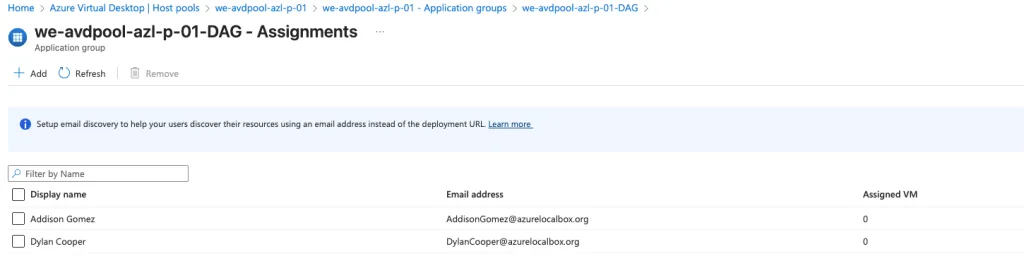
Finally, we assign two hybrid users to the Application Group. This step ensures they have the necessary permissions to access and log in to the Azure Virtual Desktop environment. Assigning users at this stage allows for controlled access and testing before onboarding additional users.