

Azure Local | HomeLab – Azure Virtual Desktop III

Reading Time: 4 minutes

Deploying session hosts through the Azure portal on an Azure Local cluster offers organizations a flexible and secure way to deliver virtual desktops close to their on-premises environment. This approach combines the benefits of Azure Virtual Desktop with the performance and compliance advantages of local infrastructure. In this guide, we’ll walk through the process of deploying session hosts using the porta. Whether you’re optimizing for latency, security, or scalability, this step-by-step overview will help you streamline deployment and ensure a smooth user experience.
Image

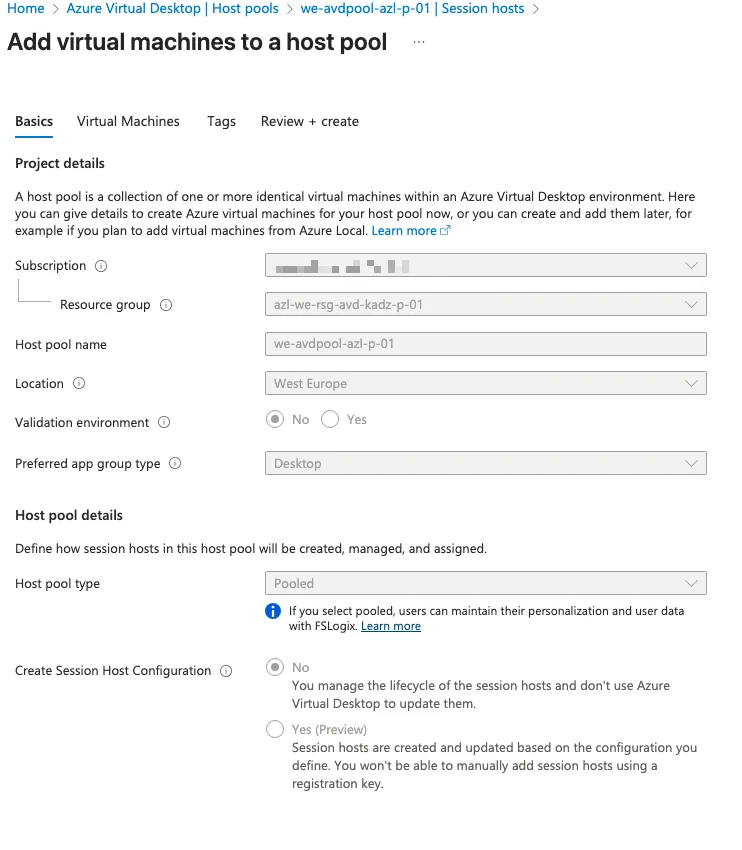
On the Basics page of the deployment process, no changes can be made. All information displayed here is inherited directly from the host pool configuration, including resource group, location, and host pool type. This ensures consistency across the deployment and prevents misalignment with the predefined settings. Any customization or adjustments must be performed in subsequent steps, as the Basics page serves only as a reference for the host pool details.
Image

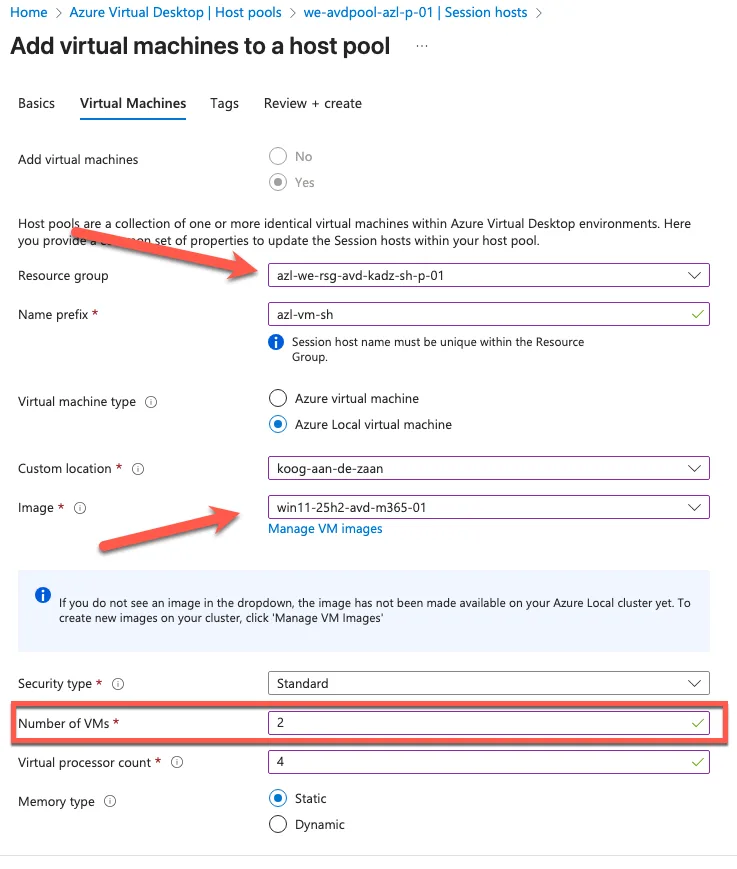
On the Virtual Machines page, select the appropriate resource group where the session hosts will reside. Add a clear name prefix to maintain consistency and choose the Azure Local Custom Location for deployment. We have already published multiple images to the Azure Local cluster, as listed in https://www.gettothe.cloud/azure-local-bicep-marketplace-images/. Select the desired image and specify the number of virtual machines to deploy. Next, define the hardware configuration by providing the required number of virtual processors and selecting the appropriate memory type and size to meet performance requirements. These settings ensure optimal resource allocation for your AVD environment on Azure Local.
Image

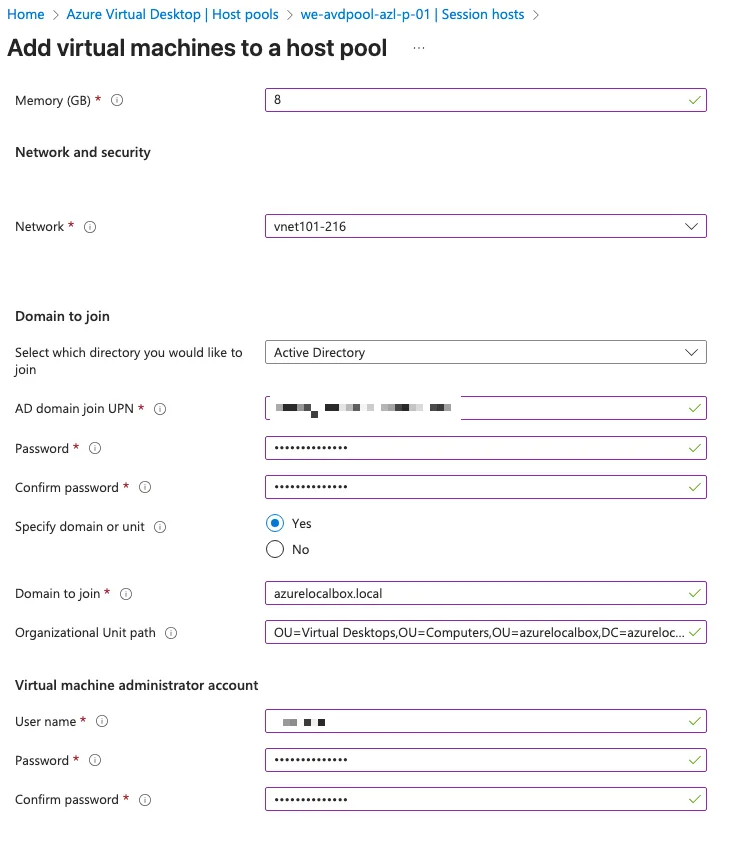
On the Virtual Machines page, select the amount of memory required for your session hosts and choose the correct logical network. In this setup, two logical networks have been created within the same subnet but assigned to different pools for flexibility. Next, provide all necessary Active Directory details, including domain join credentials and configuration. Ensure you select the correct Distinguished Name (DN) of the Organizational Unit (OU) where the RDP ShortPath policy is applied. This guarantees proper policy enforcement and optimized connectivity for your Azure Virtual Desktop environment.
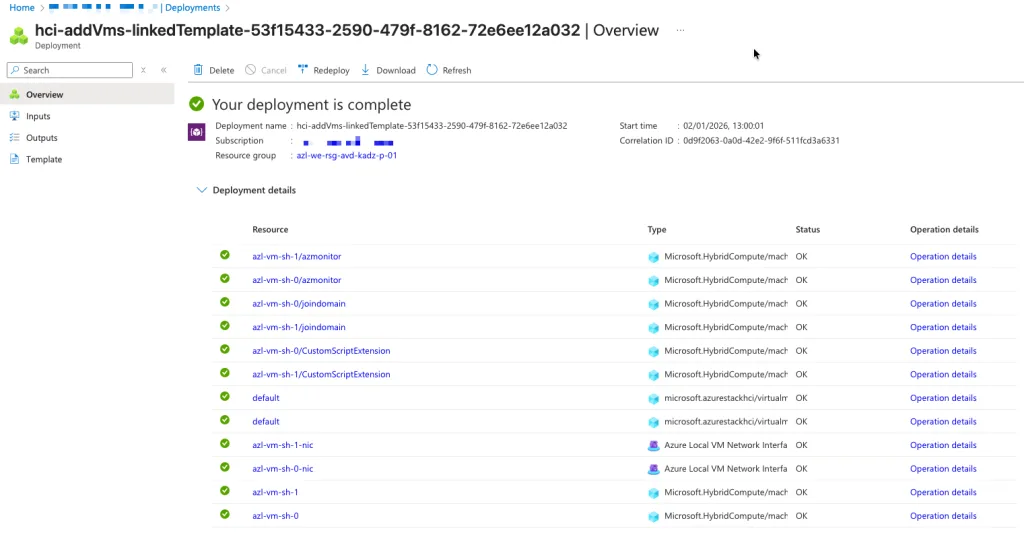
Once the deployment is complete, the status page will display all required components in green, indicating that the process has finished successfully. This includes the virtual machines, networking configuration, Active Directory integration, and any applied policies. Seeing all elements marked green confirms that the session hosts are ready for use and the environment is properly configured.
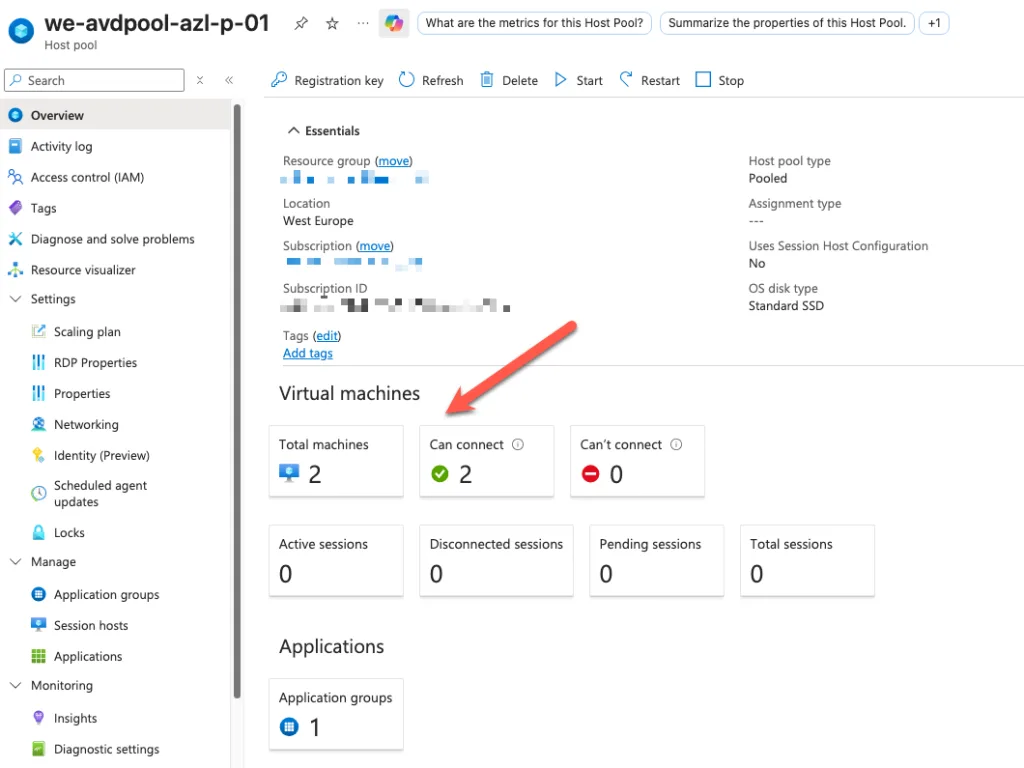

After the deployment is complete, reviewing the host pool shows that two virtual machines are now available for user login. These session hosts are fully configured according to the selected image, resource group, and network settings, and are ready to provide access to the Azure Virtual Desktop environment. This confirms that the deployment process was successful and the environment is operational.

Logging in

To validate the configuration, browse to https://client.wvd.microsoft.com/arm/webclient/index.html and attempt to log in as one of the assigned users. This ensures that the host pool, application group assignments, and Microsoft Entra Single Sign-On settings are functioning correctly. Successful login confirms that the environment is ready for use. If you assign users directly, the SSO will not work correctly. If you run it with security groups, please follow https://www.gettothe.cloud/azure-virtual-desktop-sso-for-entra-joined-avd/ to make sure it is all correct.
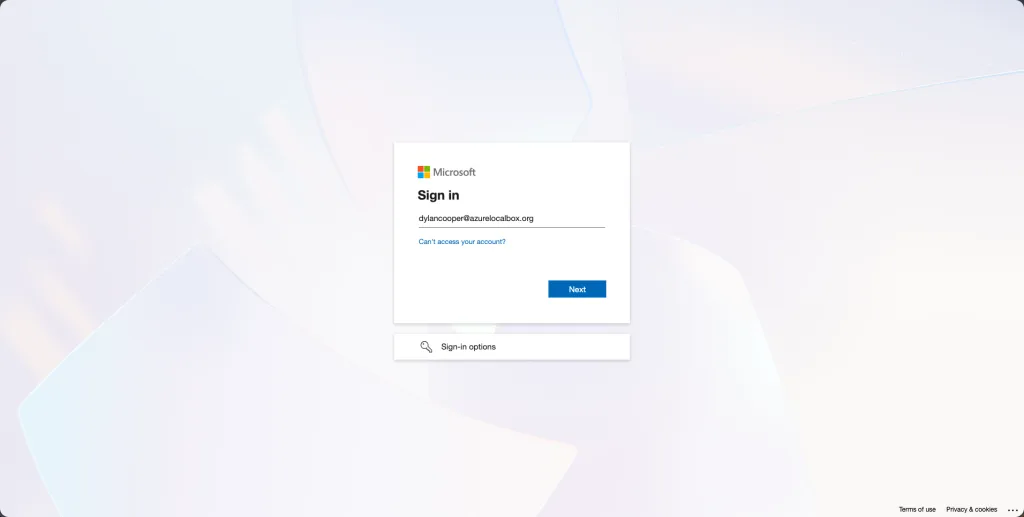
Log in with the Entra ID username (usually in the format user@domain.com) and the corresponding password managed by your identity provider.
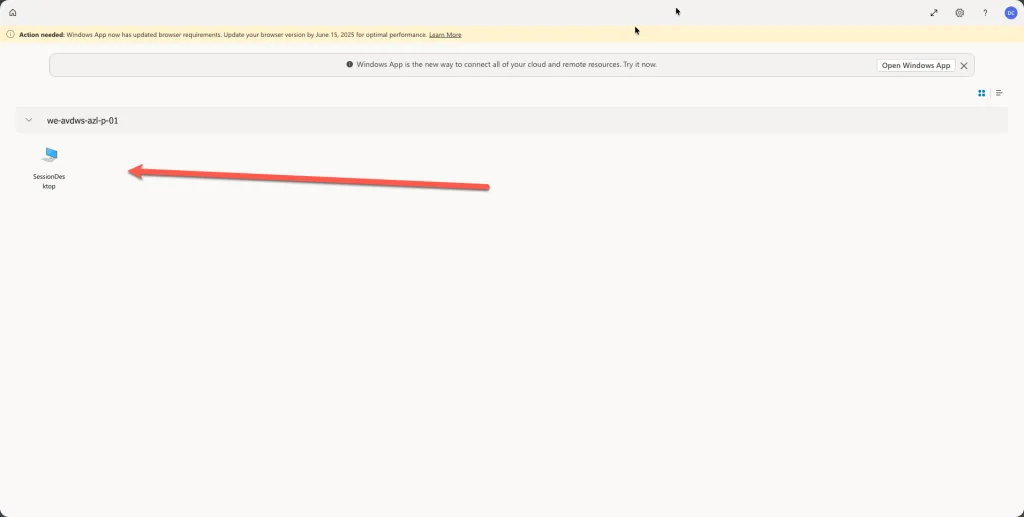
Once authenticated, you will see the available resources assigned to your Application Group. Click on the SessionDesktop icon to launch the virtual desktop session. This confirms that the deployment is successful and the environment is ready for use.
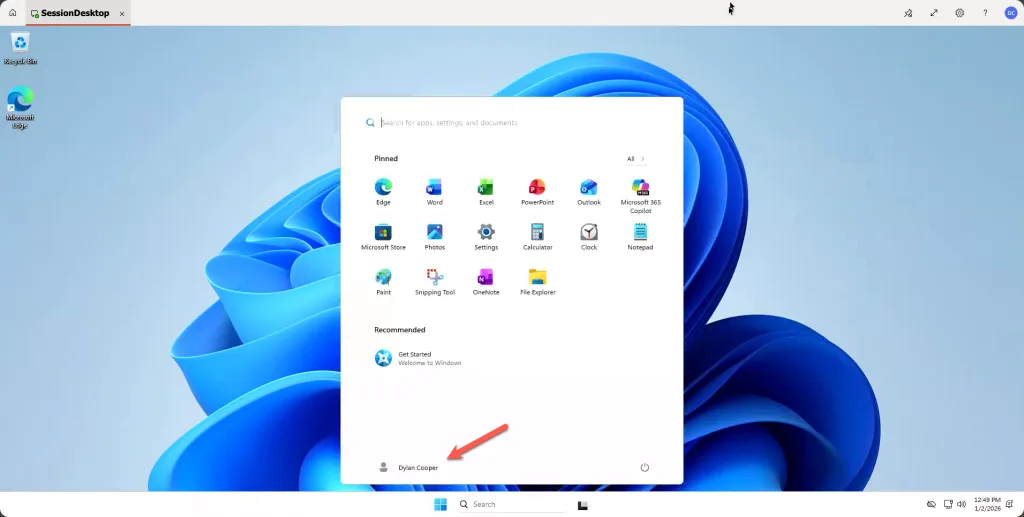
The login was successful, and we are now working within Azure Virtual Desktop running on Azure Local. This confirms that the deployment process, from configuring resource groups and host pools to creating session hosts and enabling Microsoft Entra Single Sign-On, was completed correctly. Users can now access their virtual desktops seamlessly through the web client, ensuring a secure and optimized experience powered by Azure Local infrastructure.


Share and Enjoy !

Shares
Designer (23)

Stay close to the action—follow GetToThe.Cloud across social!
Deep dives and hands‑on how‑tos on Azure Local, hybrid cloud, automation, PowerShell/Bicep, AVD + FSLogix, image pipelines, monitoring, networking, and resilient design when the internet/Azure is down.

🔗 Our channels
▶️ YouTube: https://www.youtube.com/channel/UCa33PgGdXt-Dr4w3Ub9hrdQ
💼 LinkedIn Group: https://www.linkedin.com/groups/9181126/
✖️ X (Twitter): https://x.com/Gettothecloud
🎵 TikTok: https://www.tiktok.com/@gettothecloud
🐙 GitHub: https://github.com/GetToThe-Cloud/Website
💬 Slack: DM us for an invite
📲 WhatsApp: DM for the community link

We use cookies to personalise content and ads, to provide social media features and to analyse our traffic. We also share information about your use of our site with our social media, advertising and analytics partners. View more
Cookies settings
Accept
Privacy & Cookie policy
Privacy & Cookies policy
Cookie name Active

Who we are

Our website address is: https://www.gettothe.cloud

Comments

When visitors leave comments on the site we collect the data shown in the comments form, and also the visitor’s IP address and browser user agent string to help spam detection. An anonymized string created from your email address (also called a hash) may be provided to the Gravatar service to see if you are using it. The Gravatar service privacy policy is available here: https://automattic.com/privacy/. After approval of your comment, your profile picture is visible to the public in the context of your comment.

Media

If you upload images to the website, you should avoid uploading images with embedded location data (EXIF GPS) included. Visitors to the website can download and extract any location data from images on the website.

Cookies

If you leave a comment on our site you may opt-in to saving your name, email address and website in cookies. These are for your convenience so that you do not have to fill in your details again when you leave another comment. These cookies will last for one year. If you visit our login page, we will set a temporary cookie to determine if your browser accepts cookies. This cookie contains no personal data and is discarded when you close your browser. When you log in, we will also set up several cookies to save your login information and your screen display choices. Login cookies last for two days, and screen options cookies last for a year. If you select "Remember Me", your login will persist for two weeks. If you log out of your account, the login cookies will be removed. If you edit or publish an article, an additional cookie will be saved in your browser. This cookie includes no personal data and simply indicates the post ID of the article you just edited. It expires after 1 day.

Embedded content from other websites

Articles on this site may include embedded content (e.g. videos, images, articles, etc.). Embedded content from other websites behaves in the exact same way as if the visitor has visited the other website. These websites may collect data about you, use cookies, embed additional third-party tracking, and monitor your interaction with that embedded content, including tracking your interaction with the embedded content if you have an account and are logged in to that website.

Who we share your data with

If you request a password reset, your IP address will be included in the reset email.

How long we retain your data

If you leave a comment, the comment and its metadata are retained indefinitely. This is so we can recognize and approve any follow-up comments automatically instead of holding them in a moderation queue. For users that register on our website (if any), we also store the personal information they provide in their user profile. All users can see, edit, or delete their personal information at any time (except they cannot change their username). Website administrators can also see and edit that information.

What rights you have over your data

If you have an account on this site, or have left comments, you can request to receive an exported file of the personal data we hold about you, including any data you have provided to us. You can also request that we erase any personal data we hold about you. This does not include any data we are obliged to keep for administrative, legal, or security purposes.

Where we send your data

Visitor comments may be checked through an automated spam detection service.
Save settings
Cookies settings
