
In the previous post: https://www.gettothe.cloud/azure-local-devops-custom-image-part-i/ we have created a pipeline which runs powershell to replicate the image from a Azure Shared Image Gallery to Azure Local.
I assume that the reader already has a basic understanding of Azure DevOps and how pipelines are structured. In my setup, I included all required values, such as image names, gallery IDs, and Azure Local configuration, directly within the pipeline definition to keep everything self‑contained. However, if you are working with multiple images, or if you want to separate configuration from logic, you could just as easily place these values into a Variable Group within Azure DevOps.
A variable group allows you to centralize parameters and reuse them across multiple pipelines or stages. This becomes especially useful when managing several image definitions or environments, ensuring consistency while reducing duplication. Whether the information sits inside the pipeline or in a variable group ultimately depends on your preferred level of flexibility and maintainability.
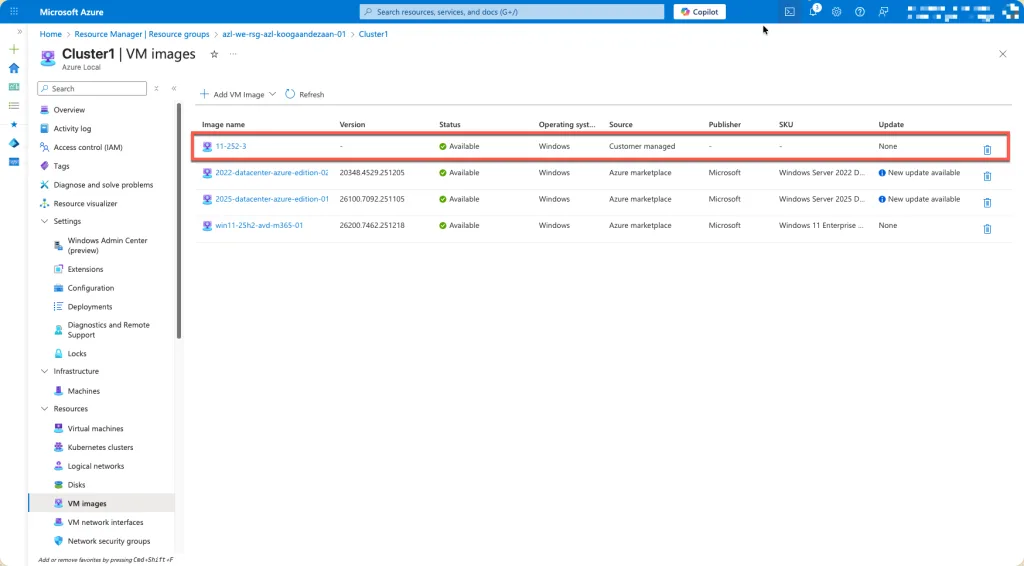
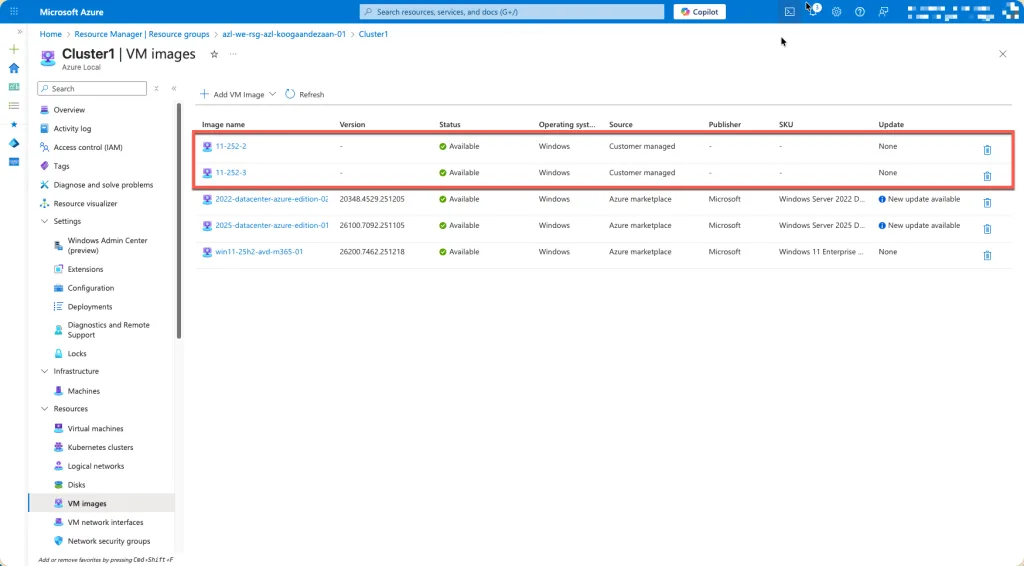
At the beginning of this, I have two images called 11-252-x. I have determined that I always want to keep only one image on my azure local environment because the rest is in a Azure Share Image Gallery.
The Pipeline
Parameters
parameters:
- name: environmentName
  displayName: 'Target Environment'
  type: string
  default: 'Production'
  values:
  - 'Development'
  - 'Test'
  - 'Production'

- name: subscriptionId
  displayName: 'Azure Subscription ID'
  type: string
  default: ''

- name: resourceGroup
  displayName: 'AZL Resource Group'
  type: string
  default: ''

- name: customLocationName
  displayName: 'Custom Location Name'
  type: string
  default: ''

- name: galleryName
  displayName: 'Azure Compute Gallery Name'
  type: string
  default: ''

- name: imageDefinition
  displayName: 'Image Definition Name'
  type: string
  default: ''

- name: imgResourceGroup
  displayName: 'Gallery Resource Group'
  type: string
  default: ''

- name: imagesToKeep
  displayName: 'Number of Images to Keep'
  type: number
  default: 1

- name: dryRun
  displayName: 'Dry Run (Preview Only - No Deletion)'
  type: boolean
  default: false
| Parameter | Type | Description | Default |
|---|---|---|---|
| environmentName | string | Target environment (Development/Test/Production) | Production |
| subscriptionId | string | Azure subscription ID | |
| resourceGroup | string | AZL resource group name | |
| customLocationName | string | Azure Arc custom location name | |
| galleryName | string | Azure Compute Gallery name | |
| imageDefinition | string | Image definition name in the gallery | |
| imgResourceGroup | string | Resource group containing the gallery | |
| imagesToKeep | number | Number of most recent images to retain | 1 |
| dryRun | boolean | Preview mode without actual deletion | false |
Variables
variables:
- name: azureServiceConnection
value: '' # Update with your service connection nameThis variable is essential for establishing the connection to Azure. It provides the authentication context that allows the pipeline to interact with your subscription and deploy the required resources. Without this value, the pipeline would not be able to authenticate against Azure Resource Manager, meaning no deployments, updates, or image transfers could be executed. By defining this variable, either directly in the pipeline or within a variable group, you ensure that the DevOps pipeline can securely access Azure and perform the operations needed to automate your workflow.
Pipeline architecture
The pipeline is structured into four distinct stages, each with a clear purpose to ensure the deployment process remains organized, maintainable, and easy to follow. By breaking the workflow into stages, it becomes easier to manage responsibilities, troubleshoot issues, and extend the pipeline when new requirements arise. This staged approach also makes the automation more transparent, allowing you to see exactly where each task is executed and how the overall process flows from start to finish.
- ValidateEnvironment – Environment validation and prerequisites check
- AnalyzeImages – Discover and analyze images for cleanup
- CleanupImages – Delete old images
- Verification – Verify successful image import

1. ValidateEnvironment
The purpose of this stage is to validate the execution environment and ensure that all required prerequisites are in place before the pipeline proceeds. This includes checking that the necessary Azure DevOps variables are available, verifying the connection to Azure, confirming that required modules or tooling are installed, and ensuring that all configuration values are correctly set. By performing these checks upfront, the pipeline reduces the risk of failures in later stages and guarantees that the automation can run reliably from start to finish.
Steps:
- Check PowerShell Version
- Displays PowerShell environment information
- Validates compatibility with required cmdlets
- Verify and Install Required Modules
- Checks for required modules:
Az.AccountsAz.ComputeAz.ResourcesAz.StackHCIAz.StackHCIVM
- Automatically installs missing modules
- Fails pipeline if installation errors occur
- Checks for required modules:
- Verify Azure Connectivity
- Tests Azure authentication
- Displays subscription, account, and tenant details
- Ensures service principal has necessary permissions
- stage: ValidateEnvironment
  displayName: 'Validate Environment & Modules'
  jobs:
  - job: PreflightChecks
    displayName: 'Preflight Checks'
    pool:
      vmImage: 'windows-latest'

    steps:
    - task: PowerShell@2
      displayName: 'Check PowerShell Version'
      inputs:
        targetType: 'inline'
        script: |
          Write-Host "========================================" -ForegroundColor Cyan
          Write-Host "PowerShell Environment Check" -ForegroundColor Cyan
          Write-Host "========================================" -ForegroundColor Cyan
          Write-Host "PowerShell Version: $($PSVersionTable.PSVersion)"
          Write-Host "OS: $($PSVersionTable.OS)"
          Write-Host "Platform: $($PSVersionTable.Platform)"

    - task: AzurePowerShell@5
      displayName: 'Verify and Install Required Modules'
      inputs:
        azureSubscription: '$(azureServiceConnection)'
        scriptType: 'inlineScript'
        inline: |
          Write-Host "========================================" -ForegroundColor Cyan
          Write-Host "PowerShell Module Verification" -ForegroundColor Cyan
          Write-Host "========================================" -ForegroundColor Cyan

          $requiredModules = @(
            'Az.Accounts',
            'Az.Compute',
            'Az.Resources',
            'Az.StackHCI',
            'Az.StackHCIVM'
          )

          foreach ($moduleName in $requiredModules) {
            Write-Host "`nChecking module: $moduleName" -ForegroundColor Yellow
            $module = Get-Module -ListAvailable -Name $moduleName | Select-Object -First 1

            if ($module) {
              Write-Host "  ✓ Found $moduleName version $($module.Version)" -ForegroundColor Green
            } else {
              Write-Host "  ⚠ Module $moduleName not found. Installing..." -ForegroundColor Yellow
              try {
                Install-Module -Name $moduleName -Force -AllowClobber -Scope CurrentUser -ErrorAction Stop
                Write-Host "  ✓ Successfully installed $moduleName" -ForegroundColor Green
              }
              catch {
                Write-Host "  ✗ Failed to install $moduleName : $($_.Exception.Message)" -ForegroundColor Red
                exit 1
              }
            }
          }

          Write-Host "`n========================================" -ForegroundColor Green
          Write-Host "All required modules verified" -ForegroundColor Green
          Write-Host "========================================" -ForegroundColor Green
        azurePowerShellVersion: 'LatestVersion'

    - task: AzurePowerShell@5
      displayName: 'Verify Azure Connectivity'
      inputs:
        azureSubscription: '$(azureServiceConnection)'
        scriptType: 'inlineScript'
        inline: |
          Write-Host "Verifying Azure connectivity..." -ForegroundColor Cyan

          $context = Get-AzContext
          Write-Host "Connected to Azure" -ForegroundColor Green
          Write-Host "  Subscription: $($context.Subscription.Name)" -ForegroundColor White
          Write-Host "  Account: $($context.Account.Id)" -ForegroundColor White
          Write-Host "  Tenant: $($context.Tenant.Id)" -ForegroundColor White
azurePowerShellVersion: 'LatestVersion'2. AnalyzeImages
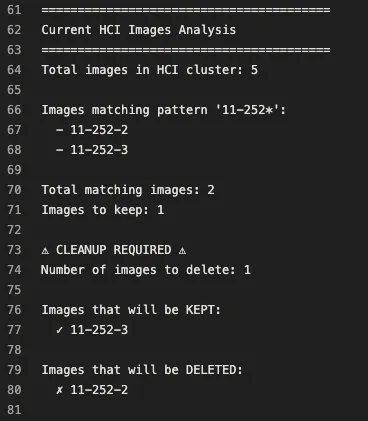
This stage analyzes the existing images within the Azure Local environment and evaluates them against the defined retention policy. It identifies which images should be kept, typically the most recent or currently deployed versions, and which older or obsolete images are eligible for removal. By applying this retention logic, the pipeline prevents unnecessary growth of stored images, optimizes storage usage, and keeps the environment clean and manageable. This automated housekeeping step ensures that only relevant and compliant images remain available, eliminating the risk of accumulating outdated versions over time. As a result, your Azure Local environment stays efficient, organized, and aligned with your operational lifecycle and governance practices.
Steps:
- Checkout Repository
- Ensures access to pipeline configuration
- Set Azure Subscription ContextSet-AzContext -SubscriptionId “${{ parameters.subscriptionId }}”
- Sets the target subscription for all operations
- Resolve Custom Location (Output:
customLocationID)- Retrieves Azure Arc custom location resource ID
- Validates the custom location exists
- Required for AZL image operations
- Get Latest Gallery Image Version (Output:
imageVersion,imagePattern)- Queries Azure Compute Gallery for the latest image version
- Filters out images marked as
ExcludeFromLatest - Creates a pattern for matching related images
Image version: 1.0.20250115 Pattern: 1-0* - List Current AZL Images (Output:
imagesToDelete,deleteCount,cleanupRequired)- Retrieves all images from AZL cluster
- Filters images matching the version pattern
- Determines which images exceed retention limit
- Calculates images to delete and images to keep
- stage: AnalyzeImages
  displayName: 'Analyze Images'
  dependsOn: ValidateEnvironment
  jobs:
  - job: ImageAnalysis
    displayName: 'Analyze Current Images'
    pool:
      vmImage: 'windows-latest'

    steps:
    - checkout: self
      displayName: 'Checkout Repository'

    - task: AzurePowerShell@5
      displayName: 'Set Azure Subscription Context'
      inputs:
        azureSubscription: '$(azureServiceConnection)'
        scriptType: 'inlineScript'
        inline: |
          Write-Host "Setting Azure subscription context..." -ForegroundColor Cyan
          Write-Host "Subscription ID: ${{ parameters.subscriptionId }}" -ForegroundColor Yellow

          Set-AzContext -SubscriptionId "${{ parameters.subscriptionId }}"

          $context = Get-AzContext
          Write-Host "Subscription context set successfully" -ForegroundColor Green
          Write-Host "  Name: $($context.Subscription.Name)" -ForegroundColor White
        azurePowerShellVersion: 'LatestVersion'

    - task: AzurePowerShell@5
      displayName: 'Resolve Custom Location'
      name: ResolveCustomLocation
      inputs:
        azureSubscription: '$(azureServiceConnection)'
        scriptType: 'inlineScript'
        inline: |
          Write-Host "Resolving Custom Location resource ID..." -ForegroundColor Cyan
          Write-Host "Resource Group: ${{ parameters.resourceGroup }}" -ForegroundColor Yellow
          Write-Host "Custom Location: ${{ parameters.customLocationName }}" -ForegroundColor Yellow

          try {
            $customLocation = Get-AzResource `
              -ResourceGroupName "${{ parameters.resourceGroup }}" `
              -ResourceType "Microsoft.ExtendedLocation/customLocations" `
              -Name "${{ parameters.customLocationName }}" `
              -ErrorAction Stop

            $customLocationID = $customLocation.ResourceId

            if ([string]::IsNullOrEmpty($customLocationID)) {
              throw "Custom Location ID is null or empty"
            }

            Write-Host "Custom Location ID resolved: $customLocationID" -ForegroundColor Green
            Write-Host "##vso[task.setvariable variable=customLocationID;isOutput=true]$customLocationID"
          }
          catch {
            Write-Host "##vso[task.logissue type=error]Failed to resolve Custom Location: $($_.Exception.Message)"
            exit 1
          }
        azurePowerShellVersion: 'LatestVersion'

    - task: AzurePowerShell@5
      displayName: 'Get Latest Gallery Image Version'
      name: GetImageVersion
      inputs:
        azureSubscription: '$(azureServiceConnection)'
        scriptType: 'inlineScript'
        inline: |
          Write-Host "========================================" -ForegroundColor Cyan
          Write-Host "Image Version Discovery" -ForegroundColor Cyan
          Write-Host "========================================" -ForegroundColor Cyan
          Write-Host "Gallery: ${{ parameters.galleryName }}" -ForegroundColor Yellow
          Write-Host "Definition: ${{ parameters.imageDefinition }}" -ForegroundColor Yellow
          Write-Host "Resource Group: ${{ parameters.imgResourceGroup }}" -ForegroundColor Yellow

          try {
            $sourceImgVer = Get-AzGalleryImageVersion `
              -GalleryImageDefinitionName "${{ parameters.imageDefinition }}" `
              -GalleryName "${{ parameters.galleryName }}" `
              -ResourceGroupName "${{ parameters.imgResourceGroup }}" `
              -ErrorAction Stop |
              Where-Object { $_.PublishingProfile.ExcludeFromLatest -eq $false } |
              Select-Object -Last 1

            if ($null -eq $sourceImgVer) {
              throw "No valid image version found in the gallery"
            }

            $imageVersion = $sourceImgVer.Name
            $imagePattern = $sourceImgVer.Name.Replace(".", "-").split("-")[0..1] -join "-"

            Write-Host "`nFound latest image version:" -ForegroundColor Green
            Write-Host "  Version: $imageVersion" -ForegroundColor White
            Write-Host "  Pattern: $imagePattern*" -ForegroundColor White

            Write-Host "##vso[task.setvariable variable=imageVersion;isOutput=true]$imageVersion"
            Write-Host "##vso[task.setvariable variable=imagePattern;isOutput=true]$imagePattern"
          }
          catch {
            Write-Host "##vso[task.logissue type=error]Failed to retrieve image version: $($_.Exception.Message)"
            exit 1
          }
        azurePowerShellVersion: 'LatestVersion'

    - task: AzurePowerShell@5
      displayName: 'List Current AZL Images'
      name: ListImages
      inputs:
        azureSubscription: '$(azureServiceConnection)'
        scriptType: 'inlineScript'
        inline: |
          Write-Host "========================================" -ForegroundColor Cyan
          Write-Host "Current AZL Images Analysis" -ForegroundColor Cyan
          Write-Host "========================================" -ForegroundColor Cyan

          $imagePattern = "$(GetImageVersion.imagePattern)"

          try {
            $allImages = Get-AzStackHciVMimage -ResourceGroupName "${{ parameters.resourceGroup }}" -ErrorAction Stop
            $existingHCIImages = $allImages.Name

            Write-Host "Total images in AZL cluster: $($existingHCIImages.Count)" -ForegroundColor White

            # Filter images matching the pattern
            $customImages = $existingHCIImages | Where-Object { $_ -like "$imagePattern*" }

            if ($customImages) {
              Write-Host "`nImages matching pattern '$imagePattern*':" -ForegroundColor Cyan
              $customImages | ForEach-Object { Write-Host "  - $_" -ForegroundColor White }
              Write-Host "`nTotal matching images: $($customImages.Count)" -ForegroundColor Yellow
              Write-Host "Images to keep: ${{ parameters.imagesToKeep }}" -ForegroundColor Yellow

              if ($customImages.Count -gt ${{ parameters.imagesToKeep }}) {
                $deleteCount = $customImages.Count - ${{ parameters.imagesToKeep }}
                $imagesToKeep = $customImages | Select-Object -Last ${{ parameters.imagesToKeep }}
                $imagesToDelete = $customImages | Select-Object -First $deleteCount

                Write-Host "`n⚠ CLEANUP REQUIRED ⚠" -ForegroundColor Yellow
                Write-Host "Number of images to delete: $deleteCount" -ForegroundColor Red

                Write-Host "`nImages that will be KEPT:" -ForegroundColor Green
                $imagesToKeep | ForEach-Object { Write-Host "  ✓ $_" -ForegroundColor Green }

                Write-Host "`nImages that will be DELETED:" -ForegroundColor Red
                $imagesToDelete | ForEach-Object { Write-Host "  ✗ $_" -ForegroundColor Red }

                $deleteList = $imagesToDelete -join ','
                Write-Host "##vso[task.setvariable variable=imagesToDelete;isOutput=true]$deleteList"
                Write-Host "##vso[task.setvariable variable=deleteCount;isOutput=true]$deleteCount"
                Write-Host "##vso[task.setvariable variable=cleanupRequired;isOutput=true]true"
              } else {
                Write-Host "`n✓ No cleanup required" -ForegroundColor Green
                Write-Host "Image count ($($customImages.Count)) is within retention limit (${{ parameters.imagesToKeep }})" -ForegroundColor Green
                Write-Host "##vso[task.setvariable variable=cleanupRequired;isOutput=true]false"
              }
            } else {
              Write-Host "`nNo images found matching pattern '$imagePattern*'" -ForegroundColor Yellow
              Write-Host "##vso[task.setvariable variable=cleanupRequired;isOutput=true]false"
            }
          }
          catch {
            Write-Host "##vso[task.logissue type=error]Failed to list AZL images: $($_.Exception.Message)"
            exit 1
          }
azurePowerShellVersion: 'LatestVersion'3. CleanUpImages
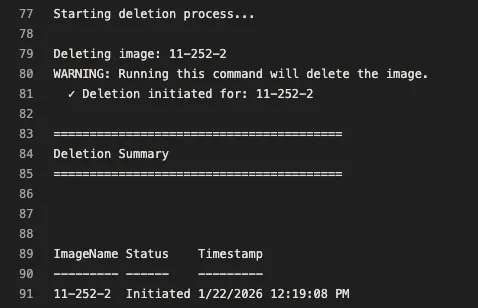
This stage is responsible for deleting outdated images that exceed the defined retention policy. After the previous step identifies which versions are no longer required, this cleanup stage safely removes those older images from the Azure Local environment. By automatically enforcing the retention rules, the pipeline prevents unnecessary storage consumption, reduces operational clutter, and ensures that only relevant, compliant, and actively maintained image versions remain available. This structured removal process helps maintain a clean and efficient environment while minimizing the risk of confusion or accidental use of deprecated image versions. Ultimately, this step ensures long‑term sustainability and alignment with organizational lifecycle and governance standards.
Steps:
- Delete Old AZL Images
- Condition: Only if
dryRunisfalse - Iterates through each image to delete
- Uses
Remove-AzStackHciVMimagecmdlet - Executes with
-NoWaitfor asynchronous deletion - Tracks success/failure for each image
- Condition: Only if
- stage: CleanupImages
  displayName: 'Cleanup Old Images'
  dependsOn: AnalyzeImages
  condition: and(succeeded(), eq(dependencies.AnalyzeImages.outputs['ImageAnalysis.ListImages.cleanupRequired'], 'true'))
  jobs:
  - job: DeleteImages
    displayName: 'Delete Old Images'
    condition: succeeded()
    pool:
      vmImage: 'windows-latest'

    variables:
      imagesToDelete: $[ stageDependencies.AnalyzeImages.ImageAnalysis.outputs['ListImages.imagesToDelete'] ]
      deleteCount: $[ stageDependencies.AnalyzeImages.ImageAnalysis.outputs['ListImages.deleteCount'] ]

    steps:
    - task: AzurePowerShell@5
      displayName: 'Delete Old AZL Images'
      condition: ne('${{ parameters.dryRun }}', 'true')
      inputs:
        azureSubscription: '$(azureServiceConnection)'
        scriptType: 'inlineScript'
        inline: |
          Write-Host "========================================" -ForegroundColor Cyan
          Write-Host "Deleting Old AZL Images" -ForegroundColor Cyan
          Write-Host "========================================" -ForegroundColor Cyan

          Set-AzContext -SubscriptionId "${{ parameters.subscriptionId }}"

          $imagesToDelete = "$(imagesToDelete)" -split ','

          Write-Host "Number of images to delete: $($imagesToDelete.Count)" -ForegroundColor Yellow
          Write-Host "`nStarting deletion process..." -ForegroundColor Cyan

          $deletionResults = @()

          foreach ($img in $imagesToDelete) {
            Write-Host "`nDeleting image: $img" -ForegroundColor Yellow
            try {
              $result = Remove-AzStackHciVMimage `
                -ResourceGroupName "${{ parameters.resourceGroup }}" `
                -Name $img `
                -Force `
                -NoWait `
                -ErrorAction Stop

              Write-Host "  ✓ Deletion initiated for: $img" -ForegroundColor Green
              $deletionResults += [PSCustomObject]@{
                ImageName = $img
                Status = "Initiated"
                Timestamp = Get-Date
              }
            }
            catch {
              Write-Host "  ✗ Failed to delete: $img" -ForegroundColor Red
              Write-Host "  Error: $($_.Exception.Message)" -ForegroundColor Red
              Write-Host "##vso[task.logissue type=warning]Failed to delete image $img : $($_.Exception.Message)"
              $deletionResults += [PSCustomObject]@{
                ImageName = $img
                Status = "Failed"
                Error = $_.Exception.Message
                Timestamp = Get-Date
              }
            }
          }

          Write-Host "`n========================================" -ForegroundColor Green
          Write-Host "Deletion Summary" -ForegroundColor Green
          Write-Host "========================================" -ForegroundColor Green
          $deletionResults | Format-Table -AutoSize

          $successCount = ($deletionResults | Where-Object { $_.Status -eq "Initiated" }).Count
          $failCount = ($deletionResults | Where-Object { $_.Status -eq "Failed" }).Count

          Write-Host "`nSuccessfully initiated: $successCount" -ForegroundColor Green
          Write-Host "Failed: $failCount" -ForegroundColor $(if($failCount -gt 0){'Red'}else{'Green'})
        azurePowerShellVersion: 'LatestVersion'

    - task: PowerShell@2
      displayName: 'Dry Run - Preview Only'
      condition: eq('${{ parameters.dryRun }}', 'true')
      inputs:
        targetType: 'inline'
        script: |
          Write-Host "========================================" -ForegroundColor Cyan
          Write-Host "DRY RUN MODE - No Changes Made" -ForegroundColor Cyan
          Write-Host "========================================" -ForegroundColor Cyan

          $imagesToDelete = "$(imagesToDelete)" -split ','

          Write-Host "`nThe following images WOULD BE deleted:" -ForegroundColor Yellow
          $imagesToDelete | ForEach-Object {
            Write-Host "  ✗ $_" -ForegroundColor Yellow
          }

          Write-Host "`nTotal images that would be deleted: $($imagesToDelete.Count)" -ForegroundColor Yellow
          Write-Host "`n⚠ DRY RUN MODE: No actual deletion performed" -ForegroundColor Cyan
Write-Host "Set 'Dry Run' parameter to 'false' to execute actual deletion" -ForegroundColor Cyan4. Verification
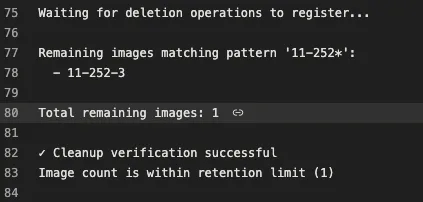
This stage verifies that the cleanup operation completed successfully and ensures that all images flagged for removal were properly deleted from the Azure Local environment. It performs a final validation pass by comparing the post‑cleanup state against the retention policy to confirm that only authorized images remain. Any discrepancies, failures, or skipped items are captured and reported. In addition, the stage generates a clear and concise execution summary, providing insight into which images were removed, which were retained, and whether any follow‑up actions are required. By closing the workflow with validation and reporting, the pipeline ensures accuracy, transparency, and confidence in the automated cleanup process.
- stage: Verification
  displayName: 'Verify Cleanup'
  dependsOn:
  - AnalyzeImages
  - CleanupImages
  condition: and(succeeded(), eq(dependencies.AnalyzeImages.outputs['ImageAnalysis.ListImages.cleanupRequired'], 'true'))
  jobs:
  - job: VerifyCleanup
    displayName: 'Verify Image Cleanup'
    pool:
      vmImage: 'windows-latest'

    variables:
      imagePattern: $[ stageDependencies.AnalyzeImages.ImageAnalysis.outputs['GetImageVersion.imagePattern'] ]

    steps:
    - task: AzurePowerShell@5
      displayName: 'Verify Remaining Images'
      inputs:
        azureSubscription: '$(azureServiceConnection)'
        scriptType: 'inlineScript'
        inline: |
          Write-Host "========================================" -ForegroundColor Cyan
          Write-Host "Post-Cleanup Verification" -ForegroundColor Cyan
          Write-Host "========================================" -ForegroundColor Cyan

          Set-AzContext -SubscriptionId "${{ parameters.subscriptionId }}"

          $imagePattern = "$(imagePattern)"

          # Wait a few seconds for deletions to register
          Write-Host "Waiting for deletion operations to register..." -ForegroundColor Yellow
          Start-Sleep -Seconds 10

          try {
            $allImages = Get-AzStackHciVMimage -ResourceGroupName "${{ parameters.resourceGroup }}" -ErrorAction Stop
            $remainingImages = $allImages.Name | Where-Object { $_ -like "$imagePattern*" }

            Write-Host "`nRemaining images matching pattern '$imagePattern*':" -ForegroundColor Cyan
            if ($remainingImages) {
              $remainingImages | ForEach-Object { Write-Host "  - $_" -ForegroundColor White }
              Write-Host "`nTotal remaining images: $($remainingImages.Count)" -ForegroundColor Green

              if ($remainingImages.Count -le ${{ parameters.imagesToKeep }}) {
                Write-Host "`n✓ Cleanup verification successful" -ForegroundColor Green
                Write-Host "Image count is within retention limit (${{ parameters.imagesToKeep }})" -ForegroundColor Green
              } else {
                Write-Host "`n⚠ Warning: Image count ($($remainingImages.Count)) still exceeds limit (${{ parameters.imagesToKeep }})" -ForegroundColor Yellow
                Write-Host "Some deletion operations may still be in progress." -ForegroundColor Yellow
              }
            } else {
              Write-Host "  No images remaining" -ForegroundColor Yellow
            }
          }
          catch {
            Write-Host "##vso[task.logissue type=warning]Could not verify cleanup: $($_.Exception.Message)"
          }
        azurePowerShellVersion: 'LatestVersion'

    - task: PowerShell@2
      displayName: 'Pipeline Execution Summary'
      inputs:
        targetType: 'inline'
        script: |
          Write-Host ""
          Write-Host "========================================" -ForegroundColor Cyan
          Write-Host "Pipeline Execution Summary" -ForegroundColor Cyan
          Write-Host "========================================" -ForegroundColor Cyan
          Write-Host "Environment: ${{ parameters.environmentName }}" -ForegroundColor White
          Write-Host "Subscription: ${{ parameters.subscriptionId }}" -ForegroundColor White
          Write-Host "AZL Resource Group: ${{ parameters.resourceGroup }}" -ForegroundColor White
          Write-Host "Gallery: ${{ parameters.galleryName }}" -ForegroundColor White
          Write-Host "Definition: ${{ parameters.imageDefinition }}" -ForegroundColor White
          Write-Host "Images to Keep: ${{ parameters.imagesToKeep }}" -ForegroundColor White
          Write-Host "Dry Run Mode: ${{ parameters.dryRun }}" -ForegroundColor White
          Write-Host "========================================" -ForegroundColor Cyan
          Write-Host ""
          Write-Host "Next Steps:" -ForegroundColor Yellow
          Write-Host "1. Verify remaining images in Azure portal" -ForegroundColor White
          Write-Host "2. Monitor AZL storage utilization" -ForegroundColor White
          Write-Host "3. Review deletion logs for any failures" -ForegroundColor White
          Write-Host "4. Schedule regular cleanup runs" -ForegroundColor White
          Write-Host ""
          Write-Host "Verification Command:" -ForegroundColor Yellow
Write-Host "Get-AzStackHciVMimage -ResourceGroupName '${{ parameters.resourceGroup }}'" -ForegroundColor CyanIn addition to the core functionality, the pipeline includes a dry‑run mode that allows you to execute the full workflow without performing any actual deletions. This feature is particularly useful when validating your retention policy, reviewing which images would be removed, or testing changes to the pipeline logic. By enabling dry‑run, you can safely simulate cleanup operations and verify expected behavior before applying any destructive actions in your Azure Local environment.
Furthermore, the pipeline’s schedule trigger is intentionally commented out by default. This gives you complete flexibility to define your own desired execution frequency, whether it’s daily, weekly, or aligned with your internal release cycles. By customizing the schedule, you ensure the automation runs at the most appropriate time for your operational processes without modifying the pipeline’s core logic.