
An Azure Local cluster is valuable, but its primary purpose is to host and operate virtual machines. The platform is designed to run Windows and Linux VMs on-premises while providing seamless, cloud‑consistent management through the Azure portal. This allows organizations to centrally deploy, monitor, and maintain virtual machines using familiar Azure tooling and governance capabilities.
Deployment of virtual machines can be carried out in two ways.:
- Azure Portal: which is convenient when you only need a single server and already have all required inputs, such as passwords and configuration details.
- Azure DevOps: in combination with Azure Bicep
We won’t cover portal-based virtual machine deployment in this post, as anyone can deploy a VM to the cluster through the Azure portal. Instead, this post focuses on deploying virtual machines using Azure Bicep and Azure DevOps, enabling repeatable, automated, and fully integrated infrastructure workflows.
Basic knowledge of Azure DevOps and Azure Bicep is required. While I will cover many aspects throughout this post, a certain level of familiarity and foundational understanding is expected.
What are we deploying?
- Arc Machine resource
- Virtual machine instance
- Network interface
- Additional data disk
- Automated domain join extension
Arc Machine resource
An Azure Arc machine is a non‑Azure server or VM connected to Azure, becoming a managed Azure resource with governance, policy, monitoring, and security capabilities.
Virtual Machine instance
An Azure Arc virtual machine resource represents a non‑Azure server or VM projected into Azure, enabling unified management, policies, monitoring, and governance like native Azure VMs
Network interface
An interface which is connected to the Virtual Machine instance for the onpremises connection.
Additional data disk
A different disk than the boot disk for your windows installation. This needs to be in a resource group
Automated domain join extension
To connect the new virtual machine to the domain, an extensions needs to be deployed.
Files
- azlocal-bicep-new-virtualmachine.bicep – Main Bicep template
- azlocal-bicep-new-virtualmachine.parameters.bicepparam – Parameter file with default values
- azlocal-bicep-new-virtualmachine.yml – Azure DevOps pipeline for automated deployment
- modules/ – Modular Bicep components
arcMachine.bicep– Creates the Arc Machine resourcevmInstance.bicep– Deploys the VM instancenetworkInterface.bicep– Configures network connectivityvirtualHardDisk.bicep– Creates additional data disksdomainJoin.bicep– Handles domain join extension
Parameters
| Parameter | Type | Description | Example |
|---|---|---|---|
name | string | Name of the virtual machine | Test-VM |
location | string | Azure region | westeurope |
domainToJoin | string | Active Directory domain to join | azurelocalbox.local |
orgUnitPath | string | OU path for domain join | OU=Servers,OU=Computers,DC=domain,DC=local |
clusterRsg | string | Resource group containing HCI cluster | azl-we-rsg-azl-koogaandezaan-01 |
customLocationName | string | Name of the custom location | Koog-aan-de-Zaan |
imageName | string | Marketplace gallery image name | 2025-datacenter-azure-edition-02 |
subscriptionId | string | Azure subscription ID | – |
logicalNetworkName | string | Logical network name | vnet101 |
keyVault | string | Key Vault name | azl-we-kv-cluster1-01 |
processorCores | int | Number of CPU cores | 4 |
memoryInGB | int | Memory in GB | 8 |
resourceTags | object | Resource tags | { owner: 'Name', Purpose: 'Description' } |
In Azure DevOps, I created a variable group in the Library and linked it to the pipeline. This approach increases flexibility by allowing the pipeline to work with different variable groups while keeping all shared variables centrally managed. The parameters above can be set in the parameter file, but also in the variable group.
KeyVault
For sensitive values such as the localAdminPassword and domainJoinPassword, I created secrets in the Azure Key Vault associated with the cluster. This ensures secure storage and retrieval of these credentials. Of course, you can also use your own Key Vault if preferred.
Azure DevOps pipeline
So we have an Azure devOps pipeline. This makes it easier to deploy.
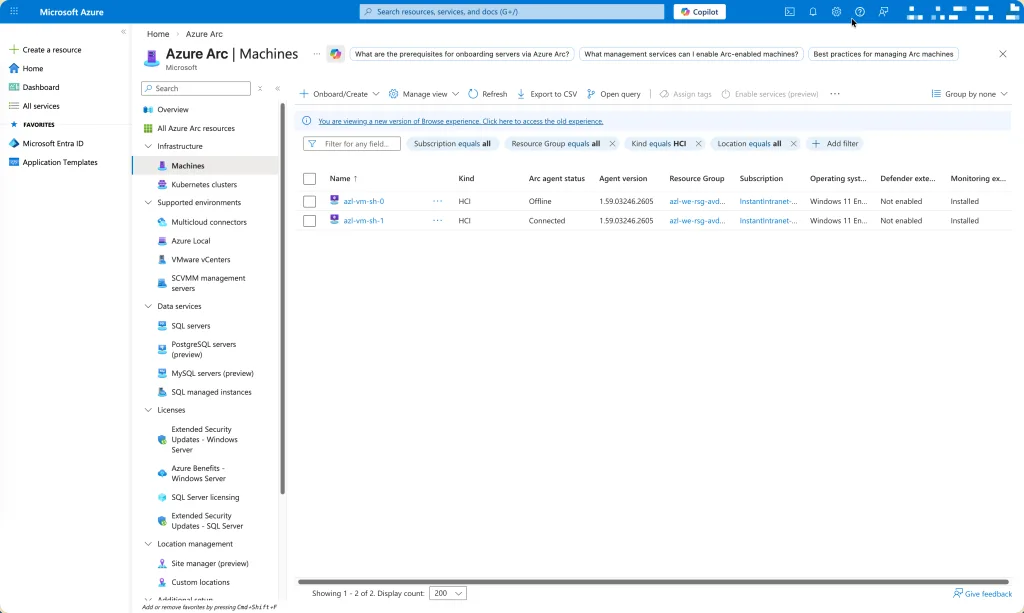
The begin situation before we run the Azure DevOps pipeline.
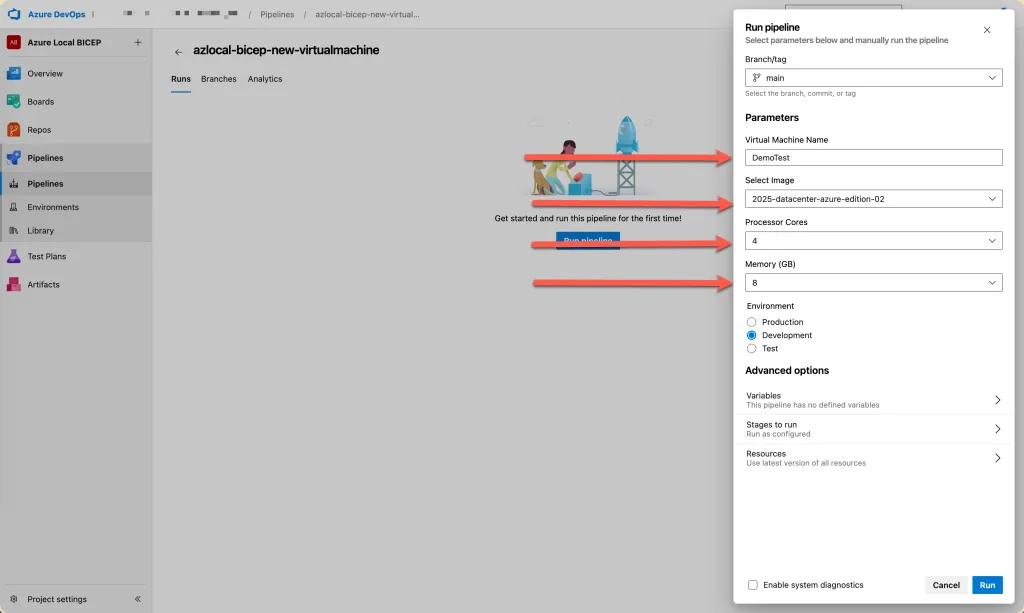
Running the pipeline gives some parameter options.
parameters:
- name: vmName
  displayName: 'Virtual Machine Name'
  type: string
  default: 'Test-VM'

- name: imageName
  displayName: 'Select Image'
  type: string
  default: '2025-datacenter-azure-edition-02'
  values:
  - '11-252-3'
  - '2022-datacenter-azure-edition-02'
  - '2025-datacenter-azure-edition-01'
  - '2025-datacenter-azure-edition-02'
  - 'win11-25h2-avd-m365-01'

- name: processorCores
  displayName: 'Processor Cores'
  type: number
  default: 4
  values:
  - 2
  - 4
  - 8
  - 16

- name: memoryInGB
  displayName: 'Memory (GB)'
  type: number
  default: 8
  values:
  - 4
  - 8
  - 16
  - 32

- name: environment
  displayName: 'Environment'
  type: string
  default: 'Production'
  values:
  - 'Production'
  - 'Development'
  - 'Test'
The YAML shown above defines the pipeline options. I included all available VM images as parameter choices, ensuring that each deployment uses a valid image already present on the cluster. This approach provides consistency, prevents referencing unavailable images, and keeps the pipeline flexible when new images are added.

The pipeline is setup in three stages:
- Validate Azure Bicep template if there is any issue within the code which is not allowed
- Check if the new to create vm already exists
- Deploy to Azure Local
- stage: Validate
  displayName: 'Validate Bicep Template'
  jobs:
  - job: ValidateBicep
    displayName: 'Validate Bicep'
    steps:
    - task: PowerShell@2
      displayName: 'Display Deployment Parameters'
      inputs:
        targetType: 'inline'
        script: |
          Write-Host "===================================="
          Write-Host "Deployment Parameters"
          Write-Host "===================================="
          Write-Host "VM Name: ${{ parameters.vmName }}"
          Write-Host "Image: ${{ parameters.imageName }}"
          Write-Host "Processor Cores: ${{ parameters.processorCores }}"
          Write-Host "Memory (GB): ${{ parameters.memoryInGB }}"
          Write-Host "Environment: ${{ parameters.environment }}"
          Write-Host "Resource Group: $(resourceGroupName)"
          Write-Host "===================================="

    - task: AzureResourceManagerTemplateDeployment@3
      displayName: 'Validate Bicep Template'
      inputs:
        deploymentScope: 'Resource Group'
        azureResourceManagerConnection: $(azureSubscription)
        subscriptionId: $(subscriptionId)
        action: 'Create Or Update Resource Group'
        resourceGroupName: $(resourceGroupName)
        location: $(location)
        templateLocation: 'Linked artifact'
        csmFile: $(templateFile)
        csmParametersFile: $(parametersFile)
        overrideParameters: '-name "${{ parameters.vmName }}" -imageName "${{ parameters.imageName }}" -processorCores ${{ parameters.processorCores }} -memoryInGB ${{ parameters.memoryInGB }}'
        deploymentMode: 'Validation'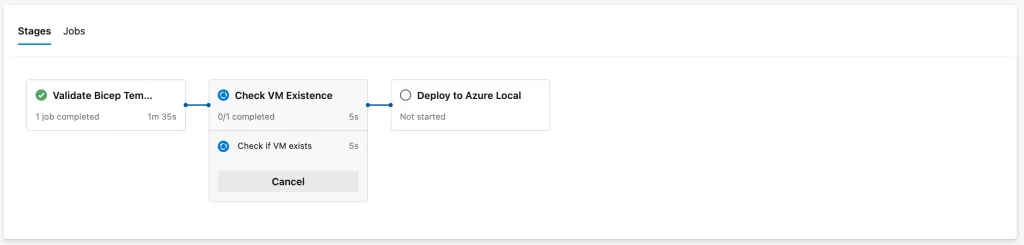
After validation is complete, the pipeline checks whether the virtual machine already exists. If an existing VM with the same name is found, the pipeline is terminated to prevent accidental overwrites or duplicate deployments.
- stage: CheckExistence
  displayName: 'Check VM Existence'
  jobs:
  - job: CheckVM
    displayName: 'Check if VM exists'
    steps:
    - task: AzureCLI@2
      displayName: 'Check for existing VM'
      name: CheckVMTask
      inputs:
        azureSubscription: $(azureSubscription)
        scriptType: 'bash'
        scriptLocation: 'inlineScript'
        inlineScript: |
          echo "Checking if VM '${{ parameters.vmName }}' exists in resource group '$(resourceGroupName)'..."

          # Check if VM exists
          vmExists=$(az hybridcompute machine show \
            --name "${{ parameters.vmName }}" \
            --resource-group $(resourceGroupName) \
            --subscription $(subscriptionId) \
            --query "name" -o tsv 2>/dev/null || echo "")

          if [ -n "$vmExists" ]; then
            echo "##vso[task.logissue type=error]VM '${{ parameters.vmName }}' already exists in resource group '$(resourceGroupName)'"
            echo "##vso[task.complete result=Failed;]VM already exists"
            exit 1
          else
            echo "VM '${{ parameters.vmName }}' does not exist. Proceeding with deployment."
          fi
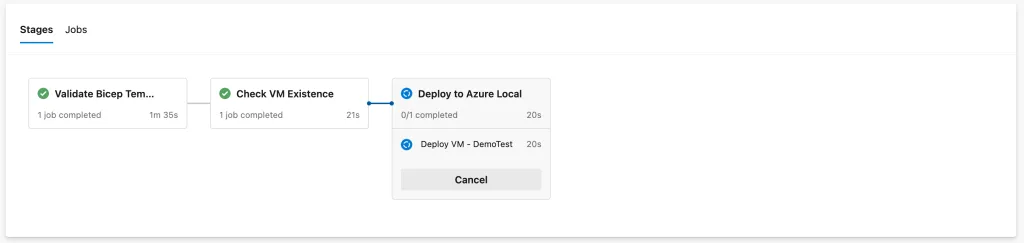
If all checks pass and the status remains green, the virtual machine deployment will proceed to the next stage.
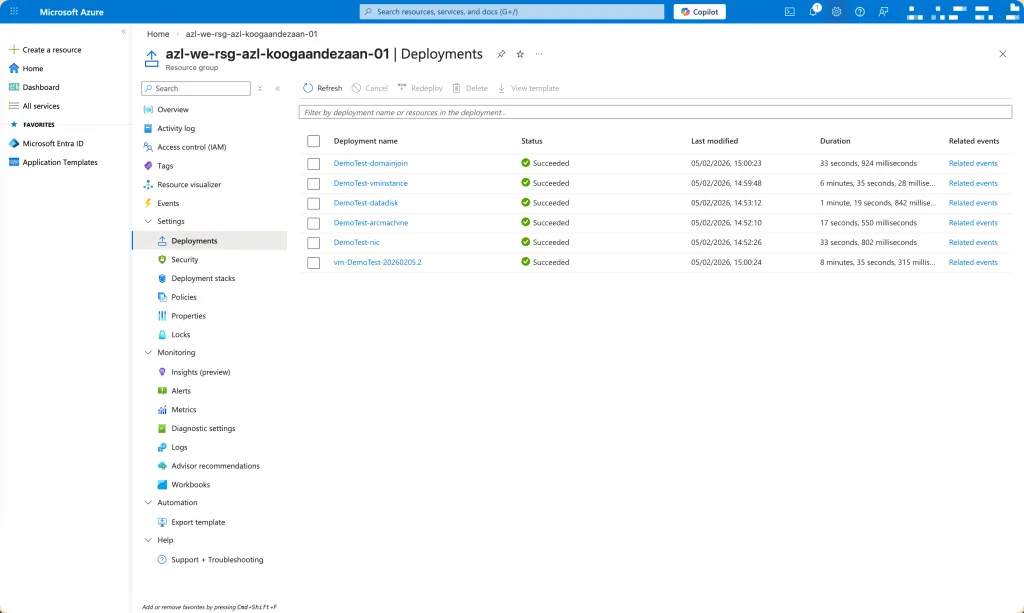
The entire deployment process can be monitored directly through the Azure Portal, where all provisioning steps and status updates are visible in real time.
- stage: Deploy
  displayName: 'Deploy to Azure Local'
  dependsOn: CheckExistence
  condition: and(succeeded(), eq(variables['Build.SourceBranch'], 'refs/heads/main'))
  jobs:
  - deployment: DeployVirtualMachine
    displayName: 'Deploy VM - ${{ parameters.vmName }}'
    environment: 'Azure-Local-${{ parameters.environment }}'
    strategy:
      runOnce:
        deploy:
          steps:
          - checkout: self

          - task: PowerShell@2
            displayName: 'Pre-Deployment Summary'
            inputs:
              targetType: 'inline'
              script: |
                Write-Host "========================================="
                Write-Host "Starting VM Deployment"
                Write-Host "========================================="
                Write-Host "VM Name: ${{ parameters.vmName }}"
                Write-Host "Image: ${{ parameters.imageName }}"
                Write-Host "Configuration: ${{ parameters.processorCores }} cores / ${{ parameters.memoryInGB }} GB RAM"
                Write-Host "Environment: ${{ parameters.environment }}"
                Write-Host "Deployment Name: $(deploymentName)"
                Write-Host "========================================="

          - task: AzureResourceManagerTemplateDeployment@3
            displayName: 'Deploy Bicep Template'
            name: BicepDeployment
            inputs:
              deploymentScope: 'Resource Group'
              azureResourceManagerConnection: $(azureSubscription)
              subscriptionId: $(subscriptionId)
              action: 'Create Or Update Resource Group'
              resourceGroupName: $(resourceGroupName)
              location: $(location)
              templateLocation: 'Linked artifact'
              csmFile: $(templateFile)
              csmParametersFile: $(parametersFile)
              overrideParameters: '-name "${{ parameters.vmName }}" -imageName "${{ parameters.imageName }}" -processorCores ${{ parameters.processorCores }} -memoryInGB ${{ parameters.memoryInGB }}'
              deploymentMode: 'Incremental'
              deploymentName: $(deploymentName)
              deploymentOutputs: 'deploymentOutputs'

          - task: PowerShell@2
            displayName: 'Display Deployment Outputs'
            inputs:
              targetType: 'inline'
              script: |
                Write-Host "========================================="
                Write-Host "Deployment Completed Successfully!"
                Write-Host "========================================="
                Write-Host "VM Name: ${{ parameters.vmName }}"
                Write-Host "Deployment Name: $(deploymentName)"

                if ($env:DEPLOYMENTOUTPUTS) {
                  Write-Host ""
                  Write-Host "Deployment Outputs:"
                  Write-Host $env:DEPLOYMENTOUTPUTS
                }
                Write-Host "========================================="
            env:
              DEPLOYMENTOUTPUTS: $(deploymentOutputs)

          - task: AzureCLI@2
            displayName: 'Update Arc Gateway Settings'
            inputs:
              azureSubscription: $(azureSubscription)
              scriptType: 'bash'
              scriptLocation: 'inlineScript'
              inlineScript: |
                echo "Updating Arc Gateway settings for VM: ${{ parameters.vmName }}..."

                az arcgateway settings update \
                  --resource-group $(resourceGroupName) \
                  --subscription $(subscriptionId) \
                  --base-provider Microsoft.HybridCompute \
                  --base-resource-type machines \
                  --base-resource-name "${{ parameters.vmName }}" \
                  --gateway-resource-id "/subscriptions/$(subscriptionId)/resourceGroups/$(arcGwRsg)/providers/Microsoft.HybridCompute/gateways/$(arcGwName)"

                echo "Arc Gateway settings updated successfully!"

          - task: PowerShell@2
            displayName: 'Post-Deployment Summary'
            inputs:
              targetType: 'inline'
              script: |
                Write-Host "========================================="
                Write-Host "VM Deployment Complete"
                Write-Host "========================================="
                Write-Host "VM Name: ${{ parameters.vmName }}"
                Write-Host "Image: ${{ parameters.imageName }}"
                Write-Host "Specs: ${{ parameters.processorCores }} vCPU / ${{ parameters.memoryInGB }} GB RAM"
                Write-Host "Status: Successfully deployed and configured"
                Write-Host "Arc Gateway: Configured"
                Write-Host "========================================="
After the virtual machine is successfully created, I also include a step to register it with the Azure Arc Gateway. This ensures the VM becomes an Azure Arc–enabled resource, allowing centralized governance, monitoring, and management through Azure.

Within 12 minutes, a fresh virtual machine is deployed on my Azure Local.
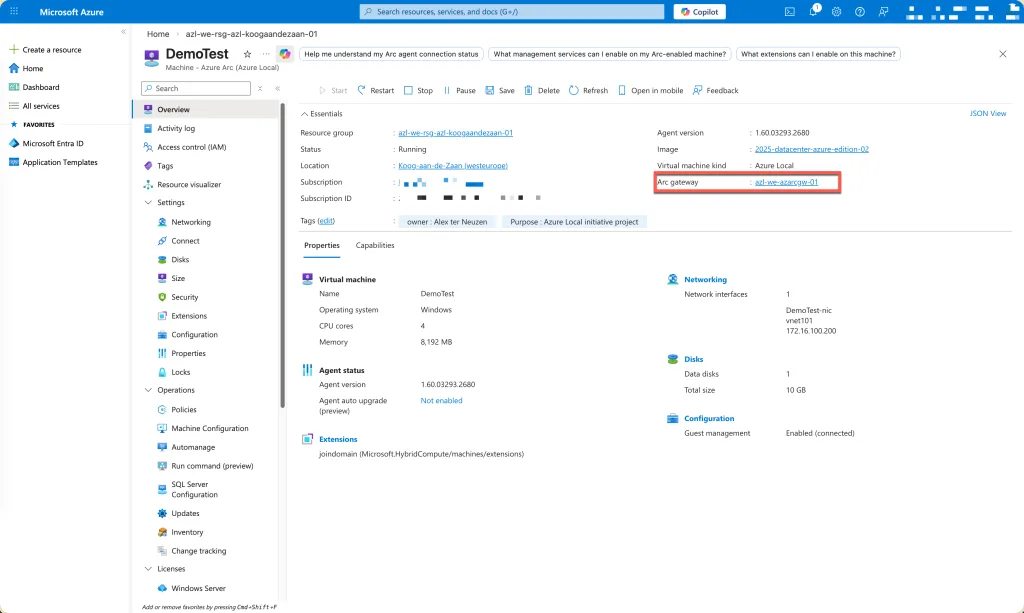
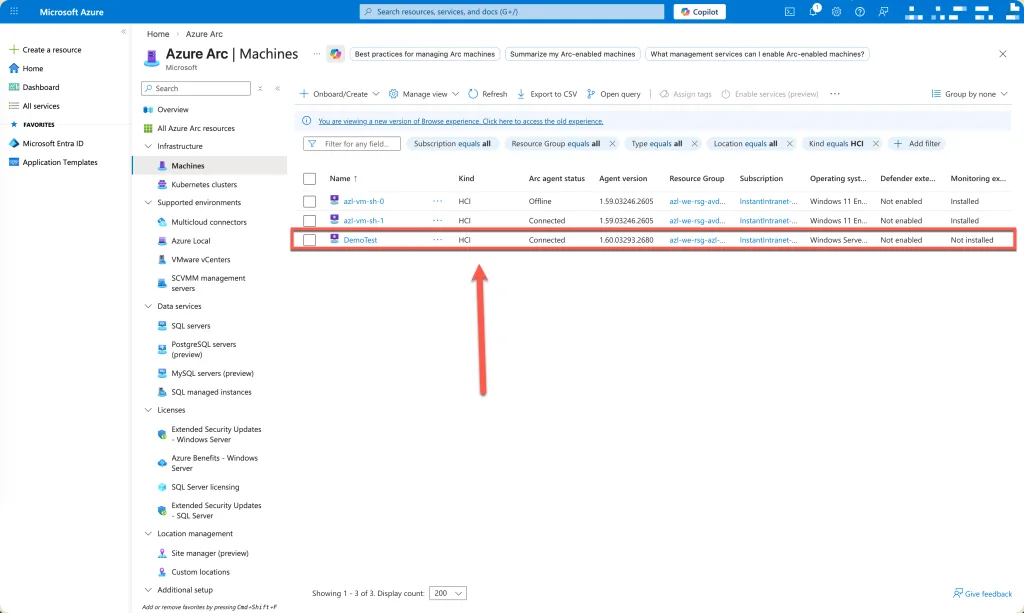
After the deployment we will find the virtual machine within Azure ARC.
Brief sidenote:
Use the Bicep code wisely and the Azure DevOps pipeline at own risk. Just copy and paste is not recommended. There is some configuration required.
You can find the code on GitHub: https://github.com/GetToThe-Cloud/Website/tree/main/AzureBicep-AzureLocal-DeployVirtualMachines