Azure Local | HomeLab – Azure Virtual Desktop II

Reading Time: 4 minutes

To move forward after configuring RDP ShortPath, the next essential step in Azure Virtual Desktop (AVD) is setting up the three core components: Host Pool, Workspace, and Application Group. These elements form the backbone of the AVD architecture and enable users to access session hosts through Azure.

Host Pool

A host pool is a collection of session hosts, virtual machines that deliver desktops or applications to users. All session hosts in a host pool share the same configuration, ensuring a consistent experience. Host pools can be pooled (multiple users per VM) or personal (1:1 mapping between user and VM). Load balancing methods like Breadth-first or Depth-first distribute sessions efficiently across hosts.

Workspace

A workspace acts as the landing page for users. It aggregates multiple application groups and presents them in a unified interface. Without a workspace, users would not have a centralized point to access their desktops or apps. Each workspace can include multiple application groups, simplifying resource access and management.

Application Group

Application groups define what resources users can access, either a full desktop or individual applications (RemoteApp). Each host pool can have multiple RemoteApp groups but only one desktop group. Application groups are linked to workspaces and assigned to users or groups for controlled access.

Setup

To create a new Azure Virtual Desktop (AVD) host pool, navigate to the https://portal.azure.com/#view/Microsoft_Azure_WVD/WvdManagerMenuBlade/~/hostpools and select Create.
As part of the environment setup, we have provisioned two resource groups to ensure proper segregation and management of resources:

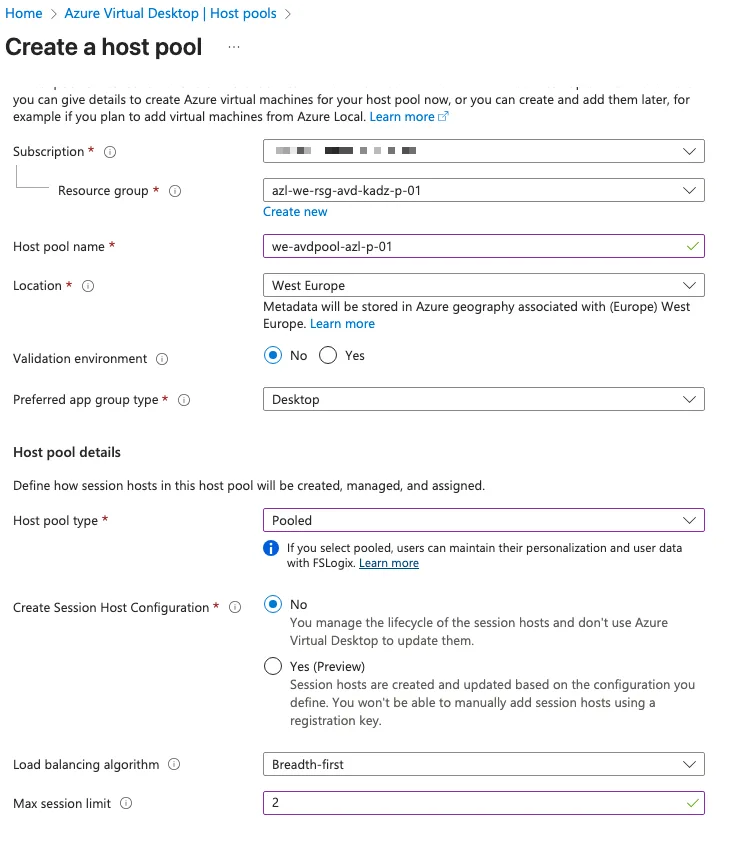
  • azl-we-rsg-avd-kadz-p-01 – Primary resource group for core AVD components.
  • azl-we-rsg-avd-kadz-sh-p-01 – Secondary resource group dedicated to session hosts.
Image

When creating the AVD host pool, select the appropriate resource group for the AVD services. Ensure the naming convention clearly reflects the purpose and environment, such as whether the services are running Online or on Azure Local. For this deployment, I have chosen the Pooled option, which allows multiple user sessions per virtual machine. Alternatively, you can select Personal, where each VM hosts only one session per user. Please note that with Azure Local, the Session Host Configuration feature is not available.
Image

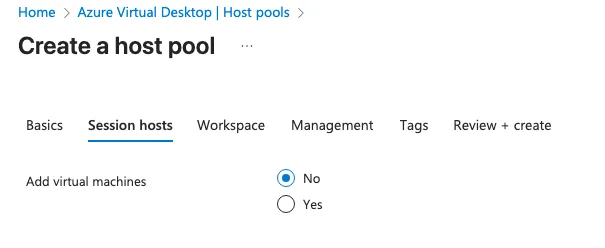
At this stage, we will not add any session hosts to the host pool. This allows us to complete the initial configuration and validate settings before deploying session hosts. Adding session hosts can be done later once the host pool is fully configured and aligned with your requirements.
Image

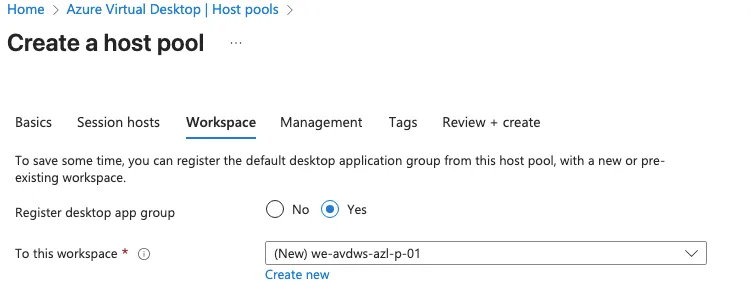
Since a workspace does not currently exist, we need to create one. The workspace should follow the established naming convention and clearly indicate the location of the services to maintain consistency and clarity. This ensures proper alignment with organizational standards and simplifies resource management.
Image

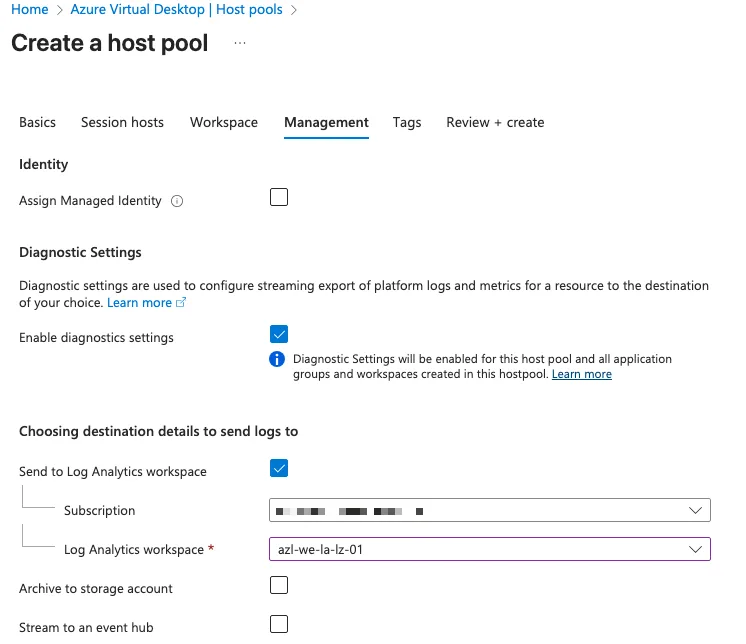
All management and monitoring data should be centralized in Azure Log Analytics. This approach ensures unified visibility, simplifies troubleshooting, and supports advanced analytics across all AVD components. By leveraging a single Log Analytics workspace, we maintain consistency, improve operational efficiency, and enable integration with Azure Monitor for alerts and dashboards.

After completing the creation of the Azure Virtual Desktop (AVD) services, the next steps involve making minor adjustments to the RDP properties to optimize user experience and security settings. Additionally, we will assign users to the Application Group, ensuring they have access to the appropriate resources and applications within the AVD environment.

Modify properties
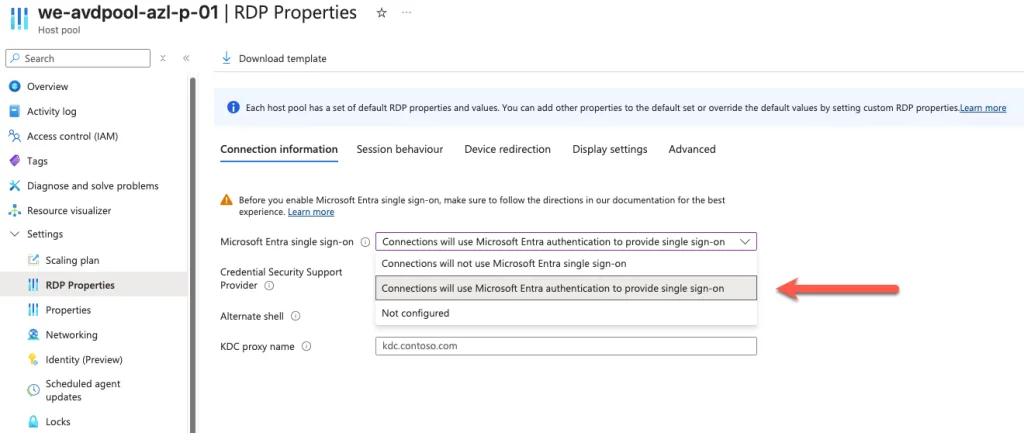
To enable sign-in using Microsoft Entra ID (formerly Azure AD), we need to adjust the Single Sign-On (SSO) settings in the RDP Properties of the host pool. This ensures users can authenticate seamlessly with their Entra accounts, improving security and user experience. Navigate to the host pool settings, open RDP Properties, and enable the Microsoft Entra Single Sign-On option.
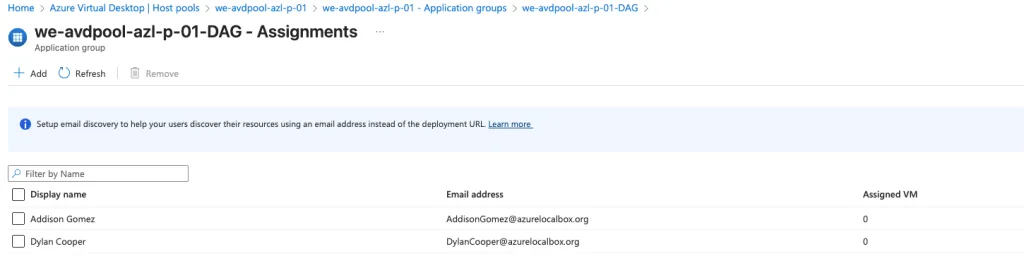
Finally, we assign two hybrid users to the Application Group. This step ensures they have the necessary permissions to access and log in to the Azure Virtual Desktop environment. Assigning users at this stage allows for controlled access and testing before onboarding additional users.

Share and Enjoy !

Shares
Designer (23)

Stay close to the action—follow GetToThe.Cloud across social!
Deep dives and hands‑on how‑tos on Azure Local, hybrid cloud, automation, PowerShell/Bicep, AVD + FSLogix, image pipelines, monitoring, networking, and resilient design when the internet/Azure is down.

🔗 Our channels
▶️ YouTube: https://www.youtube.com/channel/UCa33PgGdXt-Dr4w3Ub9hrdQ
💼 LinkedIn Group: https://www.linkedin.com/groups/9181126/
✖️ X (Twitter): https://x.com/Gettothecloud
🎵 TikTok: https://www.tiktok.com/@gettothecloud
🐙 GitHub: https://github.com/GetToThe-Cloud/Website
💬 Slack: DM us for an invite
📲 WhatsApp: DM for the community link

We use cookies to personalise content and ads, to provide social media features and to analyse our traffic. We also share information about your use of our site with our social media, advertising and analytics partners. View more
Cookies settings
Accept
Privacy & Cookie policy
Privacy & Cookies policy
Cookie name Active

Who we are

Our website address is: https://www.gettothe.cloud

Comments

When visitors leave comments on the site we collect the data shown in the comments form, and also the visitor’s IP address and browser user agent string to help spam detection. An anonymized string created from your email address (also called a hash) may be provided to the Gravatar service to see if you are using it. The Gravatar service privacy policy is available here: https://automattic.com/privacy/. After approval of your comment, your profile picture is visible to the public in the context of your comment.

Media

If you upload images to the website, you should avoid uploading images with embedded location data (EXIF GPS) included. Visitors to the website can download and extract any location data from images on the website.

Cookies

If you leave a comment on our site you may opt-in to saving your name, email address and website in cookies. These are for your convenience so that you do not have to fill in your details again when you leave another comment. These cookies will last for one year. If you visit our login page, we will set a temporary cookie to determine if your browser accepts cookies. This cookie contains no personal data and is discarded when you close your browser. When you log in, we will also set up several cookies to save your login information and your screen display choices. Login cookies last for two days, and screen options cookies last for a year. If you select "Remember Me", your login will persist for two weeks. If you log out of your account, the login cookies will be removed. If you edit or publish an article, an additional cookie will be saved in your browser. This cookie includes no personal data and simply indicates the post ID of the article you just edited. It expires after 1 day.

Embedded content from other websites

Articles on this site may include embedded content (e.g. videos, images, articles, etc.). Embedded content from other websites behaves in the exact same way as if the visitor has visited the other website. These websites may collect data about you, use cookies, embed additional third-party tracking, and monitor your interaction with that embedded content, including tracking your interaction with the embedded content if you have an account and are logged in to that website.

Who we share your data with

If you request a password reset, your IP address will be included in the reset email.

How long we retain your data

If you leave a comment, the comment and its metadata are retained indefinitely. This is so we can recognize and approve any follow-up comments automatically instead of holding them in a moderation queue. For users that register on our website (if any), we also store the personal information they provide in their user profile. All users can see, edit, or delete their personal information at any time (except they cannot change their username). Website administrators can also see and edit that information.

What rights you have over your data

If you have an account on this site, or have left comments, you can request to receive an exported file of the personal data we hold about you, including any data you have provided to us. You can also request that we erase any personal data we hold about you. This does not include any data we are obliged to keep for administrative, legal, or security purposes.

Where we send your data

Visitor comments may be checked through an automated spam detection service.
Save settings
Cookies settings