Azure Local | HomeLab – Windows Admin Center
In 2025, Microsoft announced the ability to integrate Windows Admin Center (WAC) within Azure for managing Azure Local environments. While this feature is still in preview, it represents a significant step toward simplifying hybrid management by bringing familiar on-premises tools into the cloud ecosystem.
But why would you want to use Windows Admin Center in Azure? The answer lies in centralized management and operational efficiency. By leveraging Windows Admin Center through Azure, administrators can:
- Streamline hybrid operations by managing both on-premises and Azure resources from a single pane of glass.
- Enhance security and compliance with Azure’s built-in identity and access controls.
- Reduce complexity by eliminating the need for separate management consoles.
- Enable remote administration without requiring direct connectivity to local infrastructure.
This integration is particularly valuable for organizations adopting Azure Local services, as it provides a consistent management experience across environments.
Requirements
Before you begin setting up Windows Admin Center in Azure, there are a few essential prerequisites to ensure a smooth deployment.
First, you need an active Azure subscription with sufficient permissions to create and manage resources. This is critical because the integration relies on Azure services for authentication and connectivity.
When configuring Windows Admin Center in Azure, it’s important to assign the correct permissions to ensure smooth access and functionality. According to Microsoft’s documentation, you will need both the Reader role and the Windows Admin Center Administrator Login role. Initially, I assumed that having the Administrator Login role alone would suffice since I was the owner of the subscription. However, this is not the case. The Reader role is required to allow Windows Admin Center to retrieve resource information, while the Administrator Login role grants the ability to manage and connect to servers. It is crucial to apply these roles at the Resource Group level, not just at the subscription level, to avoid permission-related issues during setup. Proper role assignment ensures that Windows Admin Center can operate seamlessly within Azure and manage your Azure Local environment effectively.
Next, your environment must include an Azure Local deployment, such as Azure Local, properly registered and connected to Azure. This connection enables hybrid management capabilities and ensures that Windows Admin Center can interact with your local infrastructure. Additionally, confirm that the Windows Admin Center extension is available in the Azure portal, as this feature is currently in preview and may not be enabled by default.
Finally, verify that your network configuration allows secure communication between Azure and your on-premises environment, as proper connectivity is essential for managing servers and clusters remotely through Windows Admin Center.
Having this checked, we continue to deploy the Windows Admin Center to the cluster.
Deploy Extension
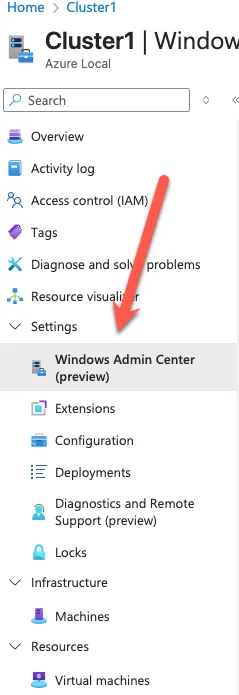
Windows Admin Center is just an extension running on the Azure Local cluster. Within the portal navigating to your cluster, you will see on the left side the Windows Admin Center (preview) button. Clicking it, will provide you the possibility to set it up.
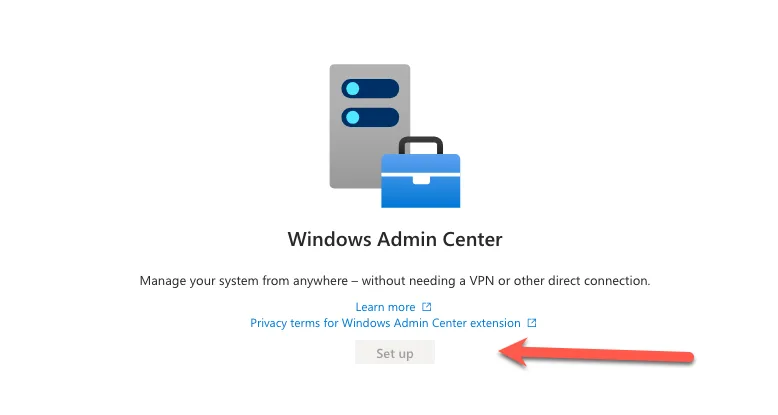
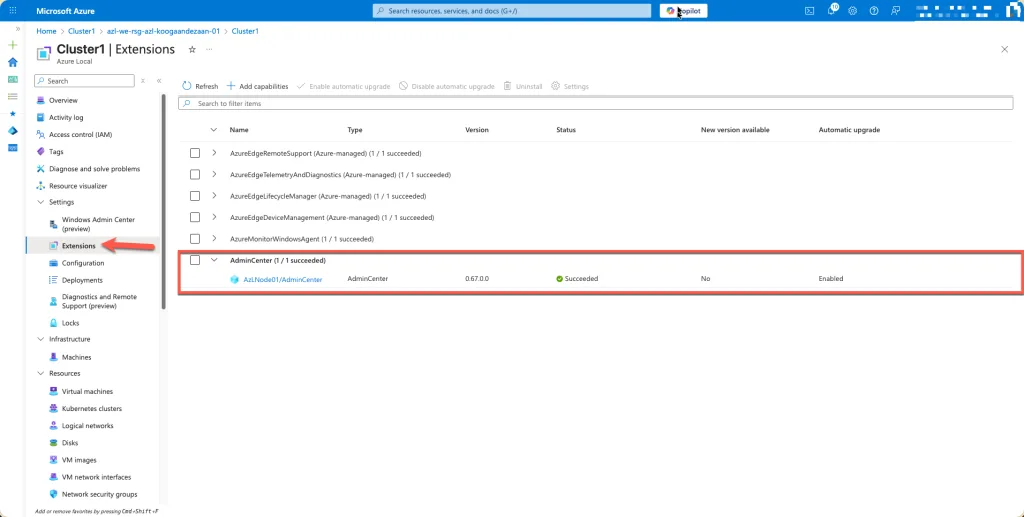
Once the installation is complete, you can verify it by navigating to the Extensions tab within your Azure resource. There, you will see Windows Admin Center listed as an installed extension, confirming that the setup was successful. From this point, you can launch Windows Admin Center directly from the Azure portal and begin managing your Azure Local environment.
Testing it!
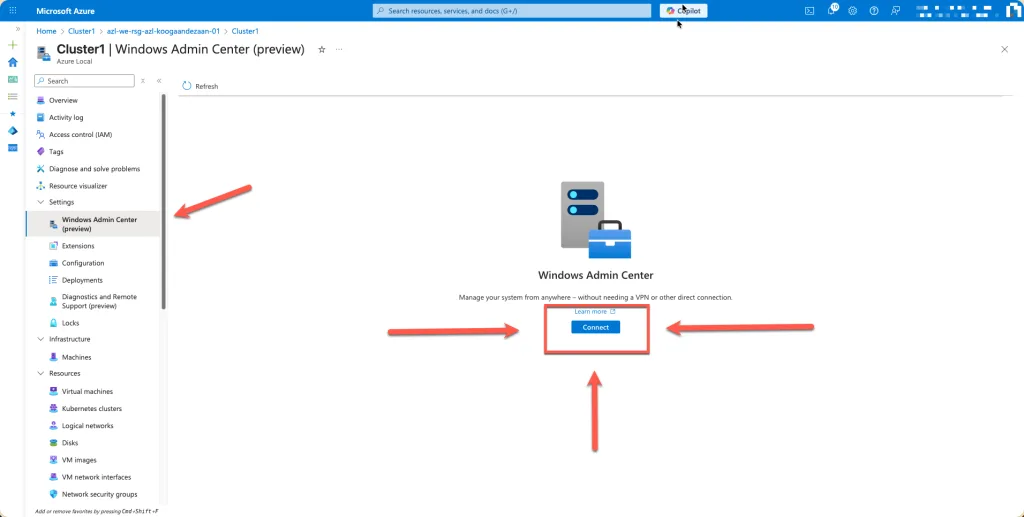
After the extension is installed, you can navigate to the Windows Admin Center (Preview) option in the Azure portal. There, you’ll see the Connect button, which allows you to launch Windows Admin Center and start managing your environment. In practice, you may need to click the Connect button twice before the session initializes successfully—this seems to be a common behavior during the preview phase. Once connected, you’ll have full access to manage your Azure Local resources directly from the Azure portal.
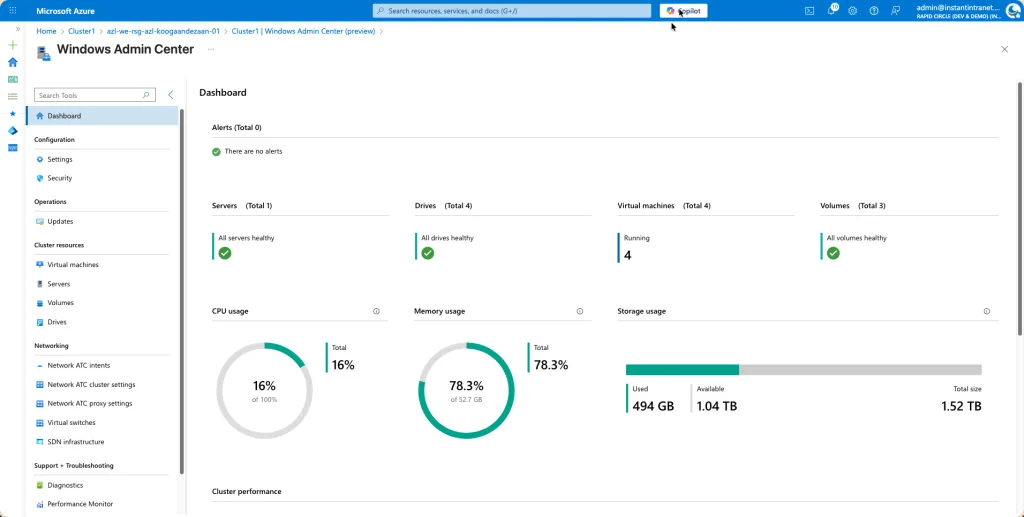
When browsing to Cluster Resources → Virtual Machines in Windows Admin Center, I noticed something unexpected: a virtual machine running on the Azure Local node that I did not deploy myself. This can happen because Azure Local environments often include system or infrastructure VMs that support cluster operations, storage, or networking. These VMs are typically created automatically during the deployment process and are essential for the health and functionality of the cluster. While they may appear alongside user-deployed workloads, they should not be modified or removed, as doing so could impact the stability of your environment.

The virtual machine you see running on the Azure Local node is the Azure Arc Resource Bridge. This component is automatically deployed during the setup process and is critical for enabling hybrid management capabilities, such as connecting your on-premises resources to Azure services. It acts as the communication bridge between your local environment and Azure, allowing features like policy enforcement, monitoring, and lifecycle management. Do not attempt to remove or modify this VM, as doing so will break the cluster and disrupt the integration with Azure. If you’re unsure about any additional system VMs, always consult the official documentation before making changes.

IT Professional on a journey to discover the cloud platforms and become certified and an expert.
A Blog that follows the journey to get to the Cloud.
Azure Local | Azure Bicep | Azure Virtual Desktop | Powershell | Azure Certified | MCSA | Microsoft 365