M365 Cross Tenant Migration | Part II
 Alex ter Neuzen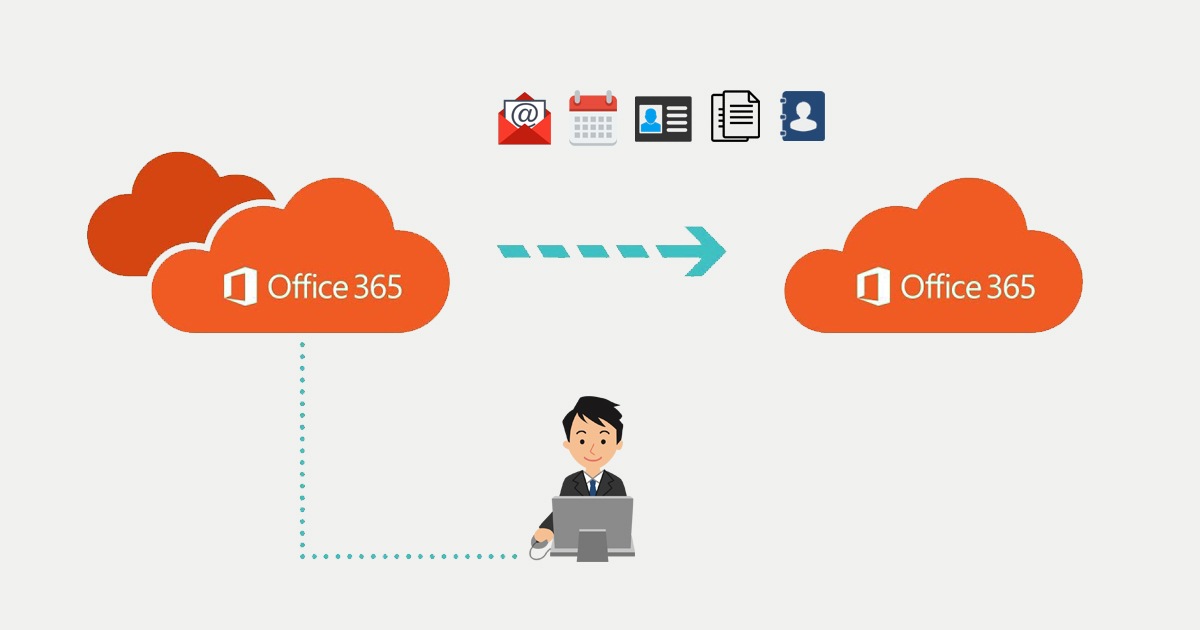
As stated before in M365 Cross Tenant Migration | Part I Microsoft have released the 1st of November 2022 the option to migrate userdata between two M365 tenants. Therefore you need to create an App Registration and an Organizational Relationship between the two tenants. If you have not done yet part I, you will not be able to follow below.
Users Source Tenant
Before users can be migrated to the GetToTheCloudTarget.onmicrosoft.com tenant, they need to be created and provided with the necessary information. This information can be found in the GetToTheCloudSource.onmicrosoft.com tenant.
We need PowerShell to get that information, so let’s start a PowerShell command window
#Exchange Online Management v3 Powershell module
Install-Module -Name ExchangeOnlineManagement -RequiredVersion 3.0.0 -Force
#Connect to Exchange Online from SOURCE tenant
Connect-ExchangeOnline
First we get all the members of the security group we created in previous post
$sourceGroup = "Users to Migrate"
$Members = Get-DistributionGroupMember $sourceGroup -WarningAction SilentlyContinue | Where-Object {$_.RecipientType -ne "MailUser"}
For a user we need to have:
- Name
- Alias
- displayName
- exchangeGuid
- archiveGUID
- legacyExchangeDN
- PrimarySMTPAddress
- Original X500 Addresses
$ExportMembers = @()
ForEach ($Member in $Members) {
    $info = $null
    try {
        $info = Get-Mailbox $Member
    }
    catch {
        Write-Output "ERROR: $Member does not exists or has no mailbox"
    }
    if ($Info -ne $null) {
        $Object = [PSCustomObject]@{
            Name               = $info.Name
            Alias              = $info.Alias
            DisplayName        = $info.DisplayName
            ExchangeGuid       = $info.ExchangeGuid
            ArchiveGuid        = $info.ArchiveGuid
            legacyExchangeDN   = $info.legacyExchangeDN
            PrimarySMTPAddress = $info.PrimarySMTPAddress
            X500               = $($Info.EmailAddresses) | Where-Object { $_ -like "X500:*" }
            CustomAttribute1   = "CROSSTENANT"
        }
        $ExportMembers += $object
    }
}
At this point we have all the information we needed from the Source tenant and users to create them in the new tenant.
#connect to the target tenant
Connect-ExchangeOnline
ForEach ($Mailuser in $ExportMembers) {
    $password = Get-RandomCharacters -length 9 -characters 'abcdefghiklmnoprstuvwxyz'
    $password += Get-RandomCharacters -length 1 -characters 'ABCDEFGHKLMNOPRSTUVWXYZ'
    $password += Get-RandomCharacters -length 2 -characters '1234567890'
    $password += Get-RandomCharacters -Length 2 -characters '!@#$'
    $password = Scramble-String $password
    $targetTenant = (Get-OrganizationConfig).OrganizationalUnitRoot
    $id = $mailuser.Alias + "@" + $targetTenant
    $create = $null
    Try {
        $Create = New-MailUser -Alias $Mailuser.Alias -Name $mailuser.DisplayName -DisplayName $mailuser.DisplayName -ExternalEmailAddress $Mailuser.PrimarySMTPAddress -PrimarySMTPAddress $Id -MicrosoftOnlineServicesID $id -Password (ConvertTo-SecureString $password -AsPlainText -Force) -ErrorAction SilentlyContinue
    }
    Catch {
    }
    If ($Create -ne $null) {
        Write-Output "INFO: Mailuser for $($Mailuser.Displayname) is created"
        do {
            $User = Get-MailUser $mailuser.PrimarySMTPAddress
            Write-Output "INFO: Waiting for Mailuser $($Mailuser.DisplayName) is provisioned"
            Start-Sleep -seconds 2
        } while (
            $User -eq $null
        )
        $X500 = "X500:" + $mailuser.legacyExchangeDN
        Try {
            Set-Mailuser -identity $User.identity -EmailAddresses @{add = $x500 }
        }
        Catch {
            #do Nothing
        }
        do {
            $Control = (Get-MailUser $mailuser.PrimarySMTPAddress).EmailAddresses | Where-Object { $_ -contains $X500 }
            Write-Output "INFO: Waiting for Mailuser $($Mailuser.DisplayName) has X500 for LegacyExchangeDN added"
            Start-Sleep -seconds 2
        } while (
            $Control -eq $null
        )
        if ($Mailuser.X500 -eq $null) {
            #skip
        }
        else {
            Try {
                Set-Mailuser -identity $User.identity -EmailAddresses @{add = $Mailuser.X500 }
            }
            Catch {
                #do Nothing
            }
            do {
                $Control = (Get-MailUser $mailuser.PrimarySMTPAddress).EmailAddresses | Where-Object { $_ -contains $mailuser.X500 }
                Write-Output "INFO: Waiting for Mailuser $($Mailuser.DisplayName) has Old X500 added"
                Start-Sleep -seconds 2
            } while (
                $Control -eq $null
            )
        }
        Try {
            Set-Mailuser -identity $User.identity -ExchangeGUID $MailUser.ExchangeGuid
        }
        Catch {
            #do Nothing
        }
        do {
            $GUID = (Get-Mailuser -Identity $user.identity).ExchangeGUID
            start-sleep -seconds 2
        } while (
            $guid -ne $Mailuser.ExchangeGuid
        )
        Try {
            Set-Mailuser -identity $User.identity -CustomAttribute1 $MailUser.CustomAttribute1 -CustomAttribute2 $MailUser.PrimarySMTPAddress
        }
        Catch {
            #do Nothing
        }
        do {
            $GUID = (Get-Mailuser -Identity $user.identity).CustomAttribute1
            start-sleep -seconds 2
        } while (
            $guid -ne $Mailuser.CustomAttribute1
        )
    }
    else {
        $NotCreated = $Error | Select -first 1
        if ($($NotCreated.Exception.Message) -like "*Please choose another proxy address.") {
            Write-Output "ERROR: Mailuser for $($Mailuser.Displayname) is NOT created because there was an error"
            Write-Output "ERROR: User allready exists. Skipping ..."
        }
        else {
            Write-Output "ERROR: $($NotCreated.Exception.Message)"
        }
    }
}
All users in the group from the GetToTheCloudSource.onmicrosoft.com tenant are now created with the information that is needed in the GetToTheCloudTarget tenant.
The new users have in CustomAttribute2 the original SOURCE PrimarySMTPAddress and in CustomAttribute1 a placeholder to user in filter for the next post.