
Azure | Secure Azure Virtual Desktop with MFA

Header avd mfa
Reading Time: 4 minutes

Read also the updated version: Azure | Secure Azure Virtual Desktop with MFA !!UPDATE!! – GetToTheCloud

In Azure | Deploy Azure Virtual Desktop – GetToTheCloud we have seen how to setup Azure Virtual Desktop for multiple users with a multi-session Windows 11 image. But when you are using Azure Virtual Desktop, you would like to secure also the access to the desktop. In this blogpost we will use Azure Mutli-Factor Authentication for this.

In Januari 2024 the new Azure Authentication Policies will be the default as I described before in Azure Active Directory | Authentication Policies – GetToTheCloud. Let’s use those policies to enable a more secure way to access the Azure Virtual Desktop.

Understanding Conditional Access

Conditional access allows you to set conditions that must be met before a user can access a resource. For example, you might require that a user is accessing a resource from a trusted device or network location. In the case of AVD, you might require that users can only access their virtual desktops from trusted IP addresses.

To set up conditional access for AVD, you’ll need to create a conditional access policy in Azure Active Directory (AD). This policy can then be applied to AVD resources to require that users meet specific conditions before they can access their virtual desktops.

Enable the Microsoft Authenticator App

In Microsoft Entra we first need to enable the Microsoft Authenticator App for using it in the new Conditional Access policies.
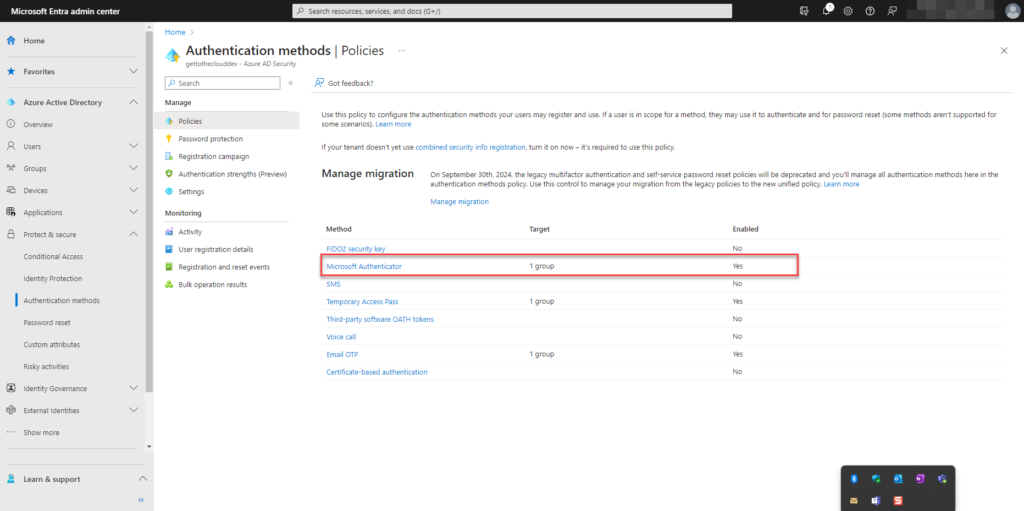
Clicking on Microsoft Authenticator will open a new dialog
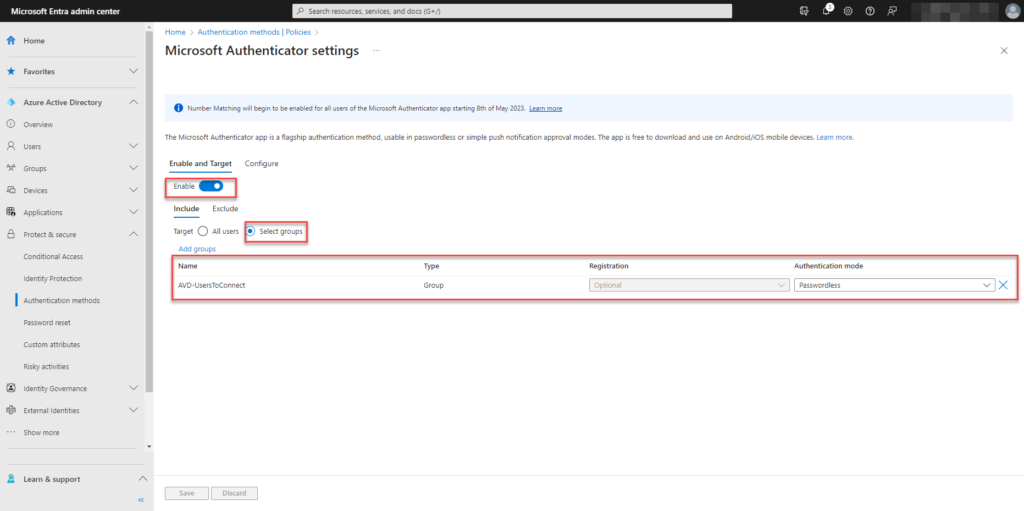
Add here to the INCLUDE the group with your Azure Virtual Desktop users. For authentication method use Passwordless

At the tab CONFIGURE we have also enabled all the options and added the same group to the include:

  • Require number matching for push notifications
  • Show application name in push and passwordless notifications
  • Show geographic location in push and passwordless notifications
  • Microsoft Authenticator on companion applications

Now that the Authentication Policy is set, we can setup the conditional access policy.

Conditional Access Policy

In Microsoft Entra you can setup the Conditional Access policies. Click on + Create new policy to get started on setting up a new policy.
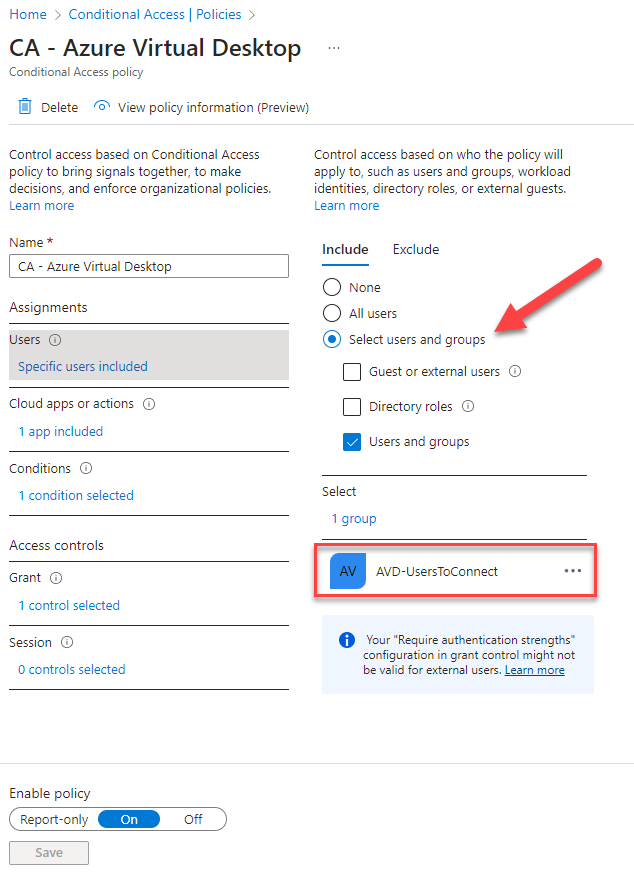
Enter a name. With the users assignment select Select users and groups at the INCLUDE tab. Add the group with your Azure Virtual Desktop Users.

Moving on the Cloud apps or actions
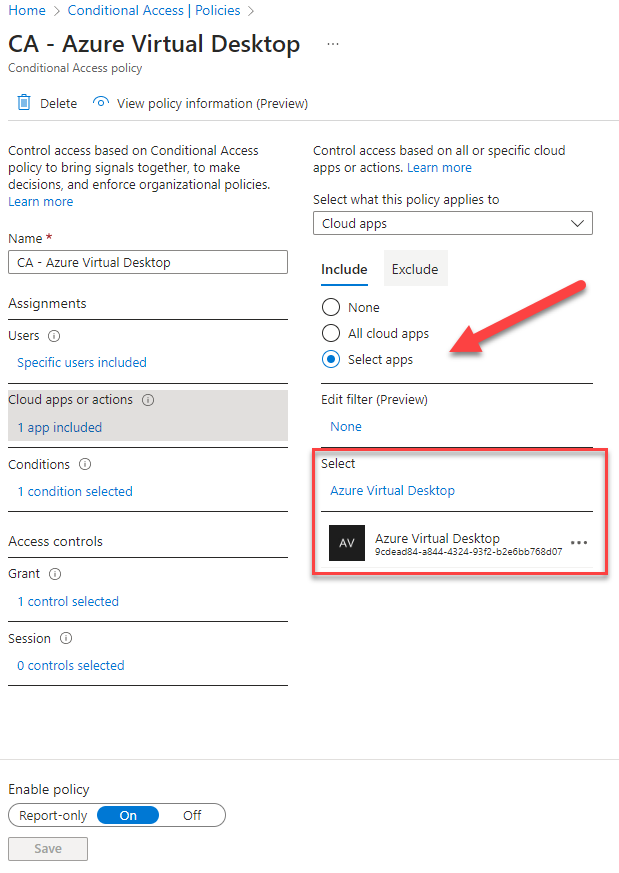
Select Select Apps and add Azure Virtual Desktop

Moving on the Conditions
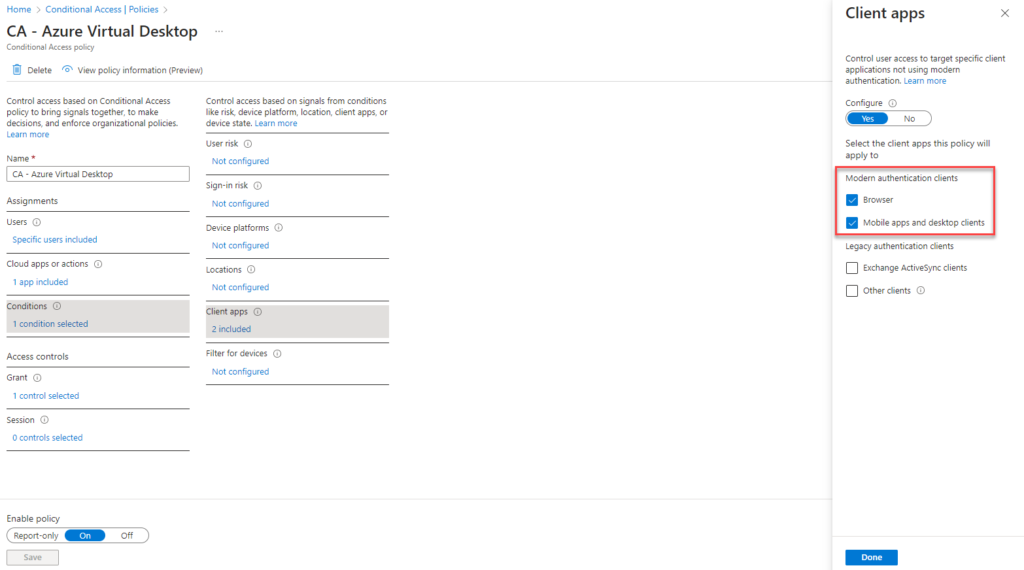
Add the Client Apps for MODERN AUTHENTICATION CLIENTS

At Access Control – Grant we do the final setting
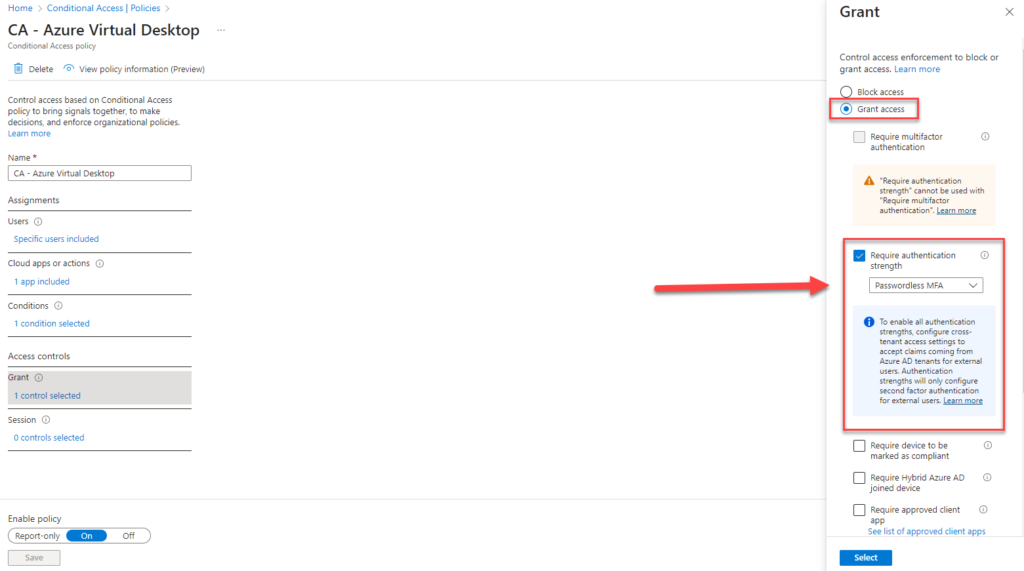
By default the Enable policy will be set to Report Only. If you are sure about your settings, you can set it to On.

Microsoft Authenticator Setup

Browsing to https://aka.ms/mfasetup, the user will be able to add the account to the Authenticator App on their phone. This will be also giving them the option to login passwordless.
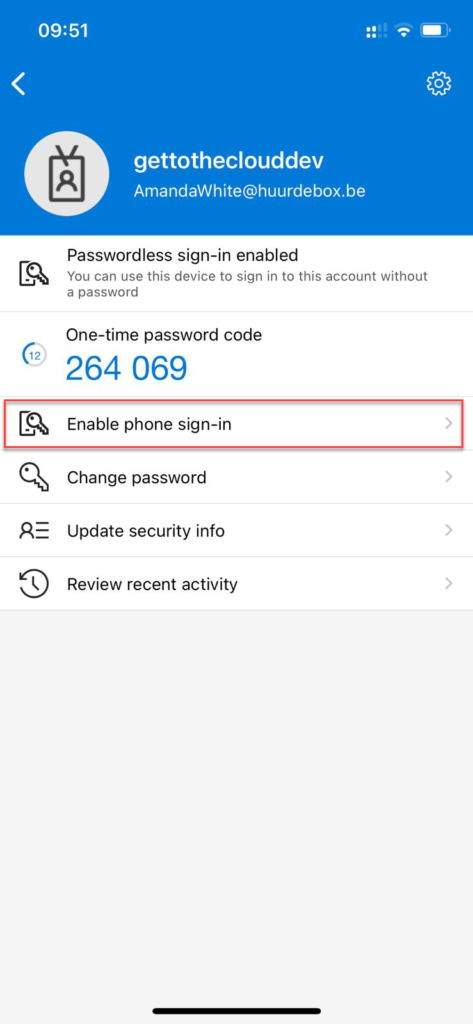
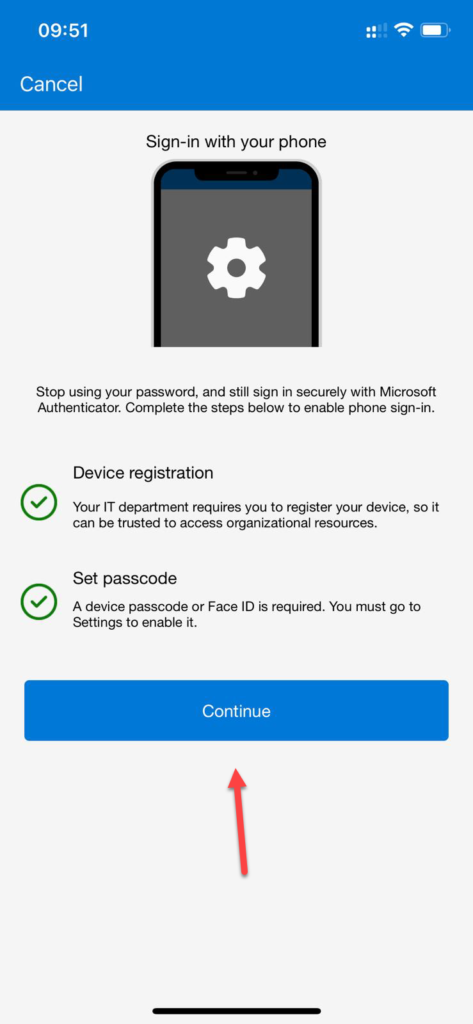
Click on Enable phone sign-in and click on Continue. After completing the authentication you will see in the app that Enable is changed in Disable.

Browsing now to https://client.wvd.microsoft.com/arm/webclient/index.html will give a login prompt. Entering the e-mail address will give an extra option:
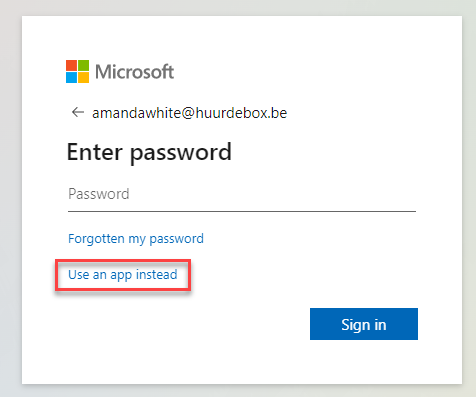
Using the option Use an app instead will give a PUSH notification on the phone where the account was added to the Authenticator App.
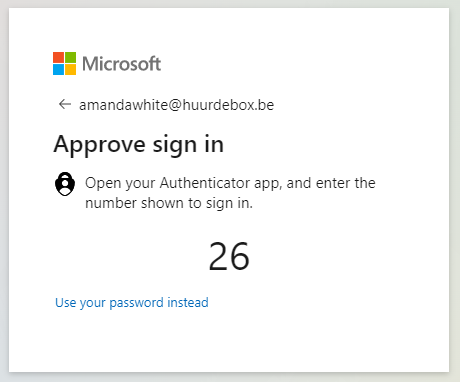
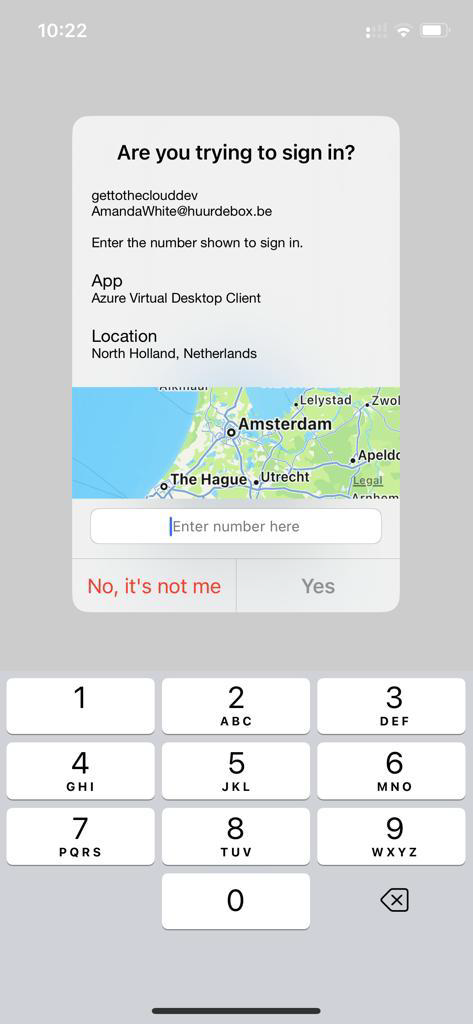
Entering number 26 in the App will authenticate me and I did not use my password for the user.

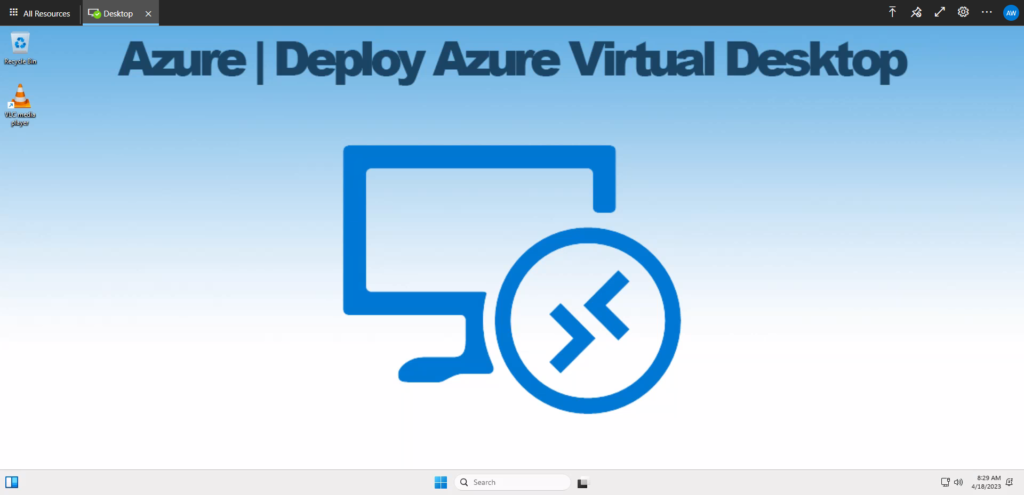
Connecting will result in:
Share and Enjoy !

Shares
Designer (23)

Stay close to the action—follow GetToThe.Cloud across social!
Deep dives and hands‑on how‑tos on Azure Local, hybrid cloud, automation, PowerShell/Bicep, AVD + FSLogix, image pipelines, monitoring, networking, and resilient design when the internet/Azure is down.

🔗 Our channels
▶️ YouTube: https://www.youtube.com/channel/UCa33PgGdXt-Dr4w3Ub9hrdQ
💼 LinkedIn Group: https://www.linkedin.com/groups/9181126/
✖️ X (Twitter): https://x.com/Gettothecloud
🎵 TikTok: https://www.tiktok.com/@gettothecloud
🐙 GitHub: https://github.com/GetToThe-Cloud/Website
💬 Slack: DM us for an invite
📲 WhatsApp: DM for the community link

We use cookies to personalise content and ads, to provide social media features and to analyse our traffic. We also share information about your use of our site with our social media, advertising and analytics partners. View more
Cookies settings
Accept
Privacy & Cookie policy
Privacy & Cookies policy
Cookie name Active

Who we are

Our website address is: https://www.gettothe.cloud

Comments

When visitors leave comments on the site we collect the data shown in the comments form, and also the visitor’s IP address and browser user agent string to help spam detection.An anonymized string created from your email address (also called a hash) may be provided to the Gravatar service to see if you are using it. The Gravatar service privacy policy is available here: https://automattic.com/privacy/. After approval of your comment, your profile picture is visible to the public in the context of your comment.

Media

If you upload images to the website, you should avoid uploading images with embedded location data (EXIF GPS) included. Visitors to the website can download and extract any location data from images on the website.

Cookies

If you leave a comment on our site you may opt-in to saving your name, email address and website in cookies. These are for your convenience so that you do not have to fill in your details again when you leave another comment. These cookies will last for one year.If you visit our login page, we will set a temporary cookie to determine if your browser accepts cookies. This cookie contains no personal data and is discarded when you close your browser.When you log in, we will also set up several cookies to save your login information and your screen display choices. Login cookies last for two days, and screen options cookies last for a year. If you select "Remember Me", your login will persist for two weeks. If you log out of your account, the login cookies will be removed.If you edit or publish an article, an additional cookie will be saved in your browser. This cookie includes no personal data and simply indicates the post ID of the article you just edited. It expires after 1 day.

Embedded content from other websites

Articles on this site may include embedded content (e.g. videos, images, articles, etc.). Embedded content from other websites behaves in the exact same way as if the visitor has visited the other website.These websites may collect data about you, use cookies, embed additional third-party tracking, and monitor your interaction with that embedded content, including tracking your interaction with the embedded content if you have an account and are logged in to that website.

Who we share your data with

If you request a password reset, your IP address will be included in the reset email.

How long we retain your data

If you leave a comment, the comment and its metadata are retained indefinitely. This is so we can recognize and approve any follow-up comments automatically instead of holding them in a moderation queue.For users that register on our website (if any), we also store the personal information they provide in their user profile. All users can see, edit, or delete their personal information at any time (except they cannot change their username). Website administrators can also see and edit that information.

What rights you have over your data

If you have an account on this site, or have left comments, you can request to receive an exported file of the personal data we hold about you, including any data you have provided to us. You can also request that we erase any personal data we hold about you. This does not include any data we are obliged to keep for administrative, legal, or security purposes.

Where we send your data

Visitor comments may be checked through an automated spam detection service.
Save settings
Cookies settings