
Azure Virtual Desktop | FSLogix App Masking with Entra Joined Devices III

Header Avd Fslogix
Reading Time: 3 minutes

Now we have exported all the users in the specific app groups to a blob container. We need to create also FSLogix App Masking rules and Assignments. We use the FSLogixRulesEditor for this. It can be found in the download of the latest agent.
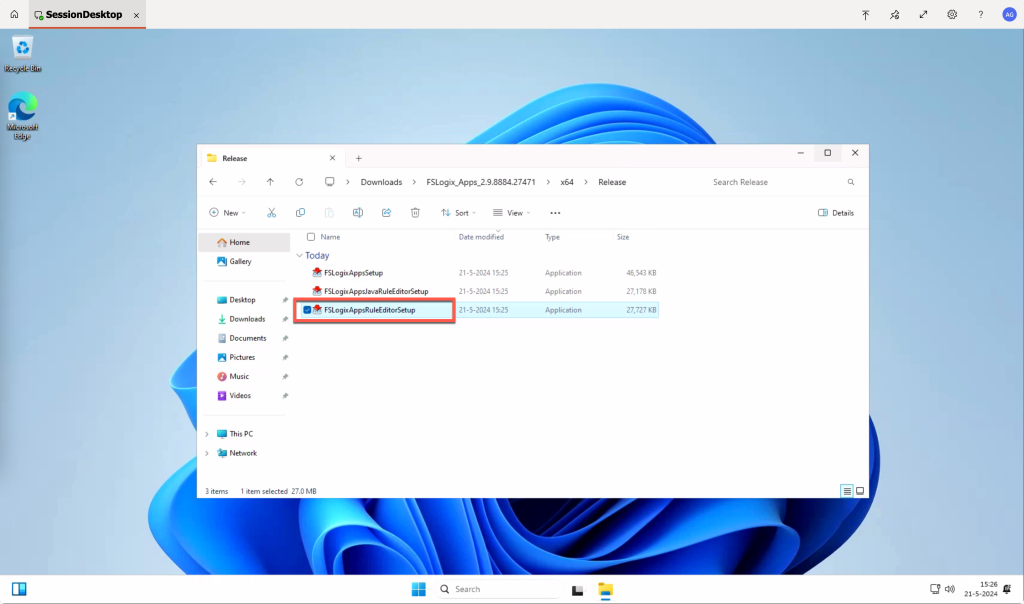
Image 26

Using (link) will create the app masking rules and sets. But we are using local groups. So let’s do this with some random applications.

Local groups

To create the correct app masking assignments, we need to create the local groups first that are defined in the function app. For this demo we create:

  • app_group1
  • app_group2
  • app_group3

Those groups will be empty on this machine where we create the app masking assignments and rules.

App masking rules and sets

After installing the FSLogix App Masking rules application you can start it from the Start Menu
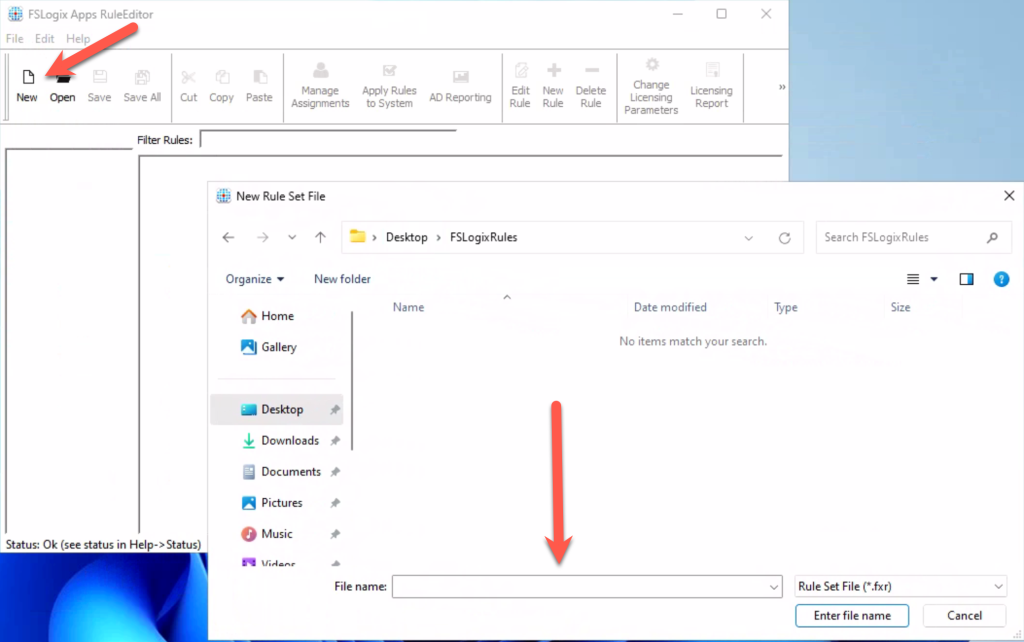
Image 27

For this demo we locate the files in a folder on the desktop called FSLogixRules

Notepad

We will create a rule for Notepad.exe to hide from start menu with app group app_group1. For this we start with a blank rule.
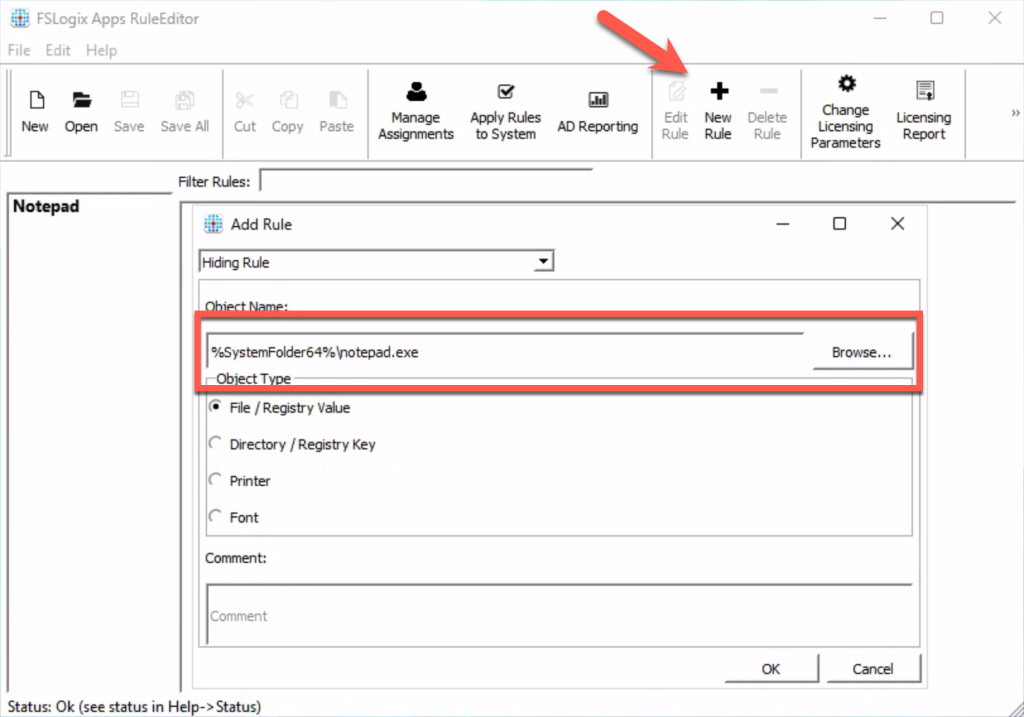
Image 28

Select New Rule and browse to the location of the executable.
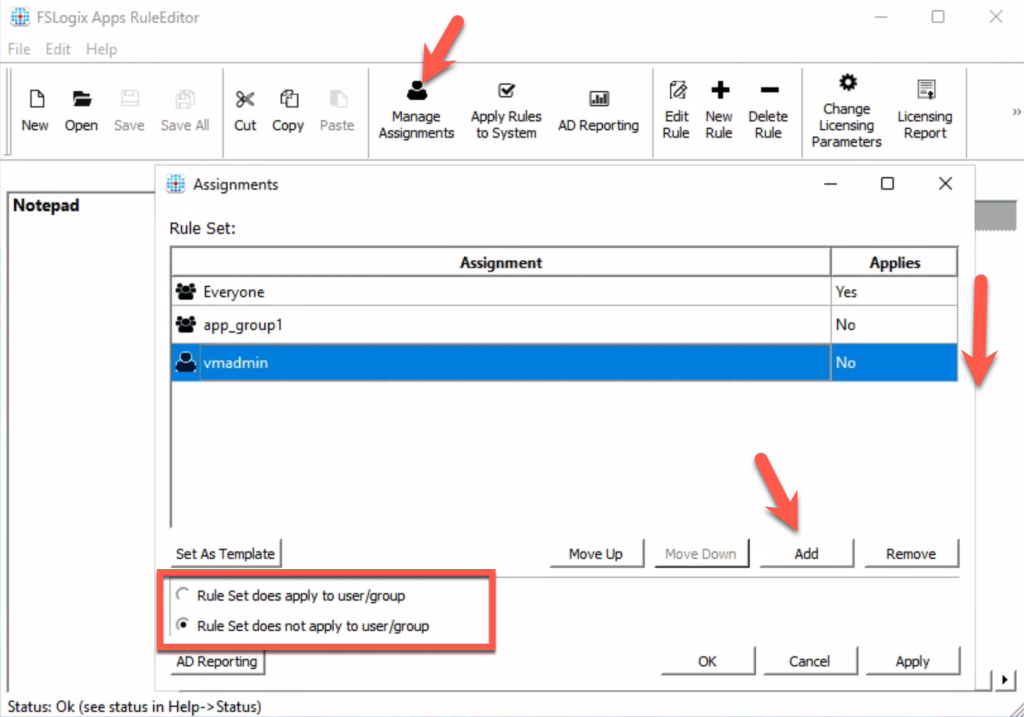
Image 29

Add the users which the must be applied to. In this case we state:

The hiding rule is applied to Everyone unless you are in the app group app_group1 or you are user vmadmin. The rules are always working from top to down. Selecting the group or user will provide you the option if the rule must applied to that user/group or not. Click OK and Save.

Microsoft Edge

Creating a new rule for Microsoft Edge.
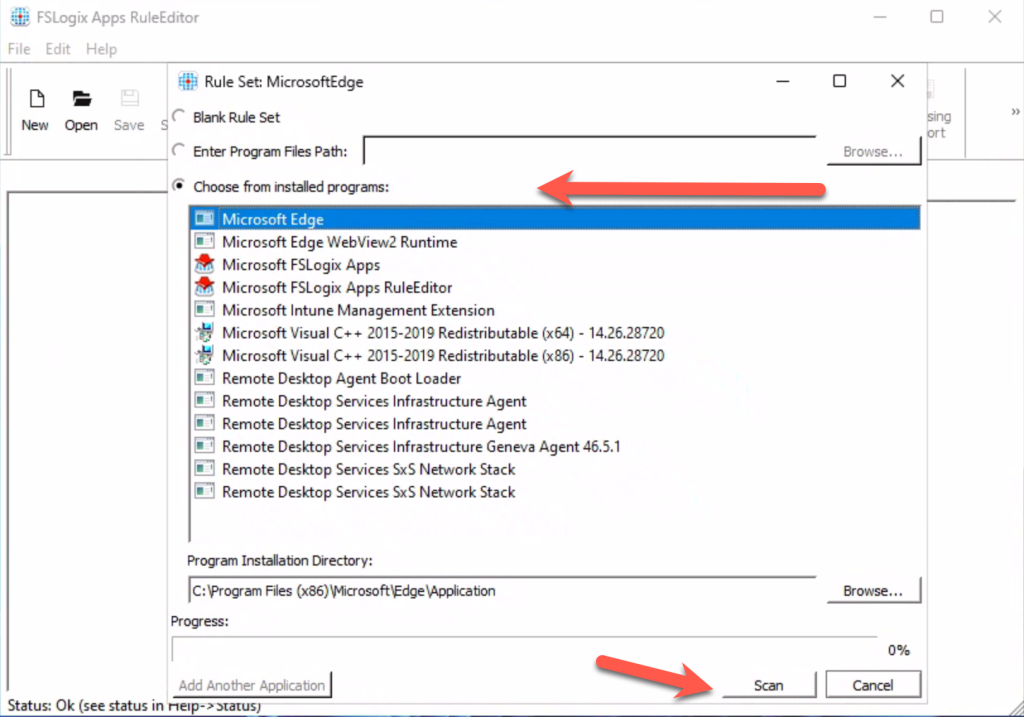
Image 30

Use the Choose from installed programs the Microsoft Edge. Use the SCAN button to get all associated files and registry keys.

Image 31

When everything is captured, you can edit the rules to what you need. The assignment can be done like the same as with Notepad.
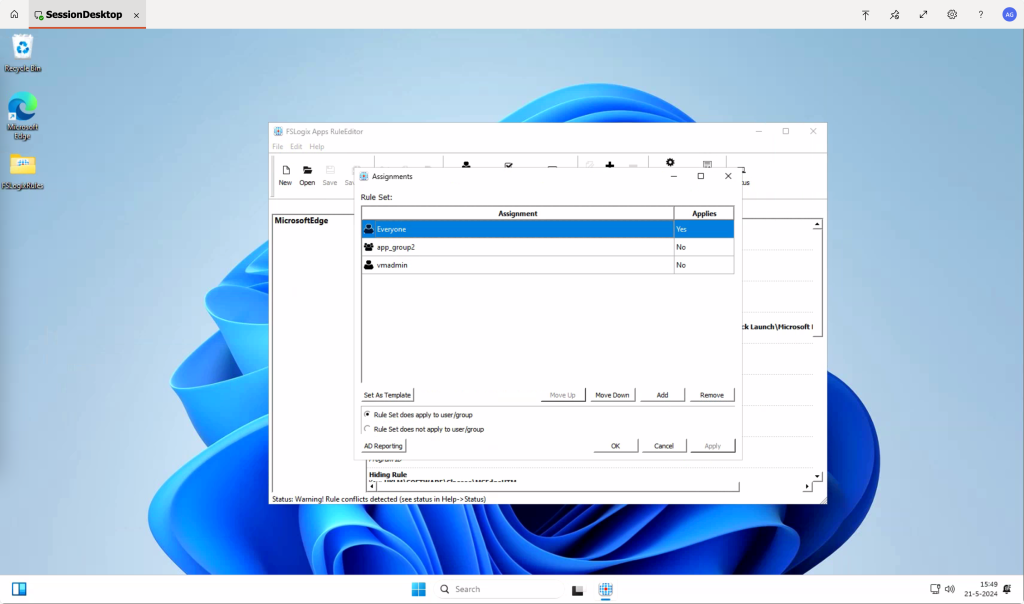
Image 32

The current user is not a member of App_group2 and is also not vmadmin. If you want to test your rules and assignment you can click Apply Rules to System. You will see the Edge icon will disappear.
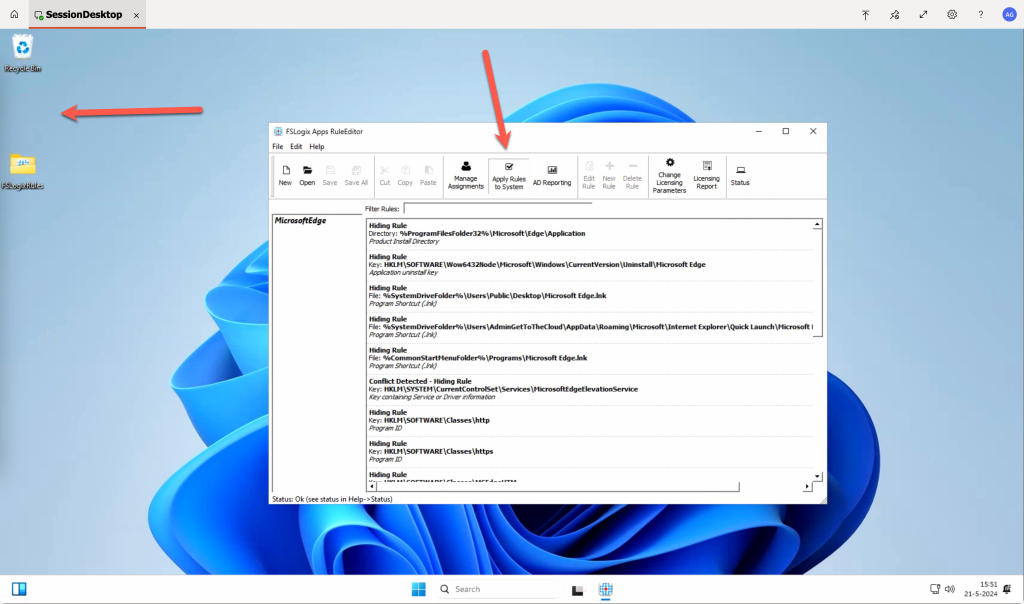
Image 33

Now we need to upload the files to the Azure Storage Blob Container.
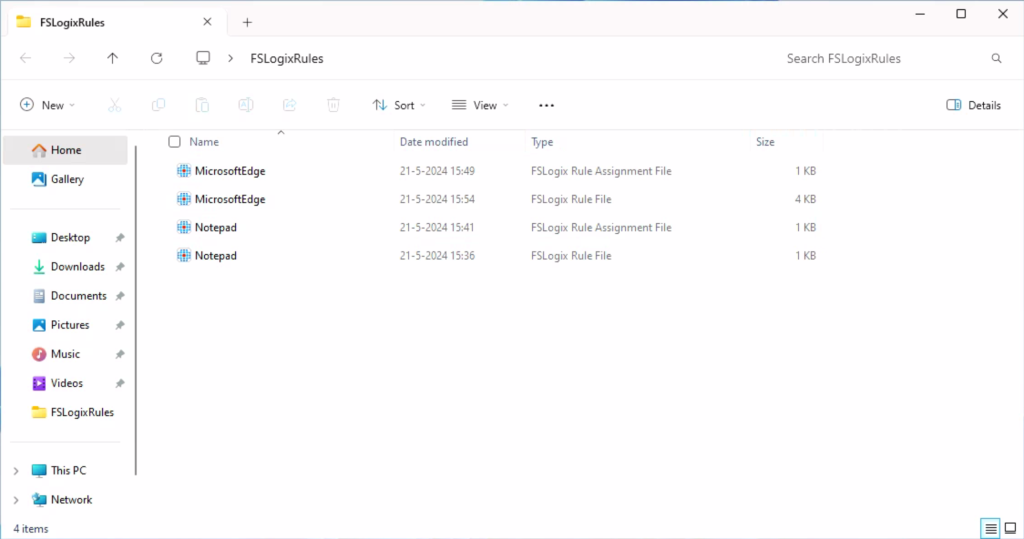
Image 34

This can be done through the portal or through a drive mapping
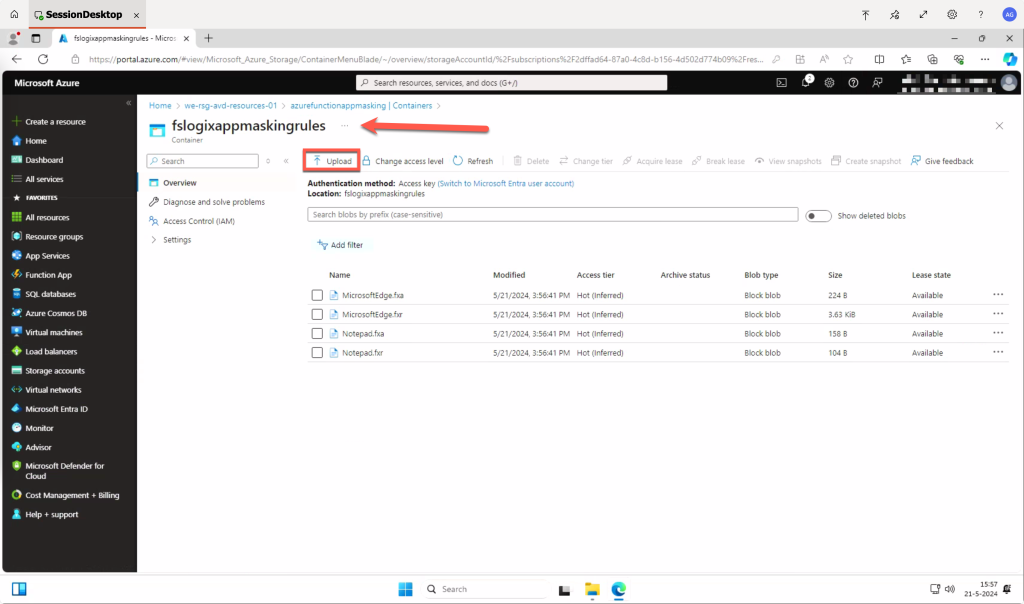
Image 35

We have created a different blob for the rules.

Share and Enjoy !

Shares
WP Twitter Auto Publish Powered By : XYZScripts.com
We use cookies to personalise content and ads, to provide social media features and to analyse our traffic. We also share information about your use of our site with our social media, advertising and analytics partners. View more
Cookies settings
Accept
Privacy & Cookie policy
Privacy & Cookies policy
Cookie name Active

Who we are

Our website address is: https://www.gettothe.cloud

Comments

When visitors leave comments on the site we collect the data shown in the comments form, and also the visitor’s IP address and browser user agent string to help spam detection. An anonymized string created from your email address (also called a hash) may be provided to the Gravatar service to see if you are using it. The Gravatar service privacy policy is available here: https://automattic.com/privacy/. After approval of your comment, your profile picture is visible to the public in the context of your comment.

Media

If you upload images to the website, you should avoid uploading images with embedded location data (EXIF GPS) included. Visitors to the website can download and extract any location data from images on the website.

Cookies

If you leave a comment on our site you may opt-in to saving your name, email address and website in cookies. These are for your convenience so that you do not have to fill in your details again when you leave another comment. These cookies will last for one year. If you visit our login page, we will set a temporary cookie to determine if your browser accepts cookies. This cookie contains no personal data and is discarded when you close your browser. When you log in, we will also set up several cookies to save your login information and your screen display choices. Login cookies last for two days, and screen options cookies last for a year. If you select "Remember Me", your login will persist for two weeks. If you log out of your account, the login cookies will be removed. If you edit or publish an article, an additional cookie will be saved in your browser. This cookie includes no personal data and simply indicates the post ID of the article you just edited. It expires after 1 day.

Embedded content from other websites

Articles on this site may include embedded content (e.g. videos, images, articles, etc.). Embedded content from other websites behaves in the exact same way as if the visitor has visited the other website. These websites may collect data about you, use cookies, embed additional third-party tracking, and monitor your interaction with that embedded content, including tracking your interaction with the embedded content if you have an account and are logged in to that website.

Who we share your data with

If you request a password reset, your IP address will be included in the reset email.

How long we retain your data

If you leave a comment, the comment and its metadata are retained indefinitely. This is so we can recognize and approve any follow-up comments automatically instead of holding them in a moderation queue. For users that register on our website (if any), we also store the personal information they provide in their user profile. All users can see, edit, or delete their personal information at any time (except they cannot change their username). Website administrators can also see and edit that information.

What rights you have over your data

If you have an account on this site, or have left comments, you can request to receive an exported file of the personal data we hold about you, including any data you have provided to us. You can also request that we erase any personal data we hold about you. This does not include any data we are obliged to keep for administrative, legal, or security purposes.

Where we send your data

Visitor comments may be checked through an automated spam detection service.
Save settings
Cookies settings