So to make sure that you can login to your Azure tenant, it is recommended to create at least TWO break glass accounts. These accounts are normally NOT used but in case of emergency and you cannot access your tenant, you have a backdoor.
What is a Break Glass Account?
A Break Glass Account is a special account created for emergency situations when the usual account credentials are unavailable. These accounts provide authorization to access critical resources, helping organisations to prevent service interruptions. This account should be used only as a last resort and should be strictly controlled to prevent misuse. The importance of Break Glass Accounts lies in their ability to ensure business continuity during critical events. Imagine being locked out of your account during an emergency, having a Break Glass Account can provide lifesaving access to critical systems and resources. Additionally, they enable a response strategy for security incidents, allowing organisations to quickly and efficiently respond to possible cybersecurity threats.
There are two types of Break Glass Accounts:
- Shared Accounts
Shared accounts are ideal for scenarios where multiple people might require urgent access. This account type can have multiple administrators, and its use must be tracked and audited to avoid security risks. - Privileged Accounts
Privileged accounts are designed to be used by personnel who require elevated access to systems or applications. This account type should be limited to only the necessary personnel, and its use should be closely monitored.
In this blog post we are going to create two Shared Break Glass Accounts, having one is good, two is better.
Create Break Glass Accounts
You can choose two existing accounts in your Azure Active Directory for this or just create two new accounts. Below a PowerShell to create two new accounts.
 # install module and import module
Install-Module AzureAD -Force
Import-Module AzureAD -UseWindowsPowerShell

# connect to AzureAd
Connect-AzureAd
Now connection is made
$BreakGlass1Name = "Emergency Account 1"
$BreakGlass1Username = "LetMein"
$BreakGlass2Name = "Emergency Account 2"
$BreakGlass2Username = "EmergencyAccount"

# password generator
function Get-RandomCharacters($length, $characters) {
    $random = 1..$length | ForEach-Object { Get-Random -Maximum $characters.length }
    $private:ofs = ""
    return [String]$characters[$random]
}
function Scramble-String([string]$inputString) {
    $characterArray = $inputString.ToCharArray()
    $scrambledStringArray = $characterArray | Get-Random -Count $characterArray.Length
    $outputString = -join $scrambledStringArray
    return $outputString
}

# creating passwords
$password = Get-RandomCharacters -length 20 -characters 'abcdefghiklmnoprstuvwxyz'
$password += Get-RandomCharacters -length 4 -characters 'ABCDEFGHKLMNOPRSTUVWXYZ'
$password += Get-RandomCharacters -length 2 -characters '1234567890'
$password += Get-RandomCharacters -Length 3 -characters '!@#$'
$BreakGlass1password = Scramble-String $password

$password = $null
$password = Get-RandomCharacters -length 20 -characters 'abcdefghiklmnoprstuvwxyz'
$password += Get-RandomCharacters -length 4 -characters 'ABCDEFGHKLMNOPRSTUVWXYZ'
$password += Get-RandomCharacters -length 2 -characters '1234567890'
$password += Get-RandomCharacters -Length 3 -characters '!@#$'
$BreakGlass2password = Scramble-String $password

# getting the .onmicrosoft.com address
$upnSuffix = (Get-AzureAdDomain | Where-Object {$_.IsInitial -eq $true}).Name

# creating break glass 1 user
$PasswordProfile = New-Object -TypeName Microsoft.Open.AzureAD.Model.PasswordProfile
$PasswordProfile.Password = $BreakGlass1password
New-AzureADUser -DisplayName $BreakGlass1Name -PasswordProfile $PasswordProfile -UserPrincipalName  $($BreakGlass1Username + "@" + $UpnSuffix) -AccountEnabled $true -MailNickName $BreakGlass1Username | Out-Null

# creating break glass 2 user
$PasswordProfile = $null
$PasswordProfile = New-Object -TypeName Microsoft.Open.AzureAD.Model.PasswordProfile
$PasswordProfile.Password = $BreakGlass2password
New-AzureADUser -DisplayName $BreakGlass2Name -PasswordProfile $PasswordProfile -UserPrincipalName  $($BreakGlass2Username + "@" + $UpnSuffix) -AccountEnabled $true -MailNickName $BreakGlass2Username | Out-Null

# adding break glass 1 user to Global Administrators
$roleDefinition = Get-AzureADMSRoleDefinition -Filter "displayName eq 'Global Administrator'"
$user = Get-AzureADUser -Filter "userPrincipalName eq '$($BreakGlass1Username + "@" + $UpnSuffix)'"
$roleAssignment = New-AzureADMSRoleAssignment -DirectoryScopeId '/' -RoleDefinitionId $roleDefinition.Id -PrincipalId $user.objectId

# adding break glass 2 user to Global Administrators
$user = Get-AzureADUser -Filter "userPrincipalName eq '$($BreakGlass2Username + "@" + $UpnSuffix)'"
$roleAssignment = New-AzureADMSRoleAssignment -DirectoryScopeId '/' -RoleDefinitionId $roleDefinition.Id -PrincipalId $user.objectId

# outputting to console the username and password
Write-Host "User $($BreakGlass1Username + "@" + $UpnSuffix) is created with password: $Breakglass1password "
Write-Host "User $($BreakGlass2Username + "@" + $UpnSuffix) is created with password: $Breakglass2password "
There will be two accounts being created called: Letmein and EmergencyAccount
Both accounts will be added to the Global Administrator role.
The passwords will be auto generated with a function. It will contain:
- 20 low characters
- 4 capital charaters
- 2 numbers
- 3 special characters
These passwords will be provided in the console during creation. Write them down and place them in a volt or on a post-it to the monitor (just have some fun 😉 )
Monitoring the use of Break Glass accounts
For the monitoring we use LogAnalytics and Azure Monitor. This will monitor the sign-in and notify the designated administrator.
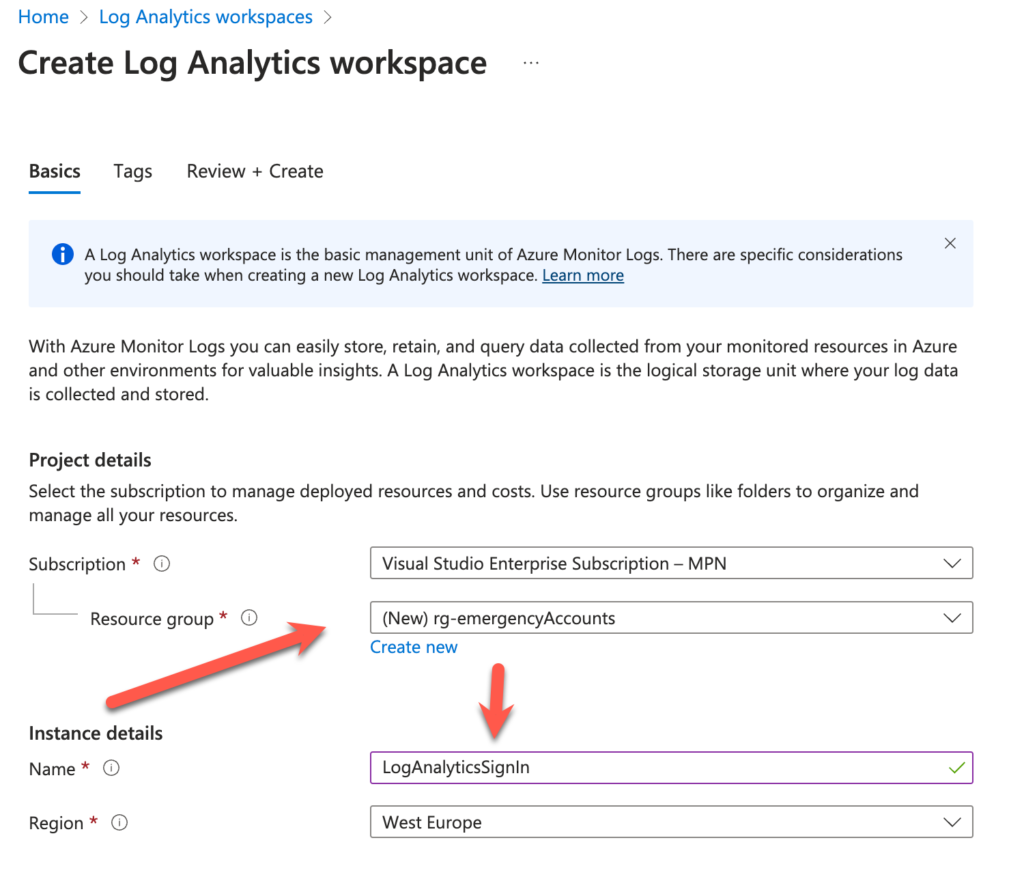
Frist we need to create a Log Analytics Workspace (link)
Browse now to Microsoft Entra -> Azure Active Directory -> Monitoring & Health -> Diagnostic Settings -> Add diagnostic setting
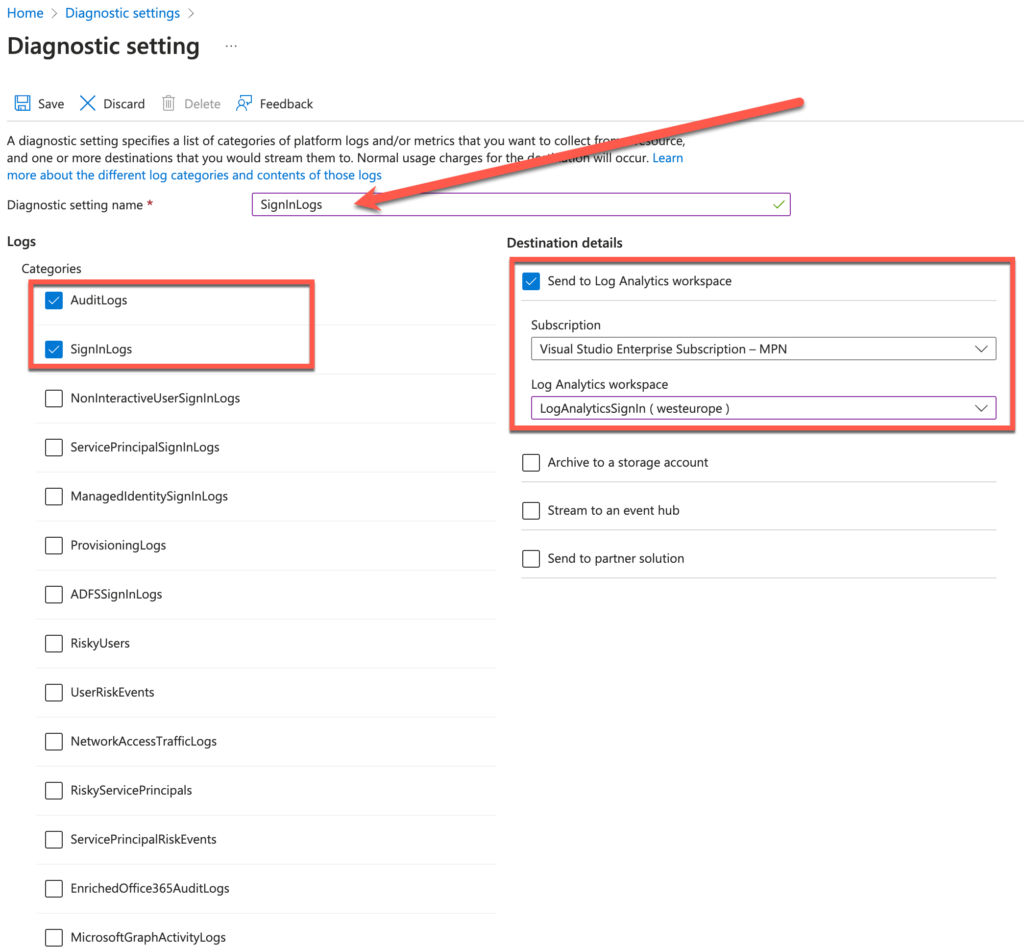
Select AuditLogs and SignInLogs
Select Send to Log Analytics workspace and select the subscription and created Log Analytics workspace earlier.
Browse now to the All Users tab to find your Break Glass accounts and obtain the ObjectId. We need these to use in the monitor.
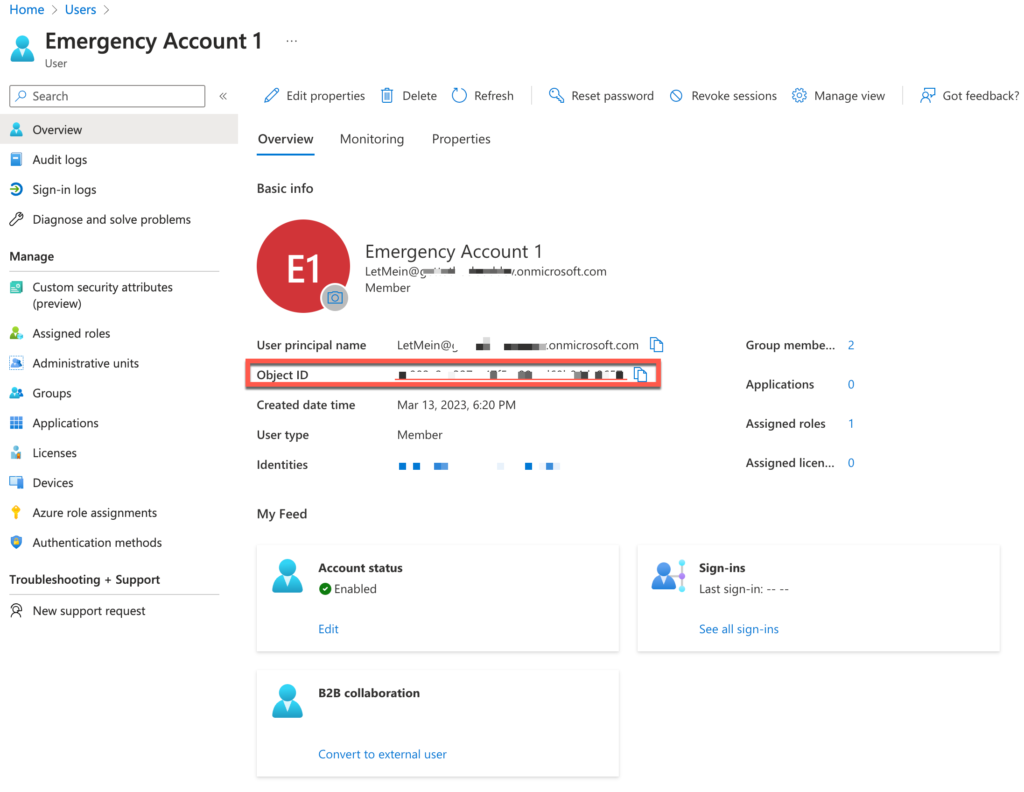
Get the ObjectId for both accounts and write them down in a notepad or other note.
Browse now to Azure Portal and select your created Log Analytics workspace
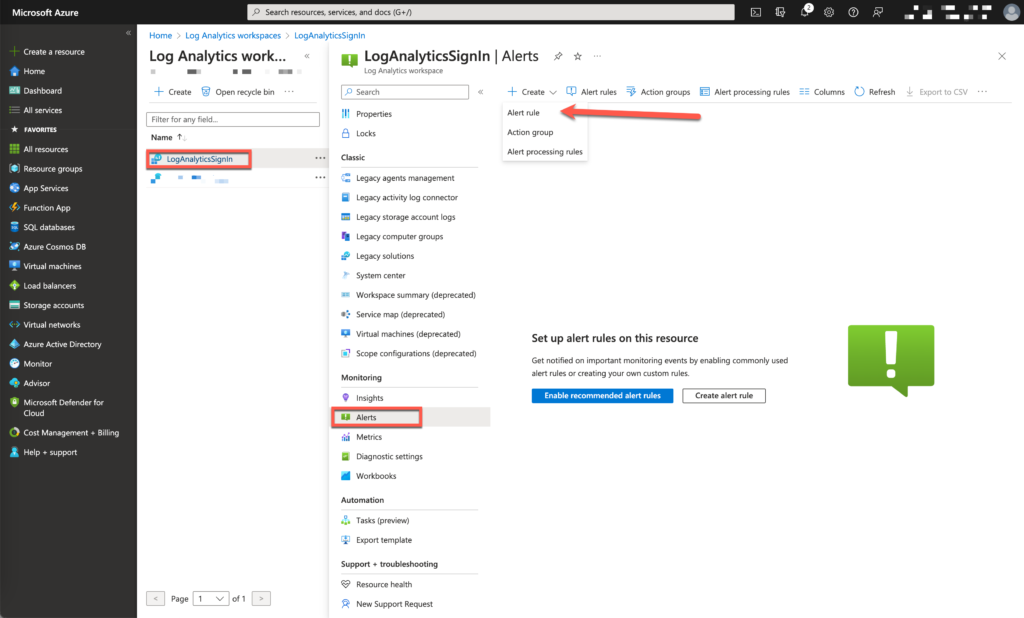
Create a new Alert Rule
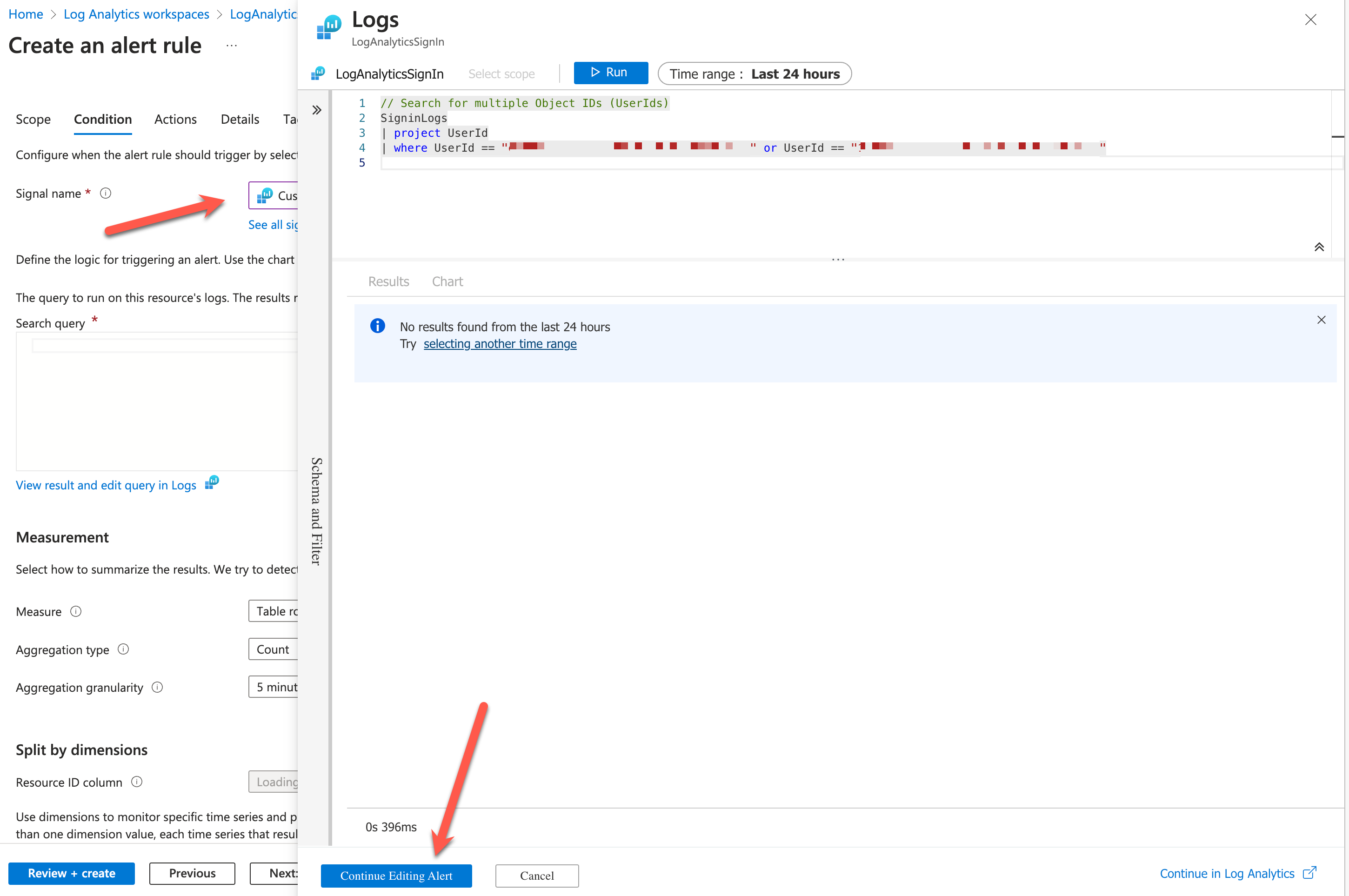
Select Custom log Search at the first tab with Signal name
To get the needed information we need to provide the ObjectId’s from the Emergency accounts.
// Search for multiple Object IDs (UserIds)
SigninLogs
| project UserId
| where UserId == "EMERGENCYACCOUNT 1" or UserId == "EMERGENCYACCOUNT 2"
With the Alert Logic part we choose
- Operator: Greater than
- Theshold value: 0
- Frequency of evaluation: 5 minute
At the next tab Actions, we need to create a new Action Group. Provide it with a name and continue to Notifications.
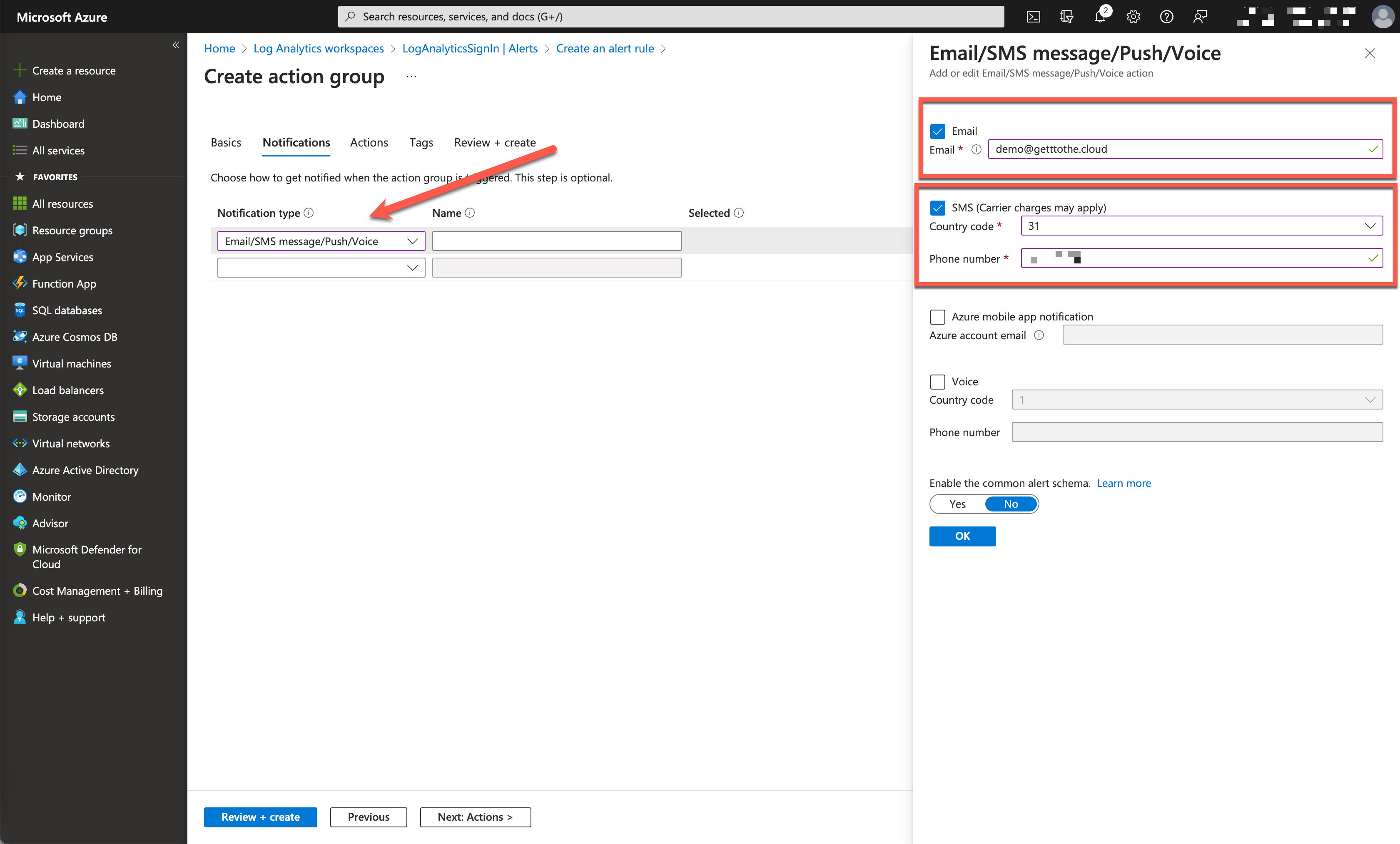
Select Email/SMS message/Push/Voice and provide an email and a telephone number to receive the sms after this you can Review + create
The next tab will be Details
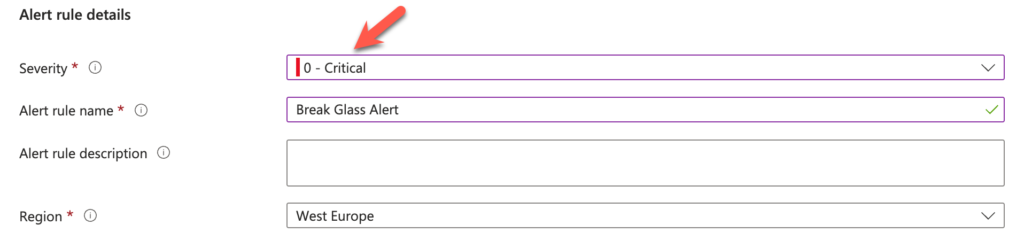
Provide a name and set Severity to 0-Critical
Now you are all set to receive notifications when someone tries to login with the Emergency Break Glass accounts to your tenant.
When you test it, you will receive a sms message looking like this:
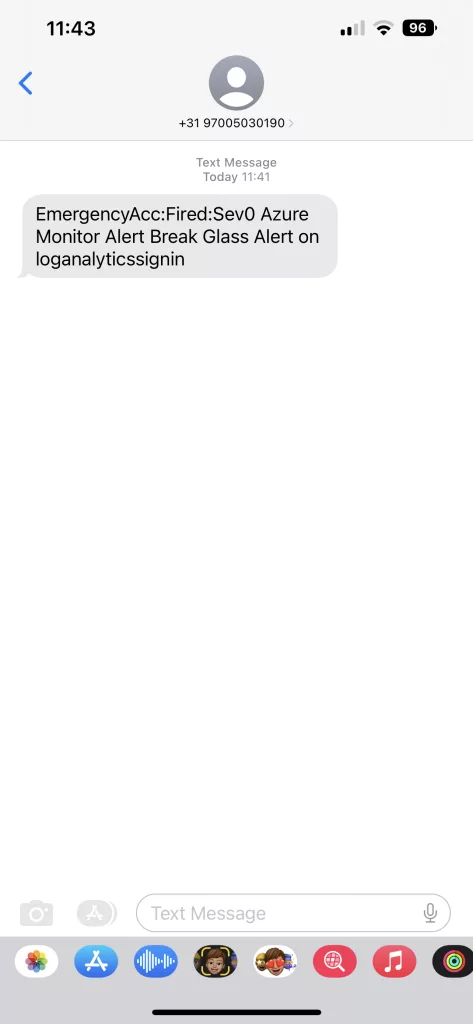
The SMS is received from Microsoft and notify you that there was an alert in the sign-ins with the break glass accounts.