Azure Local | HomeLab – Fixing a Failed Cluster Build
This post covers a real troubleshooting session on a portal-initiated Azure Local 2604 deployment using Local Identity with Azure Key Vault, the ADLess, workgroup-based deployment model. Validation passed cleanly. The build phase did not. What followed was a deep dive into the deployment engine’s PowerShell modules, the EceStore config, and some fundamental differences between how ADLess clusters and traditional AD-joined clusters get created.
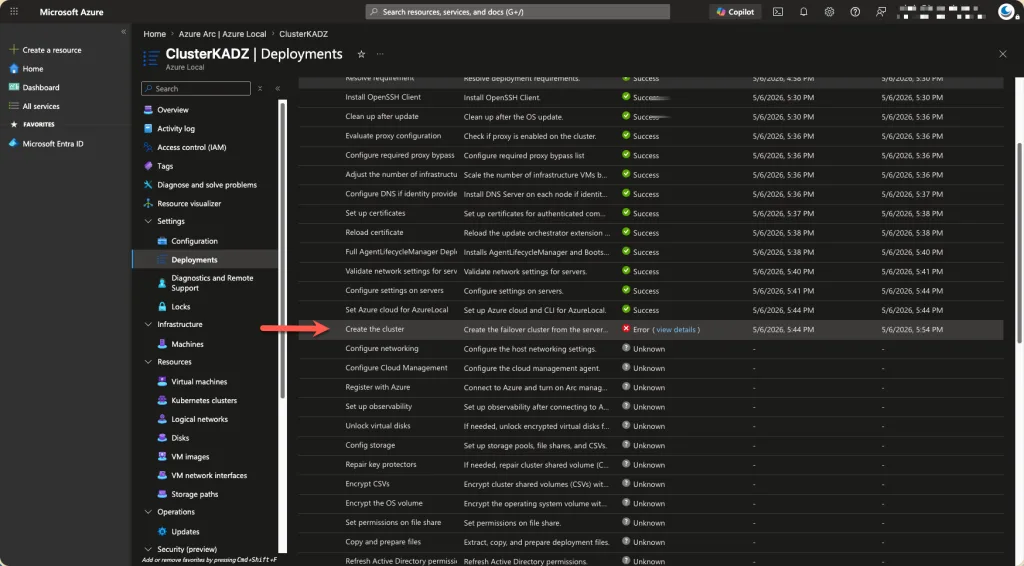
If you are running this same setup and your deployment is failing at step 0.16 – Create the cluster, this one is for you.
The Environment
The setup is a single-node Azure Local cluster running inside Hyper-V, using a fully converged network intent (compute_management_storage). The networking looks like this:
vManagement—172.16.100.10/24, gateway172.16.100.1vSMB(compute_management_storage#Port0)—10.71.1.31/24, no gateway
The cluster name is ClusterKADZ, the deployment was kicked off through the Azure portal with Local Identity + Key Vault (Preview) selected, and the node is joined to a workgroup rather than an Active Directory domain.
The First Error: ClusterAndClient Without an Address
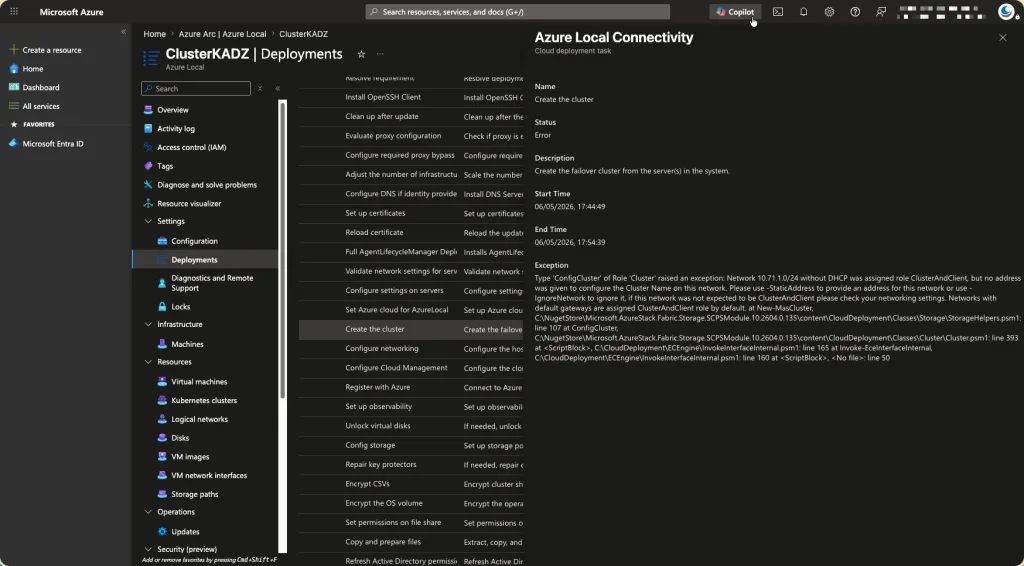
After validation passed, the build phase hit a wall immediately at step 0.16.6 — ConfigCluster:
Network 10.71.1.0/24 without DHCP was assigned role ClusterAndClient, but no address was given to configure the Cluster Name on this network.
The first instinct is to look at the network adapter configuration. Running Get-NetIPConfiguration confirms there is no default gateway on 10.71.1.0/24, only on the management network. So why is the engine treating the vSMB network as ClusterAndClient?
The answer is in the EceStore config, the file that the portal drops on the node to drive the deployment. You can find it here:
Get-ChildItem "C:\EceStore" -Recurse |
    ForEach-Object {
        if (!$_.PSIsContainer -and (Select-String -Path $_.FullName -Pattern "10.71.1" -Quiet)) {
            $_.FullName
        }
    }
Inside that file, StorageHelpers.psm1 looks for a <Mapping> element under the Management Subnet parameter to retrieve the reserved cluster IP address:
$clusterIP = $cloudParameters.Category `
    | Where-Object Name -eq 'Subnet Ranges' `
    | Select-Object -ExpandProperty Parameter `
    | Where-Object Name -eq 'Management Subnet' `
    | Select-Object -ExpandProperty Mapping `
    | Where-Object Token -like "*$clusterId-*(-IPReservation-ClusterIP)*" `
    | Select-Object -ExpandProperty IPAddress
That mapping was completely missing from the portal-generated config. The Management Subnet parameter was a self-closing XML tag with no children. To fix it, convert the self-closing tag into a proper element and inject the mapping:
$file = "C:\EceStore\efb61d70-47ed-8f44-5d63-bed6adc0fb0f\086a22e3-ef1a-7b3a-dc9d-f407953b0f84"
$content = Get-Content $file -Raw

$old = '<Parameter Name="Management Subnet" Type="IpAddress" SkipCount="10" AllocatableIps="7" Value="172.16.100.0/24" AllowedValues="" Reference="[{s-cluster-VMDC1-IpAddress(.*)}]" />'

$new = '<Parameter Name="Management Subnet" Type="IpAddress" SkipCount="10" AllocatableIps="7" Value="172.16.100.0/24" AllowedValues="" Reference="[{s-cluster-VMDC1-IpAddress(.*)}]"><Mapping Token="[s-cluster-(-IPReservation-ClusterIP)]" IPAddress="172.16.100.11" /></Parameter>'

$content = $content.Replace($old, $new)
Set-Content $file -Value $content -NoNewline
172.16.100.11 is a free IP on the management subnet, confirmed by checking what was already in use with Test-Connection.
The Second Error: StaticAddress With No ClusterAndClient Network
With the mapping in place, the cluster IP is now resolved correctly. But the next run returns a different error:
Static address ‘172.16.100.11’ was given for the Cluster Name but no appropriate ClusterAndClient network was found to host it.
This is where the Hyper-V virtual adapter problem surfaces. Even though vManagement has a default gateway, the Windows Failover Clustering engine does not always classify Hyper-V virtual NICs as ClusterAndClient networks the same way it would treat physical adapters. So New-Cluster gets a static address, goes looking for a suitable network to host it, and finds nothing.
The fix here is to tell New-Cluster to ignore the vSMB network entirely since it should never be ClusterAndClient. This is done by adding IgnoreNetwork to the $clusterParams hashtable in StorageHelpers.psm1, right after StaticAddress is set:
$clusterParams.StaticAddress = @($clusterIP)
$clusterParams.IgnoreNetwork = @("10.71.1.0/24")
The Third Error: ADLess Clusters Don’t Use StaticAddress
After a few more iterations it becomes clear that there is a deeper issue. This deployment uses DeployADLess = true, which causes New-MasCluster to set AdministrativeAccessPoint = "Dns" on the cluster:
if ($deployADLess -eq 'true')
{
    Trace-Execution "Local Identity with AKV Deployment, creating workgroup cluster."
    $clusterParams.AdministrativeAccessPoint = "Dns"
}
A DNS-based workgroup cluster registers its Cluster Name Object in DNS rather than binding it to an IP address on a ClusterAndClient network. Passing -StaticAddress to New-Cluster in this mode actively conflicts with how the cluster wants to configure itself.
The solution is to make StaticAddress conditional, only set it when the deployment is not ADLess. The IgnoreNetwork stays unconditional because the vSMB network should always be excluded:
if ($deployADLess -ne 'true')
{
    $clusterParams.StaticAddress = @($clusterIP)
}
$clusterParams.IgnoreNetwork = @("10.71.1.0/24")
With both changes in place in StorageHelpers.psm1, the cluster creates successfully. Step 0.16.6 passes. The cluster ClusterKADZ is online.
The Fourth Error: Post-Creation Validation Doesn’t Know About DNS Clusters
The cluster exists. Everything looks good. Then step 0.16.8 — ValidateCluster — fails:
Cluster ‘ClusterKADZ’ does not contain both IP Address and Network Name resources.
Test-CSClusterValidation in CSCluster.psm1 checks for a traditional IP Address + Network Name resource pair. But DNS-based workgroup clusters don’t have an IP Address resource — the CNO lives in DNS, not as a cluster resource. The validation code simply doesn’t account for ADLess deployments.
To fix it, patch the two Write-CSError calls in CSCluster.psm1 that perform these checks, replacing them with Write-CSVerbose so they log instead of throwing. The important lesson here is how to patch PowerShell module files reliably. Using $content.Replace() looks clean but silently fails when there are whitespace or encoding differences between what you see in the shell and what’s actually on disk. The $lines[$i] loop with -match is far more dependable:
$path = "C:\NugetStore\Microsoft.AzureStack.Fabric.Storage.SCPSModule.10.2604.0.135\content\CloudDeployment\Roles\Cluster\CSCluster.psm1"

# Always back up before touching NugetStore modules
Copy-Item $path "$path.bak"

$lines = Get-Content $path

for ($i = 0; $i -lt $lines.Count; $i++) {
    if ($lines[$i] -match "does not contain both IP Address and Network Name") {
        $lines[$i] = '        Write-CSVerbose "DNS-based cluster: skipping IP/Network Name count check."'
        Write-Host "Patched index $i"
    }
    if ($lines[$i] -match "Cluster IP and Name resources are not online") {
        $lines[$i] = '        Write-CSVerbose "DNS-based cluster: skipping IP/Network Name online check."'
        Write-Host "Patched index $i"
    }
}

Set-Content $path $lines
Verify the patch landed correctly before resuming:
Select-String -Path $path -Pattern "DNS-based|does not contain both|resources are not online" |
    Select-Object LineNumber, Line
The Fifth Problem: The Patch Isn’t Being Picked Up
The file is correct on disk. The patch is verified. Yet the same error keeps appearing on every -Rerun. This one is subtle and easy to miss.
The ECEAgent service executes PowerShell interfaces in child jobs and caches loaded modules in memory for the lifetime of the process. Patching a .psm1 file on disk has absolutely no effect until the service is restarted and forced to reload from scratch. The error line number in the stack trace even still matches the original pre-patch line because the cached in-memory version is what’s running.
Restart-Service ECEAgent -Force
Start-Sleep -Seconds 10

Restart-Service LcmController -Force
Start-Sleep -Seconds 10

Get-Service ECEAgent, LcmController | Select-Object Name, Status
After restarting both services, the patched module loads fresh on the next run and the ValidateCluster step passes. From this point, the deployment continues automatically through the remaining steps.
Whenever you patch a NugetStore
.psm1and the same error keeps repeating on-Rerun, restart ECEAgent and LcmController before concluding the patch didn’t work. This applies to every module patch throughout the entire deployment engine.
The Sixth Error: NetworkATC Can’t Open the Cluster
Step 0.16 is done. The cluster is running. Then step 0.17 – Configure networking – fails:
[ConfigureIntentOnHost] Exception calling “ReadIntentRequestFromStore” with “2” argument(s): “Failed to open local cluster”
NetworkAtc.Driver.dll uses [FabricManager.Persistance]::ReadIntentRequestFromStore to connect to the cluster’s intent store. This works fine in standalone mode but fails the moment -ClusterName "ClusterKADZ" is passed. DNS resolves correctly, the cluster service is running, the WMI namespace is accessible — everything looks fine. The real problem surfaces when you look at the actual cluster resources:
Get-ClusterResource | Select-Object Name, ResourceType, StateName ResourceType State
---- ------------ -----
Cluster IP Address IPv6 Address Online
Cluster Name Network Name OnlineThe Cluster IP Address resource type is IPv6 Address, not IP Address. When the DNS-based workgroup cluster was created without a -StaticAddress, Windows automatically created an IPv6 address resource for the cluster rather than an IPv4 one. The NetworkAtc.Driver.dll uses the cluster’s IPv4 endpoint to open the cluster store, and with no IPv4 cluster IP resource present, it fails with “Failed to open local cluster” even though everything else looks healthy.
The fix is to manually add a proper IPv4 IP Address resource to the cluster group and bring it online:
# Add an IPv4 cluster IP resource
Add-ClusterResource -Name "Cluster IP Address v4" `
    -ResourceType "IP Address" `
    -Group "Cluster Group"

# Configure it with the reserved cluster IP
Get-ClusterResource "Cluster IP Address v4" | Set-ClusterParameter -Multiple @{
    Address    = "172.16.100.11"
    SubnetMask = "255.255.255.0"
    Network    = (Get-ClusterNetwork | Where-Object { $_.Address -like "172.16.100*" }).Name
    EnableDhcp = 0
}

# Bring it online
Start-ClusterResource "Cluster IP Address v4"
Once the IPv4 resource is online, verify NetworkATC can now connect:
Add-NetIntent -ClusterName "ClusterKADZ" -Name "mgmt_test" -Management -AdapterName "Port0" 2>&1When that succeeds, clean up the test intent, restart the services, and resume:
Remove-NetIntent -ClusterName "ClusterKADZ" -Name "mgmt_test" -ErrorAction SilentlyContinue

Restart-Service ECEAgent -Force
Start-Sleep -Seconds 10
Restart-Service LcmController -Force
Start-Sleep -Seconds 10

.\Invoke-CloudDeployment.ps1 -Rerun
The Result
After working through all six issues, the deployment moves past step 0.17 and continues through the remaining phases automatically. The cluster is healthy, NetworkATC configures the intents correctly, and the deployment proceeds. Troubleshooting this makes once more clear: This is HomeLab with not supported Hyper-V base ground. Do not use this in production.
Consolidated Fix Reference
Here is every change made, in order, with the exact code used.
1. EceStore config XML — inject the missing cluster IP mapping
<Mapping Token="[s-cluster-(-IPReservation-ClusterIP)]" IPAddress="172.16.100.11" />Added as a child element of the Management Subnet parameter in the EceStore action plan file at C:\EceStore\...\086a22e3....
2. StorageHelpers.psm1 — conditional StaticAddress and IgnoreNetwork
# C:\NugetStore\...\CloudDeployment\Classes\Storage\StorageHelpers.psm1
# Replace the unconditional StaticAddress line with:

if ($deployADLess -ne 'true')
{
    $clusterParams.StaticAddress = @($clusterIP)
}
$clusterParams.IgnoreNetwork = @("10.71.1.0/24")
3. CSCluster.psm1 — bypass IP resource validation for DNS clusters
# C:\NugetStore\...\CloudDeployment\Roles\Cluster\CSCluster.psm1
# Replace Write-CSError calls with Write-CSVerbose using the loop approach

$lines = Get-Content $path
for ($i = 0; $i -lt $lines.Count; $i++) {
    if ($lines[$i] -match "does not contain both IP Address and Network Name") {
        $lines[$i] = '        Write-CSVerbose "DNS-based cluster: skipping IP/Network Name count check."'
    }
    if ($lines[$i] -match "Cluster IP and Name resources are not online") {
        $lines[$i] = '        Write-CSVerbose "DNS-based cluster: skipping IP/Network Name online check."'
    }
}
Set-Content $path $lines
4. Service restart — flush the module cache
Restart-Service ECEAgent -Force
Start-Sleep -Seconds 10
Restart-Service LcmController -Force
5. Add IPv4 cluster IP resource — fix NetworkATC cluster store access
Add-ClusterResource -Name "Cluster IP Address v4" `
    -ResourceType "IP Address" `
    -Group "Cluster Group"

Get-ClusterResource "Cluster IP Address v4" | Set-ClusterParameter -Multiple @{
    Address    = "172.16.100.11"
    SubnetMask = "255.255.255.0"
    Network    = (Get-ClusterNetwork | Where-Object { $_.Address -like "172.16.100*" }).Name
    EnableDhcp = 0
}

Start-ClusterResource "Cluster IP Address v4"
Key Things to Know
- ADLess deployments behave differently from AD-joined ones. The
AdministrativeAccessPoint = "Dns"path throughNew-Clusterhas different requirements that the 2604 deployment modules don’t fully handle, particularly around cluster IP assignment, post-creation validation, and NetworkATC cluster store access. This is a gap in the current release.
- DNS-based workgroup clusters create an IPv6 address resource by default when no
-StaticAddressis provided. This breaks NetworkATC’sFabricManager.Persistancelayer, which relies on an IPv4 cluster IP resource to open the cluster store. Always add an IPv4IP Addressresource manually after creating an ADLess cluster.
- Hyper-V virtual adapters are not treated the same as physical NICs by the Failover Clustering network role detection engine, even when a default gateway is present. When running Azure Local inside Hyper-V with a converged vSwitch, expect to explicitly exclude networks that the engine misclassifies.
- The EceStore config is the deployment’s source of truth. When the portal doesn’t populate a field correctly, the engine fails with a misleading error instead of pointing at the missing config. Any time a portal-initiated deployment fails at the cluster creation step, reading the EceStore XML directly is the fastest way to understand what is actually being passed to the engine.
- After patching any NugetStore module, always restart ECEAgent and LcmController. Disk changes are invisible to a running service that has already loaded the module into memory. This is easy to miss and wastes a lot of time if you don’t know about it.