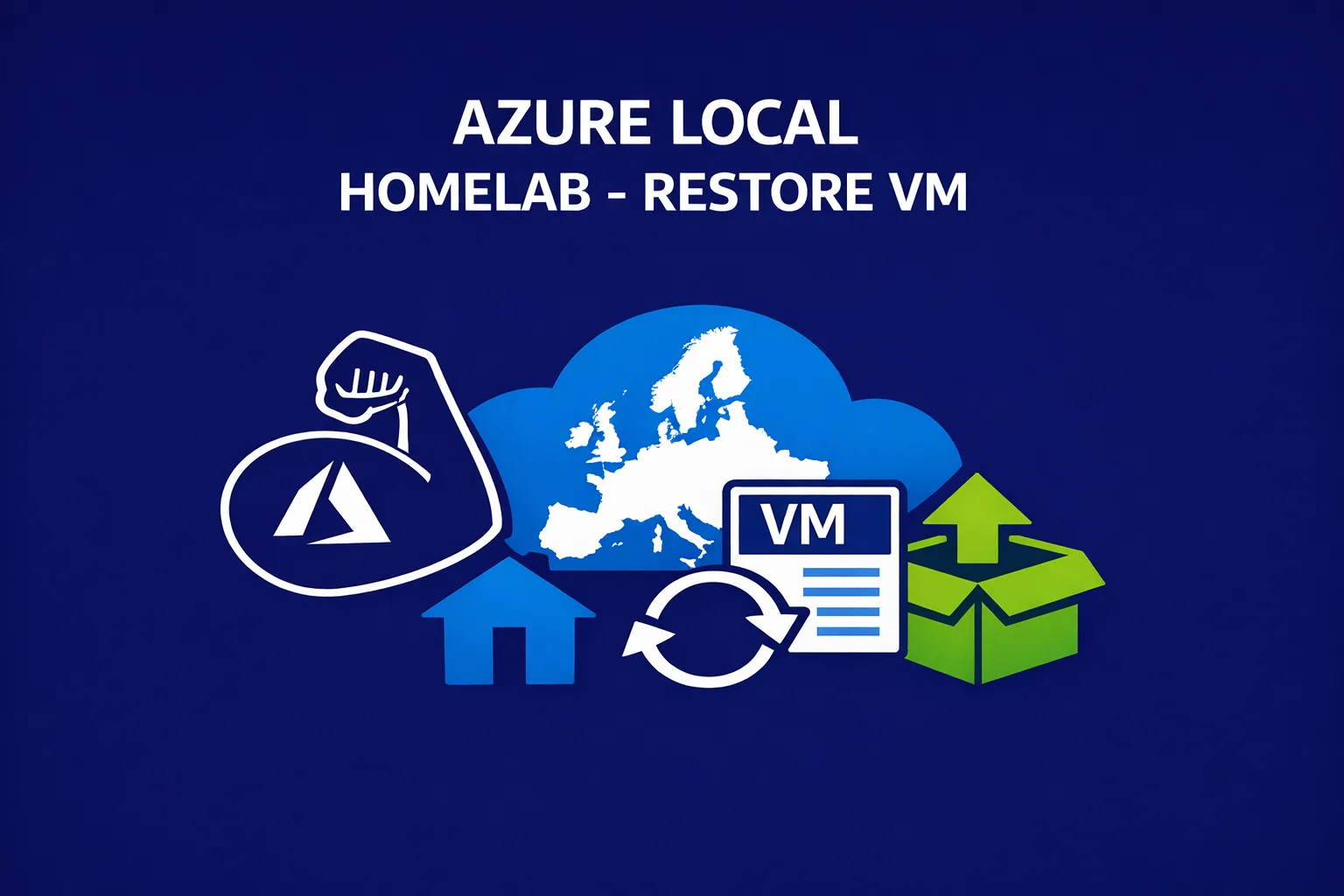

When you run virtual machines on Azure Local, you quickly realize that a VM is not just a VM. It exists as two distinct entities: the actual Hyper-V compute workload running on your cluster nodes, and an Arc object, a projection of that VM into Azure Resource Manager. Backup solutions like Azure Backup (via MABS) and Veeam do an excellent job of protecting the first half. The second half? That is where things get complicated.
This post walks through exactly what happens to your Arc VM object when a restore is performed, why Microsoft does not support ReHydration, and how you can manually recover the full Azure Local managed VM experience after a restore, including all the CLI commands you need to get there.
The Architecture: Why Two Objects Exist
To understand the problem, you first need to understand how Azure Local manages virtual machines.
When you deploy a VM through the Azure portal or via az stack-hci-vm create, two things happen simultaneously:
- The Hyper-V VM is created on your cluster via the underlying compute fabric.
- An Arc VM object (
Microsoft.AzureStackHCI/virtualMachines) is registered in Azure Resource Manager through the Arc Resource Bridge (ARB) and the Azure Local cluster extension.
The Arc Resource Bridge acts as a local control plane agent, it runs as a VM on your cluster and is responsible for keeping Azure aware of your on-premises resources. It projects your VMs, virtual hard disks, and storage paths into ARM as first-class objects.
Azure Portal / ARM
        │
        │  Arc VM Object (Microsoft.AzureStackHCI/virtualMachines)
        │
Arc Resource Bridge  ──────────────────────────────────────
        │
        │  Hyper-V VM (running on cluster node)
        │
Azure Local Cluster (Node1, Node2, ...)
When you back up a VM and later restore it using Azure Backup or Veeam, only the Hyper-V layer is restored. The backup agent has no knowledge of ARM objects, Arc projections, or the Resource Bridge. The result: your VM is running on the cluster, but Azure has no idea it exists.
What Microsoft Says About ReHydration
As of today, ReHydration of Arc VM objects is not supported by Microsoft. This means there is no native, out-of-the-box mechanism to take a restored Hyper-V VM and automatically re-project it back into Azure as an Azure Local managed VM.
This is a known gap. You can vote for this feature on the Azure Feedback portal, but in the meantime, you need to handle the re-registration process manually. This post shows you exactly how.
Recovery Options
There are three approaches, depending on how complete you want the recovery to be.
Option 1 – Arc-Enabled Server (Quick, but Limited)
This gets the VM connected to Arc as a generic server, not as a managed Azure Local VM. You lose Azure Local-native lifecycle management (portal control, ARM templates, az stack-hci-vm commands), but you do get Arc connectivity, policies, extensions, and monitoring back quickly.
Log in to the restored VM and run:
# Download and install the Arc Connected Machine agent
Invoke-WebRequest -Uri https://aka.ms/azcmagent-windows `
  -OutFile "$env:TEMP\install_windows_azcmagent.ps1"

& "$env:TEMP\install_windows_azcmagent.ps1"

# Connect the machine to Arc
azcmagent connect `
  --resource-group "rg-azurelocal-prod" `
  --tenant-id "xxxxxxxx-xxxx-xxxx-xxxx-xxxxxxxxxxxx" `
  --location "westeurope" `
--subscription-id "xxxxxxxx-xxxx-xxxx-xxxx-xxxxxxxxxxxx"This registers the VM as a Microsoft.HybridCompute/machines object — useful, but not the same as a full Azure Local managed VM.
Option 2 – Full Recovery as Azure Local Managed VM (Recommended)
This is the complete recovery path. It restores the VM as a proper Microsoft.AzureStackHCI/virtualMachines object, fully manageable from the portal and CLI. It requires a few more steps, but gives you back everything.
Step 1 — Restore the VM (do not power it on yet)
Run your restore through Azure Backup or Veeam as normal. Let the VHDX land on your Cluster Shared Volume. Do not power on the VM yet, you want the disk available but not in use.
After the restore, note the full VHDX path on your CSV. It will look something like:
C:\ClusterStorage\Volume01\Restored-VM\OsDisk.vhdxStep 2 — Get Your Storage Container ID
Azure Local manages storage paths as Storage Containers (Microsoft.AzureStackHCI/storageContainers). Your restored VHDX needs to be registered under one of these.
az resource list \
  --resource-type "Microsoft.AzureStackHCI/storageContainers" \
  --resource-group "rg-azurelocal-prod" \
  --query "[].{Name:name, ID:id, Path:properties.path}" \
-o tableThis returns something like:
| Name | ID | Path |
| UserStorage1 | /subscriptions/<sub>/resourceGroups/rg-azurelocal-prod/providers/Microsoft.AzureStackHCI/storageContainers/UserStorage1 | C:\ClusterStorage\Volume01\ |
Copy the full ID value, you will need it in the next step.
Step 3 — Get Your Custom Location ID
All Azure Local resources are scoped to a Custom Location, which maps your cluster to an Azure region. Retrieve it with:
az stack-hci-vm disk create \
  --name "restored-vm-osdisk" \
  --resource-group "rg-azurelocal-prod" \
  --custom-location "/subscriptions/<sub>/resourceGroups/rg-azurelocal-prod/providers/microsoft.extendedlocation/customlocations/<custom-location-name>" \
  --location "westeurope" \
  --storage-path-id "/subscriptions/<sub>/resourceGroups/rg-azurelocal-prod/providers/Microsoft.AzureStackHCI/storageContainers/UserStorage1" \
--source "C:\ClusterStorage\Volume01\Restored-VM\OsDisk.vhdx"Important: The
--sourceparameter must point to the exact file path as it exists on your cluster storage. This does not copy or move the file, it simply registers the existing VHDX as an Arc-managed virtual disk object.
Verify the disk was registered successfully:
az stack-hci-vm disk show \
  --name "restored-vm-osdisk" \
  --resource-group "rg-azurelocal-prod" \
  --query "{Name:name, ID:id, ProvisioningState:properties.provisioningState}" \
-o jsonExpected output:
{
  "Name": "restored-vm-osdisk",
  "ID": "/subscriptions/<sub>/resourceGroups/rg-azurelocal-prod/providers/Microsoft.AzureStackHCI/virtualHardDisks/restored-vm-osdisk",
  "ProvisioningState": "Succeeded"
}Step 5 — Retrieve the Disk ID
DISK_ID=$(az stack-hci-vm disk show \
  --name "restored-vm-osdisk" \
  --resource-group "rg-azurelocal-prod" \
  --query "id" -o tsv)

echo $DISK_IDStep 6 — Create the Arc VM Object
Now create the Arc VM wrapper, pointing to the existing registered disk:
az stack-hci-vm create \
  --name "restored-vm-01" \
  --resource-group "rg-azurelocal-prod" \
  --custom-location "/subscriptions/<sub>/resourceGroups/rg-azurelocal-prod/providers/microsoft.extendedlocation/customlocations/<custom-location-name>" \
  --location "westeurope" \
  --os-disk-id "$DISK_ID" \
--nics "your-nic-name"If the VM had multiple data disks, add them with
--data-disk-idsfollowed by a space-separated list of registered disk IDs.
Once provisioning completes, the VM will appear in the Azure portal under your resource group as a fully managed Azure Local virtual machine.
Step 7 — Power On via Azure Local
Start the VM through the portal or CLI, do not start it directly from Hyper-V Manager, as this bypasses the Arc management plane:
az stack-hci-vm start \
  --name "restored-vm-01" \
--resource-group "rg-azurelocal-prod"Option 3 — Prevention: Export Arc VM Metadata Before Disaster
The cleanest recovery always starts before the disaster. As part of your VM lifecycle management, export and store the ARM definition of each VM alongside your backup jobs:
az stack-hci-vm show \
  --name "your-vm-name" \
  --resource-group "rg-azurelocal-prod" \
> backup/arc-definitions/your-vm-name-arc.jsonStore this JSON file in a location that survives a VM loss, Azure Blob Storage, a Git repository, or alongside your backup metadata in the Recovery Services Vault.
A simple PowerShell script to export all VMs in a resource group:
$rg = "rg-azurelocal-prod"
$outputPath = "C:\ArcVMBackups\"

$vms = az resource list `
  --resource-type "Microsoft.AzureStackHCI/virtualMachines" `
  --resource-group $rg `
  --query "[].name" -o tsv

foreach ($vm in $vms) {
    $definition = az stack-hci-vm show `
        --name $vm `
        --resource-group $rg

    $filePath = Join-Path $outputPath "$vm-arc-definition.json"
    $definition | Out-File -FilePath $filePath -Encoding utf8
    Write-Host "Exported Arc definition for: $vm -> $filePath"
}Schedule this script to run weekly as a Scheduled Task on your management machine.
What About Data Disks?
If your VM had additional data disks, each one needs to be registered separately before creating the VM wrapper. List all VHDXs on your CSV that belong to the restored VM, then register each:
# Register each data disk
az stack-hci-vm disk create \
  --name "restored-vm-datadisk-01" \
  --resource-group "rg-azurelocal-prod" \
  --custom-location "<custom-location-id>" \
  --location "westeurope" \
  --storage-path-id "<storage-container-id>" \
  --source "C:\ClusterStorage\Volume01\Restored-VM\DataDisk01.vhdx"

# Get data disk ID
DATA_DISK_ID=$(az stack-hci-vm disk show \
  --name "restored-vm-datadisk-01" \
  --resource-group "rg-azurelocal-prod" \
  --query "id" -o tsv)

# Include in VM create
az stack-hci-vm create \
  --name "restored-vm-01" \
  --resource-group "rg-azurelocal-prod" \
  --custom-location "<custom-location-id>" \
  --location "westeurope" \
  --os-disk-id "$DISK_ID" \
--data-disk-ids "$DATA_DISK_ID"Conclusion
The lack of ReHydration support in Azure Local is a real operational gap that catches many administrators off guard, typically during an actual incident, which is the worst possible time to discover it. The root cause is straightforward: backup tools protect the Hyper-V layer, not the Arc projection layer.
The good news is that the recovery is fully achievable manually. By re-registering the restored VHDX as an Arc virtualHardDisk object and re-creating the Arc VM wrapper, you can bring the VM back as a fully Azure Local managed machine, not just a dangling Hyper-V VM.
The even better news: with a simple weekly export of your Arc VM definitions and a documented runbook, you can turn what would otherwise be a stressful multi-hour recovery into a reliable, repeatable procedure.
| Recovery Option | Result | Effort |
|---|---|---|
| azcmagent registration only | Arc-enabled server | Low |
| Re-register disk + re-create VM wrapper | Full Azure Local managed VM | Medium |
| Pre-exported Arc definition + re-create | Full Azure Local managed VM (fastest) | Low (with prep) |
Take the time to export your Arc definitions today. Your future self will thank you.