Azure Virtual Desktop | Add custom Language Pack to Golden Image
 Alex ter Neuzen
By default all images in the marketplace in Microsoft Azure, the language is English. Microsoft Windows in basics is an English product. But there is a possibility to add your own language. In the Netherlands for example, most common users are used to have the Dutch language in Microsoft Windows. As an admin I prefer English, but who am I?
So adding the language Dutch to the golden image is possible in two ways. You can add it through a private repository with some custom scripting, or let Microsoft do it with some custom RDS Templates.
Microsoft
Microsoft provides some scripts for templating your golden image. At GitHub are scripts located, used by the image builder. As described in this post you can create a template for Azure Virtual Desktop with some these scripts. You can add this of course also to your own Bicep if wanted:
      {
        name: 'InstallWindowsLanguagePack'
        type: 'File'
        destination: 'C:\\AVDImage\\installLanguagePacks.ps1'
        sourceUri: 'https://raw.githubusercontent.com/Azure/RDS-Templates/master/CustomImageTemplateScripts/CustomImageTemplateScripts_2023-11-20/InstallLanguagePacks.ps1'
      }
      {
        name: 'InstallWindowsLanguagePack-parameter'
        type: 'PowerShell'
        inline: [
          'C:\\AVDImage\\installLanguagePacks.ps1 -LanguageList "Dutch (Netherlands)"'
        ]
        runAsSystem: true
        runElevated: true
      }
If you would like to set it also as the default language you need to use the SetDefaultLang.ps1 also.
      {
        destination: 'C:\\AVDImage\\setDefaultLanguage.ps1'
        name: 'avdBuiltInScript_setDefaultLanguage'
        sha256Checksum: '213eb3b3cf3f15668d9d74effdb5fe69e46e91109a9dfe1cc5ce8e7edbd3ba39'
        sourceUri: 'https://raw.githubusercontent.com/Azure/RDS-Templates/master/CustomImageTemplateScripts/CustomImageTemplateScripts_2023-11-20/SetDefaultLang.ps1'
        type: 'File'
      }
      {
        inline: [
          'C:\\AVDImage\\setDefaultLanguage.ps1 -Language "Dutch (Netherlands)"'
        ]
        name: 'avdBuiltInScript_setDefaultLanguage-parameter'
        runAsSystem: true
        runElevated: true
        type: 'PowerShell'
      }
Adding these will install the dutch language and set it as default for the image.
Private repository
If you want to be more in control, you can setup your own private repository. There are some files required and you need to store it in a blob or file storage account. The method I used was a ZIP file with those files stored in a Blob storage. Download and extract the Zip file and than install.
I have created a buildImage.ps1 which will be ran at first in the image build process. I do some custom things in that powershell script and this is a part of it.
c:\ImageBuilder\azcopy.exe copy $LanguagePack "$path\NL-LanguagePack.zip"

# unzipping language pack
Try {
    Expand-Archive -LiteralPath "$path\NL-LanguagePack.zip" -DestinationPath "$Env:temp\LanguagePack"
    $LipContent = "$Env:temp\LanguagePack"
    $SetLanguage = $true
}
Catch {
    $SetLanguage = $false
}

if ($SetLanguage) {

    #installing language Pack

    ##Disable Language Pack Cleanup##
    Try {
        Disable-ScheduledTask -TaskPath "\Microsoft\Windows\AppxDeploymentClient\" -TaskName "Pre-staged app cleanup"
        Disable-ScheduledTask -TaskPath "\Microsoft\Windows\MUI\" -TaskName "LPRemove"
        Disable-ScheduledTask -TaskPath "\Microsoft\Windows\LanguageComponentsInstaller" -TaskName "Uninstallation"
        reg add "HKEY_LOCAL_MACHINE\SOFTWARE\Policies\Microsoft\Control Panel\International" /v "BlockCleanupOfUnusedPreinstalledLangPacks" /t REG_DWORD /d 1 /f
    }
    catch {
        $SetError = $_
    }

    ##Set Language (Target)##
    $sourceLanguage = "nl-nl"

    ##List of additional features to be installed##
    $additionalFODList = @(
        "$LIPContent\Microsoft-Windows-NetFx3-OnDemand-Package~31bf3856ad364e35~amd64~~.cab",
        "$LIPContent\Microsoft-Windows-MSPaint-FoD-Package~31bf3856ad364e35~amd64~$sourceLanguage~.cab",
        "$LIPContent\Microsoft-Windows-SnippingTool-FoD-Package~31bf3856ad364e35~amd64~$sourceLanguage~.cab"
    )

    $additionalCapabilityList = @(
        "Language.Basic~~~$sourceLanguage~0.0.1.0",
        "Language.Handwriting~~~$sourceLanguage~0.0.1.0",
        "Language.OCR~~~$sourceLanguage~0.0.1.0",
        "Language.TextToSpeech~~~$sourceLanguage~0.0.1.0"
    )

    ##Install all FODs or fonts from the CSV file###
    Dism /Online /Add-Package /PackagePath:$LIPContent\Microsoft-Windows-Client-Language-Pack_x64_$sourceLanguage.cab
    foreach ($capability in $additionalCapabilityList) {
        Dism /Online /Add-Capability /CapabilityName:$capability /Source:$LIPContent
    }

    foreach ($feature in $additionalFODList) {
        Dism /Online /Add-Package /PackagePath:$feature
    }

    ##Add installed language to language list##
    $LanguageList = Get-WinUserLanguageList
    $LanguageList.Add("$sourcelanguage")
    Set-WinUserLanguageList $LanguageList -force
  Set-SystemPreferredUiLanguage -Language $LanguageList
  Set-Culture -CultureInfo $Languagelist
    remove-appxpackage -package "Microsoft.LanguageExperiencePacknl-NL_22621.48.189.0_neutral__8wekyb3d8bbwe"
}


Set-SystemPreferredUILanguage -Language nl-NL
Copy-UserInternationalSettingsToSystem -WelcomeScreen $True -NewUser $True
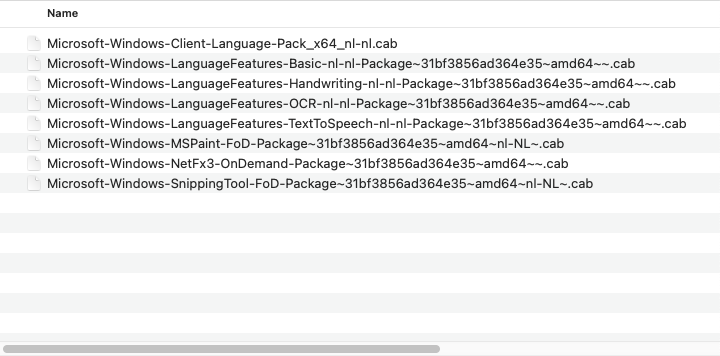
The contents of the zip file:
So you are able to add the different languages multiple ways.
But …… What about Microsoft Office I hear you say. Well that is a whole different thing to do.
Microsoft Office 365
If you use a marketplace image with Microsoft Office 365 built in, it is also in English. Let’s add the Dutch language to it.
At the storage account where my buildImage.ps1 is stored and the NL-LanguagePack.zip, I have place also a XML.
<Configuration ID="98ebae54-0f87-48e2-bfa1-3eb91a044cdd">
  <Add OfficeClientEdition="64" Channel="Current">
    <Product ID="O365ProPlusRetail">
      <Language ID="nl-nl" />
      <Language ID="en-us" />
      <ExcludeApp ID="Groove" />
      <ExcludeApp ID="Lync" />
    </Product>
    <Product ID="VisioProRetail">
      <Language ID="nl-nl" />
      <Language ID="en-us" />
      <ExcludeApp ID="Groove" />
      <ExcludeApp ID="Lync" />
    </Product>
    <Product ID="ProjectProRetail">
      <Language ID="nl-nl" />
      <Language ID="en-us" />
      <ExcludeApp ID="Groove" />
      <ExcludeApp ID="Lync" />
</Product>
    <Product ID="LanguagePack">
      <Language ID="nl-nl" />
      <Language ID="en-us" />
    </Product>
<Product ID="ProofingTools">
      <Language ID="nl-nl" />
<Language ID="en-us" />
    </Product>
  </Add>
  <Updates Enabled="TRUE" />
  <RemoveMSI />
  <AppSettings>
    <User Key="software\microsoft\office\16.0\excel\options" Name="defaultformat" Value="51" Type="REG_DWORD" App="excel16" Id="L_SaveExcelfilesas" />
    <User Key="software\microsoft\office\16.0\powerpoint\options" Name="defaultformat" Value="27" Type="REG_DWORD" App="ppt16" Id="L_SavePowerPointfilesas" />
    <User Key="software\microsoft\office\16.0\word\options" Name="defaultformat" Value="" Type="REG_SZ" App="word16" Id="L_SaveWordfilesas" />
  </AppSettings>
</Configuration>
This XML adds the Dutch language to Office. In my buildImage.ps1 I have written
function Get-ODTURL {

    [String]$MSWebPage = Invoke-RestMethod 'https://www.microsoft.com/en-us/download/confirmation.aspx?id=49117'

    $MSWebPage | ForEach-Object {
        if ($_ -match 'url=(https://.*officedeploymenttool.*.exe)') {
            $matches[1]
        }
    }

}

$O365XML = "https://storageaccount.file.core.windows.net/blobfolder/filename.xml?SASToken"

try {
    Invoke-WebRequest -Uri $O365XML -OutFile "$path\M365Office-EN-NL.xml"
}
catch {
    $downloadError = $_
}

# install dutch office
## unpack ODT

Try{
Start-Process "$path\ODTSetup.exe" -ArgumentList "/quiet /extract:$path" -Wait
}
Catch {
}

## running install
try {
$Silent = Start-Process "$path\Setup.exe" -ArgumentList "/configure $path\M365Office-EN-NL.xml" -Wait -PassThru
}
catch {
}
As you can see, my Catch are empty. In my script there is a custom function called Log-Message which provide me the logging I would like to have. You can do it your own way.
#enjoy