
To get all members of security groups (which are synchronised groups) from the on-premises active directory, we use an Azure Function. This Azure Function will be triggered every 5 minutes to get all the members their userPrincipalName and store it in a CSV which is located at an Azure Blob Storage Container.
Azure Function
An Azure Function with a time trigger set to execute every 5 minutes is a serverless computing solution provided by Microsoft Azure. This function automatically runs a specified task or code snippet at regular intervals, in this case, every 5 minutes. It offers scalability, cost-efficiency, and ease of management, enabling developers to focus solely on writing the code without worrying about infrastructure maintenance. This setup is ideal for recurring tasks like data processing, notifications, or updates.
Azure Blob Storage Container
An Azure Blob Storage Container is a cloud-based repository for storing unstructured data, such as text or binary data, within Microsoft Azure. It provides scalable, durable, and highly available storage, allowing users to store and manage large amounts of data efficiently. Containers organize data into logical units, enabling easy retrieval and management. Blob Storage is commonly used for various purposes like file storage, backups, and media streaming, offering flexibility and accessibility for diverse storage needs in cloud-based applications.
Setup
In Azure we are setting up an Azure Function. For this function we need also an App registration with permissions:
- User.Read.All
- Group.Read.All
- Groupmember.Read.All
Set a client secret and save it for later.
But first let’s create an Azure Blob Storage Container where to place the csv’s.
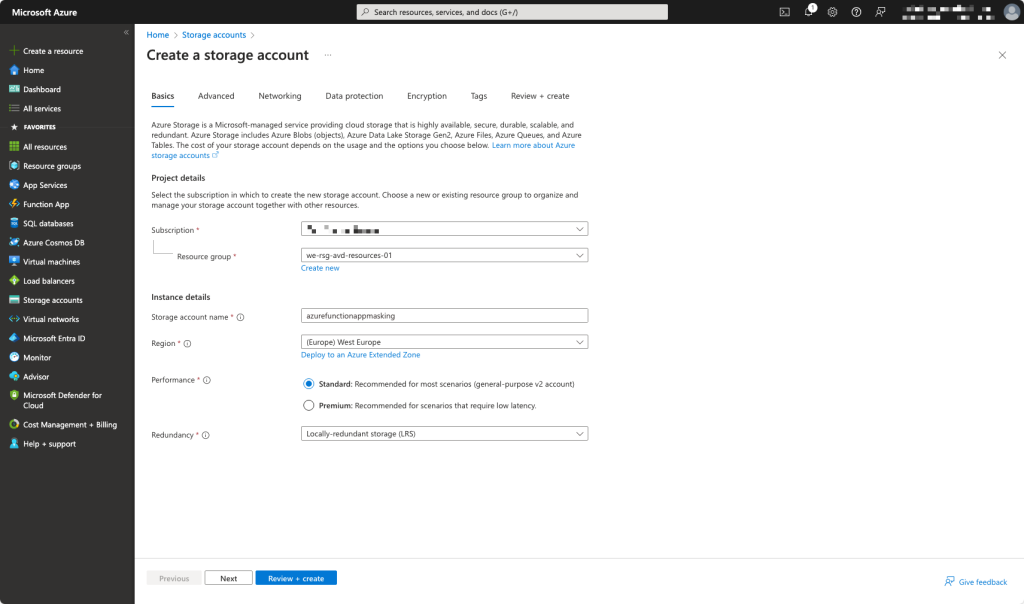
Setting up an Azure Storage Account.
We leave all the settings by default so you can choose Review + Create
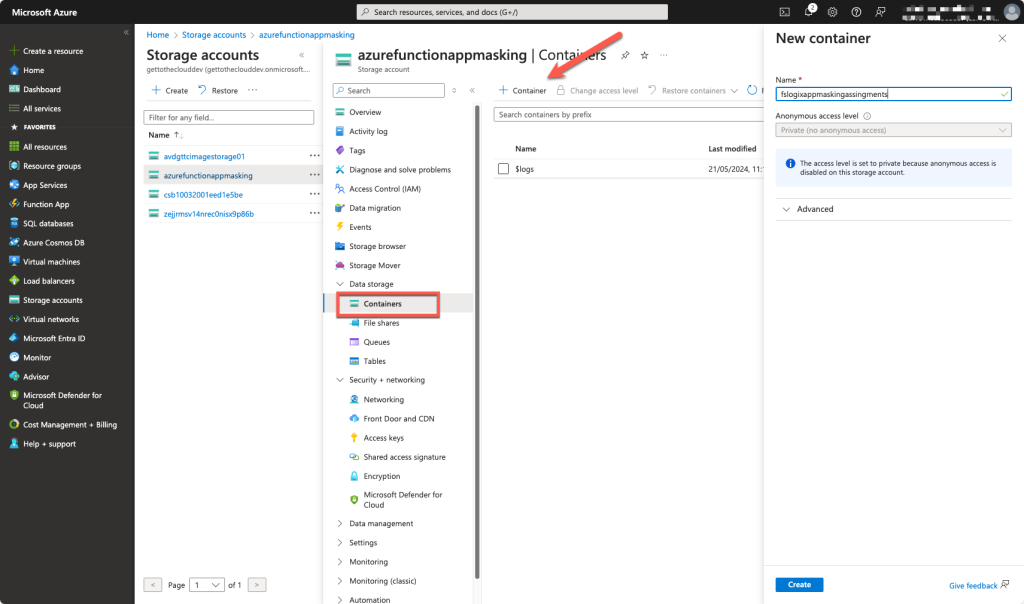
Create a new Blob container
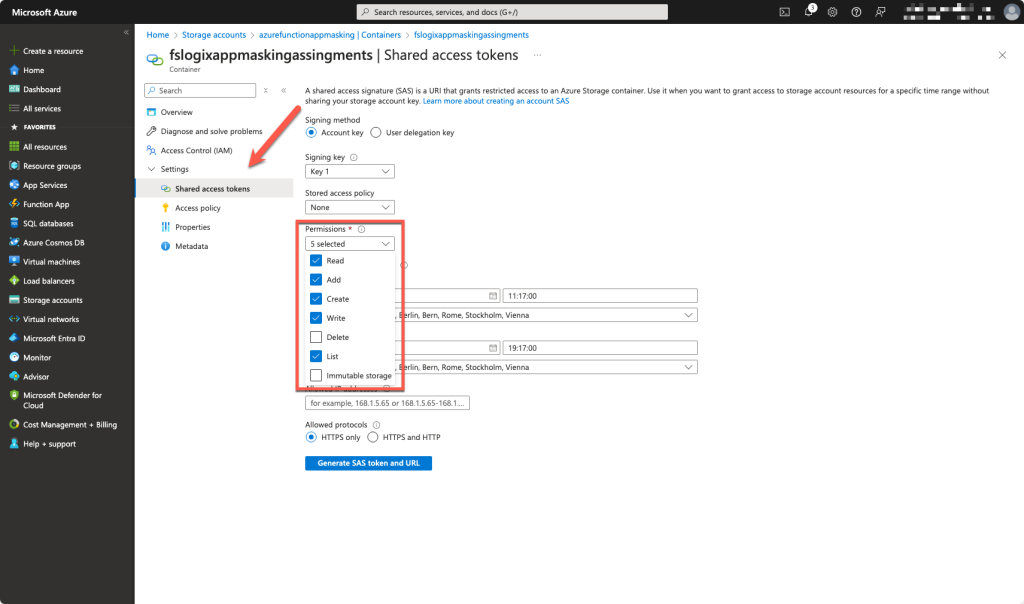
Generate a new SAS token for the container with the correct permissions. Do not forget to change the date of expiration and remember that date. Save the BLOB SAS URL because you will be provided this one time.
Now we are creating an Azure Function
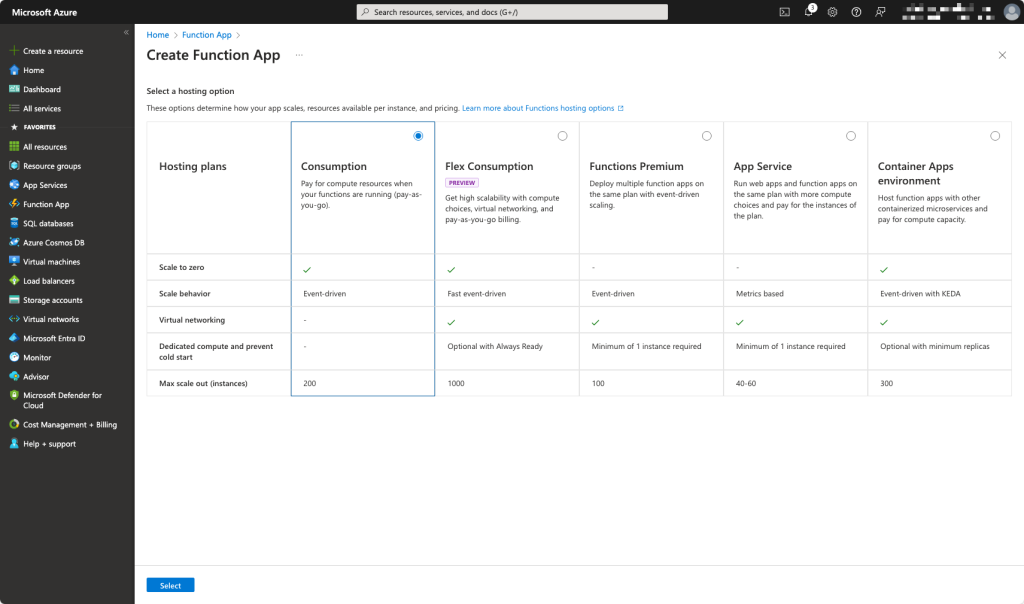
Choose your hosting option. For this function a Consumption is the best option.
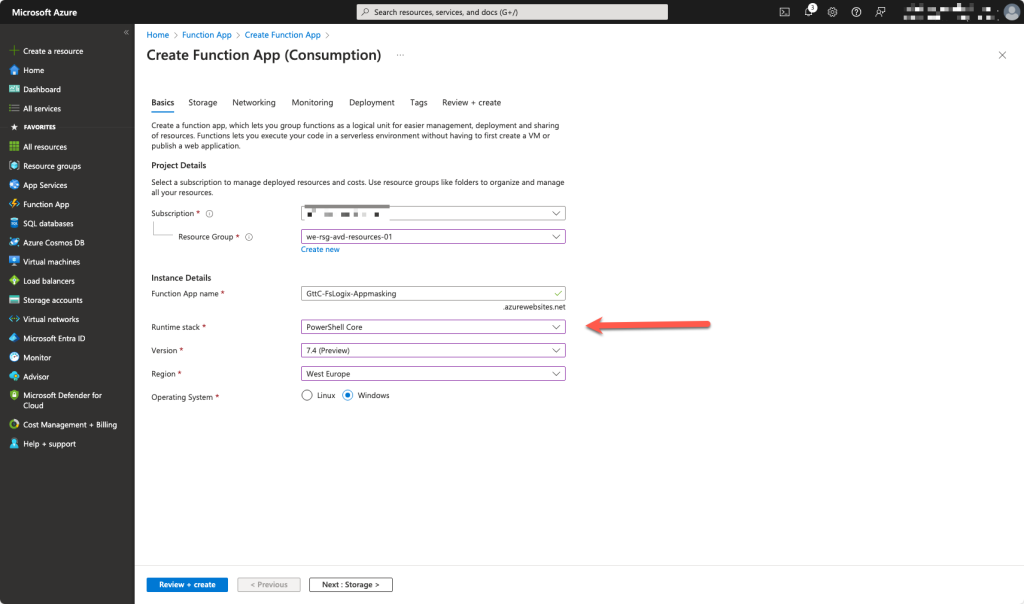
This function will be running on Windows with PowerShell Core.
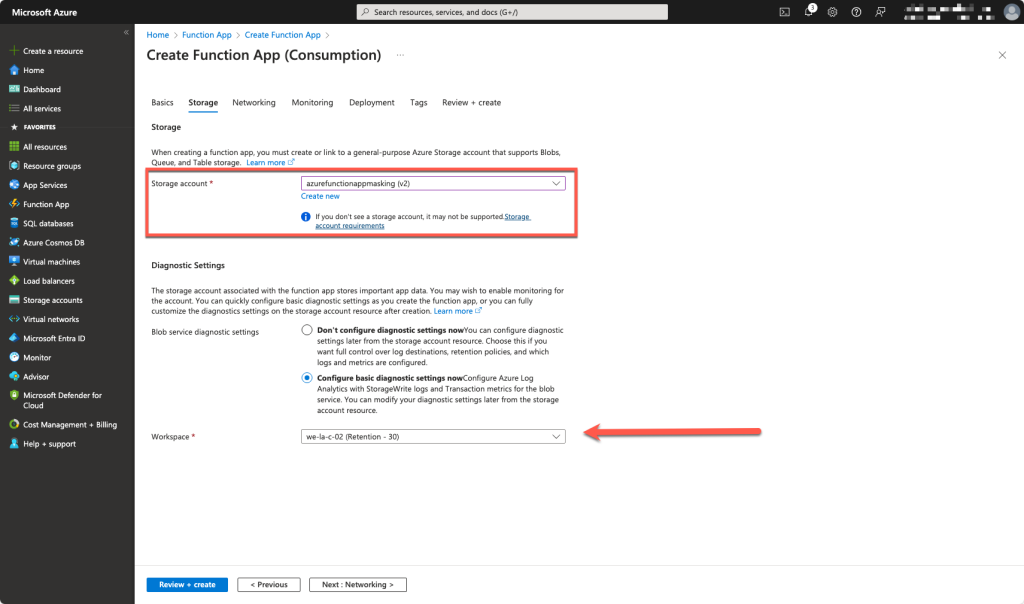
We use the same storage account as created before for the function app and it is optional to configure diagnostics.
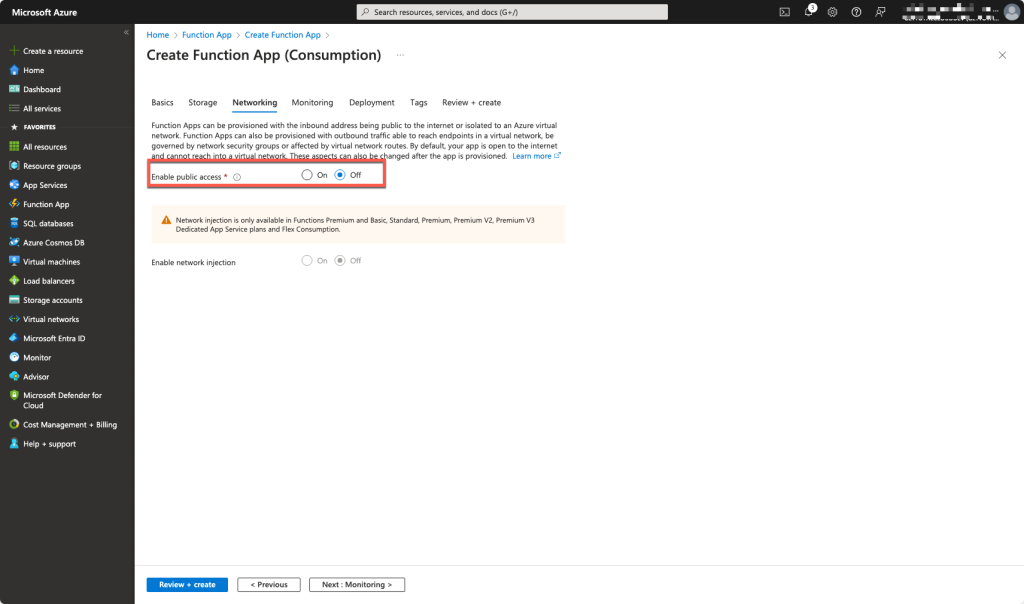
Deny Public Access
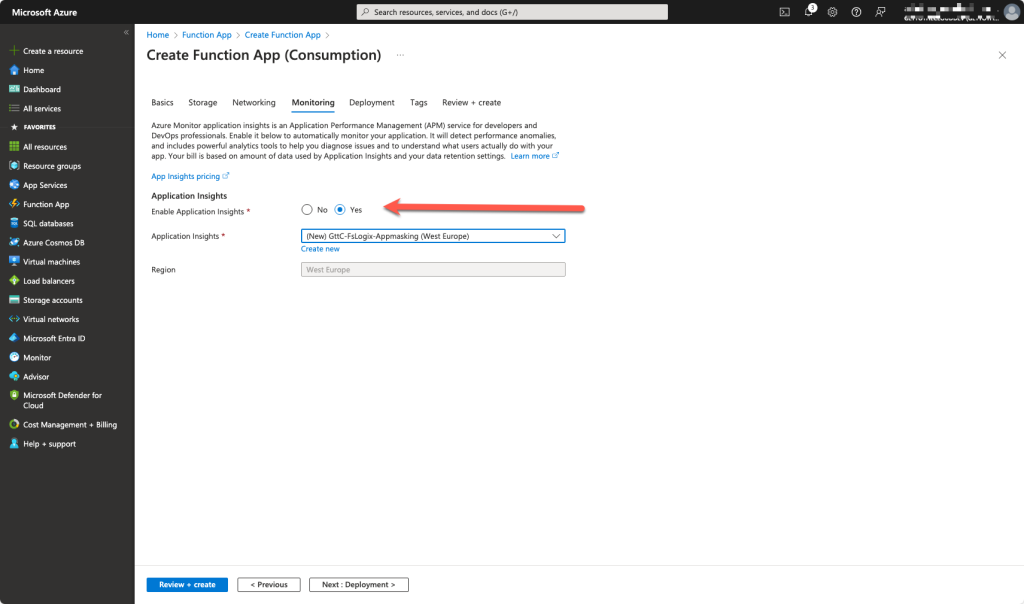
It is an option for application insights
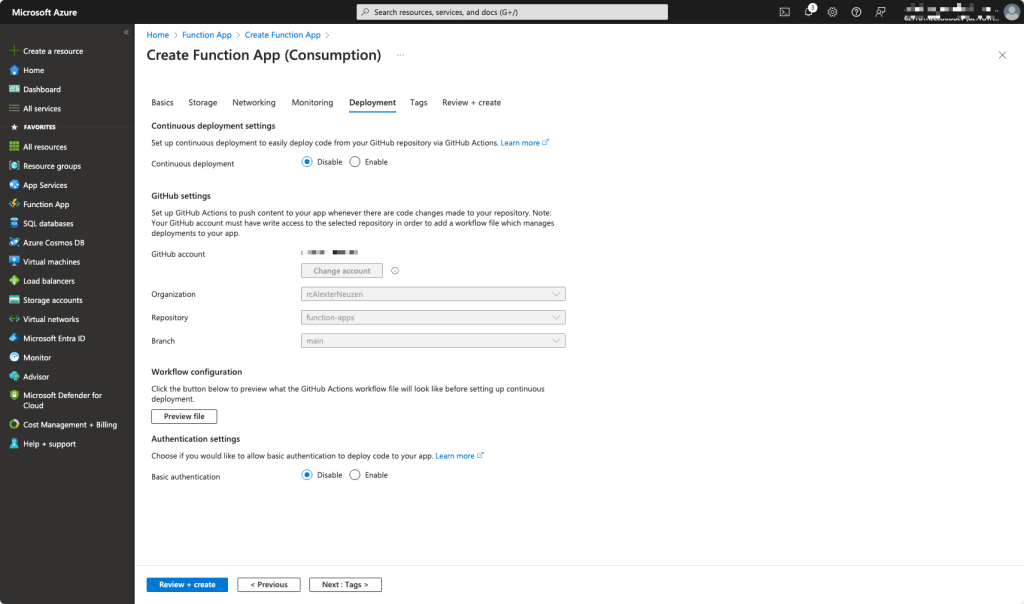
It is an option to connect it to a GitHub account, but not required.
If you want to add Tags, it is on the next screen. Otherwise you can Review + Create.
After the creation, we open the function app and need to configure a trigger/function.
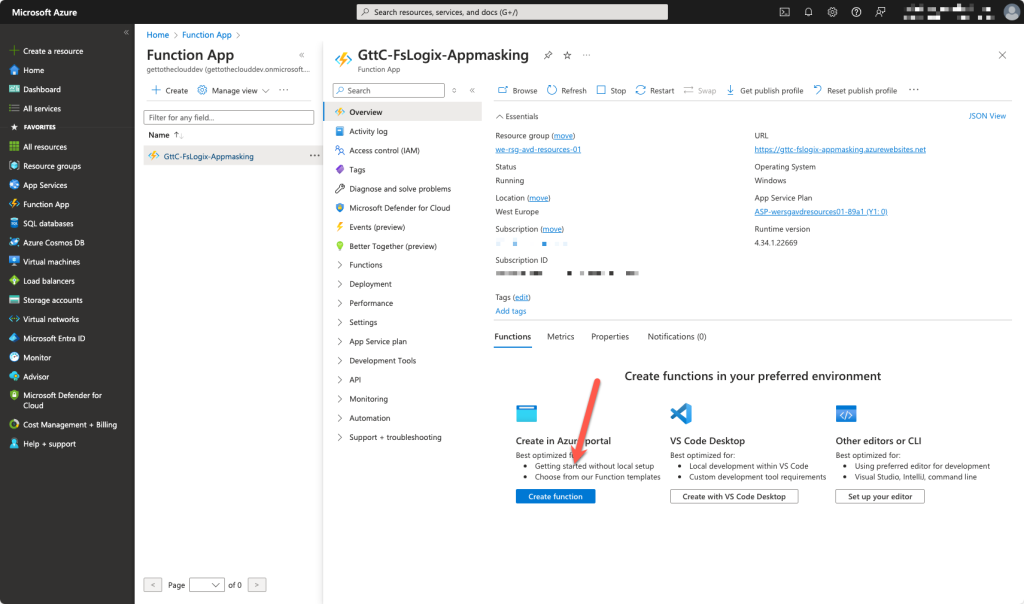
Choose Create Function
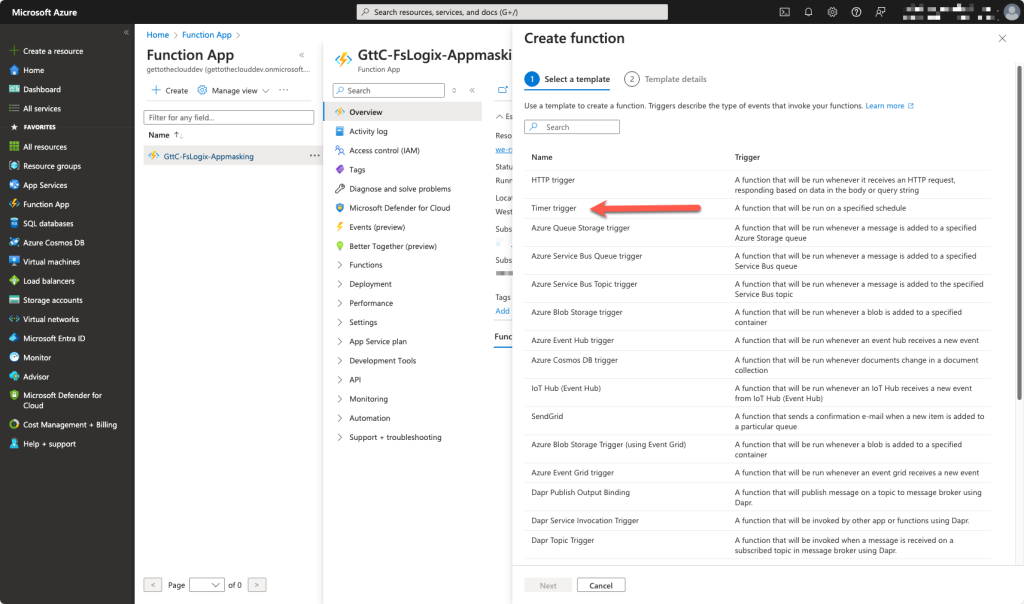
Choose for Timer Trigger and provide a name and your schedule. We leave this default for this setup. The timer is set for every 5 minutes. If you want a different schedule, you can use Conitor to generate your schedule.
Variables
Because you don’t want to edit your code constantly, we use variables for the input.
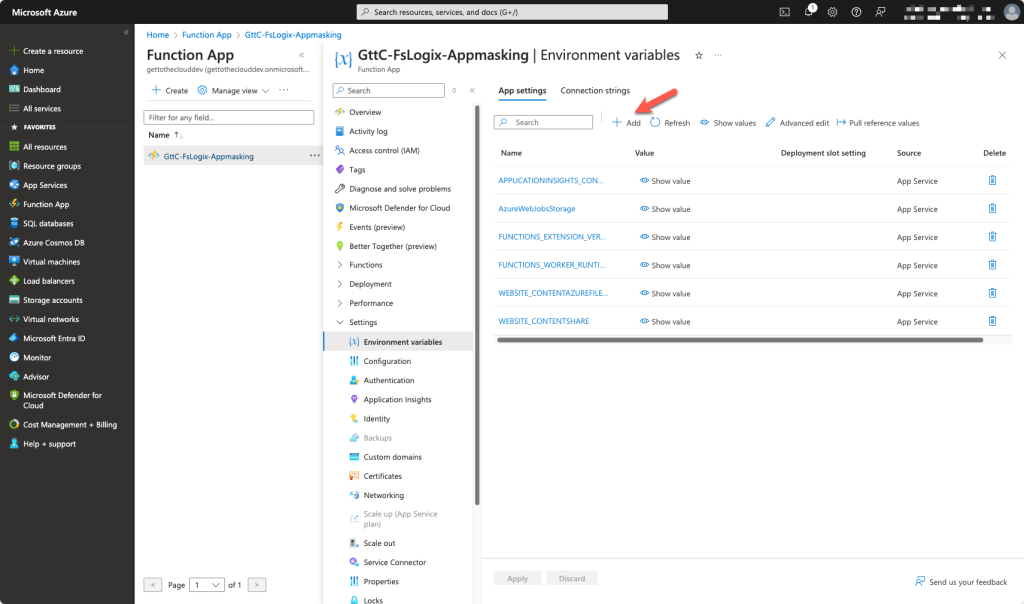
We create the following variables:
- appId (for the application id of the GraphApi app registration
- clientSecret (for the clientSecret of the app registration)
- tenantID
- sastoken (token which was created before)
- folder (url of the blob container)
There variables will be available in the session when the function app is running.
run.ps1
Every function works with multiple files for executing your function. The Run.ps1 is where your code is located.
# Input bindings are passed in via param block.
param($Timer)

# Get the current universal time in the default string format.
$currentUTCtime = (Get-Date).ToUniversalTime()

# setting variables
$appid = $ENV:appId
$clientsecret = $ENV:clientSecret
$tenantID = $ENV:TenantID
$sastoken = $env:sastoken
$folder = $env:folder
$UploadUrl = $folder + $sasToken

# define application groups in EntraId which must be exported
$AppGroups = @(
  "app_group1"
  "app_group2"
  "app_group3"
)
First setting the variables
# define functions to use
function RunQueryandEnumerateResults {
    param (
    [Parameter(Mandatory)]
    [string]$apiUri
    )

    $token = Get-TokenForGraphAPI -appid $appid -clientsecret $clientSecret -Tenantid $tenantid

    Try {
        $Results = (Invoke-RestMethod -Headers @{Authorization = "Bearer $($Token.access_token)" } -Uri $apiUri -Method Get)
    }
    catch {
        $webError = $_
        $mustRetry = 1
    }
    If ($mustRetry -and ($weberror.ErrorDetails.message -like "*Access token has expired or is not yet valid.*") -or $null -eq $Token.Access_Token) {
        #region connection
        # Get an access token for the Microsoft Graph API
        do {
            try {
                $token = Get-TokenForGraphAPI -appid $appid -clientsecret $clientSecret -Tenantid $tenantid
                $mustRetry = 0
            }
            catch {
                $webError = $_
                $mustRetry = 1
                Start-Sleep -seconds 2
            }

        } while (
            $mustRetry -eq 1
        )

        #endregion connection
        $Results = (Invoke-RestMethod -Headers @{Authorization = "Bearer $($Token.access_token)" } -Uri $apiUri -Method Get)
    }

    #Begin populating results
    [array]$ResultsValue = $Results.value

    #If there is a next page, query the next page until there are no more pages and append results to existing set
    if ($null -ne $results."@odata.nextLink") {
        $NextPageUri = $results."@odata.nextLink"
        ##While there is a next page, query it and loop, append results
        While ($null -ne $NextPageUri) {
            $NextPageRequest = (Invoke-RestMethod -Headers @{Authorization = "Bearer $($Token.access_token)" } -Uri $NextPageURI -Method Get)
            $NxtPageData = $NextPageRequest.Value
            $NextPageUri = $NextPageRequest."@odata.nextLink"
            $ResultsValue = $ResultsValue + $NxtPageData
        }
    }

    ##Return completed results
    return $ResultsValue


}

function Get-TokenForGraphAPI {
    param(
        [Parameter(Mandatory)]
        [string]$appid,
        [Parameter(Mandatory)]
        [string]$clientsecret,
        [Parameter(Mandatory)]
        [string]$tenantid
    )


    $Body = @{
        Grant_Type    = "client_credentials"
        Scope         = "https://graph.microsoft.com/.default"
        Client_Id     = $appid
        Client_Secret = $ClientSecret
    }

    $Connection = Invoke-RestMethod `
        -Uri https://login.microsoftonline.com/$($TenantID)/oauth2/v2.0/token `
        -Method POST `
        -Body $body

    #Get the Access Token
    return $connection

}
Place functions to use within the script
# prepare local storage for the exports
$check = Get-ChildItem -path "C:\local\Export"
if ($Check){
    #do skip
}
else {
    new-item -Path "c:\local" -Name Export -ItemType Directory
}

$check = Get-ChildItem -path "C:\local\temp"
if ($Check){
    #do skip
}
else {
    new-item -Path "c:\local" -Name temp -ItemType Directory
}
Prepare folders where to place exports before uploading
# getting all groups
$apiUri = "https://graph.microsoft.com/v1.0/groups"
$token = Get-TokenForGraphAPI -appid $appid -clientsecret $clientSecret -Tenantid $tenantid
$AllGroups = RunQueryandEnumerateResults $apiUri
Get all groups to use in a for each loop
# for each loop for the groups defined earlier and get all the users and potential a group with members inside the group
ForEach ($Appgroup in $AppGroups){
    $UsersToAdd = @()
    $GroupName = $Allgroups | Where-Object {$_.Displayname -eq $Appgroup}
    Write-Host "$($appgroup) is found"

    $ApiUri = "https://graph.microsoft.com/v1.0/groups/$($groupname.id)/members"
    $members = RunQueryandEnumerateResults $apiUri
    $users = $members | Where-Object {$_.'@odata.type' -eq '#microsoft.graph.user'}
    $groups = $members | where-Object {$_.'@odata.type' -eq '#microsoft.graph.group'}

    ForEach ($User in $users){
        $item = [PSCustomObject]@{
            UserPrincipalName = $user.userPrincipalName
        }
        $usersToAdd += $item
    }

    ForEach ($Group in $groups){
        $ApiUri = "https://graph.microsoft.com/v1.0/groups/$($group.id)/members"
        $members = RunQueryandEnumerateResults $apiUri
        $users = $members | Where-Object {$_.'@odata.type' -eq '#microsoft.graph.user'}
        ForEach ($User in $users){
            $item = [PSCustomObject]@{
                UserPrincipalName = $user.userPrincipalName
            }
            $usersToAdd += $item
        }
    }
    $exportFile = "C:\local\Export\$($appgroup).csv"
    $UsersToAdd | Export-CSv $exportFile
}
Run through the groups which where defined in $appGroups
# check if AZ Copy is downloaded and installed
if (!(Get-ChildItem -Path "C:\local\temp\azcopy.exe" )){
    invoke-webrequest -uri 'https://aka.ms/downloadazcopy-v10-windows' -OutFile "C:\local\temp\azcopy.zip"
    Expand-Archive "C:\local\temp\azcopy.zip" "C:\local\Temp" -force
    copy-item "C:\local\Temp\azcopy_windows_amd64_*\azcopy.exe" -Destination "C:\local\Temp"
}
else {
    invoke-webrequest -uri 'https://aka.ms/downloadazcopy-v10-windows' -OutFile "C:\local\temp\azcopy.zip"
    Expand-Archive "C:\local\temp\azcopy.zip" "C:\local\Temp" -force
    copy-item "C:\local\Temp\azcopy_windows_amd64_*\azcopy.exe" -Destination "C:\local\Temp"
}
Check is AZ Copy is installed en located in C:\local\Temp
# upload all csv to blob container
C:\local\Temp\azcopy.exe copy "c:\local\export\*.*" $UploadUrl --recursive
Upload all the files to blob container.