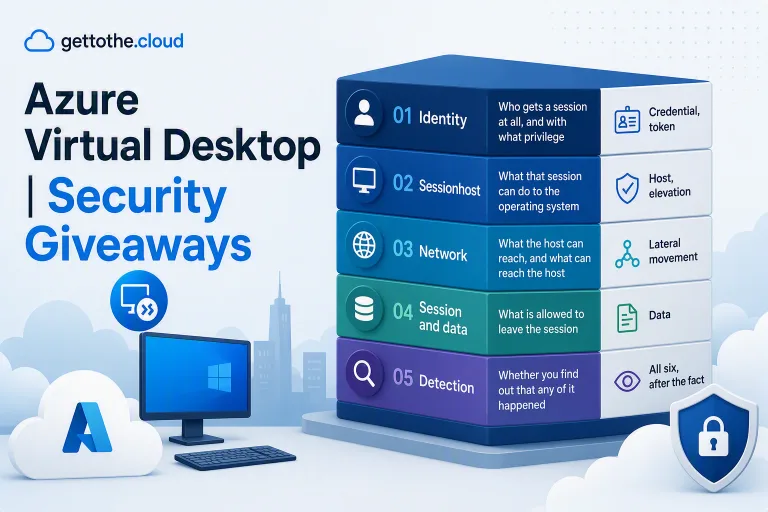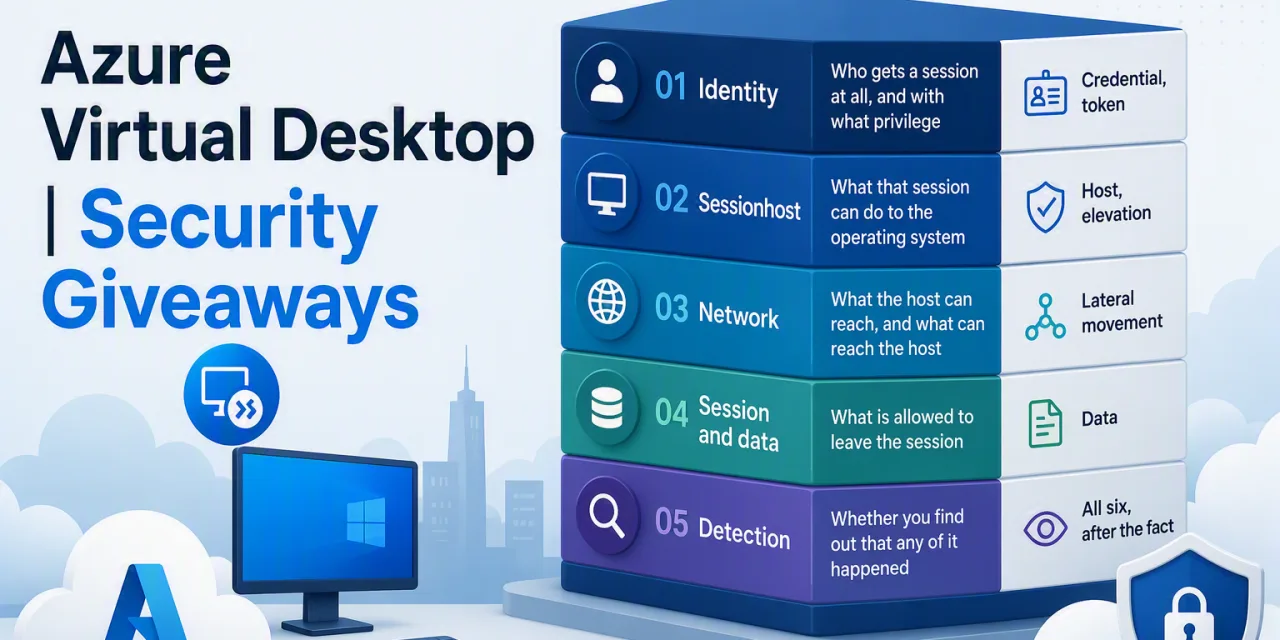

Part II closed the front of the chain. Conditional Access on both authentication applications, Entra-authenticated RDP, Trusted Launch at boot, no standing local administrators, an endpoint agent that is actually onboarded, and an image pipeline that makes all of it repeatable.
Two steps are still open. The data in the profile, and the movement out of the sessionhost into the rest of the estate.
This post covers the network path, the session boundary, and the part almost nobody does properly, finding out. It is deliberately the least glamorous of the three and it is the one that decides whether an incident is contained on a Tuesday afternoon or discovered by somebody else three months later.
Layer three – The network
No public IPs, and why you no longer need them
The single largest architectural difference between AVD and the RDS farm it replaced is that sessionhosts do not need inbound connectivity.
AVD uses a reverse connect model. The sessionhost makes an outbound connection to the AVD service and registers itself. When a user connects, the broker pairs the two outbound connections through the gateway. There is no inbound RDP port, no listener exposed to the internet, and no reason for a sessionhost to have a public IP address at all.
What that stops is the entire class of attack that dominated the RDS era, internet-wide scanning for exposed RDP, brute force against the listener, and exploitation of pre-authentication vulnerabilities in the protocol stack. Those attacks simply have nowhere to land.
The cost is essentially zero, which is what makes a public IP on a sessionhost such a clear signal. When I find one it is almost always there because somebody needed to troubleshoot something once. Remove them, and prevent them coming back with policy rather than with a wiki page.
How to verify
Enumerate the network interfaces on your sessionhost virtual machines and confirm none has a public IP address associated. Then assign an Azure Policy that denies the creation of public IPs in the sessionhost subscription or resource group, so the next troubleshooting session cannot reintroduce one.
Private Link, and the DNS problem that breaks it
Removing inbound exposure is the easy half. The other half is the control plane traffic itself, the feed, the connection, and the host registration, which by default traverses the public internet to reach Microsoft’s endpoints.
Private Link for Azure Virtual Desktop moves that traffic onto your virtual network. There are distinct sub-resources to think about and they cover different things: the workspace feed that users retrieve their published resources from, the connection path that carries the actual session, and the host pool registration path that sessionhosts use to join. They are configured separately, and covering one while leaving another public is a partial deployment – which is exactly the state most first attempts end up in.
Be honest with yourself about what this buys you. It does not make an unhardened environment safe. What it does is remove the public path as an option, keep session traffic on the Microsoft backbone and your network, and satisfy the class of regulatory requirement that asks whether internal traffic can traverse the public internet. In a sovereignty or heavily regulated context it is close to mandatory. In a standard corporate environment it is a genuine improvement that costs you real complexity.
And here is where that complexity lands.
DNS is what breaks this deployment, essentially every time
Private endpoints work by resolving the service’s public hostname to a private address inside your network. That requires the correct private DNS zones, linked to the right virtual networks, and reachable by both the sessionhosts and the client devices. Get the zone links wrong and you get a specific and confusing failure mode: name resolution returns a private address to a client that has no route to it, and the connection fails in a way that looks nothing like a DNS problem. If you take one troubleshooting habit from this post, take this one, when Private Link for AVD misbehaves, check resolution from the client and from the host before you touch anything else.
Plan the client side deliberately. If you enable the private path for the feed and your users connect from home over a split-tunnel VPN, resolution has to work for them too. This is a design decision about where your users are, not just a networking task.
How to verify
From a sessionhost and from a representative client, resolve the AVD service hostnames and confirm they return private addresses in your expected ranges. Then check the private endpoint connection state in the portal, and confirm the sessionhosts are still registering healthily, a host pool whose registration path is broken tells you very quickly.
Egress control, and the tuning problem
A sessionhost with unrestricted outbound access to the internet is a comfortable place to run command and control traffic from, and a convenient place to upload data from. Egress control cuts step six of the chain.
The mechanism is straightforward, route sessionhost outbound traffic through Azure Firewall, or an equivalent, and permit only what is required. Microsoft publishes an AVD FQDN tag that covers the service endpoints the hosts need to function, which saves you maintaining that list yourself.
The tuning problem is what makes this hard. AVD sessionhosts need more than the AVD service. They need Entra ID and authentication endpoints, Windows Update or your update service, Defender for Endpoint’s own endpoints, the Azure Monitor agent’s ingestion endpoints, certificate revocation checking, the storage account for profiles, time synchronisation, and whatever your business applications require. Miss one and you get failures that do not point at the firewall: hosts that register but will not accept connections, profiles that fail to mount, an endpoint agent that shows as healthy locally but never reports in, or connections that hang for thirty seconds on a revocation check.
Deploy this in stages. Start permissive with full logging, watch what the hosts actually reach for over a full business cycle, tighten from evidence rather than from a documentation page, and keep firewall logs long enough to diagnose the failure that turns up two weeks later. Also accept that the required endpoint list changes over time – this is a control that needs an owner, not a one-time implementation.
How to verify
Use the required URL check available on the sessionhost to confirm the service endpoints are reachable, then read the firewall’s denied-traffic logs. Those denies are your tuning backlog and they are also, once the environment is stable, one of the more interesting detection signals you have.
RDP Shortpath
Shortpath establishes a direct UDP transport between the client and the sessionhost instead of relaying everything through the gateway. The primary driver is user experience, lower latency, better responsiveness, particularly for users a long way from the region.
I include it here because the security question comes up every time and the answer deserves to be accurate rather than reassuring. Shortpath changes the transport, not the trust model. The session is still established through the broker, it is still authenticated the same way, and the traffic is still encrypted. What changes is the path the packets take.
There are two flavours and they have different implications. Shortpath for managed networks establishes the direct path over your private connectivity, your VPN or ExpressRoute, and is the straightforward case. Shortpath for public networks establishes it over the internet, which means UDP connectivity between client and host, and that has firewall consequences you need to design for consciously rather than discover.
If you are running AVD on Azure Local, preparing for Shortpath is one of the first things to get right, and I covered that groundwork separately on this site.
How to verify
Check the transport type reported for active connections, the session information available to the user and the connection diagnostics both report whether UDP is in use. If you enabled it and everything is still relaying over TCP, something in the network path is blocking it.
Layer four – The session and the data
Redirection is a data loss control
This section covers the layer most AVD security posts skip entirely, and it is the one your data protection team actually cares about.
The whole point of a virtual desktop is often that data stays inside it. Redirection is the set of features that punches holes in that boundary, and the defaults are set for convenience.
| Redirection | What it lets out | Typical justification | Sensible default |
| Clipboard | Anything the user can select, in volume, silently | Copying between local and remote apps | Disabled outbound, or text only |
| Drive | Whole files, at speed, to the local machine | Moving documents in and out | Disabled |
| Printer | Anything renderable, including to PDF | Printing | Restricted; PDF printers are file exports |
| USB | Whole files, and untrusted devices inbound | Specialist peripherals | Disabled except by exception |
| Camera and microphone | Meeting media | Teams and conferencing | Enabled, scoped |
Two entries deserve comment. Clipboard redirection is the exfiltration route people forget, because it does not feel like a file transfer. It is, and it is scriptable. Where the business genuinely needs it, restrict the direction and the content type rather than leaving it fully open. And a redirected printer that produces a PDF on the local machine is a file export mechanism with a friendly name – if drive redirection is disabled and print-to-PDF is not, you have closed the door and left the window open.
Set these centrally through host pool RDP properties and enforce them on the operating system side too. RDP properties are configuration; the operating system policy is the enforcement. Where the two disagree, you want the restrictive one to win, and you want to know which one is actually in effect.
How to verify
Do not read the configuration. Connect as a real user and try it – copy a block of text out, try to reach a local drive, print to PDF. The session is the test. I have lost count of the environments where the configuration said redirection was disabled and the session cheerfully disagreed because a second policy source was setting it back.
Watermarking and screen capture protection
Two features that address the analogue and screen-scraping problem, and two features that get oversold.
Watermarking overlays a QR code on the session that encodes the connection identifier. It does not prevent anyone from photographing the screen. What it does is make the photograph attributable, which changes behaviour – and, if something does leak, lets you trace it back to a specific session. It is a deterrent and a forensic aid.
Screen capture protection blocks the session content from being captured by screen recording and screenshot tooling on the client. It raises the effort involved in remote capture. It does not stop a phone camera, and it does not stop a determined attacker with control of the client device.
Use them where the data justifies it. Present them internally as what they are – deterrence and attribution – because a control that has been oversold gets discarded the first time somebody demonstrates the phone camera.
There is a broader point behind both. The RDP client runs on a device you frequently do not control, and no session-side control changes that. The honest answer is that unmanaged endpoints get the strict configuration – watermarking on, capture protection on, redirection off – and managed compliant devices get the relaxed one. That is a Conditional Access device filter driving a host pool assignment, and it is one of the better designs available to you.
The profile containers are the crown jewels
Sessionhosts are disposable. Profiles are not.
An FSLogix profile container is a virtual disk holding the user’s entire Windows profile – browser sessions and cookies, cached credentials and tokens, application data, and whatever documents live in the redirected folders. It follows the user to every host in the pool. In an estate where the hosts are rebuilt monthly, the profile is the only thing with continuity, which makes it both the most valuable target and the most likely place for persistence to survive a rebuild.
Secure the storage underneath it properly. Put the storage account behind a private endpoint so the profile traffic never traverses the public internet, and disable public network access on the account entirely – a private endpoint alongside an open public path is not a control. Use identity-based authentication with Entra Kerberos rather than storage account keys, because a storage key is a shared, non-attributable, rarely-rotated credential that grants access to everybody’s profile at once. Set NTFS permissions so that users can access their own container and not each other’s; the default share-level permission is not sufficient on its own and this is a step that is frequently missed. Keep encryption at rest on, and consider customer-managed keys where the regulatory context requires them.
Then think about backup, because this is where security and availability meet. A ransomware event that reaches your profile storage takes out every user’s working state simultaneously. Soft delete and snapshots on the file share are cheap, and a mass profile corruption event is one of the clearest ransomware indicators you will ever get – which brings us to the last layer.
How to verify
Confirm public network access is disabled on the storage account, confirm the private endpoint resolves correctly from a sessionhost, and confirm that storage account key access is disabled rather than merely unused. Then test the permissions properly: sign in as one user and attempt to reach another user’s container path. It should fail.
Layer five – Detection
Three tools, three jobs
These get conflated constantly, so it is worth being precise about what each one is for.
AVD Insights is an operations tool. Connection success and failure, session host health and availability, user connection latency, resource utilisation. It answers “is the environment working” and it is where you will spot the operational symptoms of a security problem, a host that stops accepting connections, a spike in failed connections – before you spot the security event itself.
Defender for Cloud is a posture tool. It assesses the configuration of the underlying resources against a benchmark and tells you what is misconfigured. Every control in Part II and Part III that has a resource-level expression is something Defender for Cloud can tell you has drifted. Enable the server plan on the sessionhost subscription and treat the recommendations as a drift monitor rather than a score to optimise.
Sentinel is the detection and investigation tool. It is where sign-in logs, endpoint telemetry, firewall logs and host events sit together and where you can actually ask a question that spans them. It is also the one with real ongoing cost, so be deliberate about what you ingest. Sign-in logs, endpoint alerts and firewall denies earn their place. Full verbose host telemetry from a large multi-session estate will surprise you on the invoice.
Whatever you use, get the diagnostic settings right first. Every host pool, workspace and application group should be sending diagnostics to a Log Analytics workspace with a retention period you have actually chosen. Almost every environment has this partially configured – one host pool wired up during a proof of concept and the rest never done.
What bad actually looks like
Enabling tooling is not detection. Detection is knowing what you are looking for. Here are the scenarios I would build first, in order of value.
Impossible travel or anomalous location into a host pool
Your users connect from a predictable set of places. A successful sign-in against the AVD applications from an unexpected country, or two sign-ins that are geographically incompatible, is a high-quality signal because the population is well understood. This uses the sign-in logs you already have and it maps directly onto step two of the chain.
A sessionhost reaching for somewhere it has never reached before
Sessionhosts built from a common image behave remarkably similarly. Once your egress rules are tuned, the firewall’s denied-traffic log becomes a genuine detection surface rather than a tuning backlog – a host attempting connections to a destination none of its identical siblings has ever contacted deserves a look. This catches step six.
Local administrators group membership changing
You closed this off in Part II. A change to that group on any sessionhost is either an administrator doing something they should have told you about, or step four in progress. Either way you want to know within minutes, not at the next audit. This is one of the highest-signal, lowest-noise alerts available in the whole environment.
Mass FSLogix container mount failures
A handful of failed mounts is a normal Monday. A sudden spike across many users at once means either your storage path is broken or something is encrypting the containers. Both are incidents. Alert on the rate, not the individual event.
Sign-ins that bypass your expected path
If you have moved everything onto Entra-authenticated RDP with Conditional Access, then an authentication to your environment that does not look like that pattern is worth investigating on its own. The value of standardising the path is that deviation from it becomes visible.
Four or five well-understood detections that somebody actually reviews are worth more than a rule pack nobody has tuned. Start there.
Pulling the series together
Across three posts the chain is now cut in six places. Credentials and tokens are constrained by Conditional Access across both authentication applications and by device filters. The host boots verifiably and runs a hardened, monitored operating system. Elevation is closed. The network offers no inbound path, a private control plane and controlled egress. The session boundary limits what can leave, and the profile data sits behind identity-based, privately-reachable storage. And when something does happen, there are logs somebody is reading.
None of this is exotic. Almost all of it is configuration you already own a licence for. The reason it does not get done is that AVD security is usually approached as a checklist of independent settings, where each item competes with every other item for the same limited afternoon.
Approach it as a chain instead. Ask which step a control cuts. If it does not cut one, it is hygiene, and it can wait until the ones that do are finished.
To see all this live in action, i have created some bicep files and scripts to setup a demo environment. This way you can check for yourself what it is and what is does. Check https://github.com/GetToThe-Cloud/avd-security-demo