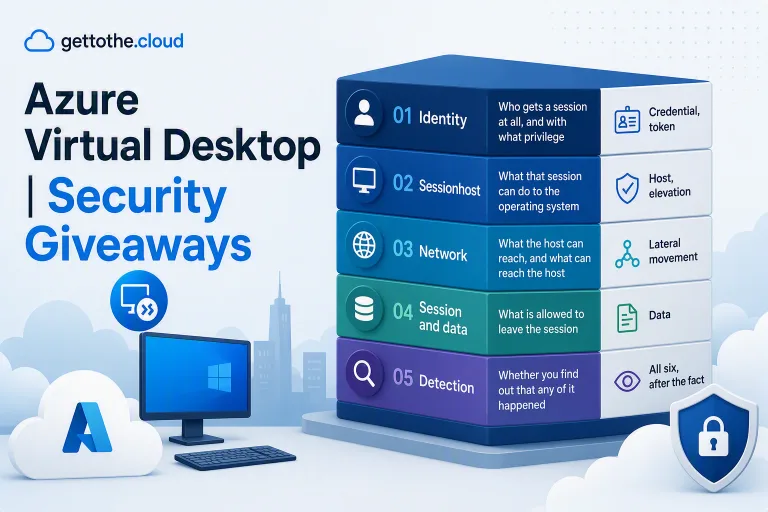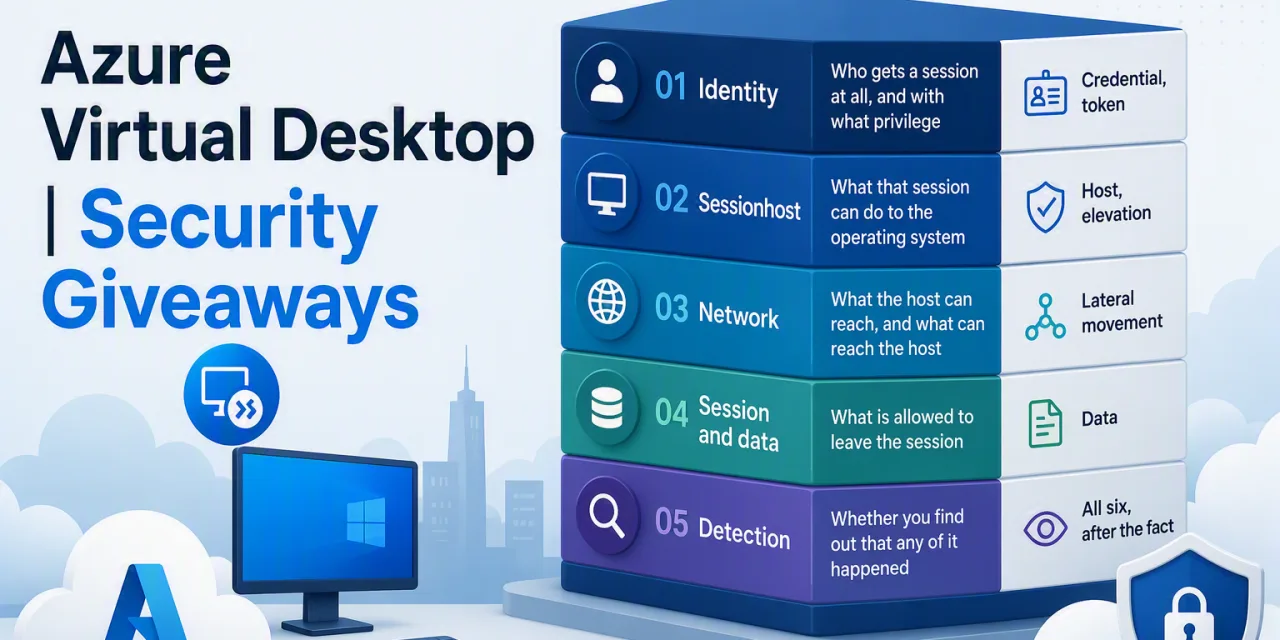

In Part I I argued that a sessionhost is a third kind of machine – not a server, not a laptop – and I walked the six-step chain an attacker follows through an AVD estate. Credential, token, host, elevation, data, lateral movement.
This post breaks the first four steps.
Identity and the operating system are where the leverage is. Get these two layers right and the network controls in Part III become a second line of defence rather than the only one. Get them wrong and nothing downstream saves you, because the attacker is already a legitimate, authenticated, locally privileged user of your environment.
Every control below is written the same way: what it stops, what it costs you, and how you verify it is actually on. That third one is the part everybody skips and it is the only part that survives contact with an audit.
Layer one – Identity
RBAC is the load-bearing wall
Start here, because if this is wrong nothing else matters.
To sign in to an Entra-joined sessionhost, the user needs a role assignment on the virtual machines. There are two candidates and the difference between them is the difference between a secured environment and an open one.
Virtual Machine User Login grants an interactive logon as a standard user. That is what an AVD user needs. Virtual Machine Administrator Login grants an interactive logon as a local administrator. That is what an AVD user almost never needs, and what a surprising number of environments have assigned to their entire user group.
Why does it matter so much? Because local administrator on a multi-session host cuts step four of the chain out entirely. An attacker who lands in a session with local admin does not need a privilege escalation exploit. They can disable the endpoint agent, read other users’ processes, dump credentials from memory, install persistence, and modify the very controls you are about to deploy. Every operating system hardening measure in the second half of this post assumes the user is not an administrator. Take that assumption away and you are configuring suggestions.
The cost of getting this right is real, and it is where the pressure comes from. Somebody’s application needs elevation to run. Somebody’s developer wants to install a tool. That pressure is exactly why the administrator role gets granted “temporarily” and then never removed. The answer is not to grant it – it is application packaging, MSIX app attach, or a separate, small, tightly scoped host pool for the handful of people who genuinely need it, with its own policies and its own monitoring.
Assign at the resource group that holds the sessionhost virtual machines rather than at the subscription. Subscription-level assignment means every future virtual machine in that subscription, AVD or not, inherits the logon right. That is a much larger blast radius than anybody intends.
How to verify
List the role assignments on the sessionhost resource group and confirm that no group containing standard users holds Virtual Machine Administrator Login. Do this as a recurring check, not a one-off, because this is a setting that drifts. It gets granted during a troubleshooting session at 4pm on a Friday and it is still there two years later.
Conditional Access, done specifically
“Enable MFA” is not a design. Azure Virtual Desktop authenticates in more than one place, and a Conditional Access policy scoped to only one of them leaves a usable gap.
There are two distinct moments to think about. First, the user retrieves their feed and their published resources. Second, the user actually connects to a sessionhost. These are different applications and a policy targeting one does not automatically cover the other. An environment where MFA is enforced on the feed but not on the connection is not an environment with MFA.
Two service principals sit at the centre of the RDP authentication path, and their application IDs are identical in every tenant:
| Application name | Application ID |
| Azure Virtual Desktop | 9cdead84-a844-4324-93f2-b2e6bb768d07 |
| Windows Cloud Login | 270efc09-cd0d-444b-a71f-39af4910ec45 |
Windows Cloud Login is the one that gets missed. It has progressively taken over the RDP authentication path from Microsoft Remote Desktop, and a policy written a few years ago that only names Microsoft Remote Desktop will quietly stop covering what you thought it covered. Target both. I have been writing about this before https://www.gettothe.cloud/azure-secure-azure-virtual-desktop-with-mfa-update/
Sign-in frequency is the setting that will make you unpopular if you get it wrong. On a normal desktop, a short sign-in frequency is a mild annoyance. In AVD, where a user may reconnect to a session several times a day across devices, an aggressive value produces a stream of prompts and a stream of tickets. Pick a value you can defend and then make single sign-on work properly, which is the next section.
Device filters are where the real strength is, and they are underused. If your users connect from managed, compliant devices, requiring device compliance on the AVD applications is a much stronger control than another MFA prompt, because it defeats token replay from an attacker’s machine. Where you cannot require compliance – contractors, personal devices – that is precisely the population that should be getting the stricter session controls in Part III.
Break-glass, and I mean it
A Conditional Access misconfiguration can lock every user out of the virtual desktop environment they use to do their job, which in a full-VDI organisation means it locks everybody out of everything. Maintain excluded emergency access accounts, protect them with strong phishing-resistant authentication rather than exclusion from all controls, monitor their use, and write down the recovery procedure somewhere that is not itself inside AVD.
How to verify
Use the Conditional Access what-if tool against a real user account for both applications, and read the sign-in logs filtered by those two application IDs. The sign-in log is the truth. The policy list is the intention.
Single sign-on is a security control
This one gets filed under user experience and that is a mistake.
On Entra-joined sessionhosts without single sign-on configured, users get a credential prompt and a consent prompt on connection. It is irritating, the consent is only remembered for a limited period, and every time you redeploy hosts from an updated golden image the prompts come back – which is a direct disincentive to rebuilding your images regularly, and rebuilding images regularly is one of the strongest controls in this entire series.
That is the first security argument:
SSO removes the friction that makes people stop doing the safe thing.
The second is better. With Entra ID authentication for RDP enabled, the connection to the sessionhost becomes an Entra-authenticated event. That means Conditional Access can evaluate it, the sign-in logs record it, and risk-based policies apply to it. Without it, the connection authenticates on a legacy path that your policy engine cannot see and your detection cannot reason about. You are not just removing a prompt – you are moving the connection under the control plane that enforces everything else.
Enabling it is a switch on those two service principals, and then a scoping of which device groups the configuration applies to. Use a dynamic device group for your sessionhosts rather than a static one, so that newly deployed hosts are covered automatically – a static group plus an autoscaling host pool is a gap that opens itself. Note the caveats honestly: dynamic groups usually populate within five to ten minutes but large tenants can take considerably longer, and dynamic membership requires Entra ID P1.
For the exact PowerShell, I wrote it out step by step in the SSO post on this site. It uses the Microsoft Graph PowerShell module, it checks the current state before it changes anything, and it is safe to run repeatedly.
How to verify
Connect from a clean profile and confirm no consent prompt appears. Then check the sign-in logs for an interactive sign-in against the sessionhost – if the connection is not producing a log entry, single sign-on is not doing what you think it is.
Layer two – The sessionhost
Trusted Launch, and why you decide it now
Trusted Launch gives the virtual machine Secure Boot, a virtual TPM and boot integrity monitoring. In plain terms it means the machine will not boot a tampered bootloader or an unsigned kernel-mode rootkit, and it can attest to that state.
What it stops is persistence at the very bottom of the stack – the class of compromise that survives everything else you do, including a Defender scan, because it loads before Defender does. It is also a prerequisite for a number of adjacent capabilities you are likely to want later.
Here is the cost, and it is the whole reason this is a takeaway rather than a footnote: Trusted Launch is decided when the virtual machine is created. It is a security type on the VM, and it requires the image generation to match. You cannot flip it on across an existing host pool from a policy blade. Retrofitting means rebuilding every sessionhost from a compatible image, and “rebuild every sessionhost” is a project, not a change request.
So decide it at the image pipeline, before the estate exists. If you are building a new host pool this month, this is the cheapest security decision available to you and it becomes one of the most expensive ones if you defer it.
How to verify
Check the security profile on the virtual machines themselves – security type, Secure Boot enabled, vTPM enabled – and enforce it going forward with an Azure Policy assignment so a manually deployed host cannot quietly join the pool without it.
No standing local administrators
I am going to be blunt about this, because it is where most environments fail in practice even after they fix the RBAC assignment.
No user has standing local administrator rights on a sessionhost. Not the power users, not the developers, not the person who owns the line-of-business application. Standing means permanent and always-on, and it is the thing to eliminate.
The objection is always the same: an application needs it. Usually that application needs write access to a folder, or a registry key, or it needs to install a driver once. Those are packaging problems and they have packaging answers – MSIX app attach, application repackaging, or a per-user install that does not touch the machine. Where the application genuinely cannot be made to work, isolate it. A small dedicated host pool with a known population, its own network path and its own alerting is a far better outcome than granting elevation across the estate.
The built-in local administrator account still exists on every host and it still has a password. Windows LAPS manages that password, rotates it, stores it in the directory and controls who can retrieve it. Without it, every host built from the same image shares the same local administrator credential, which converts one compromised host into all of them. Enable it, and audit who has the permission to read the passwords.
How to verify
Query the local administrators group across the fleet and confirm it contains only the accounts you intend. This is a good candidate for a scheduled query rather than a manual check, precisely because it is a group that grows quietly.
Defender for Endpoint and attack surface reduction
Onboarding sessionhosts to Defender for Endpoint is not optional in a serious environment, and multi-session hosts have a couple of characteristics worth knowing about before you start.
The onboarding configuration belongs in the golden image, not applied by hand afterwards. A host built from an image without it is a host that is silently unmonitored for its entire lifetime, and in an autoscaling pool nobody will notice. Where the image contains onboarding information, be aware of the machine identity problem: images captured after onboarding can produce hosts that report as the same device. Follow the documented image preparation steps so that each deployed host registers as its own device, then verify the device count in the portal matches the number of hosts you actually have.
Attack surface reduction rules are where you get real value, and also where you get your support tickets. Some are close to free on a virtual desktop. Blocking credential stealing from the Windows local security authority subsystem directly attacks step four and five of the chain, and it rarely breaks anything legitimate. Blocking Office applications from creating child processes and blocking executable content from email and webmail cut off two of the most common initial execution routes, and they occasionally break a genuine business macro.
Deploy in audit mode first. Run it for a defined period – two to four weeks across a full business cycle, so that month-end processing is included – review what would have been blocked, then enforce rule by rule. Enforcing everything on day one on a shared desktop where hundreds of people work is how attack surface reduction gets rolled back permanently after a bad Monday.
How to verify
Confirm device onboarding status and health in the Defender portal, check that the device count matches the host count, and query the ASR events to confirm rules are in the mode you believe they are in rather than the mode they were left in during testing.
Baselines, and the settings that will bite you
A security baseline is a large set of operating system settings applied as a package. There is an AVD-specific baseline, there are general Windows baselines, and there is the option of building your own.
Use the AVD-specific baseline as your starting point. It has been adjusted for the reality of a shared, non-persistent, remotely accessed desktop, which the general server and workstation baselines have not. Then expect to relax a small number of settings, and document why each one was relaxed, because an undocumented exception is indistinguishable from a mistake six months later.
The classic collision is with FSLogix. Hardening settings that touch user rights assignments, network access restrictions, or the handling of removable and network storage can prevent profile containers from mounting cleanly. The symptom is not a security alert – it is users getting temporary profiles, losing their settings, and calling the service desk. When that happens the pressure to remove the whole baseline is enormous, which is why you should apply it to a pilot host pool first with a representative group of real users, not to production on a Friday.
The second collision is with the applications themselves. Application control and script restrictions are excellent controls and they will find every unsigned utility your business quietly depends on. That is the point, but it needs a discovery phase.
How to verify
Run a configuration analysis against the baseline rather than trusting that the profile deployed successfully, and check for policy conflicts where more than one source is setting the same thing. Two management systems fighting over the same setting produces a host that is compliant in the portal and unhardened in reality.
The image pipeline is a security control
This is the one that ties the whole layer together, and if you already run an image pipeline you are most of the way there.
If sessionhosts are built from a versioned image and rebuilt on a schedule, three things become true. Patch level stops being an operational hope and becomes a property of the build. Configuration drift has a hard expiry date. And attacker persistence on the host – scheduled tasks, services, registry run keys, dropped binaries – becomes almost worthless, because the host it lives on will not exist next month.
That last point is worth dwelling on. In a persistent estate, an attacker who establishes a foothold keeps it until you find it. In an ephemeral estate, they keep it until the next rebuild. You have changed the economics of the attack without deploying a single security product.
Build the security configuration into the image rather than applying it after deployment: the endpoint agent onboarding, the baseline, the Trusted Launch-compatible generation, the removal of anything that does not belong. Store the image in a compute gallery, version it, and treat a promotion to production as a change. Then automate the rebuild cadence so that “we will redeploy the hosts soon” stops being a sentence anybody has to say.
Two practical notes. First, make sure single sign-on is configured before you adopt a frequent rebuild cadence, or every rebuild generates a wave of consent prompts and users will start asking you to stop rebuilding. Second, an image is a supply chain – whatever you install into it, you inherit. Pin your sources, and know what is in there.
How to verify
Compare the image version currently referenced by the host pool against the latest version in the gallery, and check the build date of your running sessionhosts. If the answer is measured in months, the pipeline exists on paper.
Where this leaves you
Working through this post cuts four of the six steps in the chain. The credential and the token are constrained by Conditional Access, device filters and Entra-authenticated RDP. The host is hardened at boot by Trusted Launch and at runtime by the baseline and the endpoint agent. Elevation is closed off by removing standing local administrators and managing the built-in account.
Two steps remain: the data in the profile, and the movement out of the sessionhost into everything else. Both of those are network and session problems, and they are Part III.
To see all this live in action, i have created some bicep files and scripts to setup a demo environment. This way you can check for yourself what it is and what is does. Check https://github.com/GetToThe-Cloud/avd-security-demo