Active Directory | Setup Test Domain Controller
 Alex ter Neuzen
Using Azure AD Connect provides you a way to synchronize your local on-premises accounts to Azure Active Directory. For testing purposes I always create a new domain controller and setup Azure AD Connect. Building a test domain controller on premises is no fun. Lot of manual steps need to do, before you can continue with your testing. Let’s see if we can automate that.
Hyper-V
For this example, I setup a domain controller with Hyper-V. Install a fresh Microsoft Windows Server 2019/2022 server and update it to the latest updates. Choose a name for the Microsoft Windows Server and provide it with a static IP Address in a separate VLAN.
Installing Active Directory Domain Services
Installing Active Directory Domain Services can be done through the Server Manager console but also with a PowerShell script.
Open an elevated PowerShell ISE window
#installing prerequisites
Write-Host "[INFO] Installing AD Domain Services"
Add-WindowsFeature -Name "ad-domain-services" -IncludeAllSubFeature -IncludeManagementTools | out-Null
Write-Host "[SUCCESS] Domain Services installed"
Write-Host "[INFO] Installing DNS Services"
Add-WindowsFeature -Name "dns" -IncludeAllSubFeature -IncludeManagementTools | out-Null
Write-Host "[SUCCESS] DNS Services installed"
Write-Host "[INFO] Installing Group Policy Management installed"
Add-WindowsFeature -Name "gpmc" -IncludeAllSubFeature -IncludeManagementTools | out-Null
Write-Host "[SUCCESS] Group Policy Management installed"
Write-Host "[INFO] Installing RSAT-AD-Tools installed"
Add-WindowsFeature -Name "RSAT-AD-Tools" | out-Null
Write-Host "[SUCCESS] RSAT-AD-Tools installed"
Installing the prerequisites like AD-Domain-Services, DNS Services, Group Policy Management, AD Management Tools.
# setting variables
$DomainName = [FILL IN THE CHOOSEN DOMAIN NAME]
$DomainRecovery = [FILL IN THE PASSWORD FOR DOMAIN RECOVERY]
$NetBiosName = $DomainName.Split(".")[0]
$DomainRecovery = ConvertTo-SecureString $DomainRecovery -AsPlainText -Force
Provide the domain name and the password for the domain recovery
Write-Host "[INFO] Installing Active Directory"
Import-Module ADDSDeployment
Install-ADDSForest -CreateDnsDelegation:$false -SafeModeAdministratorPassword $DomainRecovery -DatabasePath "C:\Windows\NTDS" -DomainMode "WinThreshold" -DomainName "$DomainName" -DomainNetbiosName "$NetBiosName" -ForestMode "WinThreshold" -InstallDns:$true -LogPath "C:\Windows\NTDS" -NoRebootOnCompletion:$false -SysvolPath "C:\Windows\SYSVOL" -Force:$true  | out-Null
Write-Host "[SUCCESS] Active Directory Installed for domain $DomainName"
Configuring the Active Directory Domain Services
Creating OU Structure
After the restart of the new installed domain controller, we can open a new elevated PowerShell ISE.
For all the servers that I install, I use the same structure. For me it is a clean setup where I can easily choose the Organization Units to synchronize with Azure Active Directory and which not.
$Company = (Get-ADDomain).NetBiosName
# Setting variables based on $Company
$Domain = "DC=$Company,DC=LOCAL"
$DomainSub= "OU=$Company,DC=$Company,DC=LOCAL"
# Variables for Groups
$DomainSecurity = "OU=Security Groups,$DomainSub"
$DomainApplication = "OU=Application Groups,$DomainSub"
$DomainLocalSecurity = "OU=Local Security Groups,$DomainSecurity"
$DomainGlobalSecurity = "OU=Global Security Groups,$DomainSecurity"
$DomainUniversalSecurity = "OU=Universal Security Groups,$DomainSecurity"
$DomainDistributionGroups = "OU=Distribution Groups,$DomainSub"
# Variables for User Accounts
$DomainUsers = "OU=Users,$DomainSub"
$DomainServiceUsers = "OU=Service Accounts,$DomainUsers"
$DomainPersonUsers = "OU=Personal,$DomainUsers"
$DomainPersonMailUsers = "OU=Mail Users,$DomainPersonUsers"
$DomainAdminUsers = "OU=Admin Accounts,$DomainUsers"
# Creating OU for groups
Write-Host "Creating OU for $Company … " -ForeGroundColor Green
New-ADOrganizationalUnit -Name $Company -Path $domain -Description "Company $Company"
Write-Host "Creating OU for Security Groups … " -ForeGroundColor Green
New-ADOrganizationalUnit -Name "Security Groups" -Path $DomainSub -Description "Security Groups for $Company"
Write-Host "Creating OU for Application Groups … " -ForeGroundColor Green
New-ADOrganizationalUnit -Name "Application Groups"  -Path $DomainSub -Description "Application Groups for $Company"
Write-Host "Creating OU for Distribution Groups … " -ForeGroundColor Green
New-ADOrganizationalUnit -Name "Distribution Groups"  -Path $DomainSub -Description "Distribution Groups for $Company"
Write-Host "Creating OU for Local Security Groups in Security Groups OU … " -ForeGroundColor Green
New-ADOrganizationalUnit -Name "Local Security Groups" -Path $DomainSecurity -Description "Local Security Groups for $Company"
Write-Host "Creating OU for Global Security Groups in Security Groups OU … " -ForeGroundColor Green
New-ADOrganizationalUnit -Name "Global Security Groups" -Path $DomainSecurity -Description "Global Security Groups for $Company"
Write-Host "Creating OU for Universal Security Groups in Security Groups OU … " -ForeGroundColor Green
New-ADOrganizationalUnit -Name "Universal Security Groups" -Path $DomainSecurity -Description "Universal Security Groups for $Company"
# Creating OU for Users
Write-Host "Creating OU for Users… " -ForeGroundColor Green
New-ADOrganizationalUnit -Name "Users" -Path $DomainSub -Description "Users OU for $Company"
Write-Host "Creating OU for Service Accounts in Users … " -ForeGroundColor Green
New-ADOrganizationalUnit -Name "Service Accounts" -Path $DomainUsers -Description "Service Accounts for $Company"
Write-Host "Creating OU for Personal Accounts in Users … " -ForeGroundColor Green
New-ADOrganizationalUnit -Name "Personal" -Path $DomainUsers -Description "Personal Accounts for $Company"
Write-Host "Creating OU for Mail Users Accounts in Personal … " -ForeGroundColor Green
New-ADOrganizationalUnit -Name "Mail Users" -Path $DomainPersonUsers -Description "Mail Users Accounts for $Company"
Write-Host "Creating OU for Admin Accounts in Users … " -ForeGroundColor Green
New-ADOrganizationalUnit -Name "Admin" -Path $DomainUsers -Description "Admin Accounts for $Company"
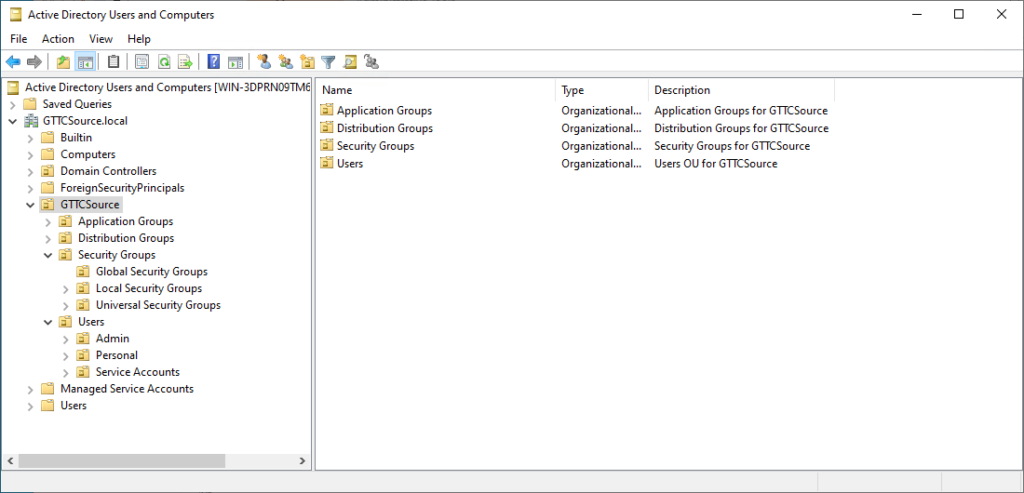
Which gives the result:
Users
For users I always use random not existing users. I provide a bunch of first names and last names and let random generate the name.
# setting the number of users to create
$Users = "25"
# setting location in Active Directory where to locate the users
$OUPath = $DomainPersonUsers
Write-Host "Creating $Users Users in $($OUPath)"
$i = 1
Do {
    $FirstNames = "Jacob", "Isabella", "Ethan", "Sophia", "Michael", "Emma", "Jayden", "Olivia", "William", "Ava", "Alexander", "Emily", "Noah", "Abigail", "Daniel", "Madison", "Aiden", "Chloe", "Anthony", "Mia", "Ryan", "Gregory", "Kyle", "Deron", "Josey", "Joseph", "Kevin", "Robert", "Michelle", "Mandi", "Amanda", "Ella"
    $LastNames = "Smith", "Johnson", "Williams", "Jones", "Brown", "Davis", "Miller", "Wilson", "Moore", "Taylor", "Anderson", "Thomas", "Jackson", "White", "Harris", "Martin", "Thompson", "Garcia", "Martinez", "Robinson", "Clark", "Rodriguez", "Lewis", "Lee", "Dennis"
    $fname = $FirstNames | Get-Random
    $lname = $LastNames | Get-Random
    $samAccountName = $fname.Substring(0, 1) + $lname
    $UPN = $fname + $lname + "@" + $Company + ".local"
    $password = ConvertTo-SecureString p@ssw0rd -AsPlainText -Force # provide your own password
    $name = $fname + " " + $lname
    $DisplayName = $name
    Try {
        $new = New-ADUser -SamAccountName $samAccountName -Name $name -DisplayName $Displayname -GivenName $fname -Surname $lname -AccountPassword $password -Path $OUpath -UserPrincipalName $UPN -Enabled $true -ErrorAction SilentlyContinue
    }
    catch {
        #do nothing
    }
    $i++
}
while ($i -le $users)
Write-Host ""
# display the users that where created
Write-Host "Users are created:"
Get-ADUser -SearchBase $OUpath -Filter * | Format-Table Name,SamAccountname,UserPrincipalName
At this stage you have a Active Directory Domain Controller with 25 fictive users, ready to be synchronized to Azure Active Directory with Azure AD Connect.
Groups
A Domain Controller has always also some groups. Local Security Groups with Global Security Groups as member. Some Universal Security Groups for Exchange (if there will also be a Microsoft Exchange Server in the test domain). Those groups needs to have also members. This can be scripted with random users.
# potential distribution groups
Write-Host "Creating Distribution Groups ..."
$DistributionGroups = "DG-TestGroup1","DG-TestGroup2","DG-TestGroup3","DG-TestGroup4"
ForEach ($Group in $DistributionGroups){
    Try {
    New-ADGroup -Name $Group -SamAccountName $Group -GroupCategory Distribution -GroupScope Universal -DisplayName $Group -Path $DomainDistributionGroups -Description "$($Group) is a Distribution Group"
    }
    Catch {
        Write-Host "ERROR creating $($Group)" -ForegroundColor RED
    }
}
# local security groups
Write-Host "Creating Local Security Groups ..."
$LocalGroups = "DL-Data-Board-RW","DL-Data-Board-RR","DL-Data-HR-RW","DL-Data-HR-RR","A-Microsoft RDP","A-Microsoft Calculator"
ForEach ($Group in $LocalGroups){
# application security groups
if ($Group -like "A-*"){
$OU = $DomainApplication
$Name = "$($Group) is an Application Domain Local Group"
}
Else {
$OU = $DomainLocalSecurity
$Name = "$($Group) is an Domain Local Group"
}
Try {
New-ADGroup -Name $Group -SamAccountName $Group -GroupCategory Security -GroupScope DomainLocal -DisplayName $Group -Path $OU -Description $Name
}
Catch {
Write-Host "ERROR creating $($Group)" -ForegroundColor RED
}
}# global security groups with the same name as the local security group
Write-Host "Creating Global Security Groups ..."
$GlobalGroups = $LocalGroups | where-Object {$_ -like "DL-*"}
ForEach ($Group in $GlobalGroups){
$GGGroup = $Group.substring(2)
$GGGroup = "GG"+$GGGroup
Try {
New-ADGroup -Name $GGGroup -SamAccountName $GGGroup -GroupCategory Security -GroupScope Global -DisplayName $GGGroup -Path $DomainGlobalSecurity -Description "$($GGGroup) is a Global Group"
}
Catch {
Write-Host "ERROR creating $($Group)" -ForegroundColor RED
}
Try {
Write-Host "-Adding $($GGGroup) to $($Group) ..."
Add-ADGroupMember -Identity $Group -members $GGGroup
}
catch {
Write-Host "ERROR cannot add $($GGGroup) to $($Group) " -ForegroundColor RED
}
}Local security groups created with the global group as member already added (like Microsoft best practise)
# universal security groups for potential use in Exchange
Write-Host "Creating Universal Security Groups ..."
$UniversalGroups = "UG-Not Mail Enabled","UG-Mail Enabled","UG-Mail Enabled 1"
ForEach ($Group in $UniversalGroups){
    $Name = "$($Group) is a Universal Security Group"
    Try {
    New-ADGroup -Name $Group -SamAccountName $Group -GroupCategory Security -GroupScope Universal -DisplayName $Group -Path $DomainUniversalSecurity -Description $Name
    }
    Catch {
        Write-Host "ERROR creating $($Group)" -ForegroundColor RED
    }
}
Now the groups are created, let’s populate them.
#add random users to Global Security Groups
Write-Host "Adding random users to Global Security Groups..."
$users = Get-ADUser -Filter * -SearchBase $DomainSub
$array = Get-ADGroup -SearchBase $DomainGlobalSecurity -Filter *
foreach($userVar in $users)
{
    $group = $array[(Get-Random -Minimum 1 -Maximum $($array.count-1))]
    Add-ADGroupMember -Identity $group -members $userVar
}
#add random users to Distribution Groups
Write-Host "Adding random users to Distribution Groups..."
$array = Get-ADGroup -SearchBase $DomainDistributionGroups -Filter *
foreach($userVar in $users)
{
    $group = $array[(Get-Random -Minimum 1 -Maximum $($array.count-1))]
    Add-ADGroupMember -Identity $group -members $userVar
}
#add random users to Universal Security Groups
Write-Host "Adding random users to Universal Security Groups..."
$array = Get-ADGroup -SearchBase $DomainUniversalSecurity -Filter *
foreach($userVar in $users)
{
    $group = $array[(Get-Random -Minimum 1 -Maximum 3)]
    Add-ADGroupMember -Identity $group -members $userVar
}
Now the domain controller is fully set and ready to be synchronized to Azure Active Directory.