Azure Local | DevOps – Custom Image Part I

Earlier, I wrote about the ability to transfer custom images from a Shared Image Gallery to Azure Local, a process that can be extremely useful when maintaining consistent images across environments. However, performing this transfer manually every time you create a new image quickly becomes inefficient and error‑prone. To streamline this workflow, automation is the logical next step.
To make the process repeatable, reliable, and hands‑off, I created an Azure DevOps pipeline that automatically handles the image transfer for you. Each time a new image version is published in your Shared Image Gallery, the pipeline can detect the update, execute the required steps, and push the image to Azure Local, without requiring manual intervention. This not only saves time but also ensures that your Azure Local environment always stays aligned with the latest available image versions.
I assume that the reader already has a basic understanding of Azure DevOps and how pipelines are structured. In my setup, I included all required values, such as image names, gallery IDs, and Azure Local configuration, directly within the pipeline definition to keep everything self‑contained. However, if you are working with multiple images, or if you want to separate configuration from logic, you could just as easily place these values into a Variable Group within Azure DevOps.
A variable group allows you to centralize parameters and reuse them across multiple pipelines or stages. This becomes especially useful when managing several image definitions or environments, ensuring consistency while reducing duplication. Whether the information sits inside the pipeline or in a variable group ultimately depends on your preferred level of flexibility and maintainability.
The Pipeline
Parameters
parameters:
- name: environmentName
  displayName: 'Target Environment'
  type: string
  default: 'Production'
  values:
  - 'Development'
  - 'Test'
  - 'Production'
- name: subscriptionId
  displayName: 'Azure Subscription ID'
  type: string
  default: ''
- name: storagePathName
  displayName: 'HCI Storage Path Name'
  type: string
  default: 'Images'
- name: csvPath
  displayName: 'CSV Path on HCI Cluster'
  type: string
  default: 'C:\ClusterStorage\UserStorage_1\Images'
- name: resourceGroup
  displayName: 'HCI Resource Group'
  type: string
  default: ''
- name: customLocationName
  displayName: 'Custom Location Name'
  type: string
  default: ''
- name: location
  displayName: 'Azure Region'
  type: string
  default: 'WestEurope'
- name: galleryName
  displayName: 'Azure Compute Gallery Name'
  type: string
  default: ''
- name: imageDefinition
  displayName: 'Image Definition Name'
  type: string
  default: ''
- name: imgResourceGroup
  displayName: 'Gallery Resource Group'
  type: string
  default: ''
- name: osType
  displayName: 'Operating System Type'
  type: string
  default: 'Windows'
  values:
  - 'Windows'
  - 'Linux'
- name: skipExistingCheck
  displayName: 'Skip Existing Image Check'
  type: boolean
  default: false
| Parameter | Type | Description | Default |
|---|---|---|---|
| environmentName | string | Target environment (Development/Test/Production) | Production |
| subscriptionId | string | Azure Subscription ID | (empty – must be provided) |
| storagePathName | string | HCI Storage Path Name | Images |
| csvPath | string | Physical CSV path on HCI cluster | C:\ClusterStorage\UserStorage_1\Images |
| resourceGroup | string | HCI Resource Group name | (empty – must be provided) |
| customLocationName | string | Azure Arc Custom Location name | (empty – must be provided) |
| location | string | Azure region | WestEurope |
| galleryName | string | Azure Compute Gallery name | (empty – must be provided) |
| imageDefinition | string | Image Definition name in the gallery | (empty – must be provided) |
| imgResourceGroup | string | Resource Group containing the gallery | (empty – must be provided) |
| osType | string | Operating System Type (Windows/Linux) | Windows |
| skipExistingCheck | boolean | Skip checking if image already exists | false |
Variables
variables:
- name: azureServiceConnection
value: '' # Update with your service connection nameThis variable is essential for establishing the connection to Azure. It provides the authentication context that allows the pipeline to interact with your subscription and deploy the required resources. Without this value, the pipeline would not be able to authenticate against Azure Resource Manager, meaning no deployments, updates, or image transfers could be executed. By defining this variable, either directly in the pipeline or within a variable group, you ensure that the DevOps pipeline can securely access Azure and perform the operations needed to automate your workflow.
Pipeline architecture
The pipeline is structured into four distinct stages, each with a clear purpose to ensure the deployment process remains organized, maintainable, and easy to follow. By breaking the workflow into stages, it becomes easier to manage responsibilities, troubleshoot issues, and extend the pipeline when new requirements arise. This staged approach also makes the automation more transparent, allowing you to see exactly where each task is executed and how the overall process flows from start to finish.
- ValidateEnvironment – Environment validation and prerequisites check
- ImportImage – Main image import workflow
- Cleanup – Cleanup temporary resources
- Verification – Verify successful image import

1. ValidateEnvironment
The purpose of this stage is to validate the execution environment and ensure that all required prerequisites are in place before the pipeline proceeds. This includes checking that the necessary Azure DevOps variables are available, verifying the connection to Azure, confirming that required modules or tooling are installed, and ensuring that all configuration values are correctly set. By performing these checks upfront, the pipeline reduces the risk of failures in later stages and guarantees that the automation can run reliably from start to finish.
Steps:
- Check PowerShell Version
- Displays PowerShell version, OS, and platform information
- Ensures compatibility with required modules
- Verify and Install Required Modules
- Checks for required Az PowerShell modules:
Az.AccountsAz.ComputeAz.ResourcesAz.StackHCIAz.StackHCIVM
- Automatically installs missing modules
- Exits with error code 1 if installation fails
- Checks for required Az PowerShell modules:
- Verify Azure Connectivity
- Tests connection to Azure
- Displays connected subscription, account, and tenant information
stages:
- stage: ValidateEnvironment
  displayName: 'Validate Environment & Modules'
  jobs:
  - job: PreflightChecks
    displayName: 'Preflight Checks'
    pool:
      vmImage: 'windows-latest'
    steps:
    - task: PowerShell@2
      displayName: 'Check PowerShell Version'
      inputs:
        targetType: 'inline'
        script: |
          Write-Host "========================================" -ForegroundColor Cyan
          Write-Host "PowerShell Environment Check" -ForegroundColor Cyan
          Write-Host "========================================" -ForegroundColor Cyan
          Write-Host "PowerShell Version: $($PSVersionTable.PSVersion)"
          Write-Host "OS: $($PSVersionTable.OS)"
          Write-Host "Platform: $($PSVersionTable.Platform)"
    - task: AzurePowerShell@5
      displayName: 'Verify and Install Required Modules'
      inputs:
        azureSubscription: '$(azureServiceConnection)'
        scriptType: 'inlineScript'
        inline: |
          Write-Host "========================================" -ForegroundColor Cyan
          Write-Host "PowerShell Module Verification" -ForegroundColor Cyan
          Write-Host "========================================" -ForegroundColor Cyan
          $requiredModules = @(
            'Az.Accounts',
            'Az.Compute',
            'Az.Resources',
            'Az.StackHCI',
            'Az.StackHCIVM'
          )
          foreach ($moduleName in $requiredModules) {
            Write-Host "`nChecking module: $moduleName" -ForegroundColor Yellow
            $module = Get-Module -ListAvailable -Name $moduleName | Select-Object -First 1
            if ($module) {
              Write-Host "  ✓ Found $moduleName version $($module.Version)" -ForegroundColor Green
            } else {
              Write-Host "  ⚠ Module $moduleName not found. Installing..." -ForegroundColor Yellow
              try {
                Install-Module -Name $moduleName -Force -AllowClobber -Scope CurrentUser -ErrorAction Stop
                Write-Host "  ✓ Successfully installed $moduleName" -ForegroundColor Green
              }
              catch {
                Write-Host "  ✗ Failed to install $moduleName : $($_.Exception.Message)" -ForegroundColor Red
                exit 1
              }
            }
          }
          Write-Host "`n========================================" -ForegroundColor Green
          Write-Host "All required modules verified" -ForegroundColor Green
          Write-Host "========================================" -ForegroundColor Green
        azurePowerShellVersion: 'LatestVersion'
    - task: AzurePowerShell@5
      displayName: 'Verify Azure Connectivity'
      inputs:
        azureSubscription: '$(azureServiceConnection)'
        scriptType: 'inlineScript'
        inline: |
          Write-Host "Verifying Azure connectivity..." -ForegroundColor Cyan
          $context = Get-AzContext
          Write-Host "Connected to Azure" -ForegroundColor Green
          Write-Host "  Subscription: $($context.Subscription.Name)" -ForegroundColor White
          Write-Host "  Account: $($context.Account.Id)" -ForegroundColor White
          Write-Host "  Tenant: $($context.Tenant.Id)" -ForegroundColor White
        azurePowerShellVersion: 'LatestVersion'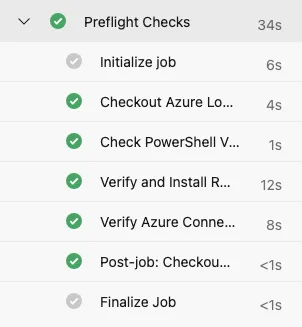
2. ImportImage
This stage executes the primary image import workflow, transferring the latest image version from the Azure Compute Gallery into Azure Local. It performs the core logic of the automation by initiating the import process, validating the source image, and ensuring compatibility with the target Azure Local environment. During this step, the pipeline uses the authenticated Azure connection to retrieve the required image metadata and run the import operation reliably. By centralizing this workflow in a dedicated stage, the pipeline maintains clarity and ensures that the most critical action, moving the image from Azure to Azure Local, is executed in a controlled and repeatable manner.
Steps:
- Checkout Repository
- Checks out the source repository
- Set Azure Subscription Context
- Sets the Azure context to the specified subscription
- Validates the subscription is accessible
- Resolve Custom Location (Output:
customLocationID)- Retrieves the Azure Arc custom location resource ID
- Validates the custom location exists
- Stores the ID for use in subsequent steps
- Create/Verify Storage Path
- Verifies the storage path exists in Azure Stack HCI
- Checks for resource type:
Microsoft.AzureStackHCI/storagecontainers - Creates storage path if it doesn’t exist (with fallback to verification only)
- Get Latest Gallery Image Version (Output:
imageName,imageVersion,imageId)- Queries the Azure Compute Gallery for the latest image version
- Filters out images marked as
ExcludeFromLatest - Normalizes the image name (replaces dots with hyphens)
- Stores image metadata for downstream steps
- Check if Image Already Exists in HCI (Output:
imageExists)- Queries existing images in the HCI cluster
- Skips import if image already exists (unless
skipExistingCheckis true) - Returns
SucceededWithIssuesif image exists
- Create Temporary Managed Disk
- Condition: Only runs if image doesn’t exist in HCI
- Creates a temporary Azure managed disk from the gallery image
- Reuses existing disk if found
- Tracks creation duration for monitoring
- Generate SAS URL for Disk (Output:
imageSourcePath)- Condition: Only runs if image doesn’t exist in HCI
- Grants read access to the temporary disk
- Generates SAS token valid for 8 hours (28,800 seconds)
- Stores SAS URL as a secret variable
- Get Storage Path Resource ID (Output:
storagePathID)- Condition: Only runs if image doesn’t exist in HCI
- Resolves the HCI storage path resource ID
- Required for the image import operation
- Import Image to HCI Cluster
- Condition: Only runs if image doesn’t exist in HCI
- Executes
New-AzStackHciVMimagecmdlet - Parameters:
- ResourceGroupName
- CustomLocation
- Location
- Name
- OsType
- ImagePath (SAS URL)
- StoragePathId
- Tracks import duration
- Typical duration: 15-30 minutes
- stage: ImportImage
  displayName: 'Import Image to HCI'
  dependsOn: ValidateEnvironment
  jobs:
  - job: ImportJob
    displayName: 'Import Image Job'
    pool:
      vmImage: 'windows-latest'
    timeoutInMinutes: 120 # 2 hours for large images
    steps:
    - checkout: self
      displayName: 'Checkout Repository'
    - task: AzurePowerShell@5
      displayName: 'Set Azure Subscription Context'
      inputs:
        azureSubscription: '$(azureServiceConnection)'
        scriptType: 'inlineScript'
        inline: |
          Write-Host "Setting Azure subscription context..." -ForegroundColor Cyan
          Write-Host "Subscription ID: ${{ parameters.subscriptionId }}" -ForegroundColor Yellow
          Set-AzContext -SubscriptionId "${{ parameters.subscriptionId }}"
          $context = Get-AzContext
          Write-Host "Subscription context set successfully" -ForegroundColor Green
          Write-Host "  Name: $($context.Subscription.Name)" -ForegroundColor White
        azurePowerShellVersion: 'LatestVersion'
    - task: AzurePowerShell@5
      displayName: 'Resolve Custom Location'
      name: ResolveCustomLocation
      inputs:
        azureSubscription: '$(azureServiceConnection)'
        scriptType: 'inlineScript'
        inline: |
          Write-Host "Resolving Custom Location resource ID..." -ForegroundColor Cyan
          Write-Host "Resource Group: ${{ parameters.resourceGroup }}" -ForegroundColor Yellow
          Write-Host "Custom Location: ${{ parameters.customLocationName }}" -ForegroundColor Yellow
          try {
            $customLocation = Get-AzResource `
              -ResourceGroupName "${{ parameters.resourceGroup }}" `
              -ResourceType "Microsoft.ExtendedLocation/customLocations" `
              -Name "${{ parameters.customLocationName }}" `
              -ErrorAction Stop
            $customLocationID = $customLocation.ResourceId
            if ([string]::IsNullOrEmpty($customLocationID)) {
              throw "Custom Location ID is null or empty"
            }
            Write-Host "Custom Location ID resolved: $customLocationID" -ForegroundColor Green
            Write-Host "##vso[task.setvariable variable=customLocationID;isOutput=true]$customLocationID"
          }
          catch {
            Write-Host "##vso[task.logissue type=error]Failed to resolve Custom Location: $($_.Exception.Message)"
            exit 1
          }
        azurePowerShellVersion: 'LatestVersion'
    - task: AzurePowerShell@5
      displayName: 'Create/Verify Storage Path'
      inputs:
        azureSubscription: '$(azureServiceConnection)'
        scriptType: 'inlineScript'
        inline: |
          Write-Host "Creating/Verifying HCI storage path..." -ForegroundColor Cyan
          Write-Host "Storage Path Name: ${{ parameters.storagePathName }}" -ForegroundColor Yellow
          Write-Host "Physical Path: ${{ parameters.csvPath }}" -ForegroundColor Yellow
          $customLocationID = "$(ResolveCustomLocation.customLocationID)"
          $storagePathProperties = @{
            path = "${{ parameters.csvPath }}"
            extendedLocation = @{
              type = "CustomLocation"
              name = $customLocationID
            }
          }
          try {
            $existingStoragePath = Get-AzResource `
              -ResourceGroupName "${{ parameters.resourceGroup }}" `
              -ResourceType "Microsoft.AzureStackHCI/storagecontainers" `
              -Name "${{ parameters.storagePathName }}" `
              -ErrorAction SilentlyContinue
            if ($existingStoragePath) {
              Write-Host "Storage path '${{ parameters.storagePathName }}' already exists" -ForegroundColor Yellow
            } else {
              Write-Host "Creating storage path '${{ parameters.storagePathName }}'..." -ForegroundColor Yellow
              # Note: Storage path creation via PowerShell may require Azure CLI or REST API
              # Fallback to verification only
              Write-Host "Storage path configuration verified" -ForegroundColor Green
            }
          }
          catch {
            Write-Host "##vso[task.logissue type=warning]Storage path check completed with warnings: $($_.Exception.Message)"
          }
        azurePowerShellVersion: 'LatestVersion'
    - task: AzurePowerShell@5
      displayName: 'Get Latest Gallery Image Version'
      name: GetImageVersion
      inputs:
        azureSubscription: '$(azureServiceConnection)'
        scriptType: 'inlineScript'
        inline: |
          Write-Host "========================================" -ForegroundColor Cyan
          Write-Host "Image Version Discovery" -ForegroundColor Cyan
          Write-Host "========================================" -ForegroundColor Cyan
          Write-Host "Gallery: ${{ parameters.galleryName }}" -ForegroundColor Yellow
          Write-Host "Definition: ${{ parameters.imageDefinition }}" -ForegroundColor Yellow
          Write-Host "Resource Group: ${{ parameters.imgResourceGroup }}" -ForegroundColor Yellow
          try {
            $sourceImgVer = Get-AzGalleryImageVersion `
              -GalleryImageDefinitionName "${{ parameters.imageDefinition }}" `
              -GalleryName "${{ parameters.galleryName }}" `
              -ResourceGroupName "${{ parameters.imgResourceGroup }}" `
              -ErrorAction Stop |
              Where-Object { $_.PublishingProfile.ExcludeFromLatest -eq $false } |
              Select-Object -Last 1
            if ($null -eq $sourceImgVer) {
              throw "No valid image version found in the gallery"
            }
            $imageName = $sourceImgVer.Name.Replace(".", "-")
            $imageId = $sourceImgVer.Id
            $imageVersion = $sourceImgVer.Name
            Write-Host "`nFound latest image version:" -ForegroundColor Green
            Write-Host "  Version: $imageVersion" -ForegroundColor White
            Write-Host "  Name (normalized): $imageName" -ForegroundColor White
            Write-Host "  Resource ID: $imageId" -ForegroundColor White
            Write-Host "##vso[task.setvariable variable=imageName;isOutput=true]$imageName"
            Write-Host "##vso[task.setvariable variable=imageVersion;isOutput=true]$imageVersion"
            Write-Host "##vso[task.setvariable variable=imageId;isOutput=true]$imageId"
          }
          catch {
            Write-Host "##vso[task.logissue type=error]Failed to retrieve image version: $($_.Exception.Message)"
            exit 1
          }
        azurePowerShellVersion: 'LatestVersion'
    - task: AzurePowerShell@5
      displayName: 'Check if Image Already Exists in HCI'
      name: CheckExistingImage
      condition: ne('${{ parameters.skipExistingCheck }}', 'true')
      inputs:
        azureSubscription: '$(azureServiceConnection)'
        scriptType: 'inlineScript'
        inline: |
          Write-Host "Checking if image already exists in HCI..." -ForegroundColor Cyan
          try {
            $existingHCIImages = (Get-AzStackHciVMimage -ResourceGroupName "${{ parameters.resourceGroup }}" -ErrorAction SilentlyContinue).Name
            $imageName = "$(GetImageVersion.imageName)"
            if ($existingHCIImages -contains $imageName) {
              Write-Host "Image '$imageName' already exists in HCI cluster" -ForegroundColor Yellow
              Write-Host "##vso[task.setvariable variable=imageExists;isOutput=true]true"
              Write-Host "##vso[task.complete result=SucceededWithIssues;]Image already imported - skipping import steps"
            } else {
              Write-Host "Image does not exist in HCI. Proceeding with import..." -ForegroundColor Green
              Write-Host "##vso[task.setvariable variable=imageExists;isOutput=true]false"
            }
          }
          catch {
            Write-Host "##vso[task.logissue type=warning]Could not check existing images: $($_.Exception.Message)"
            Write-Host "##vso[task.setvariable variable=imageExists;isOutput=true]false"
          }
        azurePowerShellVersion: 'LatestVersion'
    - task: AzurePowerShell@5
      displayName: 'Create Temporary Managed Disk'
      condition: and(succeeded(), eq(variables['CheckExistingImage.imageExists'], 'false'))
      inputs:
        azureSubscription: '$(azureServiceConnection)'
        scriptType: 'inlineScript'
        inline: |
          Write-Host "========================================" -ForegroundColor Cyan
          Write-Host "Creating Temporary Managed Disk" -ForegroundColor Cyan
          Write-Host "========================================" -ForegroundColor Cyan
          $diskName = "$(GetImageVersion.imageName)"
          $imageId = "$(GetImageVersion.imageId)"
          Write-Host "Disk Name: $diskName" -ForegroundColor Yellow
          Write-Host "Source Image: $imageId" -ForegroundColor Yellow
          Write-Host "Location: ${{ parameters.location }}" -ForegroundColor Yellow
          Write-Host "`nThis may take several minutes..." -ForegroundColor Yellow
          $startTime = Get-Date
          try {
            # Check if disk already exists
            $existingDisk = Get-AzDisk `
              -ResourceGroupName "${{ parameters.imgResourceGroup }}" `
              -DiskName $diskName `
              -ErrorAction SilentlyContinue
            if ($existingDisk) {
              Write-Host "Temporary disk '$diskName' already exists. Reusing..." -ForegroundColor Yellow
            } else {
              Write-Host "Creating new managed disk..." -ForegroundColor Cyan
              $diskConfig = New-AzDiskConfig `
                -Location "${{ parameters.location }}" `
                -CreateOption FromImage `
                -GalleryImageReference @{Id = $imageId }
              $tempDisk = New-AzDisk `
                -ResourceGroupName "${{ parameters.imgResourceGroup }}" `
                -DiskName $diskName `
                -Disk $diskConfig `
                -ErrorAction Stop
              $duration = (Get-Date) - $startTime
              Write-Host "`nTemporary disk created successfully!" -ForegroundColor Green
              Write-Host "Duration: $($duration.TotalMinutes.ToString('0.00')) minutes" -ForegroundColor White
            }
          }
          catch {
            Write-Host "##vso[task.logissue type=error]Failed to create temporary disk: $($_.Exception.Message)"
            exit 1
          }
        azurePowerShellVersion: 'LatestVersion'
    - task: AzurePowerShell@5
      displayName: 'Generate SAS URL for Disk'
      name: GenerateSAS
      condition: and(succeeded(), eq(variables['CheckExistingImage.imageExists'], 'false'))
      inputs:
        azureSubscription: '$(azureServiceConnection)'
        scriptType: 'inlineScript'
        inline: |
          Write-Host "Generating SAS URL for disk access..." -ForegroundColor Cyan
          Write-Host "SAS Duration: 8 hours (28800 seconds)" -ForegroundColor Yellow
          $diskName = "$(GetImageVersion.imageName)"
          try {
            $sasAccess = Grant-AzDiskAccess `
              -ResourceGroupName "${{ parameters.imgResourceGroup }}" `
              -DiskName $diskName `
              -Access Read `
              -DurationInSecond 28800 `
              -ErrorAction Stop
            $imageSourcePath = $sasAccess.AccessSAS
            if ([string]::IsNullOrEmpty($imageSourcePath)) {
              throw "SAS URL generation returned null or empty value"
            }
            Write-Host "SAS URL generated successfully" -ForegroundColor Green
            Write-Host "URL valid for 8 hours" -ForegroundColor Yellow
            Write-Host "##vso[task.setvariable variable=imageSourcePath;isOutput=true;issecret=true]$imageSourcePath"
          }
          catch {
            Write-Host "##vso[task.logissue type=error]Failed to generate SAS URL: $($_.Exception.Message)"
            exit 1
          }
        azurePowerShellVersion: 'LatestVersion'
    - task: AzurePowerShell@5
      displayName: 'Get Storage Path Resource ID'
      name: GetStoragePath
      condition: and(succeeded(), eq(variables['CheckExistingImage.imageExists'], 'false'))
      inputs:
        azureSubscription: '$(azureServiceConnection)'
        scriptType: 'inlineScript'
        inline: |
          Write-Host "Resolving storage path resource ID..." -ForegroundColor Cyan
          try {
            $storagePath = Get-AzResource `
              -ResourceGroupName "${{ parameters.resourceGroup }}" `
              -ResourceType "Microsoft.AzureStackHCI/storagecontainers" `
              -Name "${{ parameters.storagePathName }}" `
              -ErrorAction Stop
            $storagePathID = $storagePath.ResourceId
            if ([string]::IsNullOrEmpty($storagePathID)) {
              throw "Storage Path ID is null or empty"
            }
            Write-Host "Storage Path ID: $storagePathID" -ForegroundColor Green
            Write-Host "##vso[task.setvariable variable=storagePathID;isOutput=true]$storagePathID"
          }
          catch {
            Write-Host "##vso[task.logissue type=error]Failed to resolve storage path ID: $($_.Exception.Message)"
            exit 1
          }
        azurePowerShellVersion: 'LatestVersion'
    - task: AzurePowerShell@5
      displayName: 'Import Image to HCI Cluster'
      condition: and(succeeded(), eq(variables['CheckExistingImage.imageExists'], 'false'))
      inputs:
        azureSubscription: '$(azureServiceConnection)'
        scriptType: 'inlineScript'
        inline: |
          Write-Host "========================================" -ForegroundColor Cyan
          Write-Host "Importing Image to HCI Cluster" -ForegroundColor Cyan
          Write-Host "========================================" -ForegroundColor Cyan
          $imageName = "$(GetImageVersion.imageName)"
          $imageSourcePath = "$(GenerateSAS.imageSourcePath)"
          $storagePathID = "$(GetStoragePath.storagePathID)"
          $customLocationID = "$(ResolveCustomLocation.customLocationID)"
          Write-Host "Image Name: $imageName" -ForegroundColor Yellow
          Write-Host "OS Type: ${{ parameters.osType }}" -ForegroundColor Yellow
          Write-Host "Environment: ${{ parameters.environmentName }}" -ForegroundColor Yellow
          Write-Host "`nThis process may take 15-30 minutes..." -ForegroundColor Yellow
          $startTime = Get-Date
          try {
            New-AzStackHciVMimage `
              -ResourceGroupName "${{ parameters.resourceGroup }}" `
              -CustomLocation $customLocationID `
              -Location "${{ parameters.location }}" `
              -Name $imageName `
              -OsType "${{ parameters.osType }}" `
              -ImagePath $imageSourcePath `
              -StoragePathId $storagePathID
            $duration = (Get-Date) - $startTime
            Write-Host "`n========================================" -ForegroundColor Green
            Write-Host "SUCCESS: Image Import Completed!" -ForegroundColor Green
            Write-Host "========================================" -ForegroundColor Green
            Write-Host "Duration: $($duration.TotalMinutes.ToString('0.00')) minutes" -ForegroundColor White
            Write-Host "Image '$imageName' is now available for VM deployments" -ForegroundColor Green
          }
          catch {
            Write-Host "##vso[task.logissue type=error]Failed to import image to HCI: $($_.Exception.Message)"
            exit 1
          }
        azurePowerShellVersion: 'LatestVersion'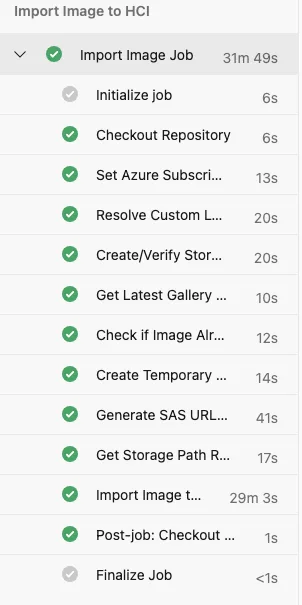
3. CleanUp
During the import process, several temporary resources are created to facilitate the transfer of the image from the Azure Compute Gallery to Azure Stack HCI. These resources are required only for the duration of the operation and have no functional purpose once the import has completed successfully. To keep the environment clean and prevent unnecessary resource consumption or potential cost implications, this stage is responsible for identifying and removing all temporary artifacts. By automating this cleanup, the pipeline ensures that each run leaves the environment in a consistent, tidy state and avoids any long‑term accumulation of unused deployment infrastructure. This contributes to operational hygiene and maintains an efficient and predictable workflow.
Steps:
- Revoke SAS Access
- Condition: Only if image was imported (imageExists = false)
- Revokes read access from the temporary disk
- Logs warning if revocation fails
- Delete Temporary Disk
- Condition: Only if image was imported (imageExists = false)
- Removes the temporary managed disk using
Remove-AzDisk - Uses
-Forceflag to skip confirmation - Logs warning with manual cleanup instructions if deletion fails
- stage: Cleanup
  displayName: 'Cleanup Temporary Resources'
  dependsOn: ImportImage
  condition: succeeded()
  jobs:
  - job: CleanupJob
    displayName: 'Cleanup Job'
    pool:
      vmImage: 'windows-latest'
    variables:
      imageName: $[ stageDependencies.ImportImage.ImportJob.outputs['GetImageVersion.imageName'] ]
      imageExists: $[ stageDependencies.ImportImage.ImportJob.outputs['CheckExistingImage.imageExists'] ]
    steps:
    - task: AzurePowerShell@5
      displayName: 'Revoke SAS Access'
      condition: eq(variables.imageExists, 'false')
      inputs:
        azureSubscription: '$(azureServiceConnection)'
        scriptType: 'inlineScript'
        inline: |
          Write-Host "Revoking SAS access to temporary disk..." -ForegroundColor Cyan
          Write-Host "Disk: $(imageName)" -ForegroundColor Yellow
          try {
            Revoke-AzDiskAccess `
              -ResourceGroupName "${{ parameters.imgResourceGroup }}" `
              -DiskName "$(imageName)" `
              -ErrorAction Stop
            Write-Host "SAS access revoked successfully" -ForegroundColor Green
          }
          catch {
            Write-Host "##vso[task.logissue type=warning]Failed to revoke SAS access: $($_.Exception.Message)"
          }
        azurePowerShellVersion: 'LatestVersion'
    - task: AzurePowerShell@5
      displayName: 'Delete Temporary Disk'
      condition: eq(variables.imageExists, 'false')
      inputs:
        azureSubscription: '$(azureServiceConnection)'
        scriptType: 'inlineScript'
        inline: |
          Write-Host "Deleting temporary managed disk..." -ForegroundColor Cyan
          Write-Host "Disk: $(imageName)" -ForegroundColor Yellow
          try {
            Remove-AzDisk `
              -ResourceGroupName "${{ parameters.imgResourceGroup }}" `
              -DiskName "$(imageName)" `
              -Force `
              -ErrorAction Stop
            Write-Host "Temporary disk deleted successfully" -ForegroundColor Green
          }
          catch {
            Write-Host "##vso[task.logissue type=warning]Failed to delete temporary disk: $($_.Exception.Message)"
            Write-Host "You may need to manually delete disk: $(imageName)" -ForegroundColor Yellow
          }
        azurePowerShellVersion: 'LatestVersion'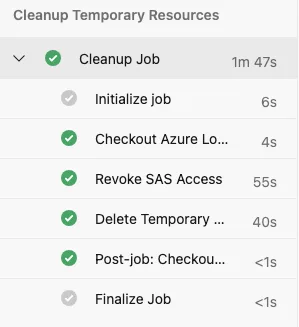
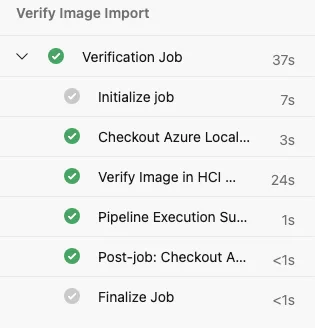
4. Verification
This stage verifies that the image has been successfully imported into Azure Stack HCI and performs the final validation checks to confirm the integrity and availability of the newly transferred image. It ensures that the import operation completed without errors, validates that the expected version is present in the target environment, and confirms that all temporary processing steps have concluded correctly. In addition to the technical verification, the stage generates a concise execution summary, providing clear insight into the outcome of the pipeline run. This summary helps track what was imported, when it was processed, and whether any corrective actions are required. By closing the workflow with a validation and reporting step, the pipeline guarantees transparency, reliability, and confidence in the overall automation process.
Steps:
- Verify Image in HCI Cluster
- Queries HCI cluster for the imported image
- Validates image is available
- Displays image details:
- Image Name
- Image Version
- Resource ID
- Status
- Logs warning if image not found (may still be provisioning)
- Pipeline Execution Summary
- Displays comprehensive execution summary:
- Environment details
- Subscription information
- Image details
- Storage configuration
- Gallery configuration
- Provides next steps for using the image
- Shows PowerShell verification command
- Displays comprehensive execution summary:
- stage: Verification
  displayName: 'Verify Image Import'
  dependsOn:
  - ImportImage
  - Cleanup
  condition: succeeded()
  jobs:
  - job: VerifyJob
    displayName: 'Verification Job'
    pool:
      vmImage: 'windows-latest'
    variables:
      imageName: $[ stageDependencies.ImportImage.ImportJob.outputs['GetImageVersion.imageName'] ]
      imageVersion: $[ stageDependencies.ImportImage.ImportJob.outputs['GetImageVersion.imageVersion'] ]
    steps:
    - task: AzurePowerShell@5
      displayName: 'Verify Image in HCI Cluster'
      inputs:
        azureSubscription: '$(azureServiceConnection)'
        scriptType: 'inlineScript'
        inline: |
          Write-Host "Verifying image in HCI cluster..." -ForegroundColor Cyan
          Write-Host "Resource Group: ${{ parameters.resourceGroup }}" -ForegroundColor Yellow
          Write-Host "Image Name: $(imageName)" -ForegroundColor Yellow
          try {
            $hciImages = Get-AzStackHciVMimage `
              -ResourceGroupName "${{ parameters.resourceGroup }}" `
              -ErrorAction Stop
            $foundImage = $hciImages | Where-Object { $_.Name -eq "$(imageName)" }
            if ($foundImage) {
              Write-Host "`n========================================" -ForegroundColor Green
              Write-Host "Image Verification Successful" -ForegroundColor Green
              Write-Host "========================================" -ForegroundColor Green
              Write-Host "Image Name: $(imageName)" -ForegroundColor White
              Write-Host "Image Version: $(imageVersion)" -ForegroundColor White
              Write-Host "Resource ID: $($foundImage.Id)" -ForegroundColor White
              Write-Host "Status: Available for VM deployments" -ForegroundColor Green
            } else {
              Write-Host "##vso[task.logissue type=warning]Image not found in HCI cluster"
              Write-Host "The image may still be provisioning. Check Azure portal for status." -ForegroundColor Yellow
            }
          }
          catch {
            Write-Host "##vso[task.logissue type=warning]Could not verify image: $($_.Exception.Message)"
          }
        azurePowerShellVersion: 'LatestVersion'
    - task: PowerShell@2
      displayName: 'Pipeline Execution Summary'
      inputs:
        targetType: 'inline'
        script: |
          Write-Host ""
          Write-Host "========================================" -ForegroundColor Cyan
          Write-Host "Pipeline Execution Summary" -ForegroundColor Cyan
          Write-Host "========================================" -ForegroundColor Cyan
          Write-Host "Environment: ${{ parameters.environmentName }}" -ForegroundColor White
          Write-Host "Subscription: ${{ parameters.subscriptionId }}" -ForegroundColor White
          Write-Host "Image Name: $(imageName)" -ForegroundColor White
          Write-Host "Image Version: $(imageVersion)" -ForegroundColor White
          Write-Host "OS Type: ${{ parameters.osType }}" -ForegroundColor White
          Write-Host "HCI Resource Group: ${{ parameters.resourceGroup }}" -ForegroundColor White
          Write-Host "Storage Path: ${{ parameters.csvPath }}" -ForegroundColor White
          Write-Host "Gallery: ${{ parameters.galleryName }}" -ForegroundColor White
          Write-Host "Definition: ${{ parameters.imageDefinition }}" -ForegroundColor White
          Write-Host "========================================" -ForegroundColor Cyan
          Write-Host ""
          Write-Host "Next Steps:" -ForegroundColor Yellow
          Write-Host "1. Verify image status in Azure portal" -ForegroundColor White
          Write-Host "2. Create VMs using the imported image" -ForegroundColor White
          Write-Host "3. Monitor image provisioning state" -ForegroundColor White
          Write-Host "4. Run cleanup pipeline if needed to manage old images" -ForegroundColor White
          Write-Host ""
          Write-Host "Verification Command:" -ForegroundColor Yellow
          Write-Host "Get-AzStackHciVMimage -ResourceGroupName '${{ parameters.resourceGroup }}' -Name '$(imageName)'" -ForegroundColor Cyan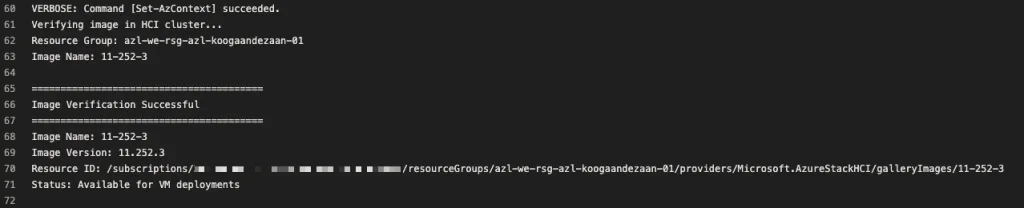
This all can be found on GitHub ofcourse. https://github.com/GetToThe-Cloud/Website/tree/main/PowerShell-AzureLocal-CustomImage/DevOps%20pipelines
For the blogpost about how to maintain the latest image on you Azure Local see https://www.gettothe.cloud/azure-local-devops-custom-image-part-ii/

IT Professional on a journey to discover the cloud platforms and become certified and an expert.
A Blog that follows the journey to get to the Cloud.
Azure Local | Azure Bicep | Azure Virtual Desktop | Powershell | Azure Certified | MCSA | Microsoft 365