Azure Local | HomeLab – FSLogix
 Alex ter Neuzen
In the previous steps, we successfully deployed two virtual machines on Azure Local, which now serve as session hosts for Azure Virtual Desktop (AVD). In this section, we will focus on configuring FSLogix to manage user profiles efficiently. For this configuration, we will utilize the storage resources already available on the Azure Local nodes. https://www.gettothe.cloud/azure-local-homelab-add-storage-and-sofs/
It is important to note that this approach is suitable for a lab or proof-of-concept environment. When transitioning to a production environment, you must carefully evaluate and plan your storage requirements. FSLogix profile containers can significantly impact performance and scalability, so considerations such as capacity, redundancy, and IOPS should be part of your design. Additionally, ensure that the storage solution you choose aligns with best practices for high availability and disaster recovery.
By implementing FSLogix correctly, you can provide a seamless user experience across session hosts, reduce logon times, and simplify profile management. In the following steps, we will walk through the configuration process, leveraging the existing infrastructure while keeping in mind the adjustments needed for a robust production deployment.
When following the microsoft documentation https://learn.microsoft.com/en-us/azure/virtual-desktop/fslogix-profile-containers you will need an SMB share within you network or an Azure Files share to host the profiles. In this blogpost we will be using the storage of the azure local cluster.
Setup
The next step is to configure storage for FSLogix profiles. We start by creating an SMB share on the existing storage of the cluster nodes. In this case, we’ve already added an additional 1TB disk, enabled the Scale-Out File Server role, and created the share. Now, it’s time to set the correct NTFS and share permissions to ensure secure access for user profiles.
Permissions
Browse to the share and open the permissions (advanced) for this share.
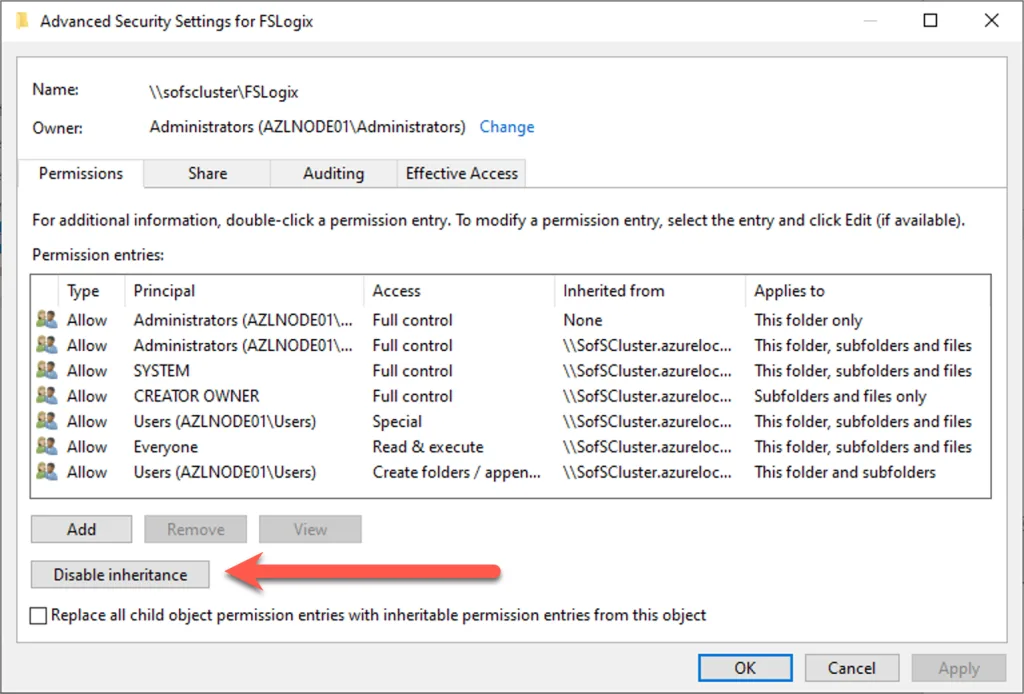
Disable inheritance by opening Advanced Security Settings, click Disable inheritance, then choose to convert or remove inherited permissions for explicit control.
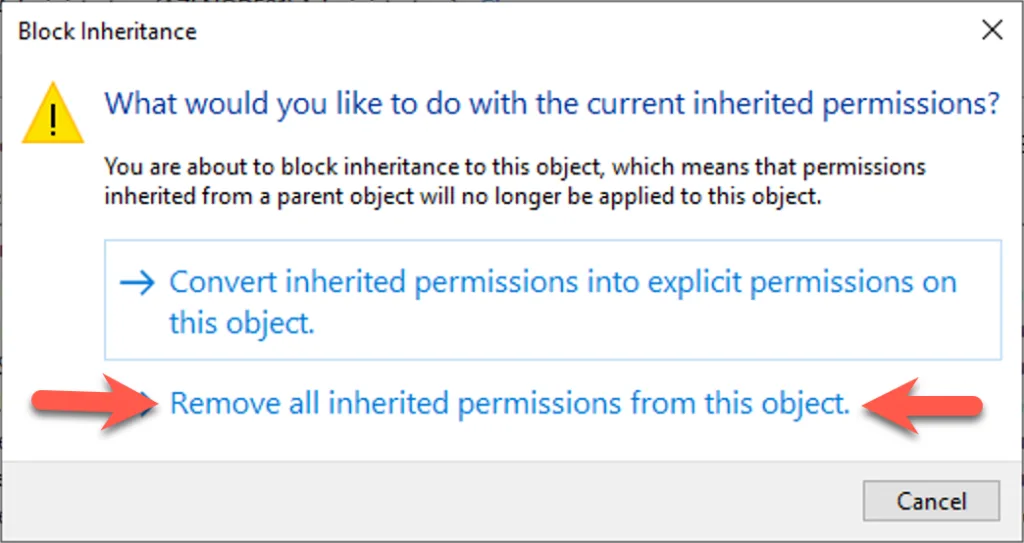
To start fresh and clean, choose “Remove all inherited permissions from this object” when disabling inheritance in Advanced Security Settings. This clears all inherited permissions, allowing you to define explicit permissions tailored to your FSLogix share requirements.
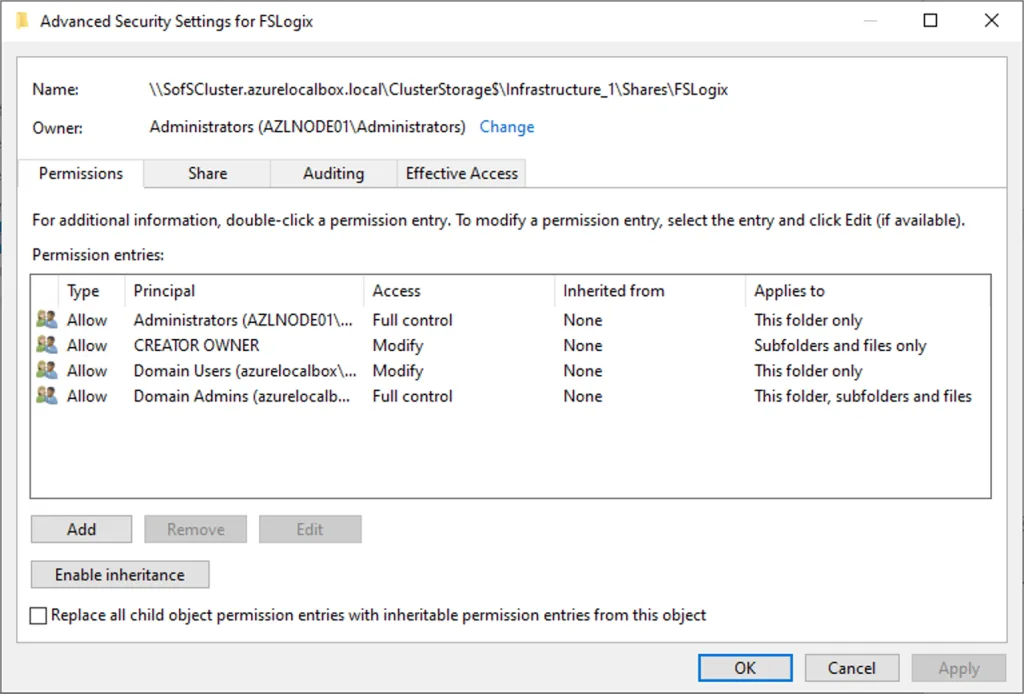
Verify these permissions are explicitly set on the SMB share folder. This ensures FSLogix can create and manage user profiles securely while maintaining administrative control.
Group Policy
To ensure you are using the most up-to-date version of FSLogix, download the latest release directly from Microsoft’s official source. Microsoft provides a dedicated link for this purpose, which always points to the newest build available. You can access it here: https://aka.ms/fslogix-latest. This guarantees that you benefit from the latest features, performance improvements, and security updates included in FSLogix, helping maintain a stable and optimized environment.
After downloading the FSLogix ADMX and ADML files, place them in the C:\Windows\PolicyDefinitions directory on your domain controller or management workstation. This location is the central store for Group Policy templates. Once the files are in place, open the Group Policy Management Console (GPMC) and create a new Group Policy Object (GPO). Link this GPO to the appropriate Organizational Unit (OU) and configure the FSLogix settings according to your environment’s requirements. This ensures consistent policy enforcement across all targeted systems.
All settings are done in: Computer Configuration -> Policies -> Administrative Templates -> FSLogix
| Location | Setting | Value |
|---|---|---|
| VHD Compact Disk | Enabled | |
| Logging | Enabled | Enabled |
| Profile Containers | Enabled | Enabled |
| Is Dynamic (VHD) | Enabled | |
| Keep Local Directory (after Logoff) | Disabled | |
| Profile Type | Normal Profile | |
| Size in MBs | 20000 | |
| VHD Locations | <new share what was made> | |
| Container and Directory Naming | VHD Name Match | profile_%username% |
| VHD Name Pattern | profile_%username% | |
Of course you can set your own policy. The goal of this to set it to the Scale-Out file server that we have setup earlier.
Testing
After creating the policy, it’s essential to validate its functionality. Since the policy is linked to the correct Organizational Unit and applies to computers, the first step is to restart the session hosts to ensure the settings are applied. Once the machines are back online, log in to Azure Virtual Desktop. During the login process, you will notice that the FSLogix App Services are actively initializing, which indicates the profile container configuration is being processed. To confirm successful implementation, navigate to the file share created earlier for FSLogix profiles. You should now see a new folder corresponding to the user’s profile, demonstrating that FSLogix is functioning correctly and storing profiles as intended.
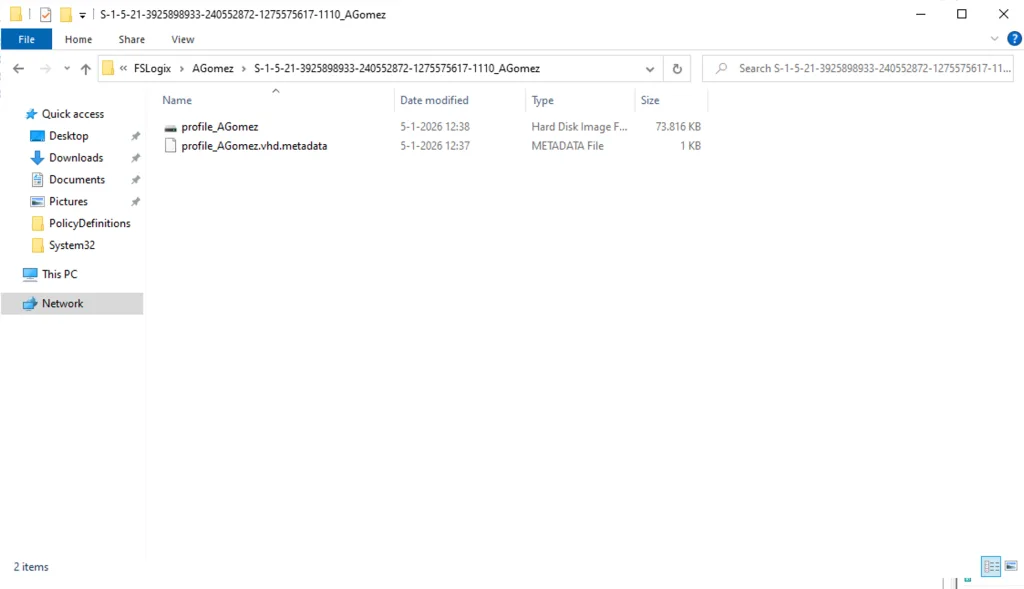
Reasoning
I’ll admit that my first reaction to hosting FSLogix profiles on an Azure Local cluster with Scale‑Out File Server (SOFS) was skepticism. Why dedicate premium, clustered storage to what are essentially user profile files? Wouldn’t a simpler, cheaper repository be enough? After digging deeper, the picture changed.
FSLogix mounts a user’s profile as a VHD(X) over SMB at sign‑in, so storage behavior directly affects logon performance, session stability, and application responsiveness. SOFS exposes continuously available SMB shares, which means node failovers are transparent, sessions don’t collapse when the cluster rebalances. Backed by Storage Spaces Direct, the cluster aggregates disks across nodes, delivering the throughput, latency, and resilience that FSLogix’s workload patterns demand, especially with Outlook caches, Teams data, and the Windows Search index in play. Placing profiles close to compute reduces east‑west traffic and avoids the jitter you can see with remote, less performant shares.
Operationally, this approach is elegant. The file service becomes a native cluster role, so there’s no need to deploy and manage separate file‑server VMs. You gain consistent management, predictable failover behavior, and a single operational plane for capacity, networking, and lifecycle updates. When you factor in the cost of alternative architectures, extra servers, licensing, and the risk of degraded user experience, the “expensive storage for simple files” argument loses steam.
In short, for AVD on Azure Local, SOFS + S2D provides the performance, availability, and simplicity that FSLogix thrives on. It’s not just viable, it’s strategically sound.