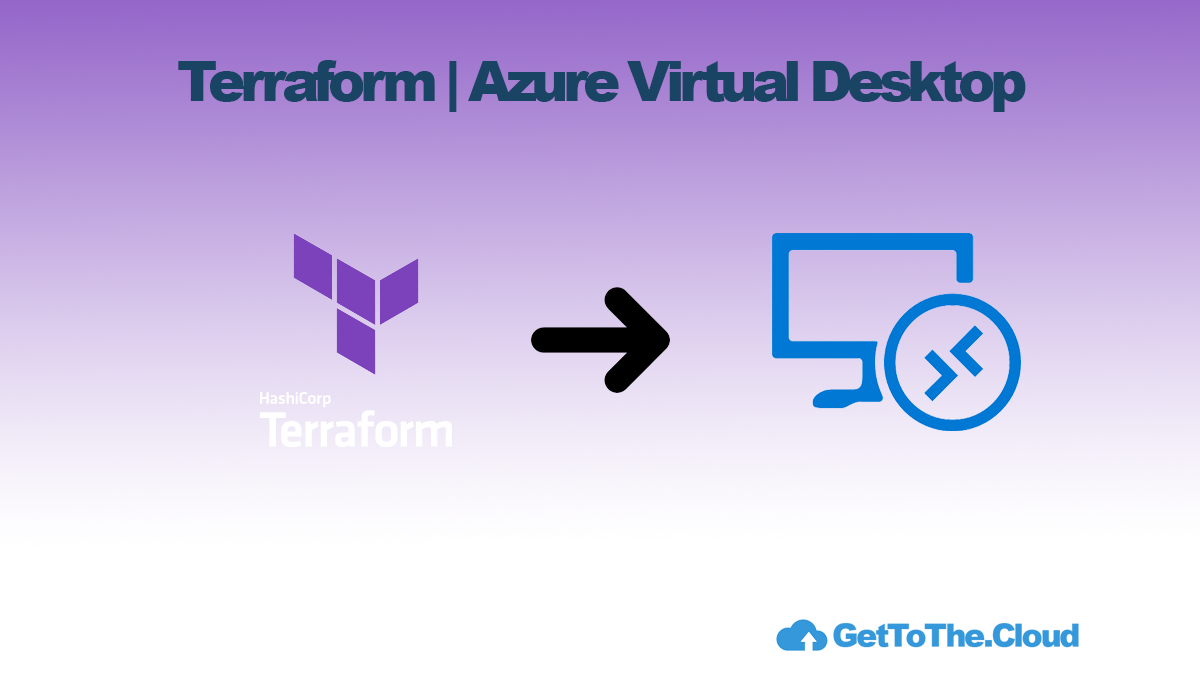

In Azure | Deploy Azure Virtual Desktop – GetToTheCloud, we have setup Azure Virtual Desktop with PowerShell and the GUI. Repeating this every time for different customers can be a bit boring. The main focus of an admin is: “If we can automate it, we will”. At least that should be, because repeating once is fine but repeating twice is just being stupid.
To automate this, there a few options.
- PowerShell
Using PowerShell will make you depending on modules and the code is not efficient like you want to be - Azure Bicep
Using Azure Bicep is an option. The approach is the same but it is only used on Microsoft Azure - Terraform
Using Terraform will give you the ability to maybe later rebuild it to for example to Google Cloud or AliBaba Cloud (yes AliBaba Cloud).
In this blogpost we will use Terraform.
Requirements
First you need to install Terraform. Second you need to create an App Registration with some permissions.
Login to https://portal.azure.com and browse to Azure Active Directory / App Registrations. Once there click on New registration and fill in the form with a name and register the application. Once created the app registration browse to the certificates & secrets tab in the app registration. Create a new client secret and write down, we will need this later on.
Now browse to subscriptions
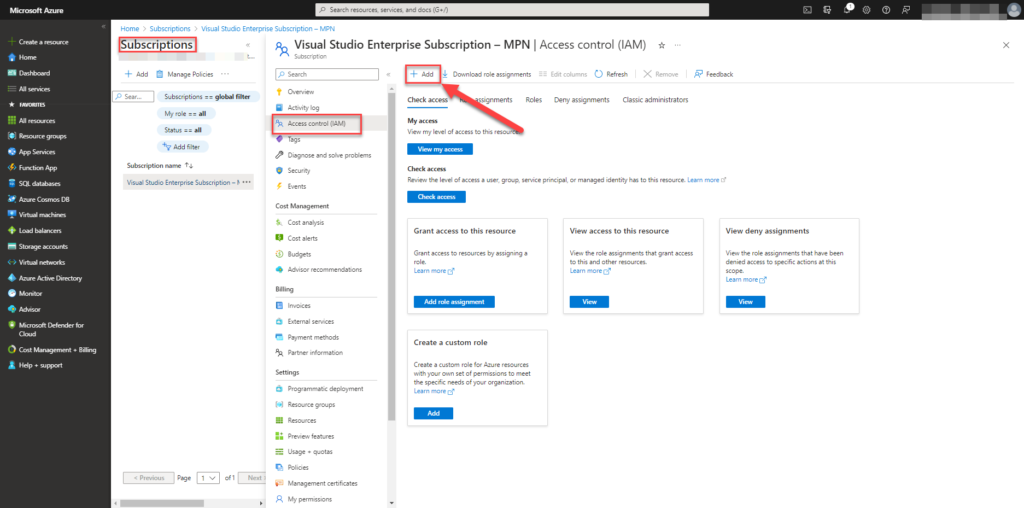
Select your subscription and click Access control (IAM). Select Add to add permissions.
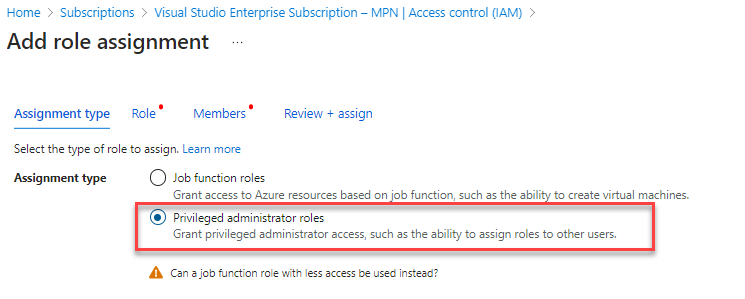
Select Privileged administrator roles and click Role
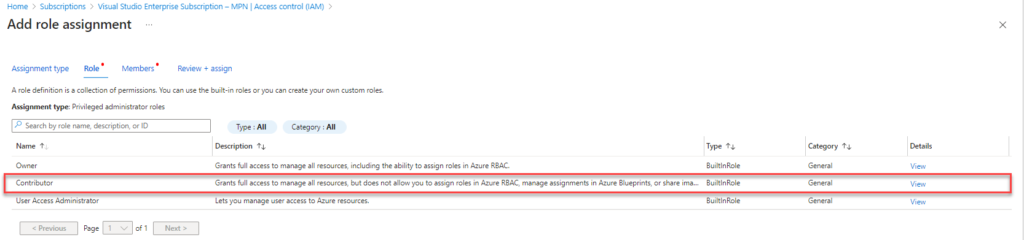
Select Contributor and click Members
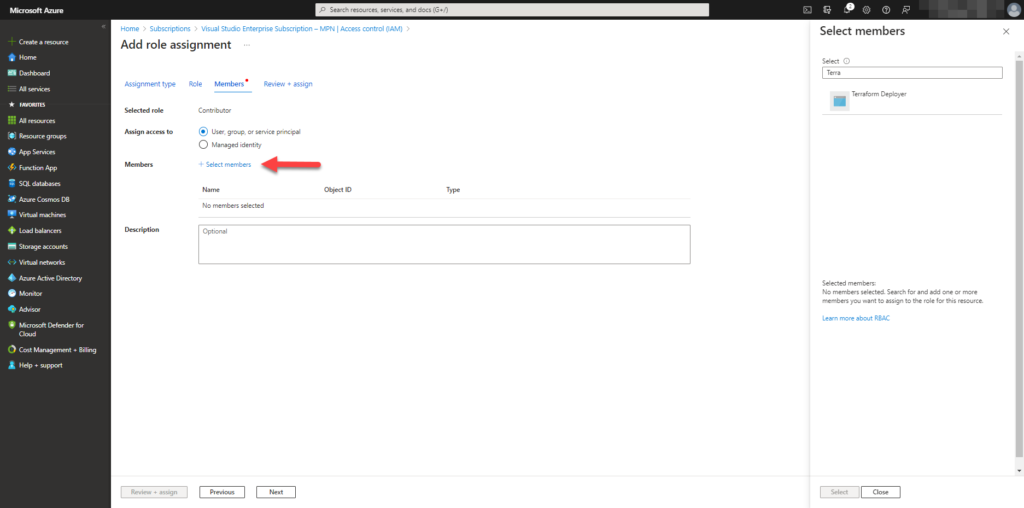
Select Select Members and search for you app registration which you created at the first step. In this case I named the app Terraform deployer.
Now we have given permissions to the app on subscription level, we need to write down some information:
- subscriptionId
- applicationId (clientId)
- tenantId
- clientsecret
Security group for users that will connect
Create a User group for Users that will be able to sign in to the Azure Virtual Desktop
Browse to Azure Active Directory groups and create a new group and add the users
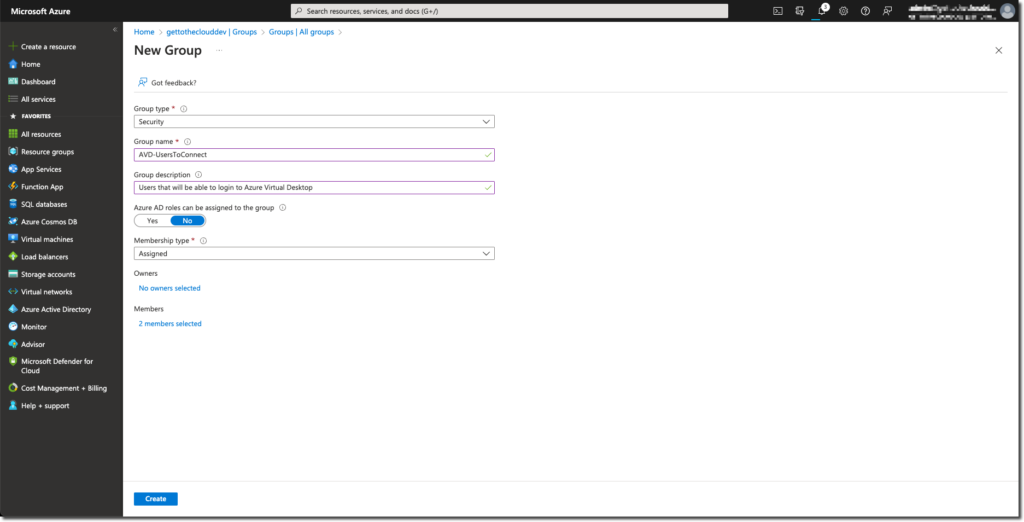
Resource group
Of course it is possible to create a resource group with Terraform. But in this example we create it manually in Microsoft Azure.
Browse to Resource groups – Microsoft Azure and click Create and assign the correct location for the resource group. After creation you need to apply some permissions to the resource group.
Permissions
You need to assign the just created group permissions to login to the Virtual Machines that will be created. Because there is a possibility that you create a large amount of machines, we are setting the permissions for the group on the Resource group.
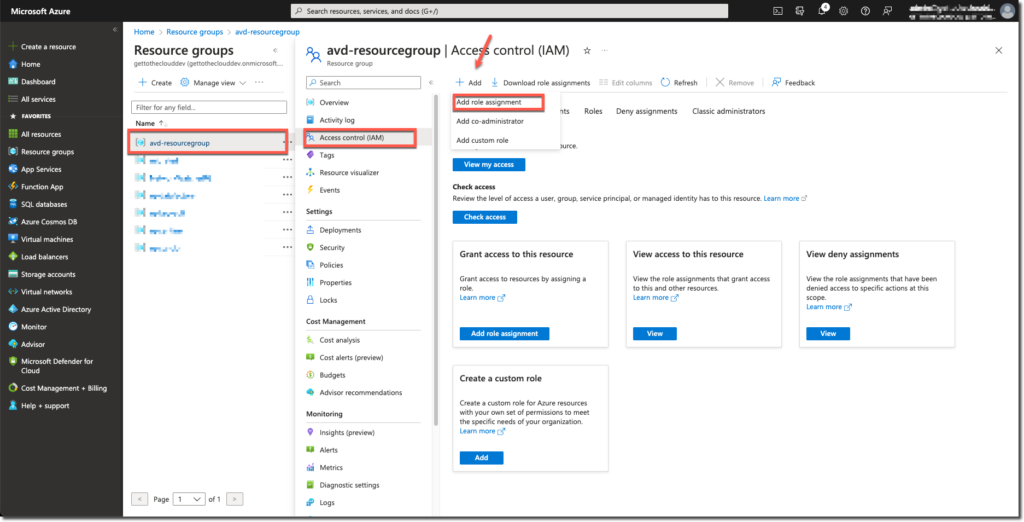
Browse to the Resource group and select Access control (IAM), click Add and choose for Add role assignment
Select the assignment type: Job function roles
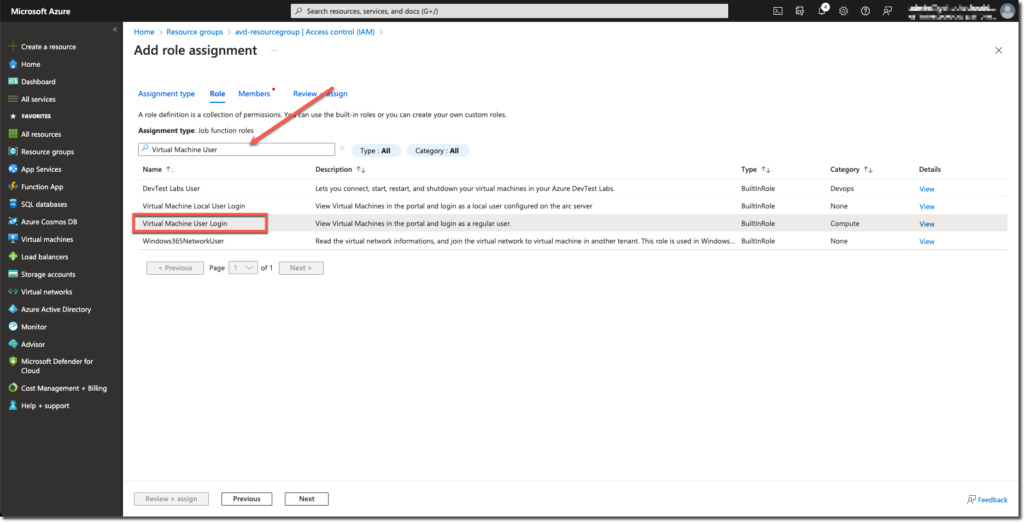
Search for Virtual Machine User Login and select that role
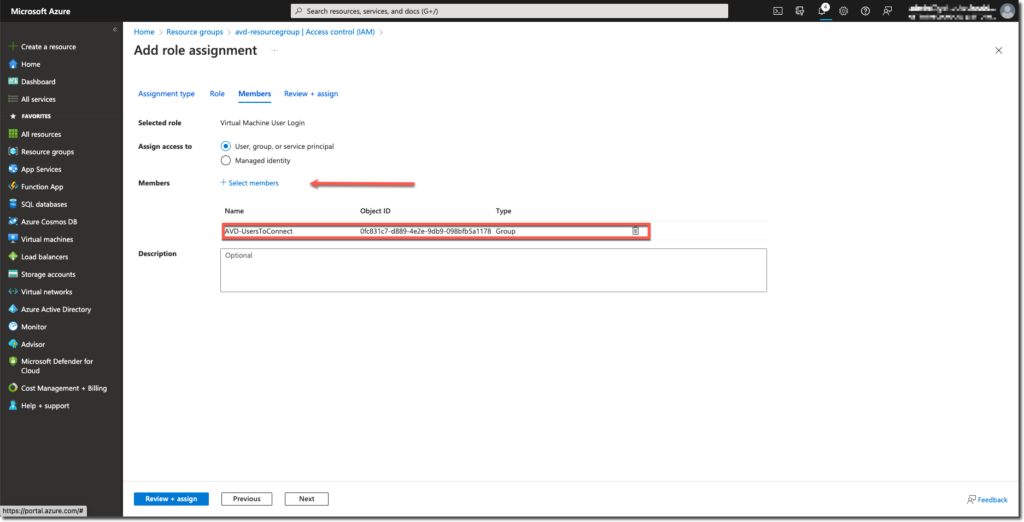
Add the group created before with the users that must connect to the Azure Virtual Desktop and click review + assign
Terraform files
To keep things clear, we create multiple terraform files:
- providers.tf
Will hold the azure app registration information - deploy.tf
Will deploy the virtual network and avd hostpool, workspace and application group - results.tf
Will display the results of variables - variables.tf
The only file that needs to be edited
providers.tf
This file will hold the app registration information. This will be different for each environment and is not necessary needed to be called providers.tf. It can have also the name of your environment so you can reuse it.
provider "azurerm" {
  subscription_id = "your_subscription_id"
  client_id       = "your_client_id"
  client_secret   = "your_client_secret"
  tenant_id       = "your_tenant_id"
  features {}
}
deploy.tf
This file will hold the Azure Virtual Desktop resources that needs to be created.
# Create AVD workspace
resource "azurerm_virtual_desktop_workspace" "workspace" {
  name                = var.workspace
  resource_group_name = var.rg_name
  location            = var.resource_group_location
  friendly_name       = "${var.prefix} Workspace"
  description         = "${var.prefix} Workspace"
}

# Create AVD host pool
resource "azurerm_virtual_desktop_host_pool" "hostpool" {
  resource_group_name      = var.rg_name
  location                 = var.resource_group_location
  name                     = var.hostpool
  friendly_name            = var.hostpool
  validate_environment     = true
  custom_rdp_properties    = "targetisaadjoined:i:1;audiocapturemode:i:1;audiomode:i:0;"
  description              = "${var.prefix} HostPool"
  type                     = "Pooled"
  maximum_sessions_allowed = 16
  load_balancer_type       = "DepthFirst" #[BreadthFirst DepthFirst]
}

resource "azurerm_virtual_desktop_host_pool_registration_info" "registrationinfo" {
  hostpool_id     = azurerm_virtual_desktop_host_pool.hostpool.id
  expiration_date = var.rfc3339
}

# Create AVD DAG
resource "azurerm_virtual_desktop_application_group" "dag" {
  resource_group_name = var.rg_name
  host_pool_id        = azurerm_virtual_desktop_host_pool.hostpool.id
  location            = var.resource_group_location
  type                = "Desktop"
  name                = "${var.prefix}-dag"
  friendly_name       = "Desktop AppGroup"
  description         = "AVD application group"
  depends_on          = [azurerm_virtual_desktop_host_pool.hostpool, azurerm_virtual_desktop_workspace.workspace]
}

# Associate Workspace and DAG
resource "azurerm_virtual_desktop_workspace_application_group_association" "ws-dag" {
  application_group_id = azurerm_virtual_desktop_application_group.dag.id
  workspace_id         = azurerm_virtual_desktop_workspace.workspace.id
}
results.tf
At the end of the execution will these lines be printed in the console to confirm the information from the variables
output "azure_virtual_desktop_compute_resource_group" {
  description = "Name of the Resource group in which to deploy session host"
  value       = var.rg_name
}

output "azure_virtual_desktop_host_pool" {
  description = "Name of the Azure Virtual Desktop host pool"
  value       = azurerm_virtual_desktop_host_pool.hostpool.name
}

output "azurerm_virtual_desktop_application_group" {
  description = "Name of the Azure Virtual Desktop DAG"
  value       = azurerm_virtual_desktop_application_group.dag.name
}

output "azurerm_virtual_desktop_workspace" {
  description = "Name of the Azure Virtual Desktop workspace"
  value       = azurerm_virtual_desktop_workspace.workspace.name
}

output "location" {
  description = "The Azure region"
  value       = var.resource_group_location
}
variables.tf
Maybe the most important file. The variables, the settings, the only file that needs to be edited, beside providers.tf, to deploy in the environment
variable "resource_group_location" {
default     = "westeurope"
description = "Location of the resource group."
}

variable "rg_name" {
type        = string
default     = "CHANGE TO YOUR OWN RESOURCE GROUP NAME" # Change with your own value which you created at the first stap
description = "Name of the Resource group in which to deploy service objects"
}

variable "workspace" {
type        = string
description = "Name of the Azure Virtual Desktop workspace"
default     = "AVD-Workspace"
}

variable "hostpool" {
type        = string
description = "Name of the Azure Virtual Desktop host pool"
default     = "AVD-Hostpool"
}

variable "rfc3339" {
type        = string
default     = "2023-06-10T12:43:13Z" #Change the date to maximum 30 days in advance
description = "Registration token expiration"
}

variable "prefix" {
type        = string
default     = "AVD"
description = "Prefix of the name of the AVD machine(s)"
}

variable "node_address_space" {
  default = ["10.0.0.0/16"]
}

#variable for network range
variable "node_address_prefix" {
  default = "10.0.1.0/24"
}

variable "virtualnetwork" {
    type = string
  default = "AVD-VirtualNetwork"
}
variable "subnet_range" {
  default = ["10.0.1.0/24"]

}
variable "subnet_name" {
  default = "AVD-Subnet"
  type = string
}
There are two points to be noticed:
# Resource group name is hard coded. This is created above here so this name needs to be changed
# rfc3339 expiration token date. This needs to be changed to a value with the maximum of 30 days from the current time
After deployment
After the deployment you need to add the User group (created before) added to the Application group assignment. Users needs to be added to the group and Virtual Machines needs to be deployed. (this will be added later)
Code can be found at the github page: GetToThe-Cloud/Website (github.com)