Azure Local | HomeLab – Updating Images
 Alex ter Neuzen
In a previous post, https://www.gettothe.cloud/azure-local-bicep-marketplace-images/, I explained how to retrieve images from the Azure Marketplace when working in an Azure Local environment. In that example, I used Azure Bicep to automate the process; however, the same actions can also be performed directly through the Azure portal. This gives users the flexibility to choose whichever method best fits their workflow, whether they prefer infrastructure-as-code or a graphical interface.
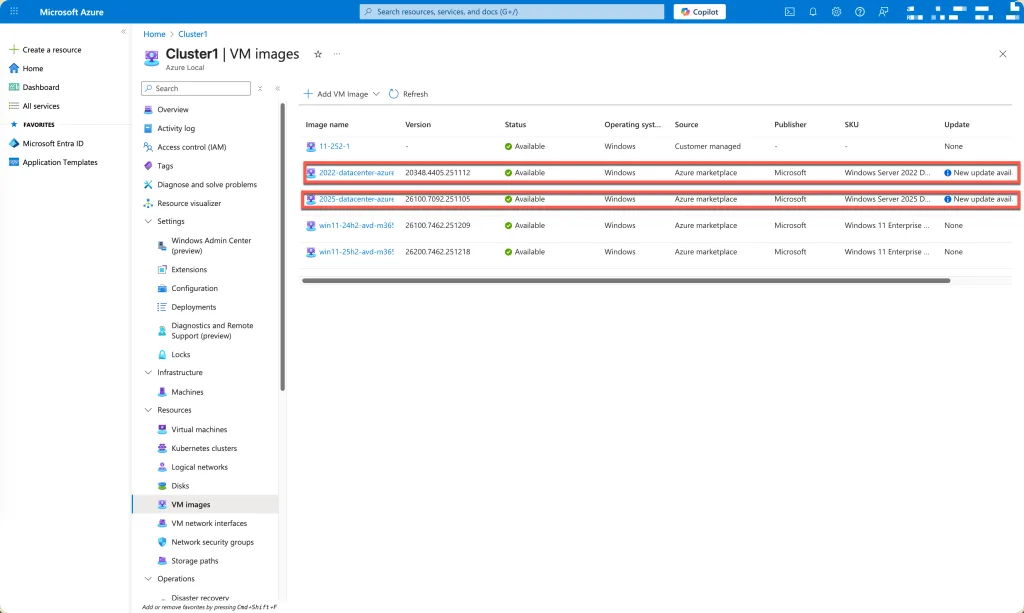
As you can see, two of the images—Windows Server 2022 and Windows Server 2025—have an update available. This notification is generated by the Azure portal. The image version (as defined in the earlier Bicep example) has become outdated, and a newer build is now available.
These updated images typically include the latest Windows patches, security updates, and general improvements. To ensure that your deployments remain secure, compliant, and up to date, it is recommended to update the referenced image version accordingly. This can be done either by adjusting the image version in your Bicep configuration or by selecting the updated version directly through the Azure portal.
Update via portal
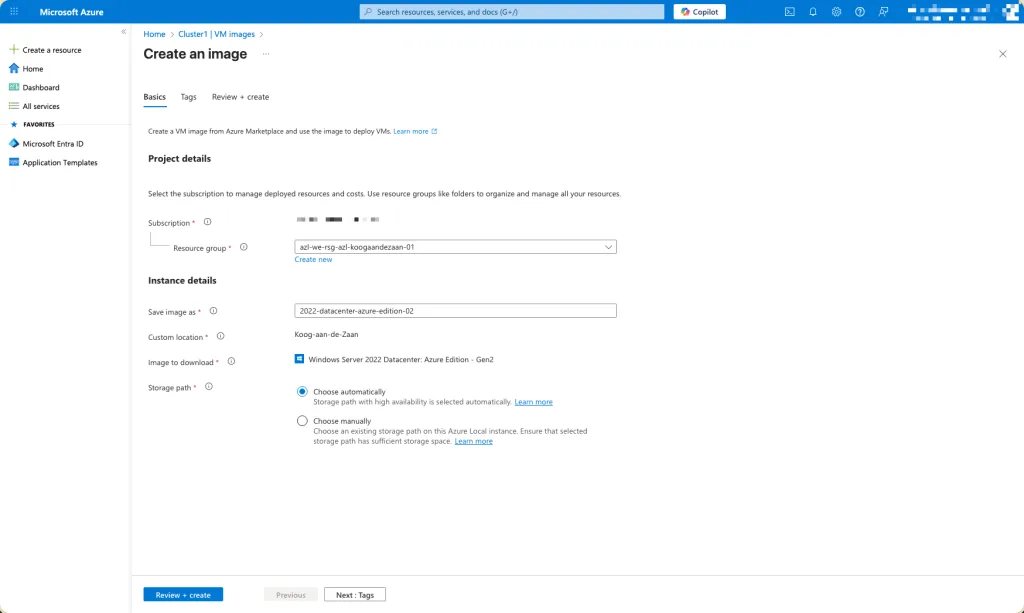
When you click the “New update available” link in the Azure Portal, you are taken directly to the section where you can review and update the image version. Updating the image through the portal is straightforward:
- In the Azure Portal, navigate to your VM Image overview.
- Locate the image that shows the “New update available” notification.
- Click the “New update available” link.
- Save the changes. New deployments will automatically use the updated image version.
This method is especially useful if you prefer working through the portal rather than managing versions manually through infrastructure-as-code.
Update via code
In our current Bicep parameter file, we have a hardcoded image version defined for the selected SKU. This means that each time Microsoft releases a new image update, such as the ones indicated by the “New update available” banner in the Azure portal, the deployment continues to reference the old version unless we manually change it.
To make the deployment automatically use the newest image published in the Azure Marketplace, we need to modify this parameter and replace the fixed version number with the value 'latest'. Azure will then always resolve the most recent version available at deployment time.
Example before (hardcoded)
  {
    parImageName: 'win11-24h2-avd-m365-01' // e.g. name of the marketplace image as you want to identify it
    parResourceGroupName: '' // e.g. resource group of cluster
    parSubscriptionId: subscriptionId
    parExtendedLocationName: '' // e.g. extended location of cluster
    parOsType: 'Windows' // e.g. 'Windows' or 'Linux'
    parPublisherId: 'microsoftwindowsdesktop' // e.g. 'microsoftwindowsdesktop' for Windows 11 AVD images
    parOfferId: 'office-365' // e.g. 'office-365' for Windows 11 AVD images
    parSku: 'win11-24h2-avd-m365' // e.g. 'win11-24h2-avd-m365' for Windows 11 AVD images
    parSkuVersion: '26100.7462.251209' // e.g. specific version of the image
    parHyperVGeneration: 'V2' // e.g. 'V1' or 'V2'
    parTags: {} // e.g. {
      //   environment: 'demo'
      //   project: 'get-to-the-cloud'
      // }
}Example after (Automatic latest version)
  {
    parImageName: 'win11-24h2-avd-m365-01' // e.g. name of the marketplace image as you want to identify it
    parResourceGroupName: '' // e.g. resource group of cluster
    parSubscriptionId: subscriptionId
    parExtendedLocationName: '' // e.g. extended location of cluster
    parOsType: 'Windows' // e.g. 'Windows' or 'Linux'
    parPublisherId: 'microsoftwindowsdesktop' // e.g. 'microsoftwindowsdesktop' for Windows 11 AVD images
    parOfferId: 'office-365' // e.g. 'office-365' for Windows 11 AVD images
    parSku: 'win11-24h2-avd-m365' // e.g. 'win11-24h2-avd-m365' for Windows 11 AVD images
    parSkuVersion: 'latest' // e.g. specific version of the image
    parHyperVGeneration: 'V2' // e.g. 'V1' or 'V2'
    parTags: {} // e.g. {
      //   environment: 'demo'
      //   project: 'get-to-the-cloud'
      // }
  }